Verified Excel workbook
Free Construction Warranty Tracker Workbook in Excel 2026
Track post-handover construction defects in Excel with a free 2026 workbook for assignments, dates, aging, open items, and closure follow-up.
Download this free Construction Warranty and Defect Tracker Workbook in Excel for a practical register of post-handover defect reports, assignments, follow-up dates, evidence references, and closure activity. It is built for teams that need operational follow-up on user-reported warranty-related items without drafting warranty terms.
Enter one item per row with its location, description, assigned responsible party, status, and relevant dates. The workbook then calculates age and days overdue and presents open-item, aging, responsibility, and closure outputs. It supports tracking work after handover; it does not determine warranty coverage, liability, notice requirements, or legal deadlines.
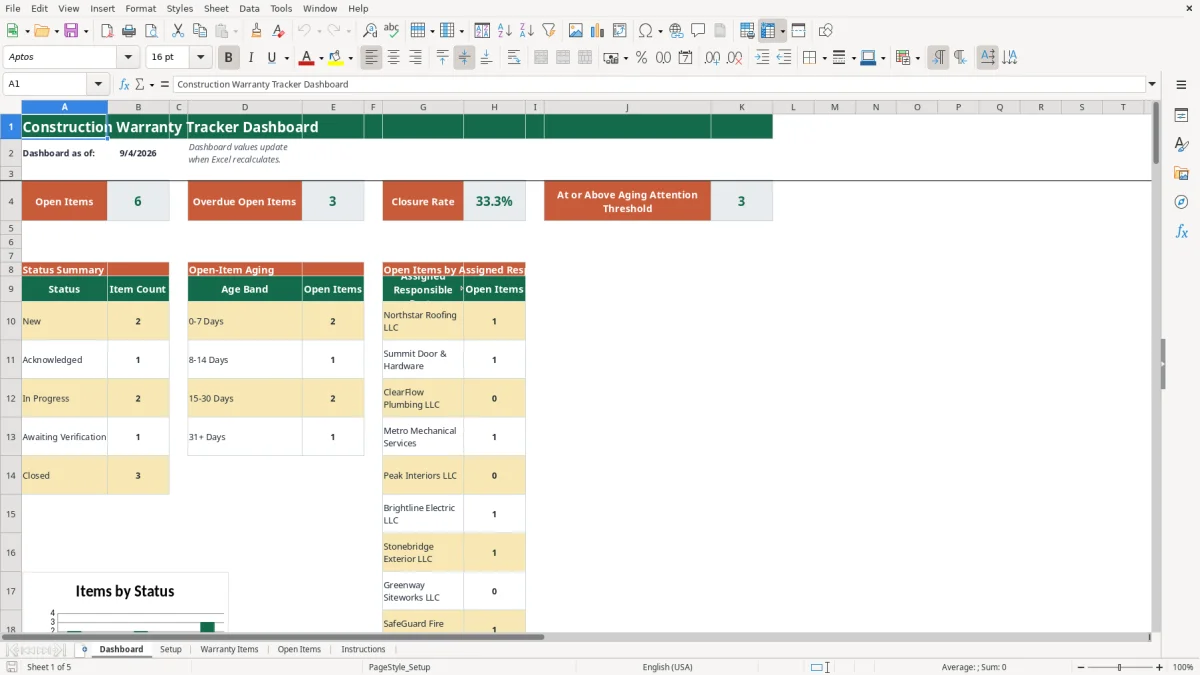
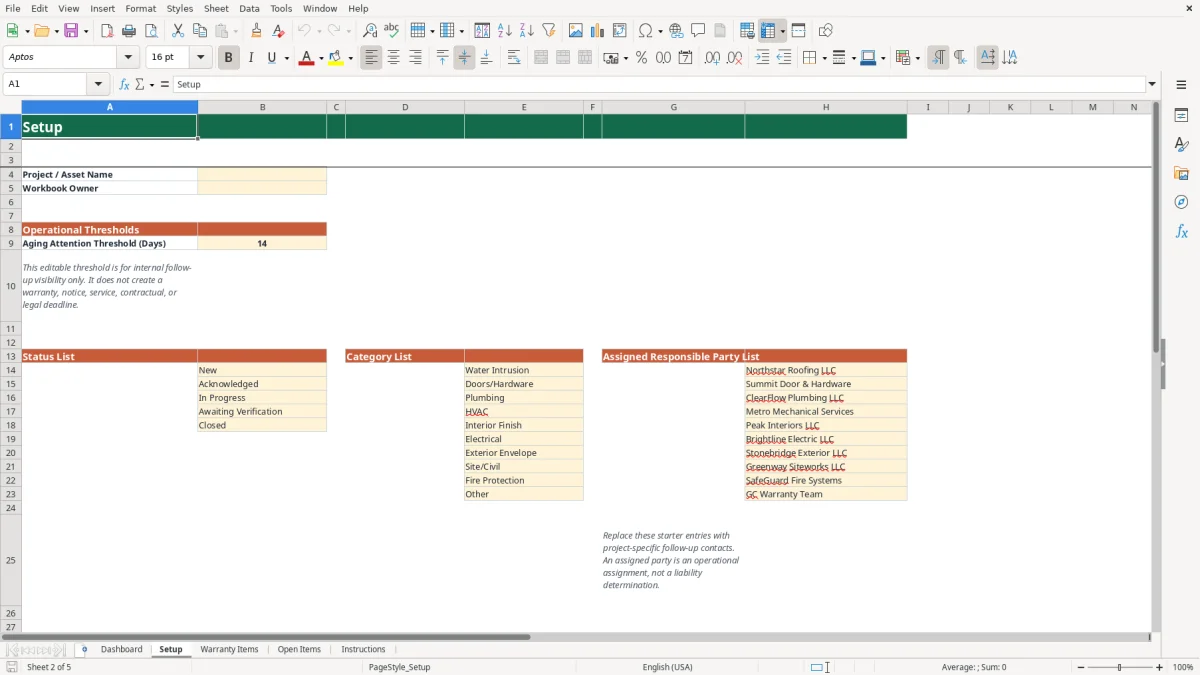
Final workbook preview
Four views generated from the verified XLSX.
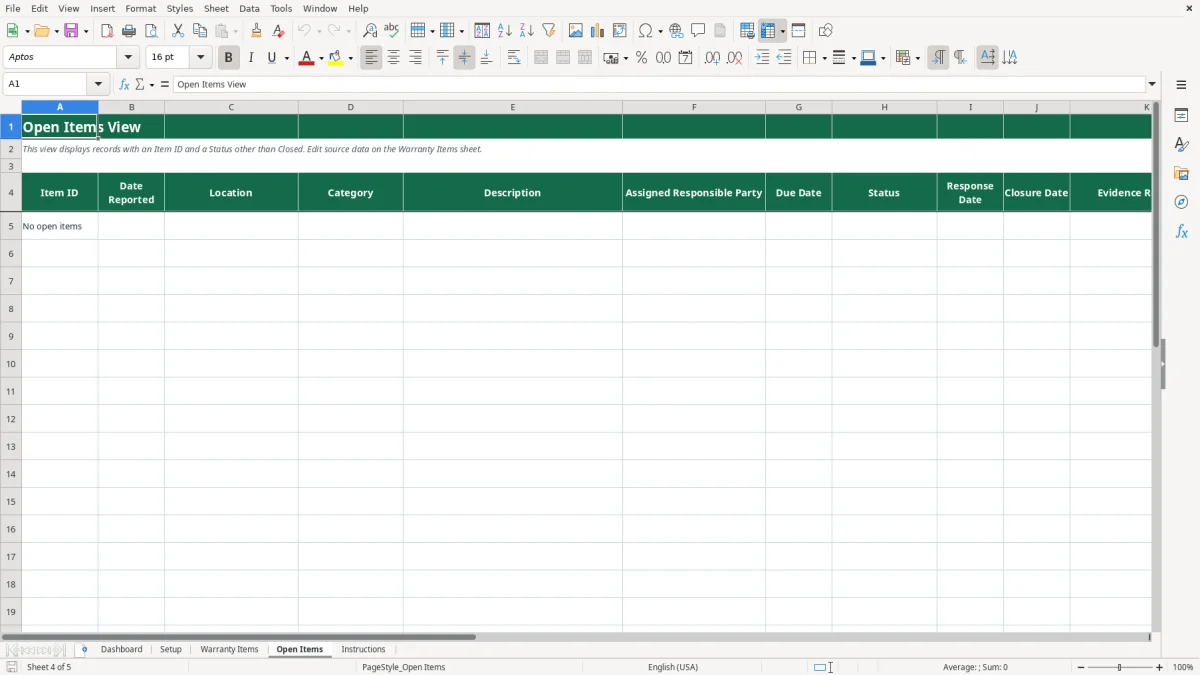
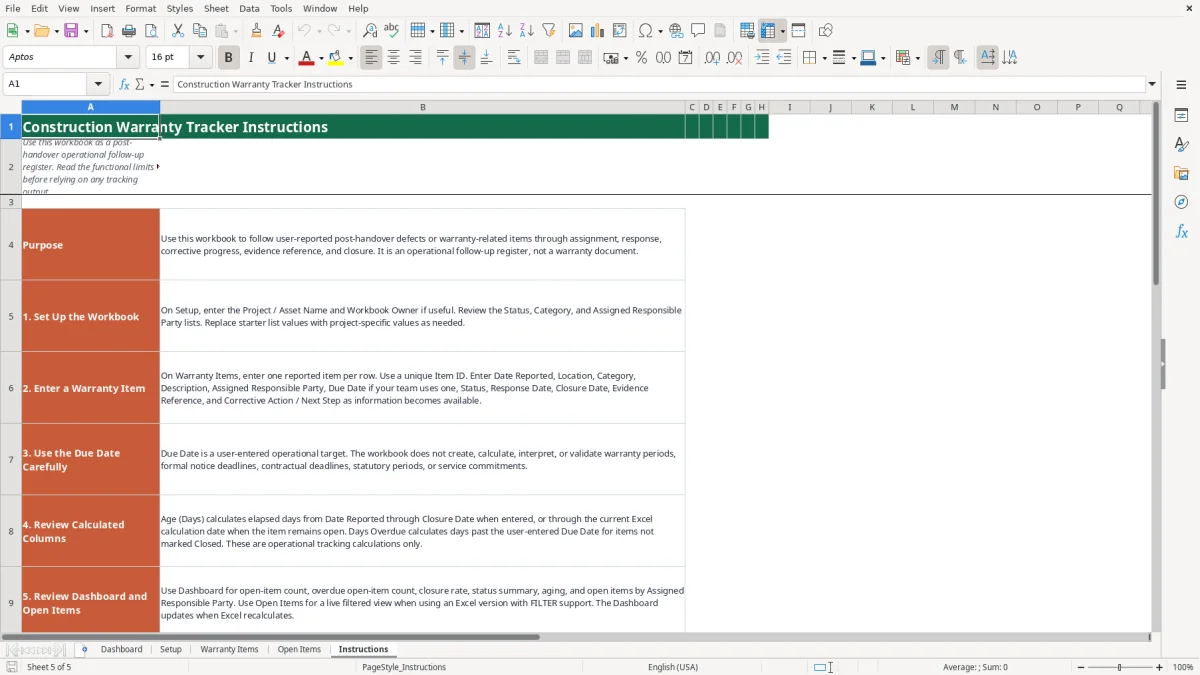
How to use this workbook
Set project lists and the attention threshold
On Setup, enter a Project / Asset Name and Workbook Owner if those identifiers are useful to your team. Review and replace the starter Status, Category, and Assigned Responsible Party entries with project-specific values. Setup also includes an editable Aging Attention Threshold in days. This is an internal follow-up threshold, not a warranty, contractual, notice, service, or legal deadline.
Log one reported item per row
Use Warranty Items for the source record. The register has 100 prepared operational rows, from row 8 through row 107. Enter a unique Item ID, Date Reported, Location, Category, Description, Assigned Responsible Party, Due Date, Status, Response Date, Closure Date, Evidence Reference, and Corrective Action / Next Step as applicable. Date fields are displayed in m/d/Y format. The Due Date is a user-entered operational target.
Review calculated timing fields
Age (Days) measures elapsed days from Date Reported through Closure Date when a closure date is entered, or through Excel’s current calculation date while the record remains open. Days Overdue applies to open records with an Item ID and Due Date, returning the elapsed time beyond that user-entered date or zero when the date has not passed. These are calculated outputs, not coverage or deadline determinations.
Use the views for follow-up
Update source data on Warranty Items, then review Open Items for records with an Item ID and a status other than Closed. Use Dashboard for counts and summaries. Dashboard values update when Excel recalculates, so confirm that calculation is current before using the figures in a coordination meeting or follow-up review.
Benefits
Maintain a single register for reported post-handover defects and follow-up actions.
Assign each item to an operationally responsible party and track response progress.
Review open work, aging bands, overdue items, and closure activity in one workbook.
Reference supporting photos, field notes, tickets, work orders, or other evidence.
Features
Five worksheets: Dashboard, Setup, Warranty Items, Open Items, and Instructions.
A Warranty Items register with input fields, calculated age, and calculated days overdue.
An Open Items view that uses a FILTER formula for records not marked Closed.
A Dashboard with status, aging, assigned-party summaries, and two supporting charts.
Construction warranty tracking after handover
This construction warranty tracker Excel workbook is scoped for post-handover operational follow-up. It helps a project team record a reported defect, identify a location and category, assign a responsible party for follow-up, capture a response, reference evidence, and record closure status. That scope differs from a punch list, which is used for pre-handover completion items. The register is intended to organize follow-up activity after a report is received, not to create warranty language or decide whether a reported condition is covered.
Inputs and calculated follow-up metrics
The user-controlled fields include Item ID, Date Reported, Location, Category, Description, Assigned Responsible Party, Due Date, Status, Response Date, Closure Date, Evidence Reference, and Corrective Action / Next Step. Category, assigned party, and status use lists maintained on Setup. Each Item ID is checked for uniqueness within the prepared register.
The calculated columns are Age (Days) and Days Overdue. Age is based on the reported date and either the closure date or the current Excel calculation date. Days Overdue is based on an open item’s user-entered due date. Neither calculation establishes a contractual period, statutory period, or formal notice timing.
Dashboard and open-item review
The Dashboard reports open items, overdue open items, closure rate, and the count of open records at or above the aging attention threshold set on Setup. It also provides a status summary, open-item aging bands of 0-7, 8-14, 15-30, and 31+ days, plus open-item counts by assigned responsible party. The closure rate divides records marked Closed by records with an Item ID.
Open Items provides a separate live view of source records that are not marked Closed. Edit the source record on Warranty Items rather than attempting to revise the displayed results in Open Items.
Boundaries for warranty administration
Use the workbook as a management record, not as a warranty interpretation tool. Coverage, correction obligations, notice procedures, and applicable deadlines depend on the project documents and applicable law. The workbook does not determine coverage, establish legal liability, calculate contractual or statutory periods, make service promises, or replace any required notice.
Store source records and supporting files under your project’s own document-control practices. An evidence reference can point to a photo set, file path, link, field note, meeting note, service ticket, or work order, but the workbook does not store or manage the underlying source material.
Frequently asked questions
Can this workbook determine whether a defect is covered by warranty?
No. It tracks a user-reported post-handover item and related operational actions. Coverage and deadlines depend on project documents and applicable law. The workbook does not interpret warranties, establish liability, or generate warranty language.
What does Days Overdue mean in this workbook?
Days Overdue is calculated for an open record with an Item ID and a user-entered Due Date. It shows zero until the current Excel calculation date is later than that due date, then shows elapsed days beyond it. The due date is an operational target, not a formal deadline.
Where should the team make changes to an open item?
Make source-data changes on Warranty Items. The Open Items sheet displays records with an Item ID and a Status other than Closed through a FILTER formula. Update the status to Closed and enter a Closure Date when your team records closure.
How many records are prepared in the register?
Warranty Items is prepared for 100 operational rows, rows 8 through 107. If your team expands the register, extend the Excel table, calculated formulas, data validations, conditional formatting, and related Dashboard ranges so the added records are included consistently.
Workbook file
Ready to put this workbook to work?
Download the verified XLSX, keep an untouched copy, and adapt a working copy to your project.
Download verified XLSXEditorial team
About the authors

Paige Sutton Vale
Workbook Systems Editor
Paige turns construction planning, cost-control, field, and closeout workflows into clear Excel workbook guides. She focuses on inputs, calculations, outputs, and practical limits.

Maren Ellsworth Keel
Workbook QA Reviewer
Maren reviews formula behavior, field labels, project-controls terminology, and workbook instructions so each resource stays within its documented scope.
Continue exploring