Verified Excel workbook
Free Construction Project Handover Workbook in Excel 2026
Coordinate training, keys, access, custody references, acknowledgments, and open actions with this free 2026 construction handover workbook in Excel.
Download this free Construction Project Handover Workbook in Excel to coordinate training, keys and access, asset-custody references, recipient acknowledgments, and remaining actions. It provides a structured operational register for recording project-specific handover work through planned, completed, and acknowledged stages.
Use the workbook for operational handover coordination across the project team. It organizes activity records and calculated follow-up indicators without treating a spreadsheet entry as approval, acceptance, certification, or a replacement for contractual handover procedures.
The workbook focuses on the people, access, asset, training, and action items that support operational readiness during project handover.
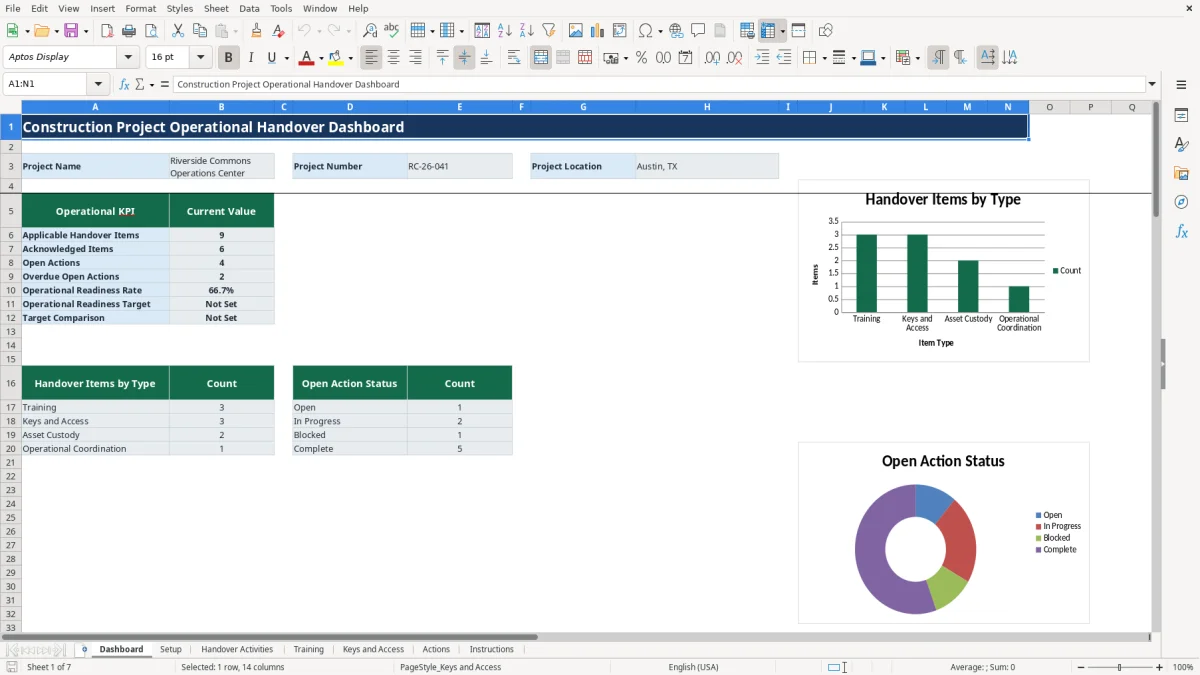
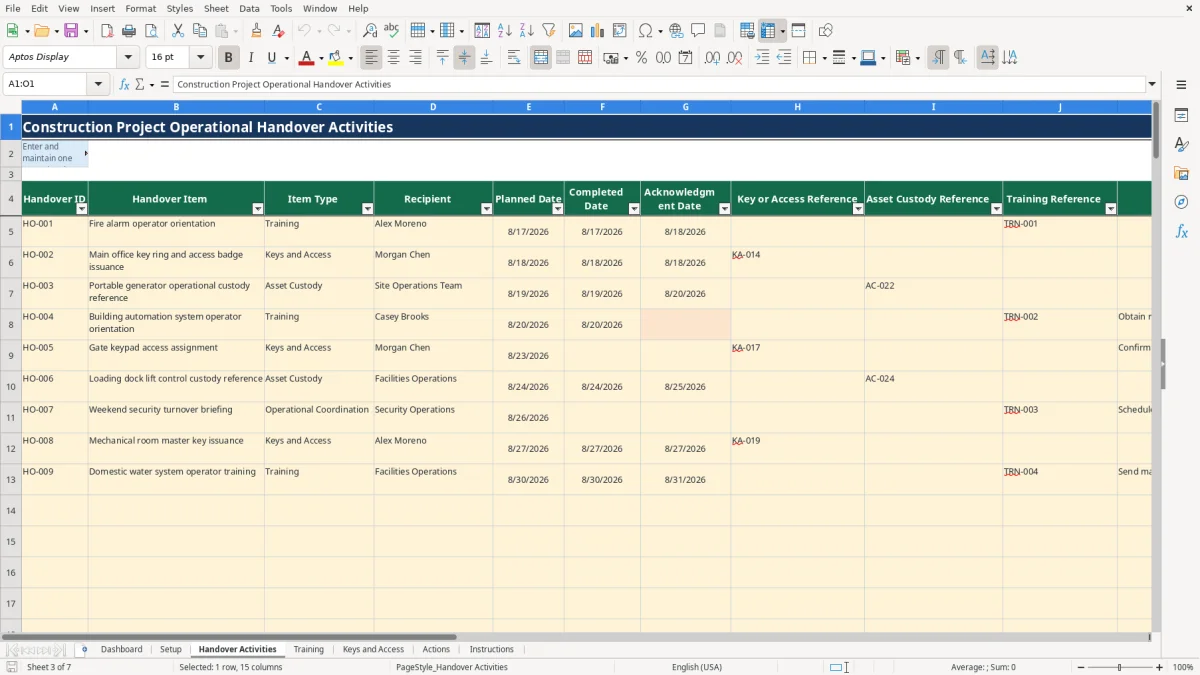
Final workbook preview
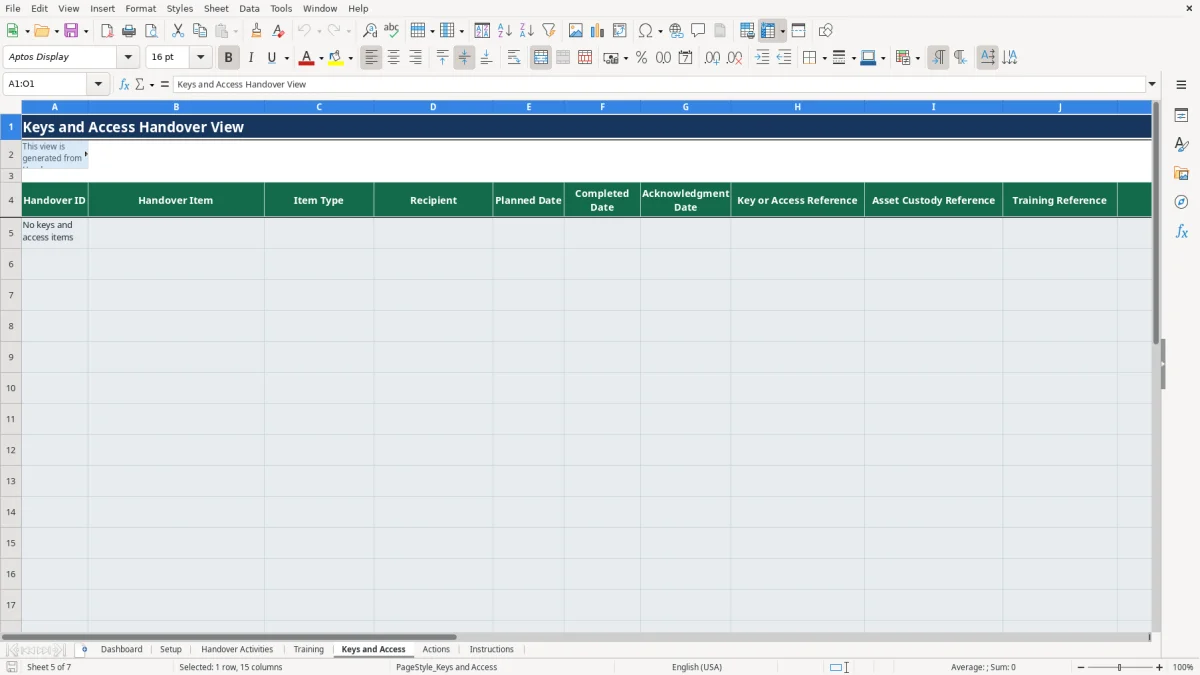
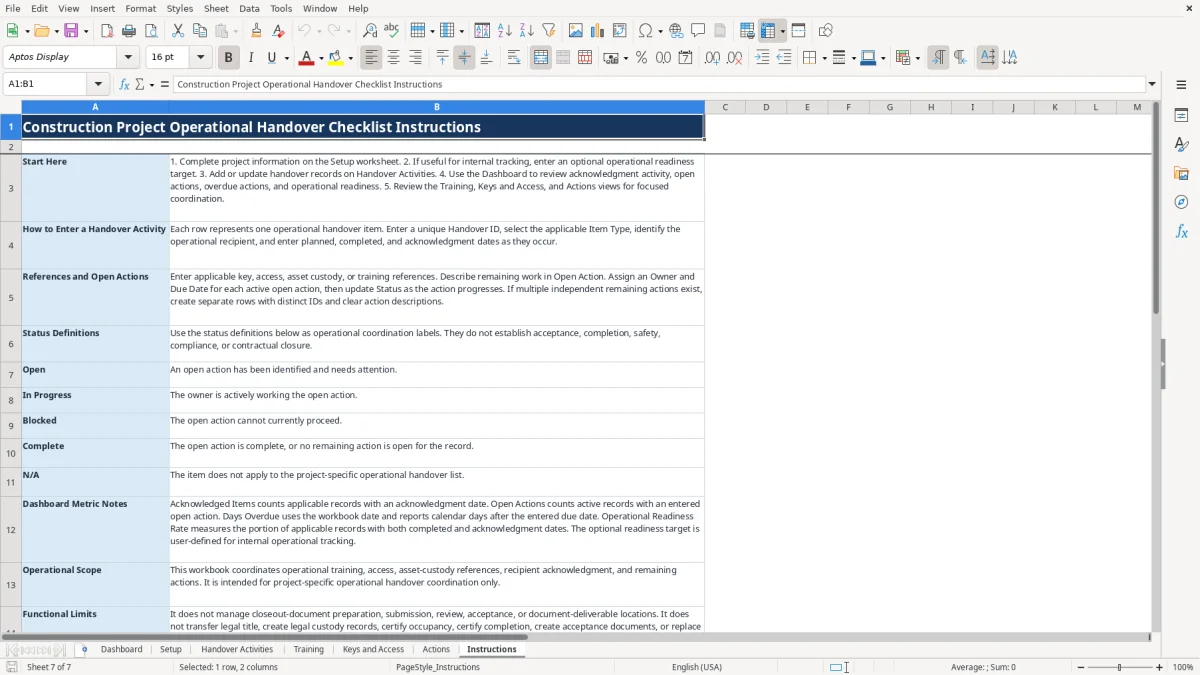
Four views generated from the verified XLSX.
How to use this workbook
Enter project information
Start on Setup and enter the project name, project number, project location, prepared-by name, and workbook update date. You may enter an optional operational readiness target from 0 to 1 for internal tracking. This target is user-defined and does not establish a completion, acceptance, contractual, or regulatory requirement.
Maintain handover activities
Use Handover Activities as the source register. Enter one operational handover item per row, including its ID, item type, recipient, planned date, completed date, acknowledgment date, references, open action, owner, due date, and status. Enter dates in m/d/Y format. The worksheet provides rows for up to 100 handover activity records.
Assign references and actions
Enter a key or access reference, asset custody reference, or training reference when applicable. When work remains, describe the open action, identify the owner, enter a due date, and maintain the status. Available status labels are Open, In Progress, Blocked, Complete, and N/A.
Review calculated results
Review the Dashboard for applicable items, acknowledged items, open actions, overdue open actions, readiness rate, and target comparison. Use the Training, Keys and Access, and Actions worksheets as generated review views. Update records on Handover Activities, not in the generated views.
Benefits
Keeps operational handover items, recipients, references, and follow-up work in one register.
Separates training and keys-and-access records into generated review views.
Shows active open actions and overdue calendar days for coordination review.
Tracks a user-defined readiness target without establishing formal acceptance.
Features
Seven worksheets: Dashboard, Setup, Handover Activities, Training, Keys and Access, Actions, and Instructions.
A 100-row source register for dates, recipients, references, actions, owners, and statuses.
Dashboard calculations for acknowledgments, open actions, overdue actions, and readiness rate.
Generated Training, Keys and Access, and Actions views with two Dashboard charts.
Operational Construction Handover Checklist
This Construction Project Handover Workbook in Excel is focused on training, keys and access, asset custody references, recipients, acknowledgments, and unresolved work. The Handover Activities worksheet records the item, recipient, planned and completed dates, acknowledgment date, applicable references, and current action status. This structure supports a consistent review of operational work that needs coordination across project and operations personnel.
Available item types are Training, Keys and Access, Asset Custody, and Operational Coordination. These categories support a practical turnover review of operational activities rather than a general closeout-document workflow.
Dashboard Calculations and User Inputs
The Dashboard calculates Applicable Handover Items from records with a handover item that are not marked N/A. Acknowledged Items counts applicable records with an acknowledgment date. Open Actions counts records with an entered open action that are not marked Complete or N/A.
Operational Readiness Rate is calculated from applicable records with both a completed date and an acknowledgment date. The readiness target is entered by the user on Setup, and the Dashboard compares the calculated rate with that target. The target is an internal tracking input, not an acceptance threshold.
Open Action and Overdue Tracking
For an active follow-up item, enter the remaining work in Open Action, assign an Owner, enter a Due Date, and maintain the Status. The Actions worksheet displays source records with an entered open action that are not marked Complete or N/A.
Days Overdue (Calendar Days) is a calculated output. It returns zero when there is no open action or due date, or when the status is Complete or N/A. Otherwise, it calculates calendar days past the due date using Excel's current date. It is a tracking measure, not a determination of a project deadline.
Training and Access Review Views
The Training worksheet displays source records classified as Training, while Keys and Access displays records classified as Keys and Access. These worksheets are generated from Handover Activities and are intended for review. Update the source records on Handover Activities so the related view can reflect current information.
The generated view sheets use the Excel FILTER function and require a version of Microsoft Excel that supports dynamic arrays. The workbook does not validate reference numbers, verify access permissions, confirm training attendance, issue reminders, or store source documents.
Workbook Scope and Functional Limits
This workbook coordinates project-specific operational handover activities. It does not manage closeout-document preparation, submission, review, acceptance, or document-deliverable locations. It also does not transfer legal title, certify occupancy or completion, create acceptance documents, or replace contractual handover procedures.
An acknowledgment date is an operational tracking entry only. It is not a legal signature, legal acceptance, contractual acceptance, or formal transfer of responsibility. Use project-specific processes for records and actions outside this workbook's coordination scope.
Frequently asked questions
What fields can users enter for each handover item?
Users can enter a handover ID, handover item, item type, recipient, planned date, completed date, acknowledgment date, key or access reference, asset custody reference, training reference, open action, owner, due date, and status. Project information and the optional readiness target are entered on Setup.
How is operational readiness rate calculated?
The rate is calculated as applicable handover records with both a completed date and an acknowledgment date divided by all applicable records. Records marked N/A are excluded. This calculated output supports internal coordination and does not establish completion or acceptance.
Does an acknowledgment date mean work was formally accepted?
No. An acknowledgment date is not a legal signature, legal or contractual acceptance, formal custody transfer, or certification. It records an operational acknowledgment date for tracking purposes. Project-specific procedures remain necessary for any formal handover action.
Can the Training, Keys and Access, and Actions sheets be edited?
These are generated review views based on Handover Activities. Update the source record on Handover Activities so the view can reflect current information. The views rely on the Excel FILTER function and require dynamic-array support.
What does the workbook not do?
The workbook does not manage closeout-document transmittals, document acceptance, legal title transfer, completion or occupancy certification, reminders, source-document storage, access-permission verification, training-attendance verification, or compliance determinations. Its function is limited to operational handover coordination.
Workbook file
Ready to put this workbook to work?
Download the verified XLSX, keep an untouched copy, and adapt a working copy to your project.
Download verified XLSXEditorial team
About the authors

Paige Sutton Vale
Workbook Systems Editor
Paige turns construction planning, cost-control, field, and closeout workflows into clear Excel workbook guides. She focuses on inputs, calculations, outputs, and practical limits.

Maren Ellsworth Keel
Workbook QA Reviewer
Maren reviews formula behavior, field labels, project-controls terminology, and workbook instructions so each resource stays within its documented scope.
Continue exploring