Verified Excel workbook
Free 2026 Construction Closeout Workbook in Excel
Track user-defined construction closeout deliverables in Excel with due dates, review status, acceptance dates, aging, and dashboard counts.
Download this free construction project closeout checklist workbook in Excel to track individual, user-defined deliverables through submission, review, and recorded acceptance. It gives the project team one register for manuals, records, training references, certificates, warranties, test reports, and other closeout packages identified in project documents.
Use the workbook as an operational register, not a contract checklist. Enter each requirement reference, responsible party, due date, and final location from the applicable project records. The workbook calculates current open and accepted counts, calendar days overdue, aging status, follow-up flags, and a completion rate based on entered Deliverable IDs and Accepted Dates.
Final workbook preview
Four views generated from the verified XLSX.
How to use this workbook
Set up project information and lists
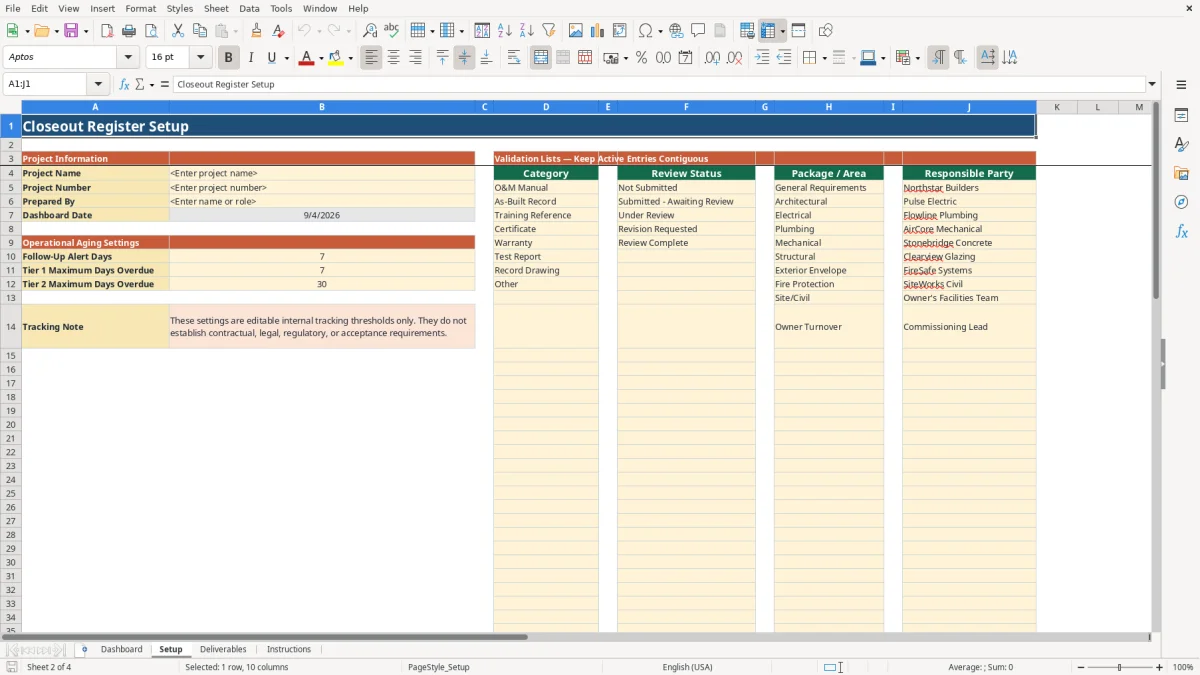
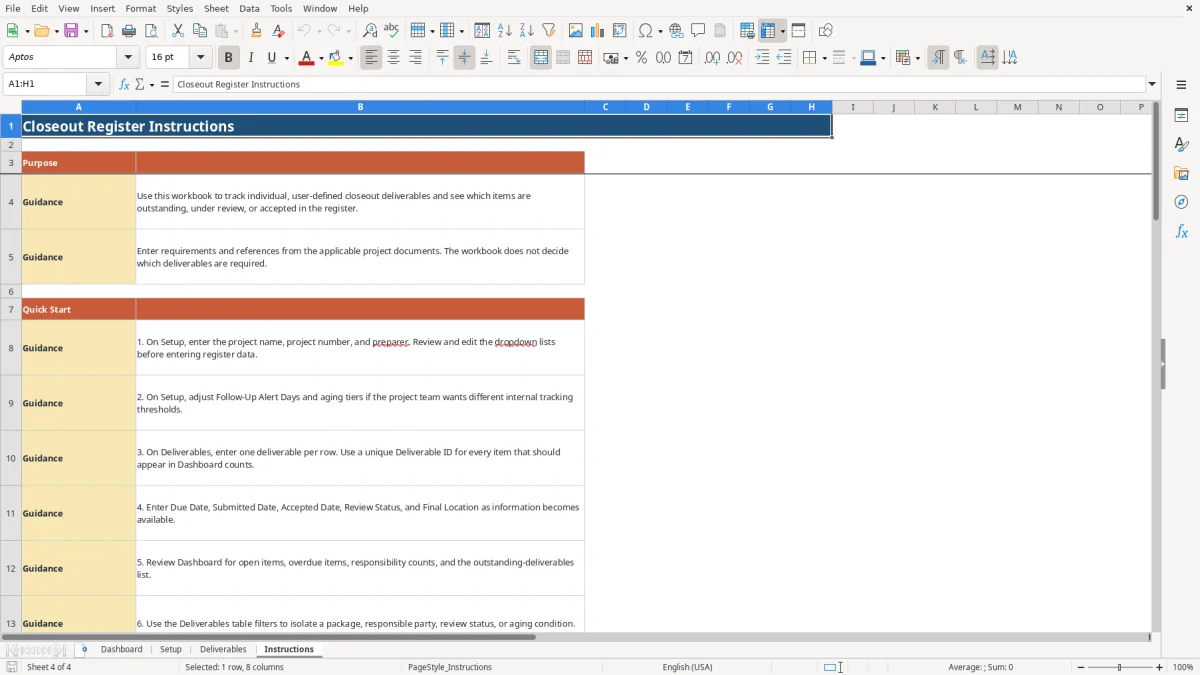
On Setup, enter the project name, project number, and preparer. Review the active Category, Review Status, Package / Area, and Responsible Party lists before entering register data. Keep active list entries contiguous when adding project-specific choices.
Set internal tracking thresholds
Enter the Dashboard Date, then adjust Follow-Up Alert Days and the two aging thresholds if needed. These are internal tracking settings. They do not establish a contract deadline or acceptance standard.
Enter one deliverable per row
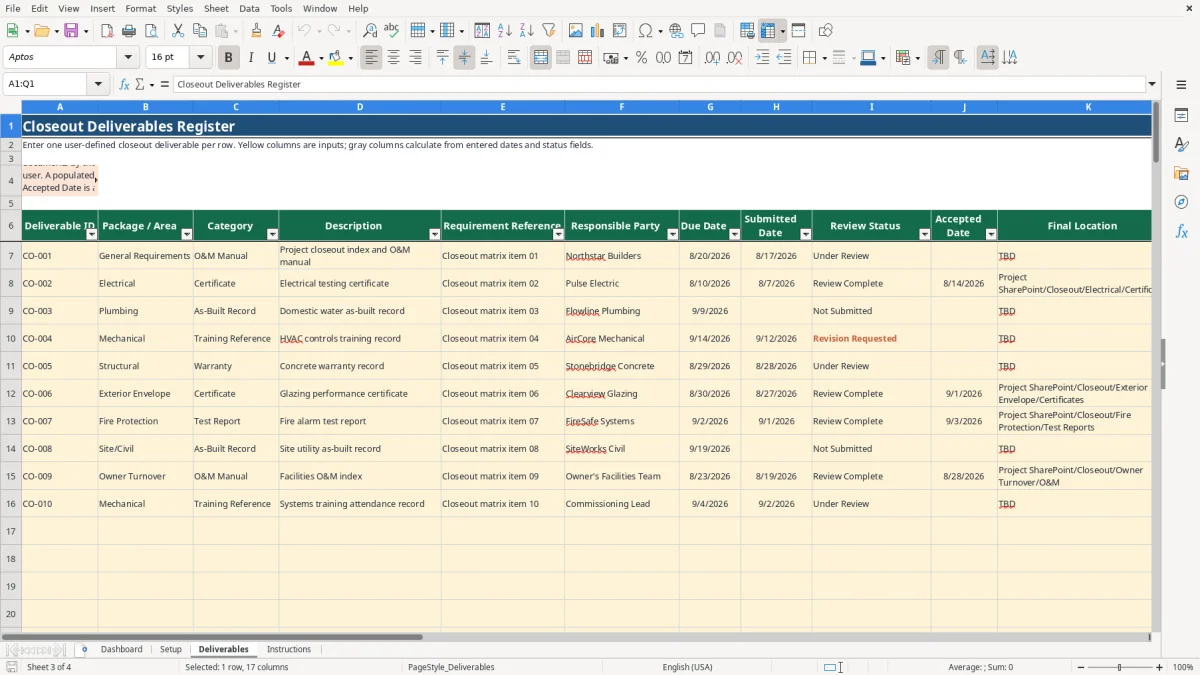
On Deliverables, use a unique Deliverable ID for every item that should be included in Dashboard counts. Enter Package / Area, Category, Description, Requirement Reference, Responsible Party, Due Date, Submitted Date, Review Status, Accepted Date, Final Location, and Notes as available. Dates display in m/d/yyyy format.
Review calculated status and follow up
Submission Status, Acceptance Status, Days Overdue, Aging Status, and Alert Flag calculate from the entered dates and settings. Use the Deliverables table filters to isolate a package, responsible party, review status, or aging condition. Then review Dashboard counts, the responsibility summary, and the outstanding-deliverables list during closeout coordination.
Benefits
Keep closeout deliverables, owners, dates, review status, and final-location references in one register.
See open, under-review, accepted, overdue, submitted-not-accepted, and follow-up counts on the Dashboard.
Use editable internal aging tiers and follow-up alert days for project-team tracking.
Review responsibility counts and an outstanding-deliverables list without rebuilding status reports.
Features
Four worksheets: Dashboard, Setup, Deliverables, and Instructions.
A Deliverables register with 100 prepared operational rows, from row 7 through row 106.
Dropdown lists for Package / Area, Category, Responsible Party, and Review Status.
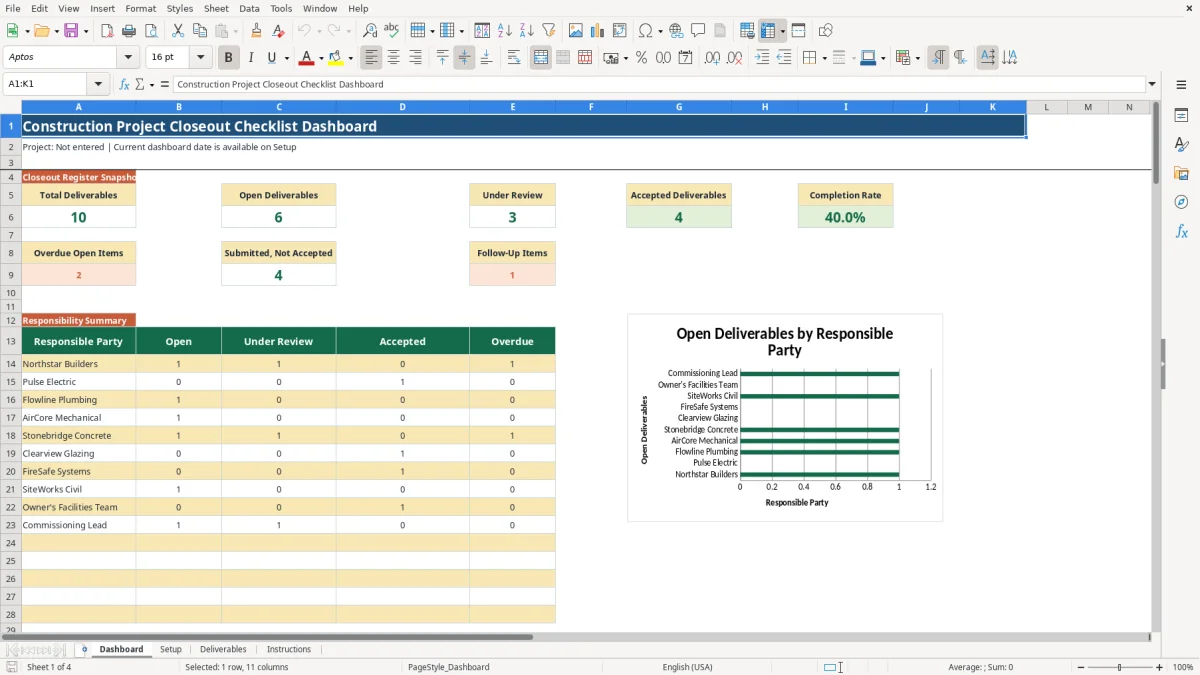
One Dashboard chart based on open deliverables by responsible party.
Construction closeout deliverables register
A construction project closeout checklist needs a clear line item for every required package, not a single general completion marker. This workbook records a Deliverable ID, Package / Area, Category, Description, Requirement Reference, Responsible Party, Due Date, Submitted Date, Review Status, Accepted Date, Final Location, and Notes.
Requirements remain user-defined. Enter requirement references from the applicable project documents and use one row per deliverable. The register is suited to tracking items such as O&M manuals, as-built records, training references, certificates, warranties, test reports, record drawings, and other project-specific packages.
Closeout status, aging, and follow-up tracking
The workbook separates entered information from calculated operational status. Submission Status reads Submitted when a Submitted Date is entered and Not Submitted when it is not. Acceptance Status reads Accepted when an Accepted Date is entered; otherwise, it reads Open.
Days Overdue measures calendar days after the Due Date for an open item. It returns zero after an Accepted Date is entered and stays blank when no Due Date is entered. Aging Status uses the two editable Setup thresholds, while Alert Flag shows Follow Up when an open item reaches the editable Follow-Up Alert Days setting.
Closeout dashboard for project controls
The Dashboard counts rows that contain a Deliverable ID. It presents total deliverables, open deliverables, under-review open items, accepted deliverables, and a completion rate calculated as accepted deliverables divided by total deliverables. It also shows overdue open items, submitted-but-not-accepted items, and follow-up items.
The responsibility summary reports open, under-review, accepted, and overdue counts by responsible party. The outstanding-deliverables list includes Deliverable ID, Package / Area, Description, Responsible Party, Due Date, and Days Overdue. Dashboard aging changes with TODAY(). Save a separate copy if the team needs to retain a point-in-time record.
Functional limits of this Excel workbook
This workbook supports closeout tracking only. It does not determine contractual requirements, generate legal documents, certify work, certify acceptance, or prove contractual closeout. An Accepted Date is a user-entered register record that drives the calculated Acceptance Status; it is not a determination of final, legal, or contractual acceptance.
The Final Location field records a reference to where the item is located. The workbook does not store files, check whether a file is available, manage document versions, or replace document control. It also does not manage handover recipients, final transfer events, or transmittal sequences. No USD cost fields or cost calculations are included.
Frequently asked questions
What information do I enter for each closeout item?
Enter a unique Deliverable ID, Package / Area, Category, Description, Requirement Reference, Responsible Party, applicable dates, Review Status, Final Location, and Notes. Due Date, Submitted Date, and Accepted Date should be valid Excel dates displayed as m/d/yyyy. The requirement reference should come from the project documents selected by the user.
How does the workbook determine whether an item is open or accepted?
Acceptance Status is calculated from the Accepted Date. A populated Accepted Date returns Accepted; no Accepted Date returns Open. This is a register calculation only. Review Status is a separate user input and can document the current review condition for an open item.
Why is a deliverable overdue?
For an open item with a valid Due Date, Days Overdue is the number of calendar days between the current Excel date and the Due Date, with a minimum of zero. Accepted items return zero, and items without a Due Date remain blank. The Dashboard Date is available on Setup, while the overdue calculation uses TODAY().
Can I change categories, responsible parties, and aging thresholds?
Yes. Setup includes editable lists for categories, review statuses, packages or areas, and responsible parties. It also includes Follow-Up Alert Days and two maximum-days-overdue aging thresholds. Keep active list entries contiguous so they remain available to the Deliverables dropdowns.
Workbook file
Ready to put this workbook to work?
Download the verified XLSX, keep an untouched copy, and adapt a working copy to your project.
Download verified XLSXEditorial team
About the authors

Paige Sutton Vale
Workbook Systems Editor
Paige turns construction planning, cost-control, field, and closeout workflows into clear Excel workbook guides. She focuses on inputs, calculations, outputs, and practical limits.

Maren Ellsworth Keel
Workbook QA Reviewer
Maren reviews formula behavior, field labels, project-controls terminology, and workbook instructions so each resource stays within its documented scope.
Continue exploring