Verified Excel workbook
Free 2026 Construction QC Workbook in Excel
Free 2026 construction quality control workbook in Excel for criteria, findings, corrective actions, and dashboard tracking.
Run a consistent internal quality review with this construction quality control checklist. Download the free Excel workbook to set up one inspection, record user-defined criteria, and carry related findings into corrective-action records. It is built for project teams that need a practical log of what was checked, what was observed, and who owns follow-up.
Use the workbook as a working internal record, not as an acceptance instrument. Criteria are configured by the user for the area and inspection at hand. Results, evidence references, action status, and dashboard counts support review, but they do not decide workmanship quality, establish compliance, or confirm adequate closure.
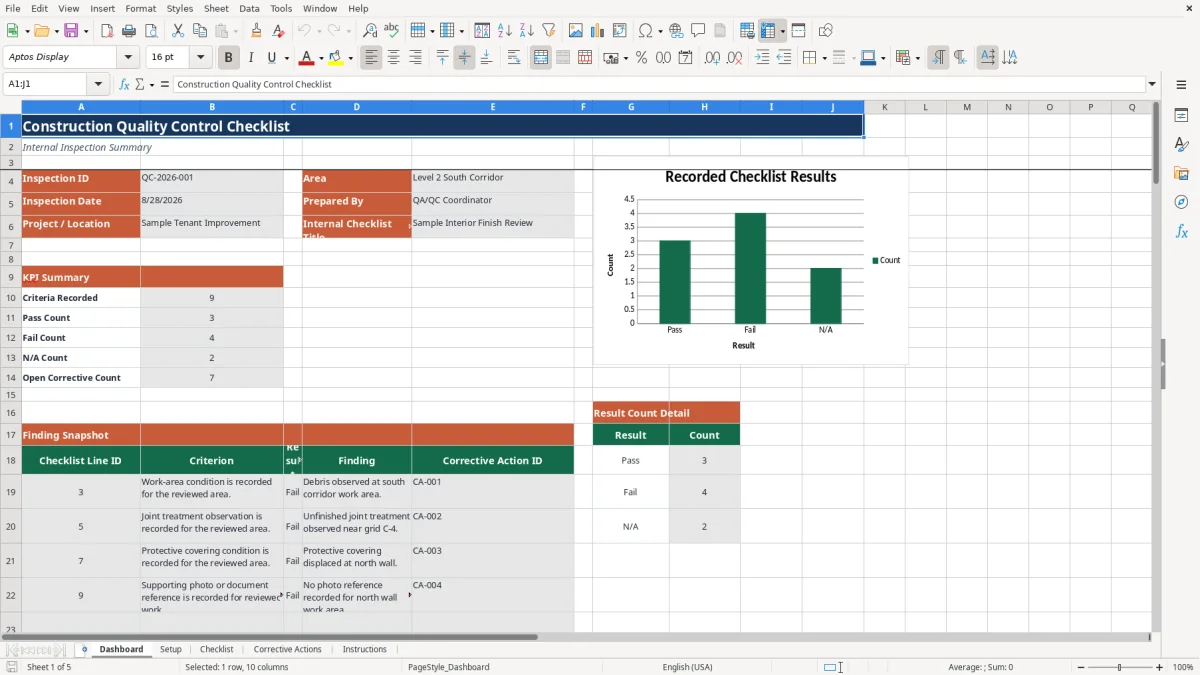
Final workbook preview
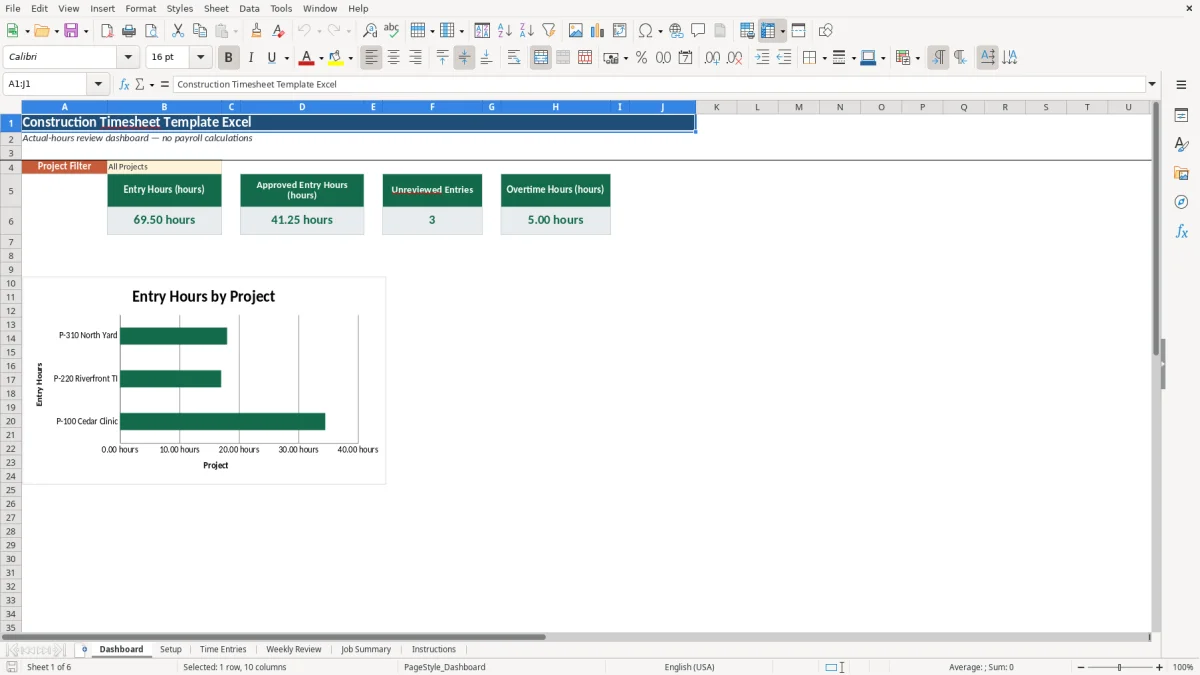
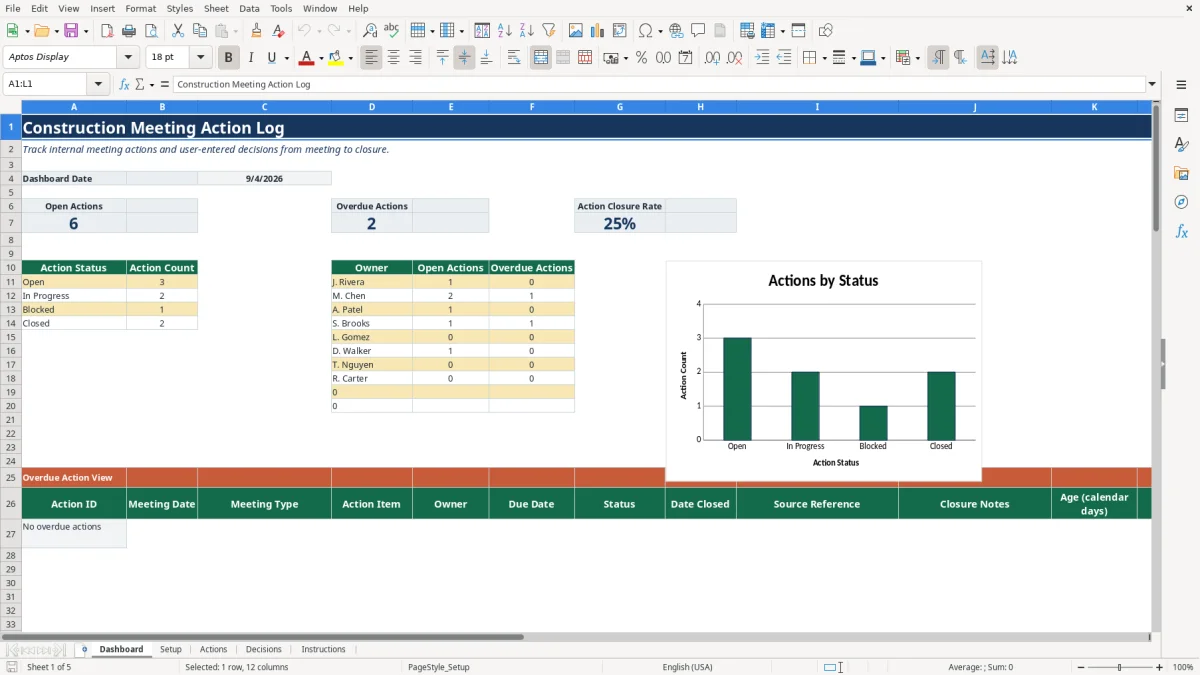
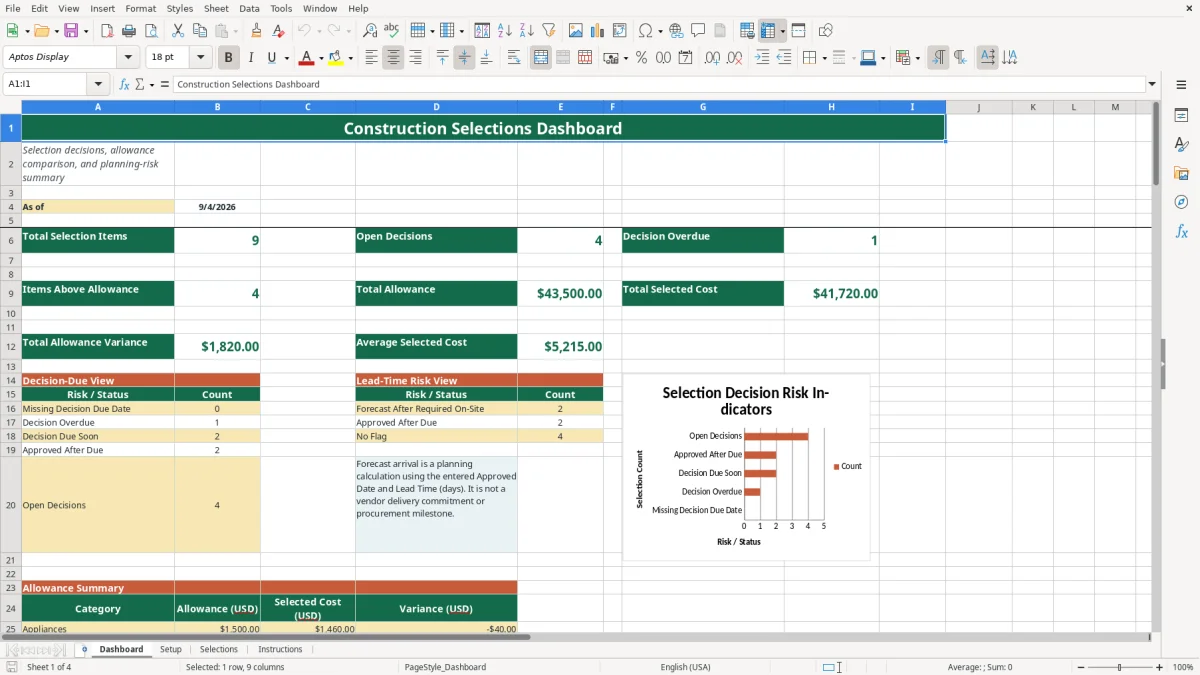
Four views generated from the verified XLSX.
How to use this workbook
Set up the inspection record
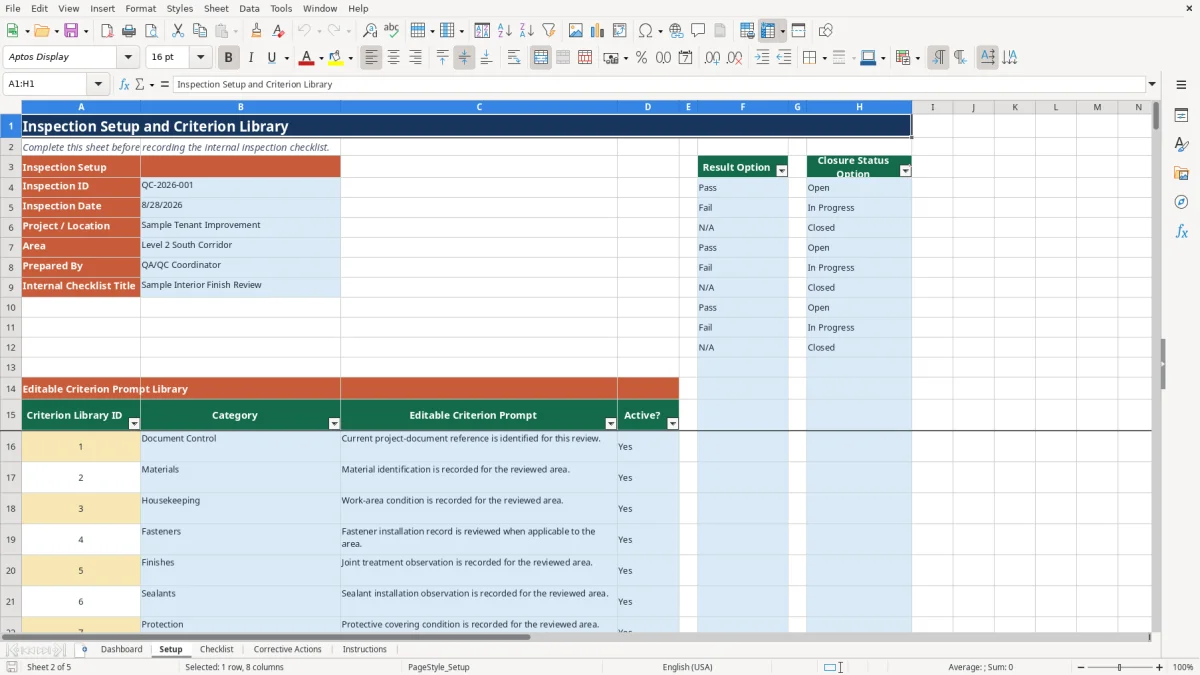
Begin on Setup and enter the inspection ID, inspection date, project or location, area, preparer, and internal checklist title. Dates use an m/d/Y date format. The same inspection ID is displayed on the Checklist, Corrective Actions, and Dashboard sheets. For another inspection instance, make a copy of the workbook and enter a new inspection ID on Setup.
Define and record checklist criteria
Review the editable criterion prompt library on Setup, then use the Checklist sheet to record one line per user-defined criterion. Each checklist line includes category, criterion, result, finding, evidence reference, and corrective action ID. Select Pass, Fail, or N/A for the result. A finding is an internal observation; an evidence reference is user-entered text identifying a photo, document, field note, or other record.
Track corrective actions and review counts
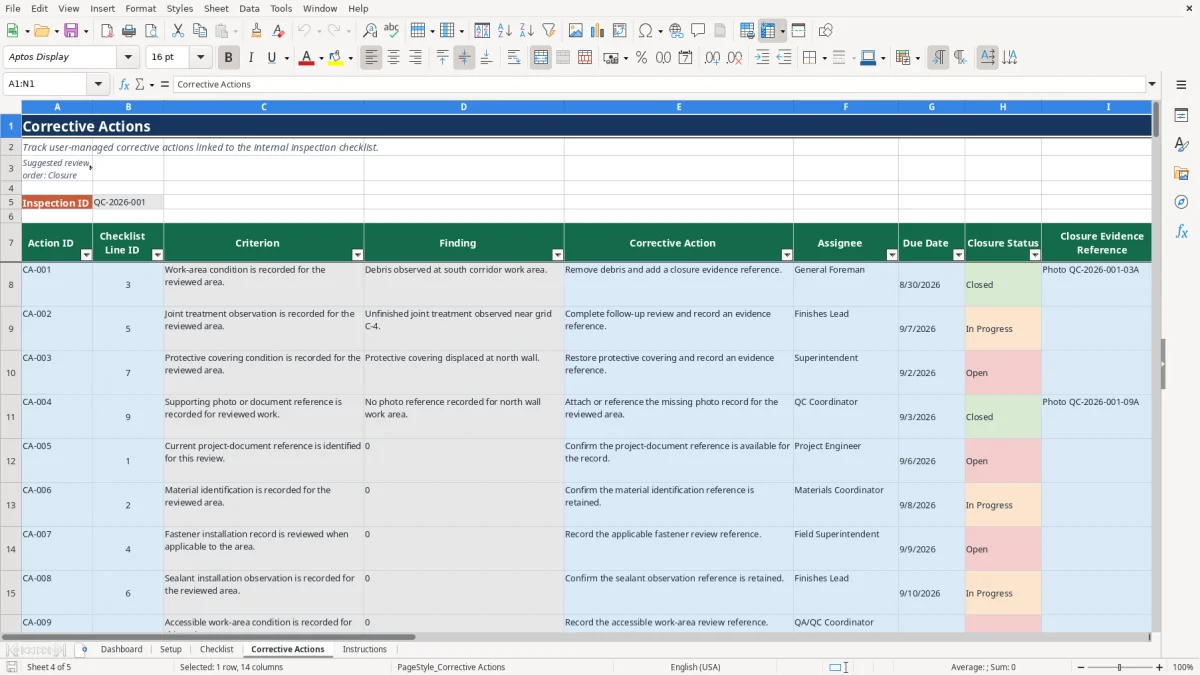
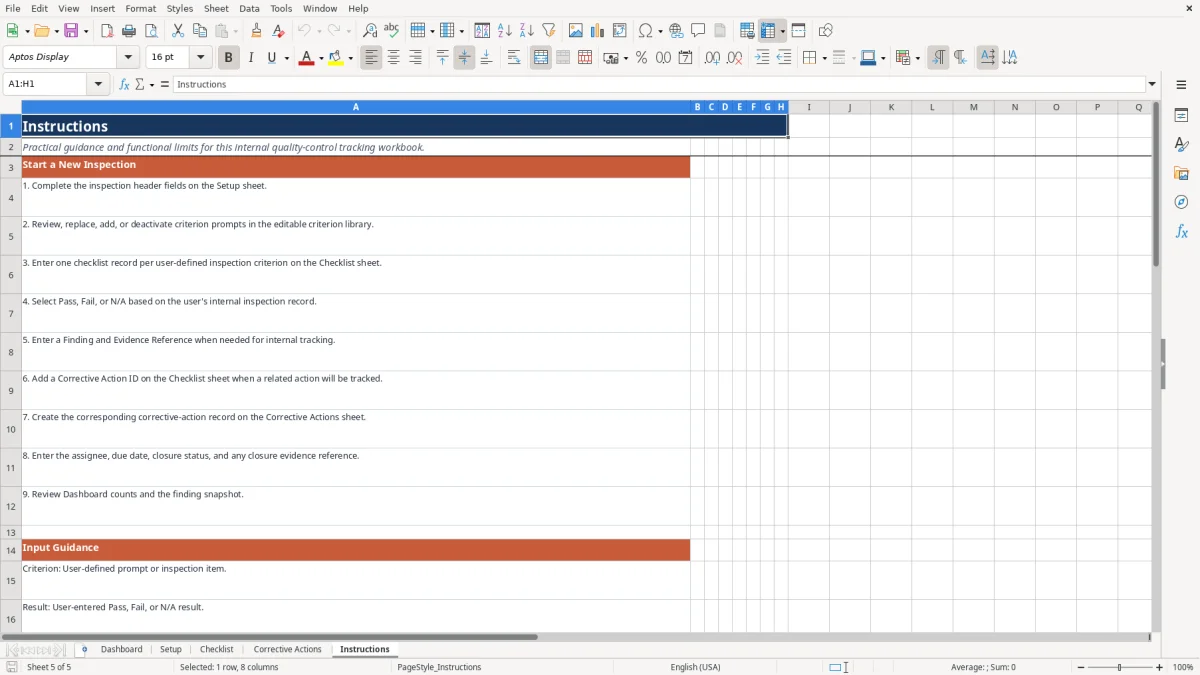
When a finding needs follow-up, enter a corrective action ID on its Checklist line and create the matching action on Corrective Actions. Enter the checklist line ID, corrective action, assignee, due date, closure status, closure evidence reference, verifier, closure date, and notes. Use consistent action IDs so the workbook can show whether checklist and action records are linked. Then review the Dashboard’s calculated counts and finding snapshot.
Benefits
Keep one internal inspection’s criteria, results, findings, and references together.
Assign related corrections without separating an issue from its checklist line.
Review pass, fail, N/A, and open-action counts on the Dashboard.
Use configurable prompts instead of treating sample prompts as universal requirements.
Features
Five worksheets: Dashboard, Setup, Checklist, Corrective Actions, and Instructions.
Prepared Checklist and Corrective Actions rows run from row 8 through row 107.
Checklist result and action closure-status selections reference Setup option ranges.
Link checks identify missing checklist links and duplicate corrective action IDs.
Construction quality control checklist workflow in Excel
This workbook supports one internal inspection workflow: define inspection criteria, record a result for each criterion, document findings, and track related corrections. Setup holds the inspection header information and an editable criterion prompt library. Checklist records the inspection line items. Its criterion selections reference the Setup library, while result selections reference the available Pass, Fail, and N/A options. Criteria remain user-defined, so project teams must decide what to inspect and how to interpret their own observations.
Corrective-action tracking tied to checklist findings
The Corrective Actions sheet is intended to keep follow-up connected to the originating checklist line. The user enters an action ID and checklist line ID, while the associated criterion and finding are brought in from the matching Checklist record. Users also enter the corrective action, assignee, due date, closure status, closure evidence reference, closure verifier, closure date, and notes. Formula-based checks identify whether the checklist line is linked and whether an action ID is duplicated. These checks are record-linking aids; they do not verify that a correction occurred or that closure is adequate.
Dashboard counts for internal inspection review
The Dashboard displays the inspection ID, date, project or location, area, preparer, and internal checklist title from Setup. It calculates criteria recorded, Pass count, Fail count, N/A count, and open corrective count. The open count includes corrective-action rows with an action ID whose closure status is not Closed. The Dashboard also shows a finding snapshot based on Checklist lines containing a finding and includes a chart using the Pass, Fail, and N/A counts. Dashboard results are tracking summaries only, not an overall approval, acceptance score, or compliance rating.
Frequently asked questions
Is this workbook a construction quality acceptance form?
No. It is an internal tracking workbook for a user-configured inspection and related corrective actions. It does not provide universal acceptance criteria, determine code compliance, certify workmanship, or replace review by a qualified inspector.
What information do users enter?
Users enter the inspection ID, area, criterion, result, finding, assignee, due date, closure status, and evidence references. The corrective-action sheet also provides fields for the action description, closure verifier, closure date, and action notes.
How are checklist items linked to corrective actions?
Enter a corrective action ID on the applicable Checklist row, then create an action record using that ID and the related checklist line ID. The workbook displays link-check messages when the referenced checklist line is missing or when an action ID is duplicated.
What does the open corrective count mean?
The Dashboard counts corrective-action rows that contain an action ID and do not have a closure status of Closed. It is a calculated status count, not confirmation that an action is late, complete, effective, or adequately verified.
Workbook file
Ready to put this workbook to work?
Download the verified XLSX, keep an untouched copy, and adapt a working copy to your project.
Download verified XLSXEditorial team
About the authors

Paige Sutton Vale
Workbook Systems Editor
Paige turns construction planning, cost-control, field, and closeout workflows into clear Excel workbook guides. She focuses on inputs, calculations, outputs, and practical limits.

Maren Ellsworth Keel
Workbook QA Reviewer
Maren reviews formula behavior, field labels, project-controls terminology, and workbook instructions so each resource stays within its documented scope.
Continue exploring