Verified Excel workbook
Free 2026 Construction Timesheet Workbook in Excel
Free construction timesheet workbook in Excel for 2026 with job, cost-code, weekly review, and actual-hours summary views.
Actual labor-hour coding needs a straightforward path from the field to an operational review. Download the free Construction Timesheet Workbook in Excel to log worker or crew hours by work date, project, cost code, and activity instead of rebuilding a job-cost worksheet from scratch. Actual-hours control stays focused on the entries your team records after work occurs.
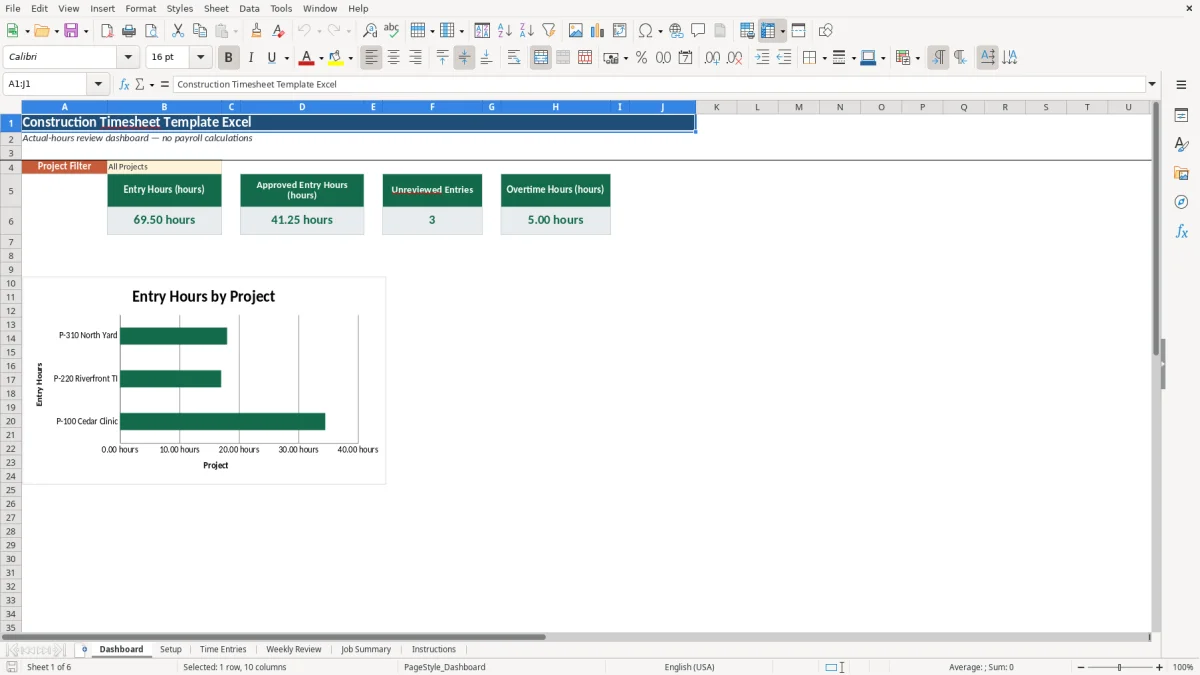
The workbook has six worksheets: Dashboard, Setup, Time Entries, Weekly Review, Job Summary, and Instructions. It separates user-entered classifications from calculated hour totals, helping project-controls teams review project coding, regular hours, overtime hours, and review status without treating the file as a payroll system.
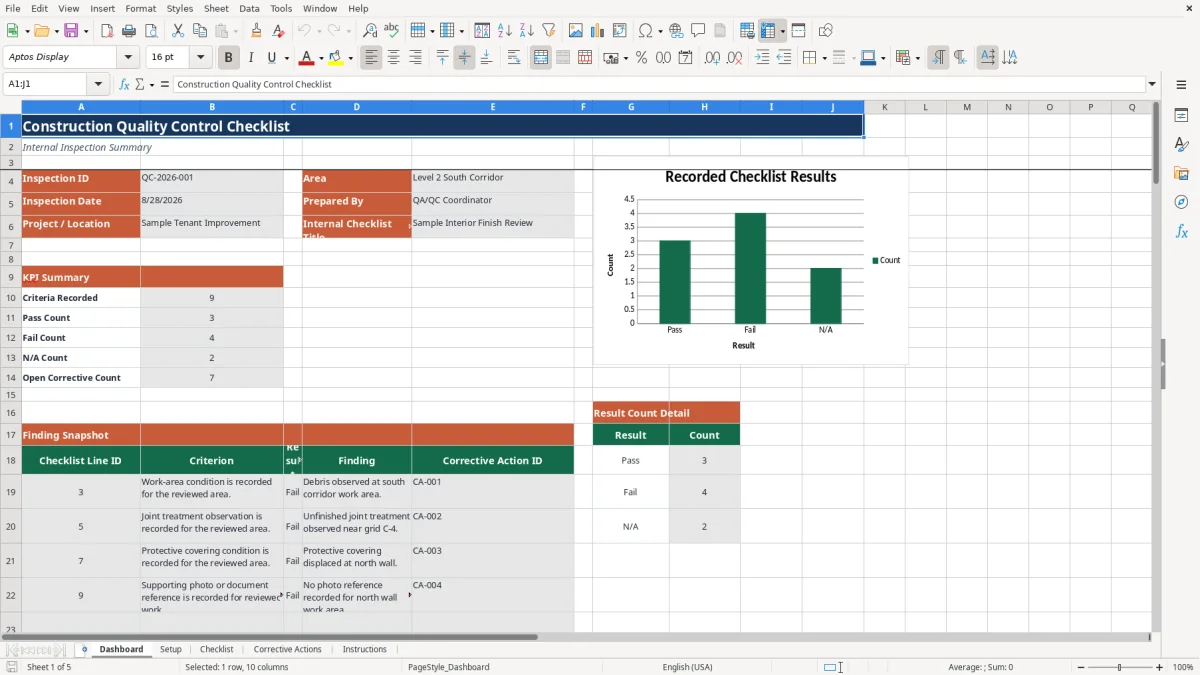
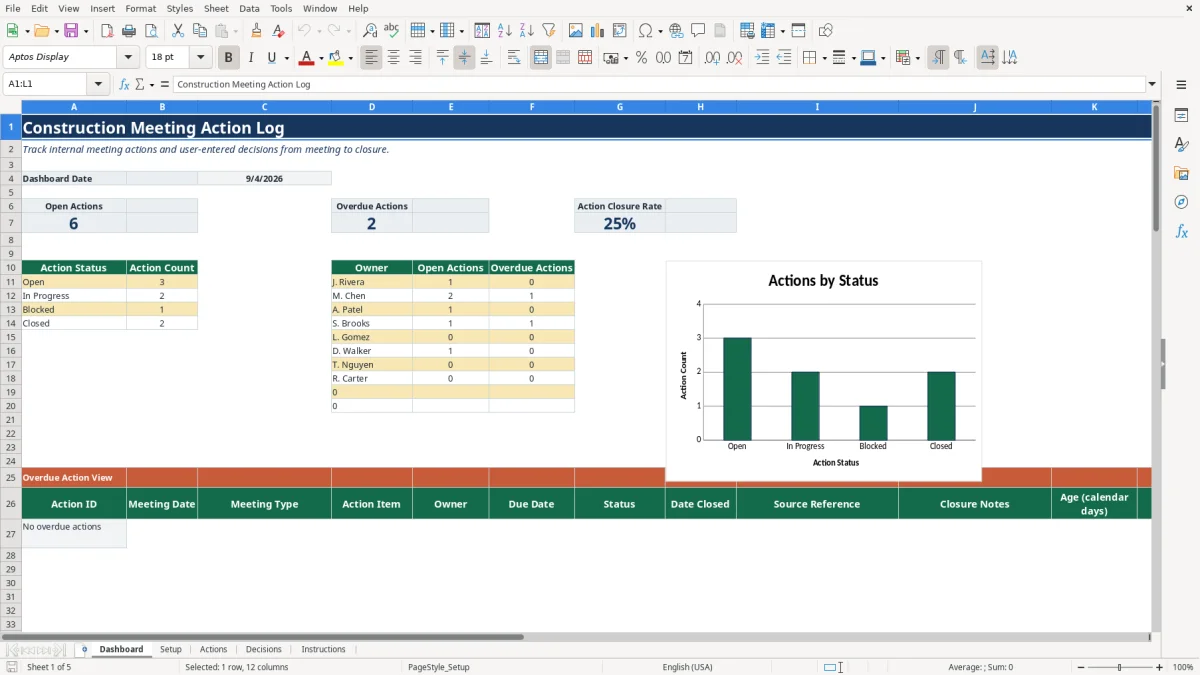
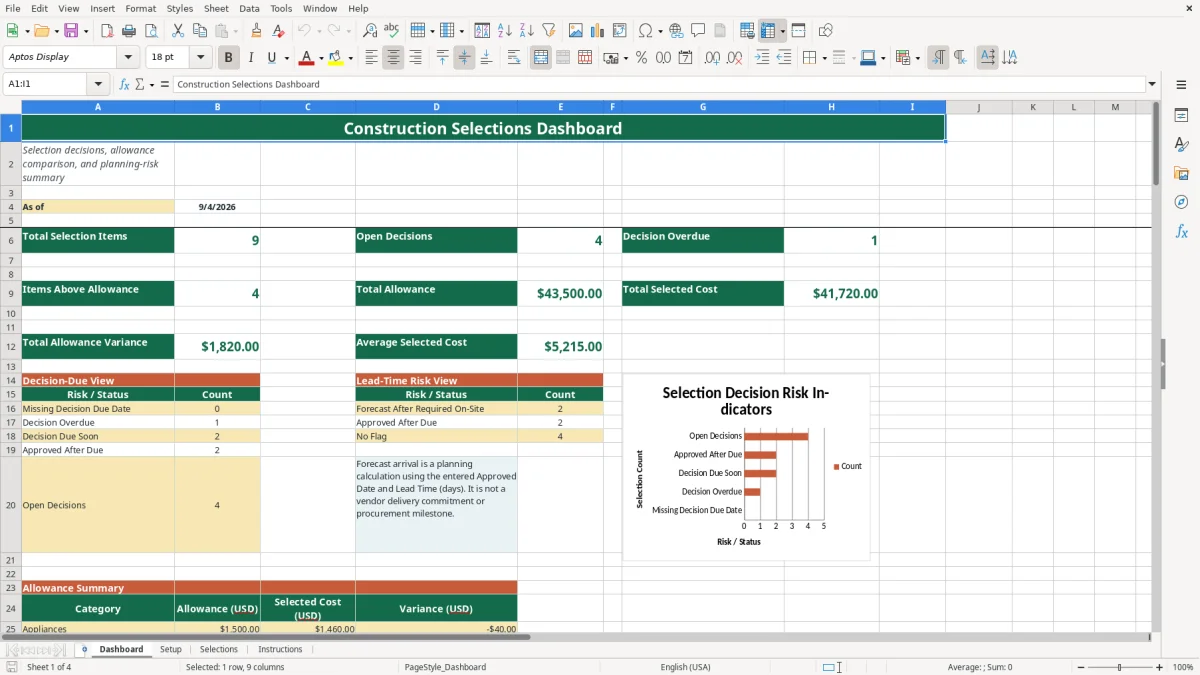
Final workbook preview
Four views generated from the verified XLSX.
How to use this workbook
Set up controlled lists
Start on Setup and replace the sample projects, cost codes, cost-code descriptions, activities, worker or crew IDs, supervisors, and review statuses with values your team uses. These lists feed the selections in Time Entries. The Approved and Pending Review status cells are designated formula references, so retain those labels in their current Setup locations when editing statuses.
Record one job-coded entry
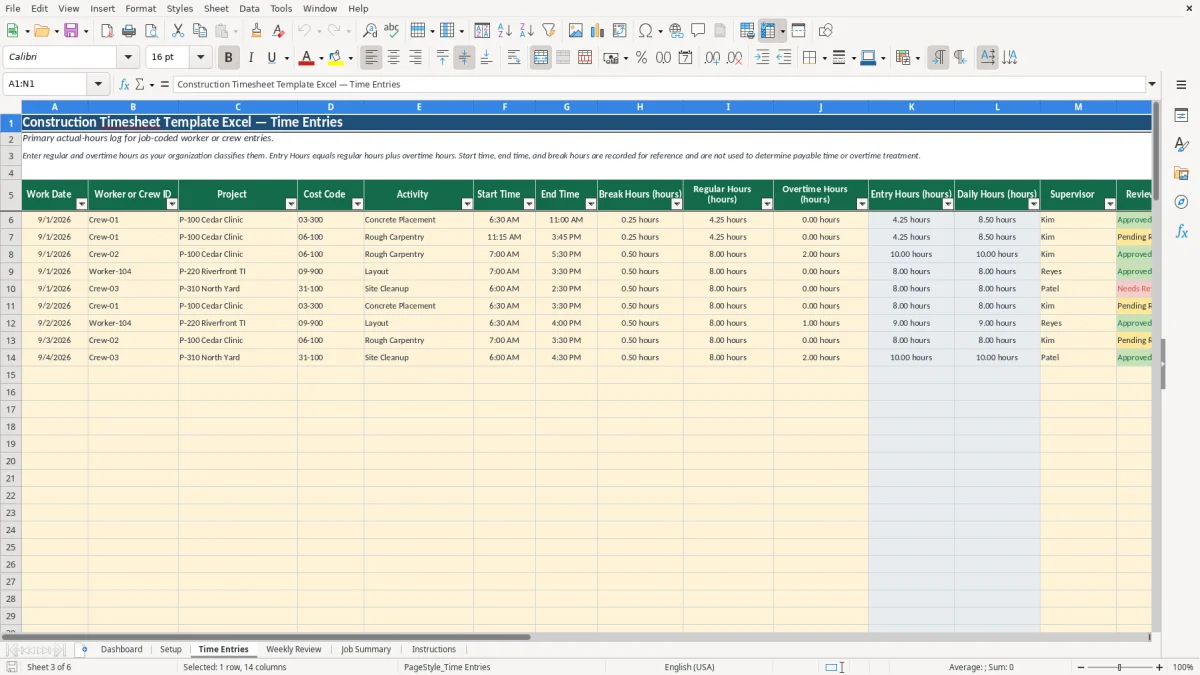
On Time Entries, enter one actual work entry for each worker or crew, work date, project, cost code, and activity. Record start time, end time, break hours, regular hours, overtime hours, supervisor, and review status as applicable to your process. Enter dates in m/d/Y format. Entry Hours is calculated as regular hours plus overtime hours; start, end, and break fields are recorded inputs rather than calculated time.
Review weekly and job totals
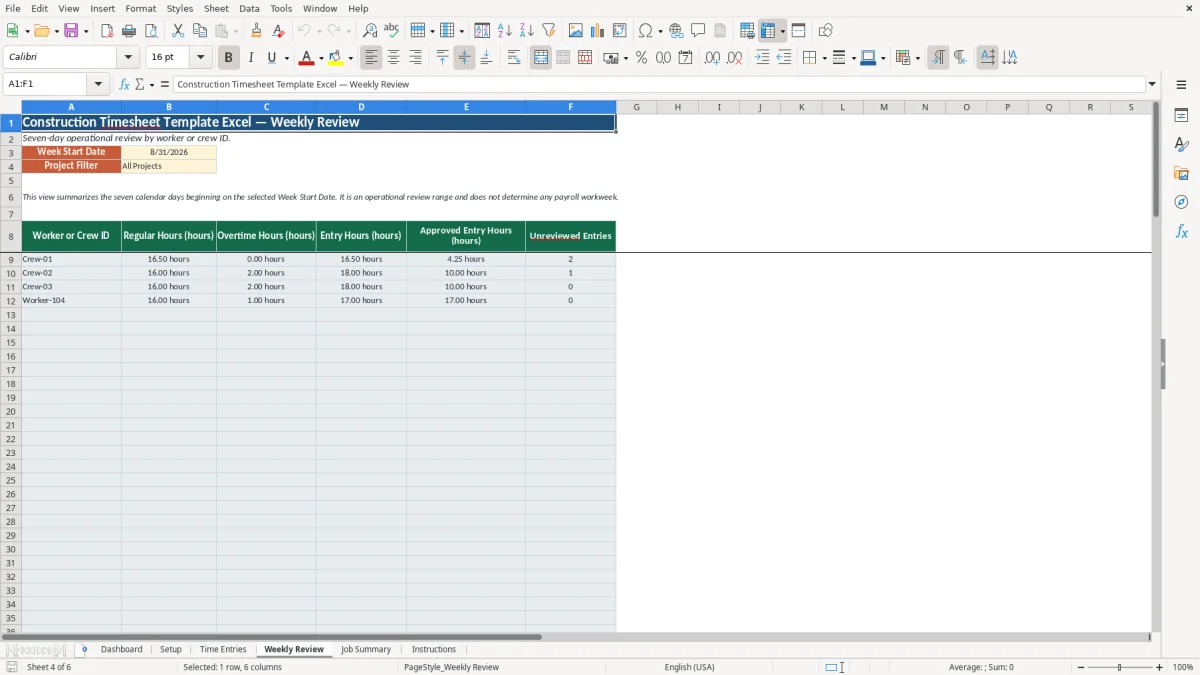
In Weekly Review, select a Week Start Date and a project filter. The view summarizes the seven calendar days beginning on that date by worker or crew ID. Use Job Summary for project totals and cost-code totals, with the project filter applying to its cost-code section. Then use Dashboard to review selected-project or all-project entry hours, approved entry hours, overtime hours, and unreviewed entries.
Benefits
Keep actual worker or crew hours tied to projects, cost codes, and activities.
Review regular, overtime, total, approved, and unreviewed hour measures separately.
Use a seven-day worker or crew view for operational follow-up.
Discuss project and cost-code hours from one consistent entry log.
Features
Six worksheets separate setup, entries, reviews, summaries, dashboard measures, and instructions.
A prepared Time Entries table includes 100 entry rows with calculation formulas.
Project filters support all-project or selected-project dashboard and review views.
One Dashboard chart references project-hours values from Job Summary.
Construction timesheet template Excel for job coding
This construction timesheet template Excel workbook is built around the actual entry a field team can identify: a worker or crew, work date, project, cost code, and activity. It also provides fields for start time, end time, break hours, regular hours, overtime hours, supervisor, and review status. The Setup worksheet holds editable lists for these fields, giving the entry log a consistent reference point for project-controls review.
The supplied sample values illustrate project, cost-code, activity, and crew entries, but they are examples rather than prescribed codes or classifications. Replace them with your own job data and keep personal data to the minimum needed for the intended operational review.
Actual-hour calculations and review status
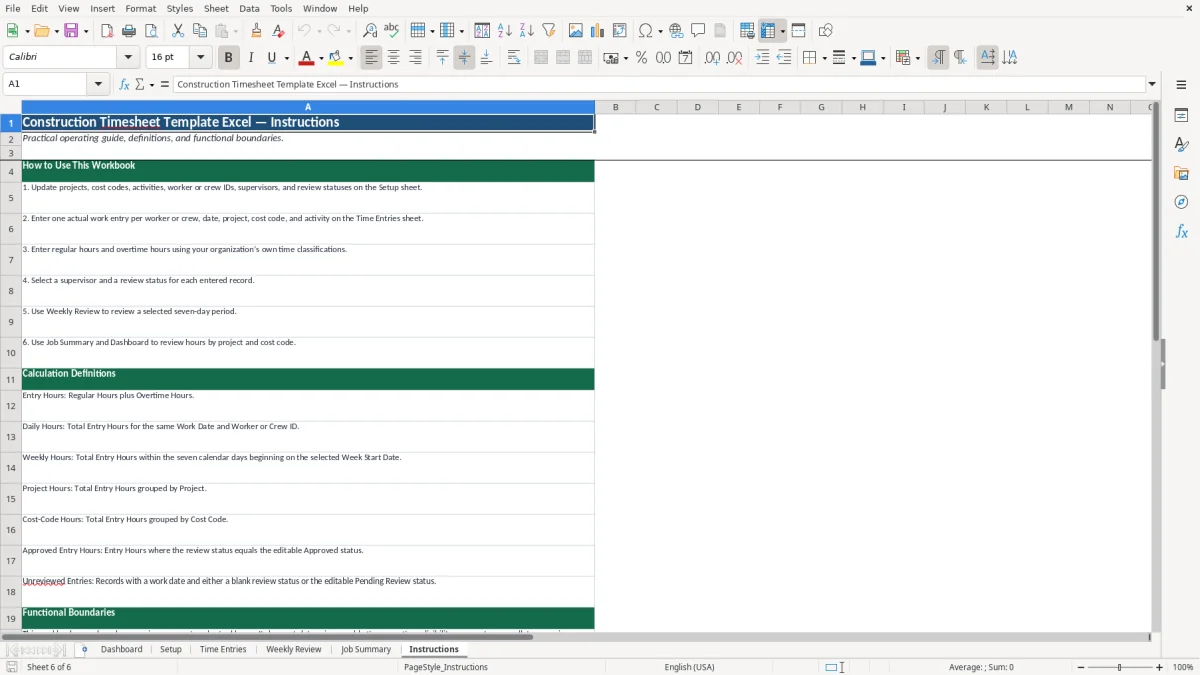
The workbook calculates Entry Hours from the regular-hours and overtime-hours fields. It also calculates Daily Hours as the total Entry Hours for the same work date and worker or crew ID. Weekly Review calculates regular hours, overtime hours, Entry Hours, Approved Entry Hours, and Unreviewed Entries for the selected seven-day period.
Status-driven totals make the review distinction visible. Approved Entry Hours include entries whose review status matches the editable Approved status. Unreviewed Entries count records with a work date and either a blank status or the editable Pending Review status. All hour classifications and statuses remain inputs chosen by the user.
Project and cost-code summary workflow
Job Summary calculates regular hours, overtime hours, Entry Hours, Approved Entry Hours, and Unreviewed Entries by project. A separate cost-code section calculates the same measures by cost code and brings in the related cost-code description from Setup. This creates a practical checkpoint for discussing where entered hours were coded before they move into another company process.
The Dashboard provides all-project or selected-project measures for Entry Hours, Approved Entry Hours, Unreviewed Entries, and Overtime Hours. Prepared rows cover 100 Time Entries records. More volume requires extending the Excel table, copying the Entry Hours and Daily Hours formulas, and extending related summary ranges.
Functional boundaries for timesheet use
This workbook records and summarizes user-entered actual hours. It does not determine payable or compensable time, overtime eligibility, wage rates, payroll, taxes, union treatment, labor-law outcomes, qualifications, or attendance discipline. A selected week is an operational seven-day review range, not a payroll-workweek determination.
Use the calculated totals as a project-controls review aid, then apply your organization’s own procedures for any downstream approvals, pay processing, or records management. It is not a payroll tool and does not replace the decisions or systems used for those functions.
Frequently asked questions
How are Entry Hours calculated?
Entry Hours equals the regular hours entered for a record plus the overtime hours entered for that record. If both hour fields are blank, the Entry Hours result stays blank. The calculation uses the entered hour fields only; it does not classify hours for the user.
Do start time, end time, and break hours calculate worked time?
No. Start Time, End Time, and Break Hours (hours) are recorded input fields in Time Entries. The workbook does not calculate Entry Hours from those fields and does not subtract Break Hours (hours) from the regular-hours or overtime-hours entries.
What date range does Weekly Review use?
Weekly Review uses the seven calendar days beginning on the selected Week Start Date. It summarizes listed worker or crew IDs for that date range and can be filtered to All Projects or a selected project. The seven-day view is for operational review only.
What does Unreviewed Entries mean?
Unreviewed Entries counts records that have a work date and either a blank review status or the designated Pending Review status from Setup. Records marked Needs Revision are not included in that specific count unless the user changes the designated Pending Review status reference.
Can the workbook hold more than 100 time entries?
The Time Entries sheet contains 100 prepared entry rows. The Instructions worksheet states that additional rows require extending the Excel table, copying formulas for Entry Hours and Daily Hours, and extending the related summary ranges. Review results after any workbook modification.
Workbook file
Ready to put this workbook to work?
Download the verified XLSX, keep an untouched copy, and adapt a working copy to your project.
Download verified XLSXEditorial team
About the authors

Paige Sutton Vale
Workbook Systems Editor
Paige turns construction planning, cost-control, field, and closeout workflows into clear Excel workbook guides. She focuses on inputs, calculations, outputs, and practical limits.

Maren Ellsworth Keel
Workbook QA Reviewer
Maren reviews formula behavior, field labels, project-controls terminology, and workbook instructions so each resource stays within its documented scope.
Continue exploring