Verified Excel workbook
Free 2026 Construction Selections Workbook in Excel
Track construction selection decisions, allowances, approvals, vendors, and lead-time planning with a free 2026 Excel workbook in USD.
This Construction Selections Tracker Workbook in Excel provides a selection register for recording finish and product decisions, allowance amounts, and planning dates. Download the free 2026 workbook to organize selection items by location, category, responsible party, vendor, and required-on-site date.
Users enter project information that has been recorded by their team, including costs, decision dates, approved dates, and lead time in days. The workbook calculates allowance variance, forecast arrival, days to decision, and planning-risk results. It is a tracking aid and does not approve products, verify specifications, create contracts, or replace design decisions, submittals, purchasing records, or vendor commitments.
Final workbook preview
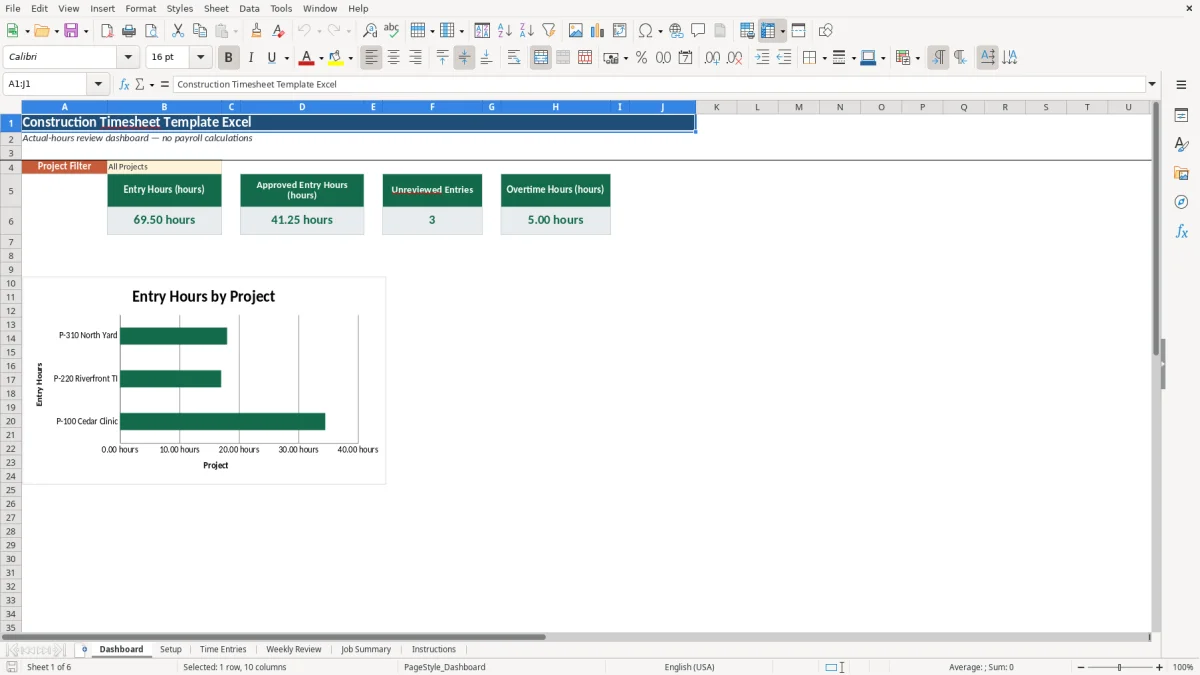
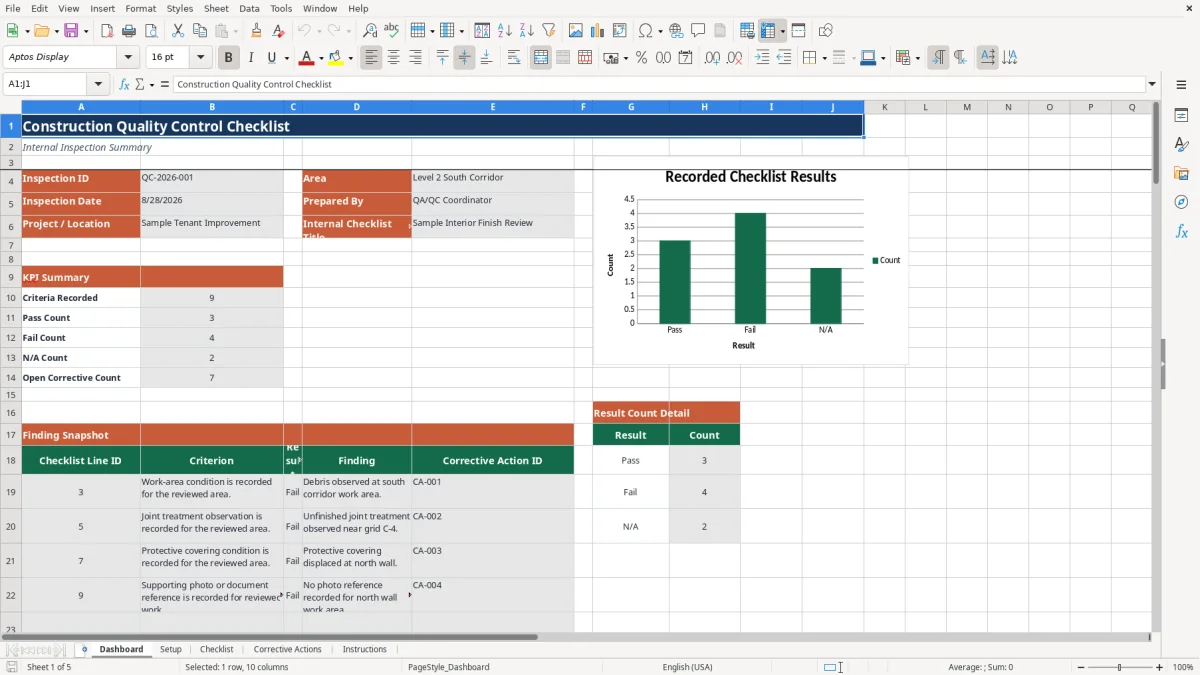
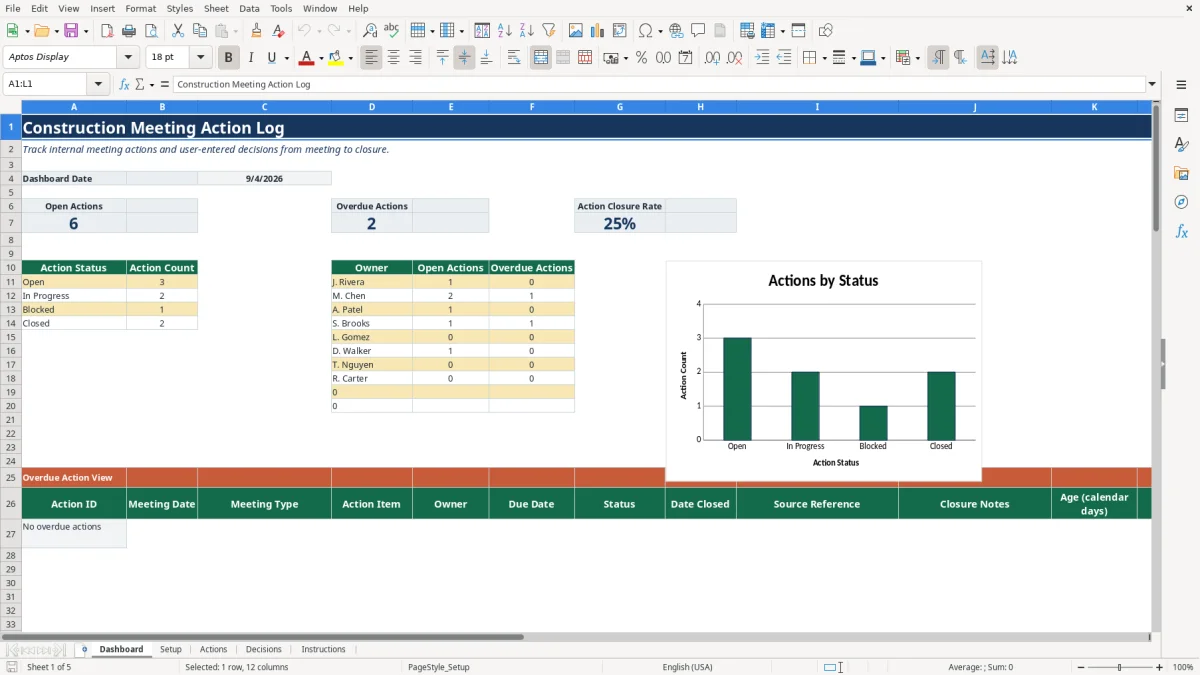
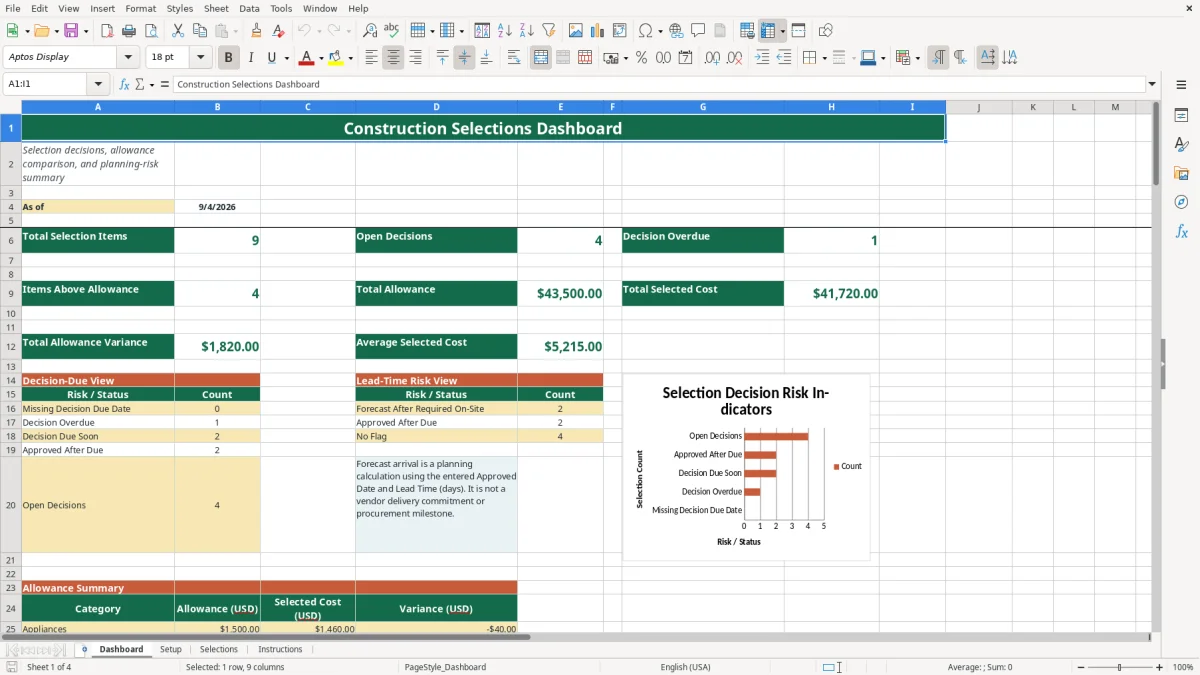
Four views generated from the verified XLSX.
How to use this workbook
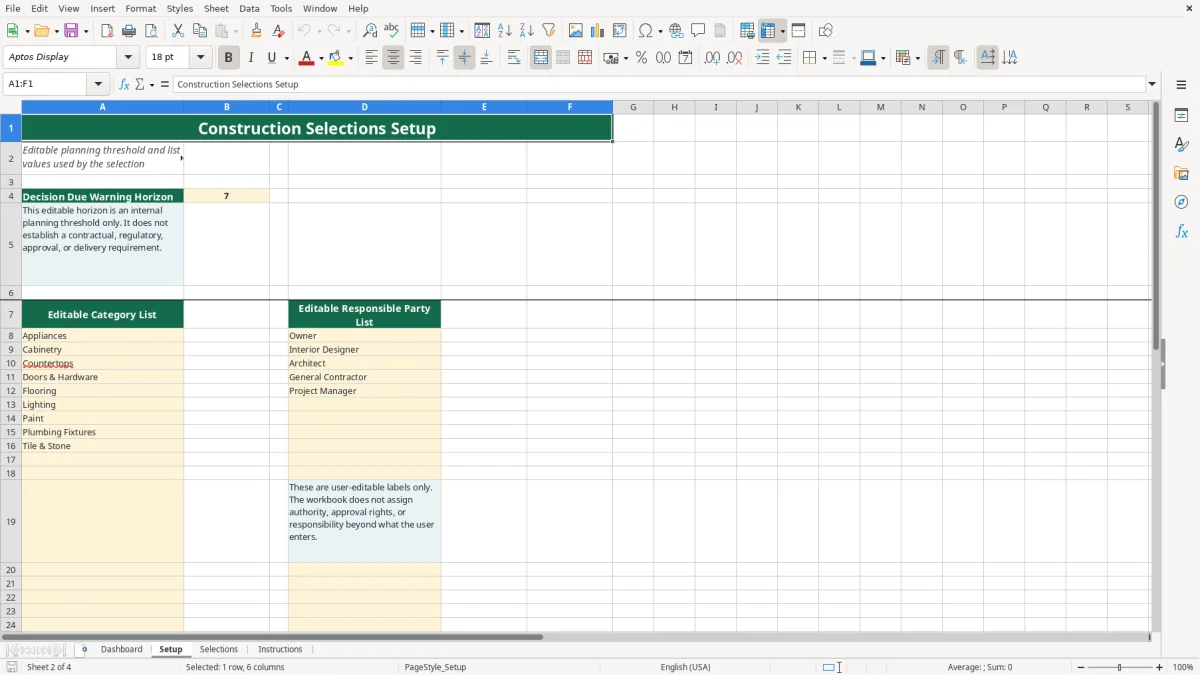
Set up project planning labels
Begin on Setup and revise the category and responsible-party lists when project terminology differs from the available labels. Enter a whole-number Decision Due Warning Horizon for the number of days your team wants to use when reviewing upcoming decisions. This is a user-defined planning threshold, not a contract date, approval requirement, delivery commitment, or regulatory deadline.
Record each selection item
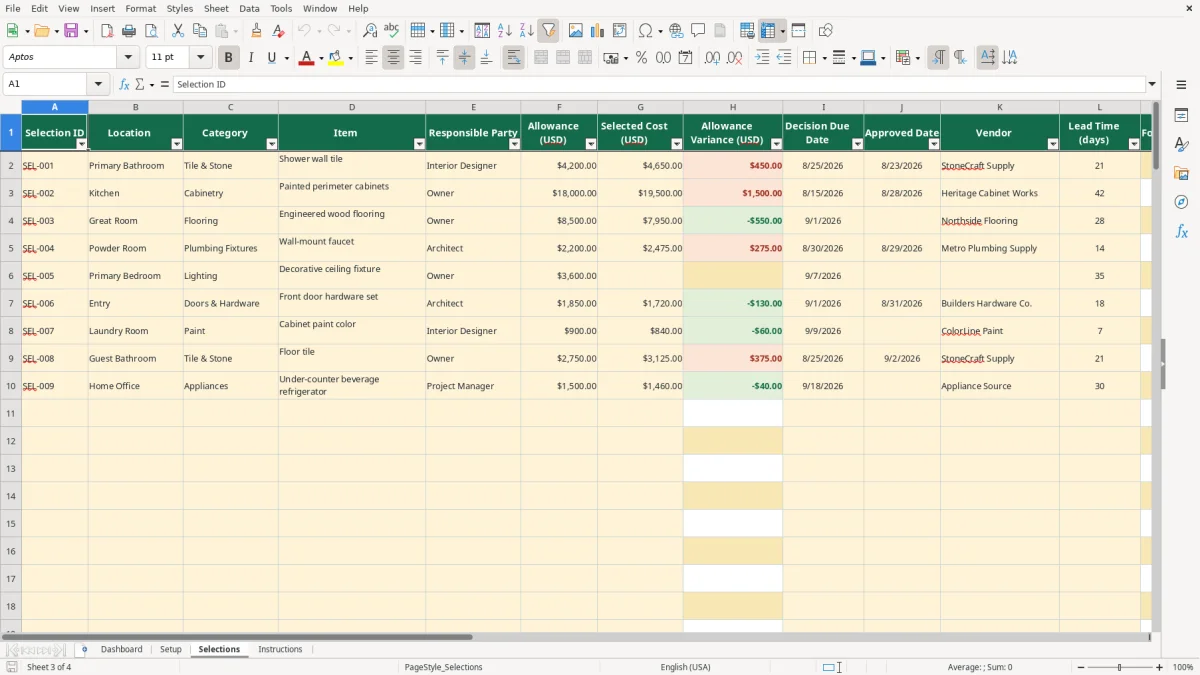
On Selections, enter a Selection ID, Location, Category, Item, and Responsible Party. Add Allowance (USD), Selected Cost (USD), Decision Due Date, Approved Date, Vendor, Lead Time (days), Required On-Site Date, and Notes when those details are available. Category and responsible-party entries use the editable Setup lists. Cost, lead-time, and date fields are structured for the applicable numeric or date entry.
Enter an Approved Date only after the user has recorded an approval. User-entered project data drives the calculations, summaries, and risk results, so blank, incomplete, or outdated entries can limit the value of the review.
Review priorities and totals
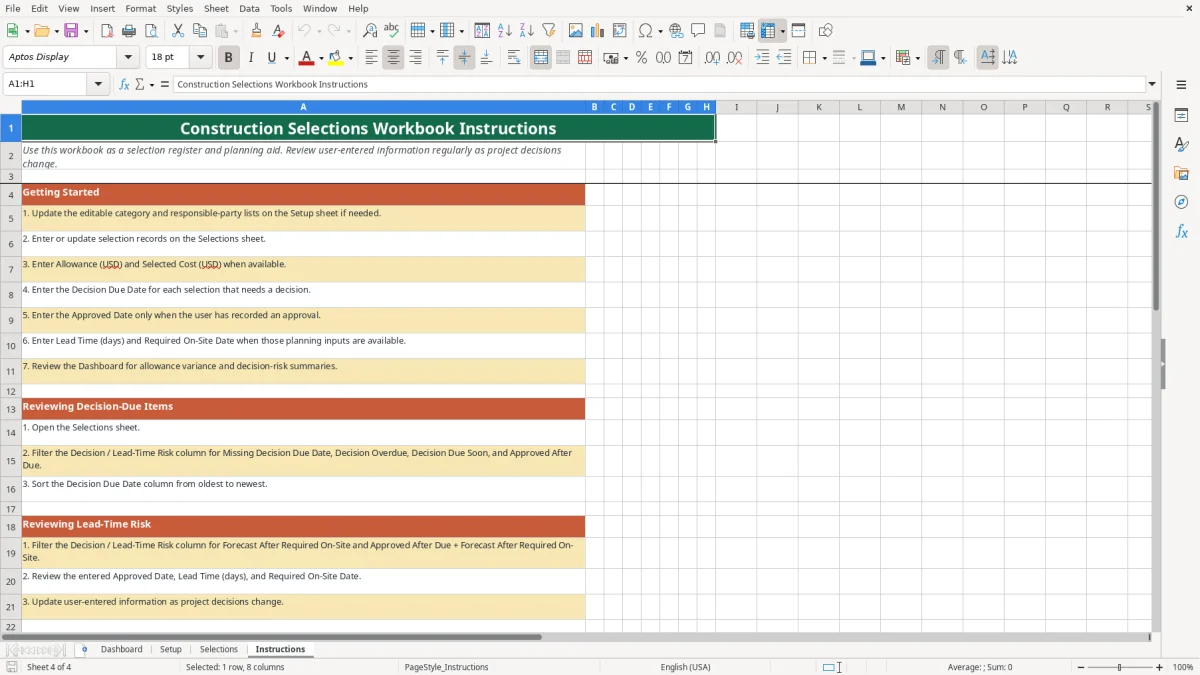
Use Dashboard to review selection counts, open decisions, allowance totals, selected-cost totals, allowance variance, and risk counts. On Selections, filter the Decision / Lead-Time Risk field and sort decision dates to focus on items needing review. Date-based results use Excel's current date, so decision-related results can change as time passes.
Benefits
Organize selection items, locations, categories, parties, vendors, and notes in one register.
Compare entered Allowance (USD) and Selected Cost (USD) for each item.
Review decision-date conditions before they become overlooked planning items.
Compare calculated forecast arrival with the entered Required On-Site Date.
Features
Selection register for decision, cost, vendor, lead-time, and required-on-site inputs.
Editable category labels, responsible-party labels, and decision warning horizon.
Calculated Allowance Variance (USD), Forecast Arrival, and Days to Decision.
Dashboard summaries, risk views, allowance summary, and planning charts.
Construction selection tracking in Excel
A construction selections spreadsheet helps teams maintain a working record of finish and product decisions that can affect allowance review and later procurement planning. This workbook tracks a selection item with its Location, Category, Item, Responsible Party, Vendor, and Notes. It also includes fields for Decision Due Date, Approved Date, Lead Time (days), and Required On-Site Date.
The workbook is designed to organize information entered by the user. It does not determine whether a product is suitable, compliant with specifications, available from a vendor, or approved by an owner, designer, or other party. Review the underlying project records before acting on a spreadsheet entry.
Allowance variance and arrival planning
Allowance Variance (USD) is calculated as Selected Cost (USD) minus Allowance (USD) when both entered values are numeric. A positive result means the entered selected cost is higher than the entered allowance. If either cost field is unavailable or not numeric, the workbook leaves the variance blank rather than estimating a value.
Forecast Arrival adds the entered Approved Date and Lead Time (days). Days to Decision compares an entered Decision Due Date with Excel's current date while Approved Date remains blank. These are planning calculations based on user inputs. Forecast Arrival is not a purchase order date, shipping confirmation, vendor promise, or guaranteed delivery date.
Decision and lead-time risk review
The Decision / Lead-Time Risk result can identify Missing Decision Due Date, Decision Overdue, Decision Due Soon, Approved After Due, and forecast-arrival conditions after the entered Required On-Site Date. For unapproved selections, the workbook considers the Decision Due Date, the current date, and the warning horizon set on Setup. For approved selections, it can compare Forecast Arrival with Required On-Site Date.
Use these results as review prompts for the team. A flag does not establish responsibility, prove delay, confirm an approval status, or determine a recovery action. Check the entered dates, lead time, vendor information, notes, and current project communications before planning follow-up.
Dashboard view for selection reviews
The Dashboard summarizes the Selections register with total selection items, open decisions, overdue decisions, items above allowance, total allowance, total selected cost, total allowance variance, and average selected cost. It also provides decision-due counts, lead-time risk counts, an allowance summary by category, and planning charts.
Dashboard results depend on the entries maintained in Selections. The dashboard can help structure a recurring review, but it does not replace detailed design coordination, vendor communication, purchasing documentation, schedule analysis, or submittal review.
Frequently asked questions
What information do I enter for each selection?
Enter the Selection ID, Location, Category, Item, Responsible Party, Allowance (USD), Selected Cost (USD), Decision Due Date, Approved Date, Vendor, Lead Time (days), Required On-Site Date, and Notes as applicable. Update the entry when recorded project information changes.
How is allowance variance calculated?
Allowance Variance (USD) equals Selected Cost (USD) minus Allowance (USD). The workbook calculates the value only when both entries are numeric. It compares the amounts entered by the user and does not evaluate scope, taxes, freight, installation, or contract entitlement.
What does Forecast Arrival mean?
Forecast Arrival is calculated from the entered Approved Date plus Lead Time (days). It can be compared with the entered Required On-Site Date for planning review. It is not a delivery commitment, shipment confirmation, or vendor performance guarantee.
Does the workbook approve a selection?
No. The Approved Date is a user-entered record of an approval documented by the user. The workbook does not grant approval authority, verify specifications, confirm owner approval, or approve a product, finish, vendor, or design decision.
How should I review missing or overdue decisions?
Filter the Decision / Lead-Time Risk field for Missing Decision Due Date, Decision Overdue, Decision Due Soon, or Approved After Due. Then review the decision date, responsible party, notes, and current project records. Risk indicators support review; they do not determine required action.
Workbook file
Ready to put this workbook to work?
Download the verified XLSX, keep an untouched copy, and adapt a working copy to your project.
Download verified XLSXEditorial team
About the authors

Paige Sutton Vale
Workbook Systems Editor
Paige turns construction planning, cost-control, field, and closeout workflows into clear Excel workbook guides. She focuses on inputs, calculations, outputs, and practical limits.

Maren Ellsworth Keel
Workbook QA Reviewer
Maren reviews formula behavior, field labels, project-controls terminology, and workbook instructions so each resource stays within its documented scope.
Continue exploring