Verified Excel workbook
Free 2026 Construction Meeting Action Workbook in Excel
Track internal meeting actions and user-entered decisions in a free Excel workbook with owners, due dates, aging, and dashboard summaries.
Keep meeting follow-up visible without mixing assignments into narrative notes. Download this free Construction Meeting Action and Decision Log Workbook to record internal action items, owners, due dates, statuses, closure details, and related meeting references in Excel. The workbook is built for internal follow-up after coordination, planning, safety, trade coordination, internal project, and owner-architect-contractor meetings.
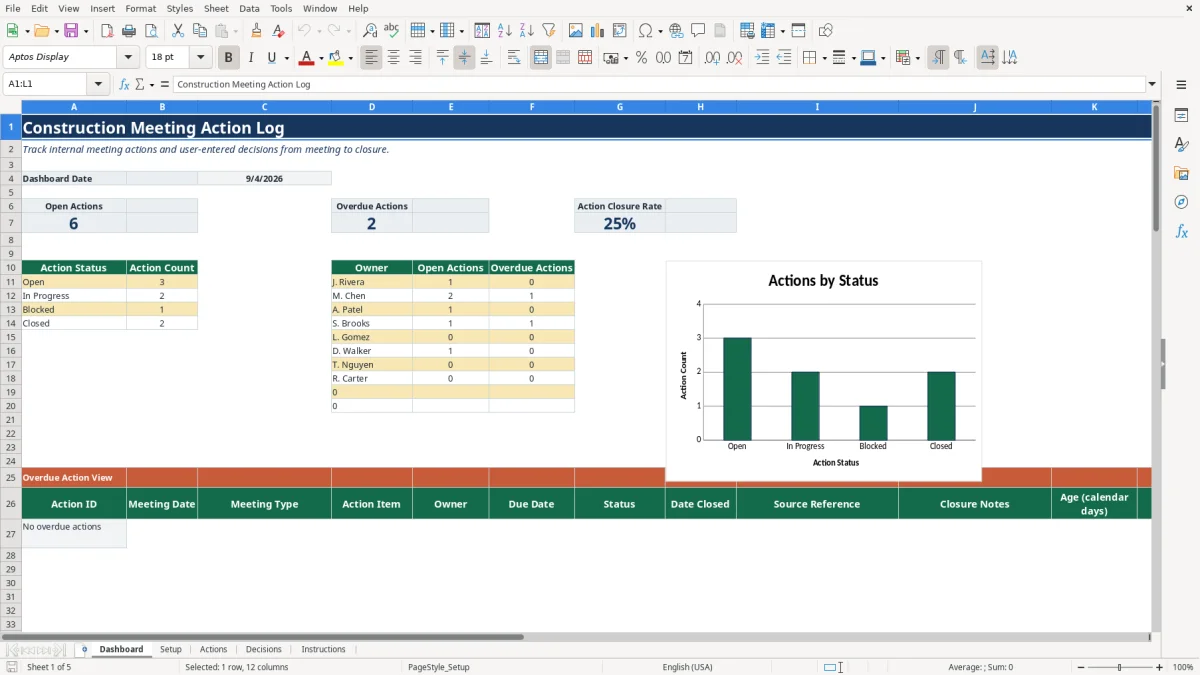
Use the Actions register for work that needs an owner and due date, then use the separate Decisions register for user-entered meeting decisions. The Dashboard summarizes open actions, overdue actions, closure rate, action-status counts, and owner-level open and overdue totals. It helps a project team review what remains outstanding while retaining a source reference back to the meeting discussion.
Final workbook preview
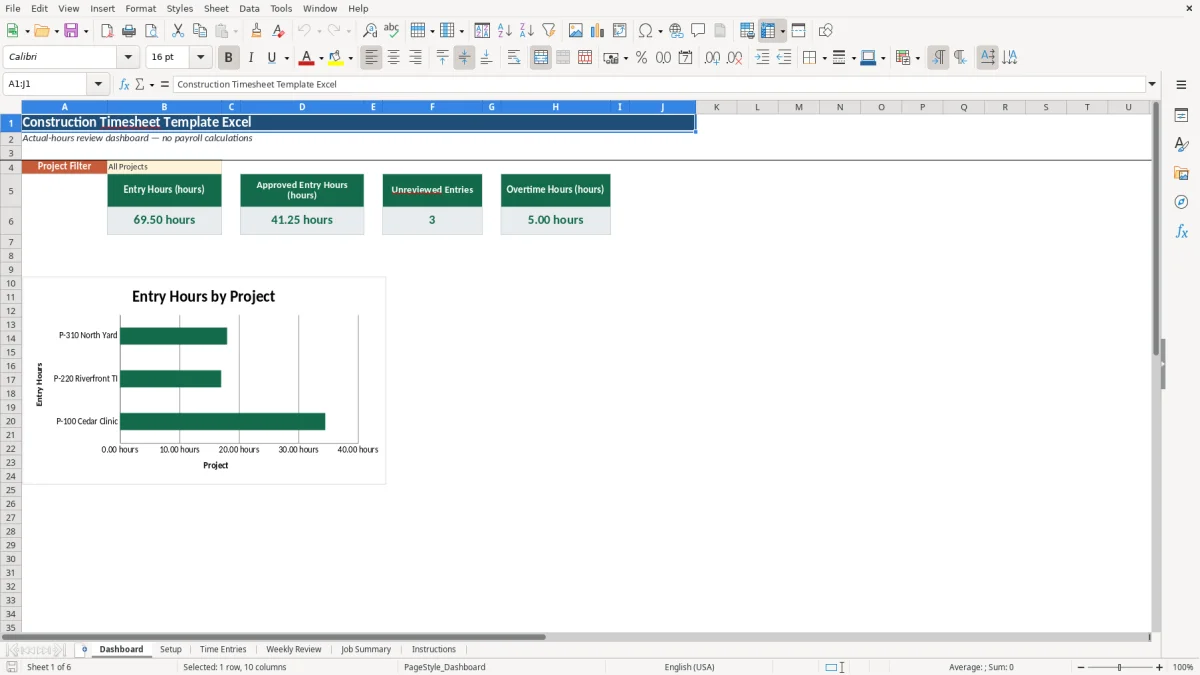
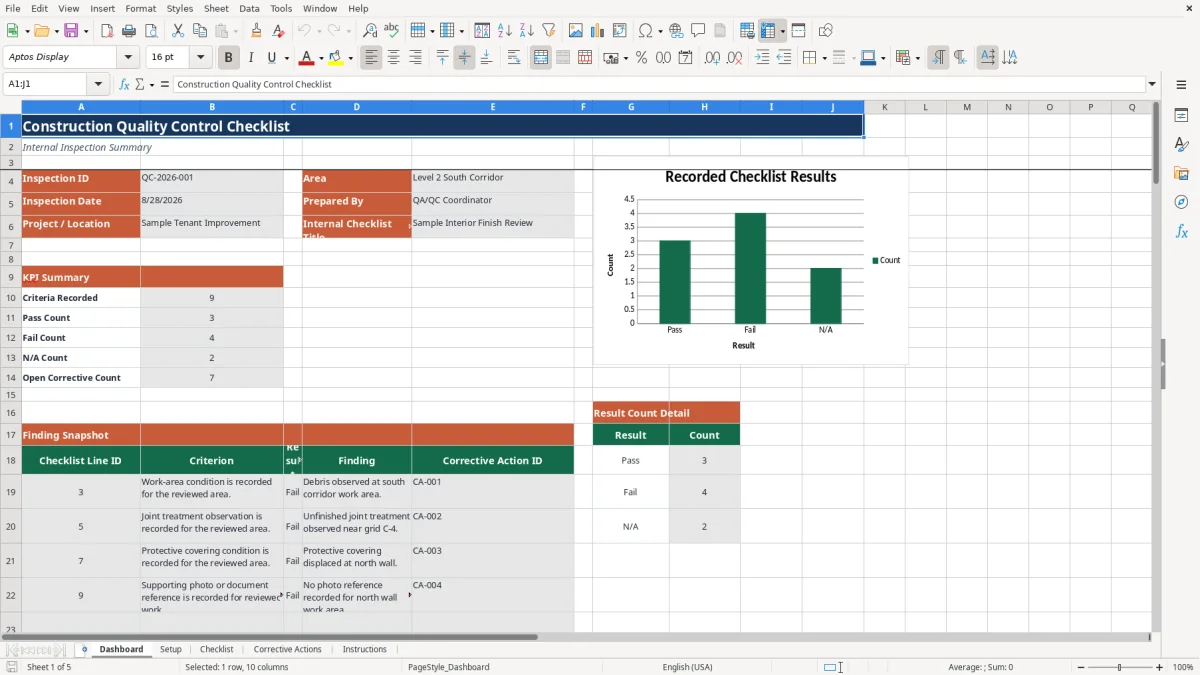
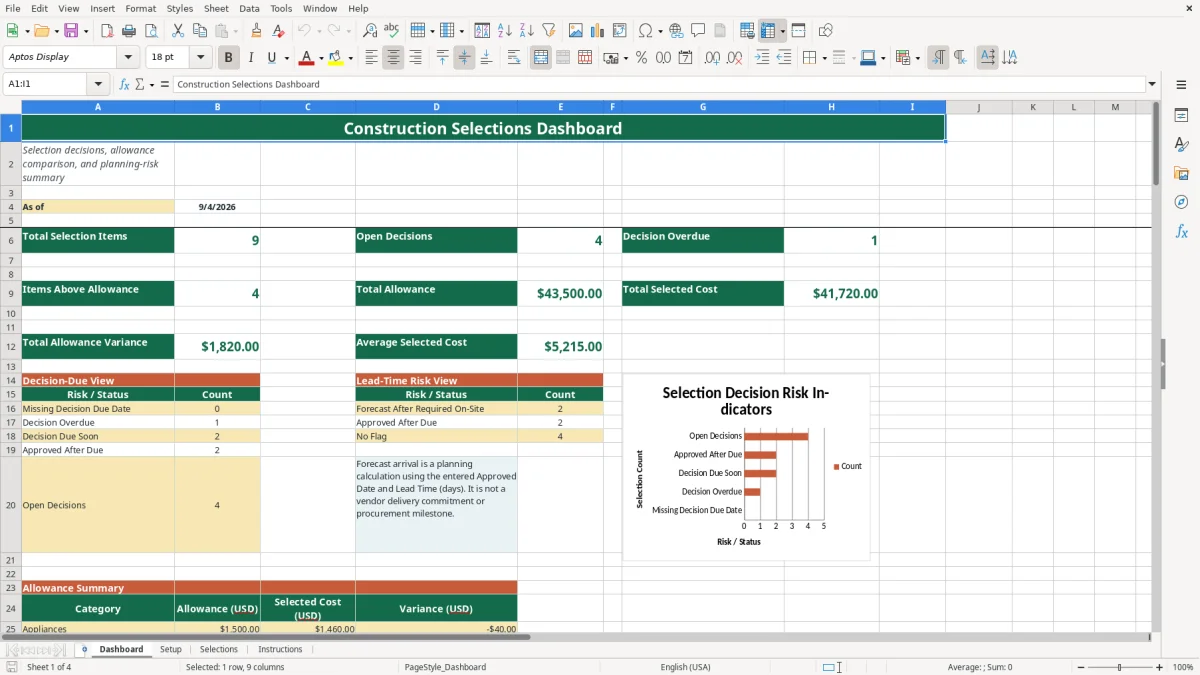
Four views generated from the verified XLSX.
How to use this workbook
Prepare the internal lists
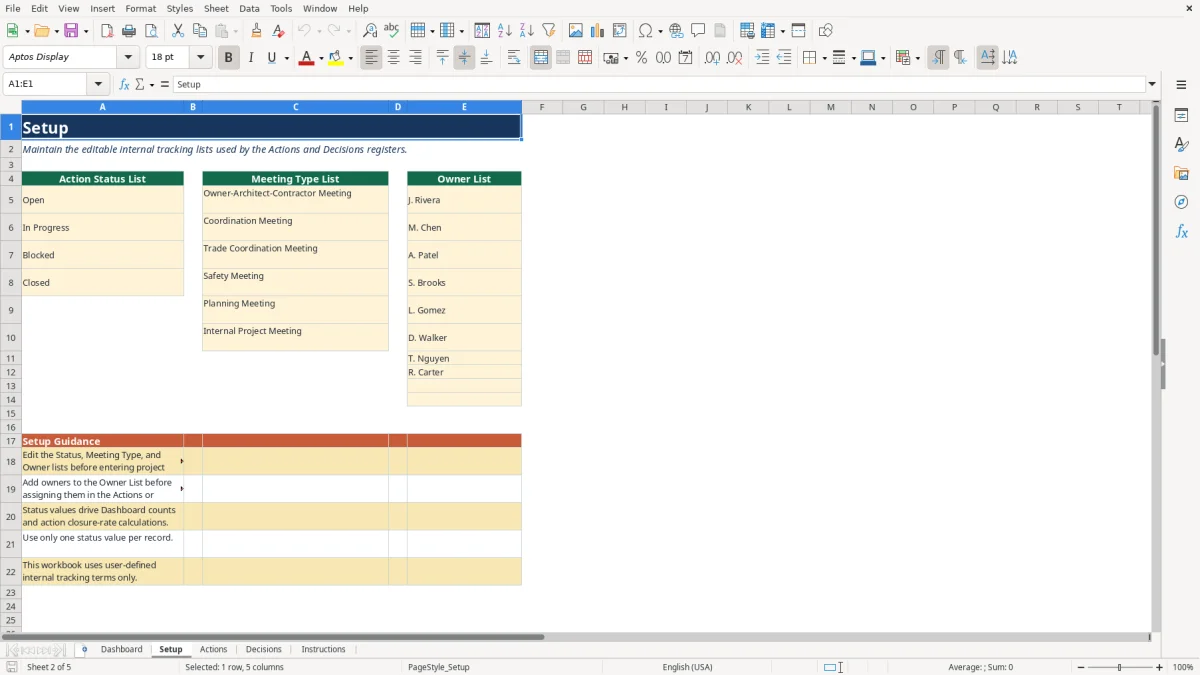
Begin on the Setup sheet. Update the internal Action Status List, Meeting Type List, and Owner List before entering project records. The supplied status values are Open, In Progress, Blocked, and Closed. These editable lists provide the available list choices in the Actions and Decisions registers and drive the Dashboard status and closure calculations. Use terms that match your team’s internal tracking practice.
Enter actions and decisions
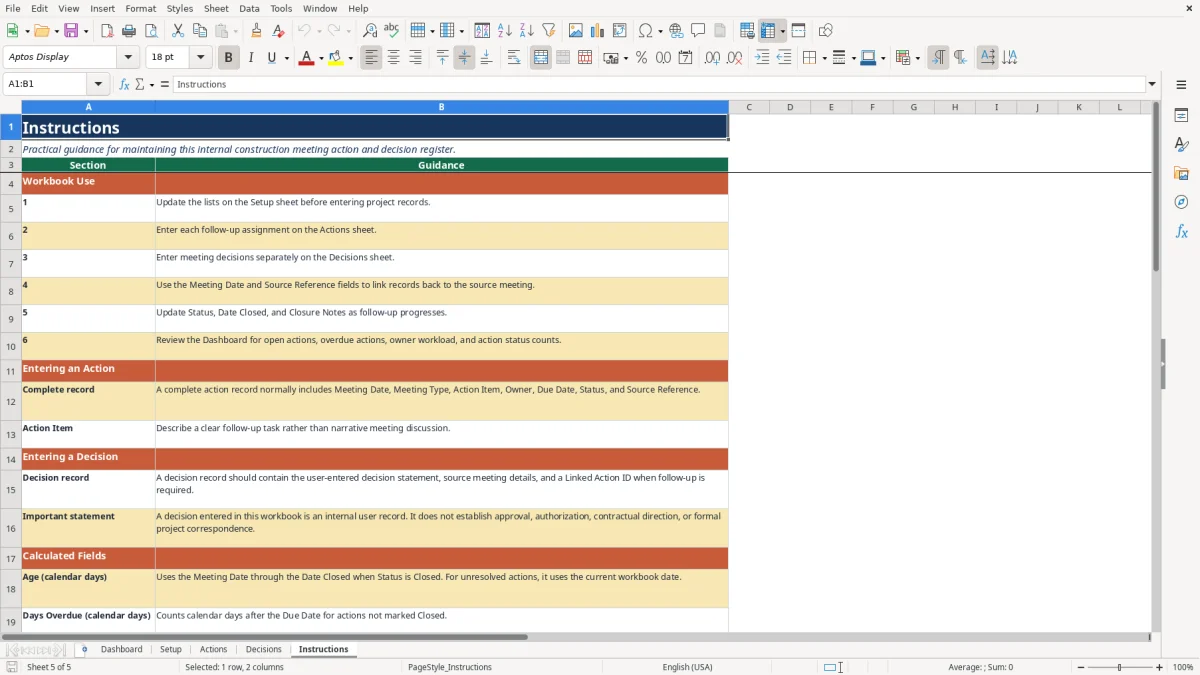
On the Actions sheet, use one clear follow-up assignment per row. Enter an Action ID, Meeting Date, Meeting Type, Action Item, Owner, Due Date, Status, Source Reference, and any closure details available. Enter dates in m/d/Y format, such as 8/13/2026. On the Decisions sheet, enter the Decision ID, meeting information, decision statement, decision owner, status, source reference, and closure details.
- Use the Linked Action ID on a decision only when follow-up is required.
- Keep the source reference specific enough to locate the originating meeting item.
- Update Status, Date Closed, and Closure Notes as work progresses.
Review calculated action results
Review the Dashboard after updating the action register. It counts populated action items not marked Closed as open actions and identifies overdue open actions. The Actions sheet also calculates calendar-day measures for Age and Days Overdue. Review these outputs as internal tracking information, then confirm completion details through your team’s normal project communication process.
Benefits
Separates follow-up assignments from user-entered meeting decision records.
Shows open and overdue action counts for a quick review.
Groups outstanding actions and overdue counts by listed owner.
Links records to meeting dates and source references.
Features
Actions register has 100 prepared rows with aging formulas.
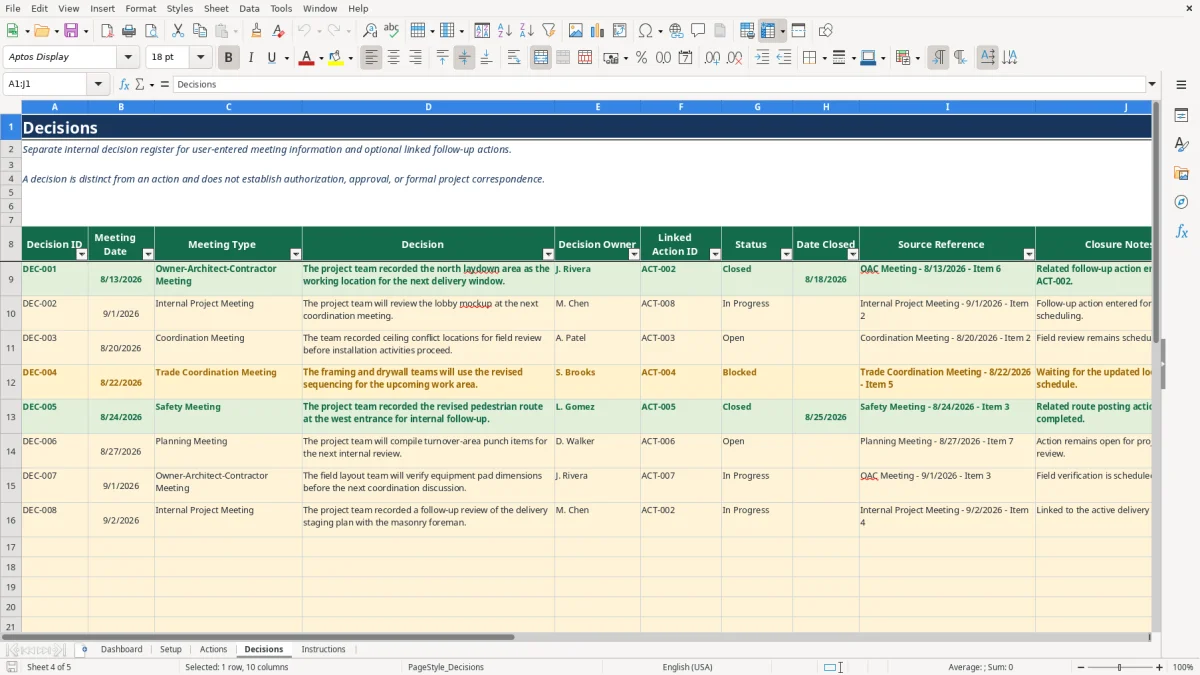
Decisions register has 100 prepared rows and optional linked actions.
Dashboard displays status counts, owner summaries, and one action-status chart.
Editable Setup lists supply meeting type, owner, and status choices.
Construction meeting action log Excel workflow
A construction meeting action log Excel workbook gives the team a dedicated place to capture follow-up work discussed during meetings. The Actions register includes fields for Action ID, Meeting Date, Meeting Type, Action Item, Owner, Due Date, Status, Date Closed, Source Reference, and Closure Notes. The Setup sheet supplies editable meeting type, owner, and status lists for the prepared action-entry rows.
The practical workflow is simple: record the assignment, identify one owner, enter an internal due date, and update its status through closure. The Dashboard then gives a workload review using action status counts and listed-owner summaries. It is not a substitute for reviewing the underlying action language, source reference, and current field conditions.
Action aging, overdue days, and closure rate
The workbook calculates Age and Days Overdue on the Actions sheet. Age uses the Meeting Date through the Date Closed when an action is marked Closed and a valid closed date is entered. For an unresolved action with a valid meeting date, age uses the current workbook date. Days Overdue counts calendar days after a valid Due Date for an action that is not marked Closed; a closed action shows zero days overdue.
Dashboard open-action totals count populated Action Item cells with a status other than Closed. The action closure rate divides closed populated action items by all populated action items. These outputs depend on the status, dates, and action items entered by the user. A missing or inaccurate entry can change the displayed counts and rates.
Separate meeting decisions from follow-up actions
The Decisions sheet keeps a user-entered meeting statement separate from the task needed to follow it up. Each decision record includes a Decision ID, Meeting Date, Meeting Type, Decision, Decision Owner, optional Linked Action ID, Status, Date Closed, Source Reference, and Closure Notes. When a decision needs work, link it to an existing Action ID rather than treating the decision statement as the assignment itself.
This workbook is an internal tracking tool. A decision entered here does not establish approval, authorization, contractual direction, or formal project correspondence. The workbook does not produce formal minutes, issue RFIs, manage formal questions or responses, approve changes, create contractual notice, or replace signed project correspondence.
Frequently asked questions
What is the difference between an action and a decision in this workbook?
An action is a follow-up assignment with an owner, due date, and status entered on the Actions sheet. A decision is a separately recorded meeting statement entered on the Decisions sheet. A decision may include an optional Linked Action ID when it creates follow-up work, but the decision itself is not the assignment.
Which fields are calculated automatically?
The Actions sheet calculates Age in calendar days and Days Overdue in calendar days. The Dashboard calculates open action count, overdue action count, action closure rate, action-status counts, and owner-level open and overdue counts. The Dashboard Date uses the current workbook date. All meeting details, owners, dates, statuses, and closure notes remain user inputs.
How are overdue actions counted?
An action is included as overdue when it has a populated Action Item, a status other than Closed, and a Days Overdue result greater than zero. Days Overdue requires a valid Due Date and is based on calendar days after that date. Due dates and overdue results are internal tracking values only.
Can the workbook approve a meeting decision or document contractual direction?
No. A decision entry is an internal user record and does not establish authorization, approval, contractual direction, or formal correspondence. Use the workbook to organize meeting follow-up, not to replace signed communications or any separate process your project uses for formal notices, changes, questions, or responses.
Workbook file
Ready to put this workbook to work?
Download the verified XLSX, keep an untouched copy, and adapt a working copy to your project.
Download verified XLSXEditorial team
About the authors

Paige Sutton Vale
Workbook Systems Editor
Paige turns construction planning, cost-control, field, and closeout workflows into clear Excel workbook guides. She focuses on inputs, calculations, outputs, and practical limits.

Maren Ellsworth Keel
Workbook QA Reviewer
Maren reviews formula behavior, field labels, project-controls terminology, and workbook instructions so each resource stays within its documented scope.
Continue exploring