Verified Excel workbook
Free 2026 Subcontractor Payment Workbook in Excel
Track construction subcontractor cost lines, allocation amounts, internal approval status, aging, and exceptions in this free Excel workbook for 2026.
Download the free Construction Subcontractor Payment Tracker Workbook in Excel to maintain an internal register of subcontractor payment tracker cost and allocation lines. The Cost Ledger captures a Line ID, project, cost code or allocation target, subcontractor, vendor, worker, or asset, accountable owner, transaction date, approval status, and source reference. Amounts are tracked in USD, while the unit of measure remains exactly as entered.
This workbook supports internal project-controls review, not a payment decision. It calculates amounts, allocation results, variances, open-item aging, and exception indicators from user-entered values and Setup assumptions. Source evidence remains outside the workbook, so teams should retain and review supporting records through their established process.
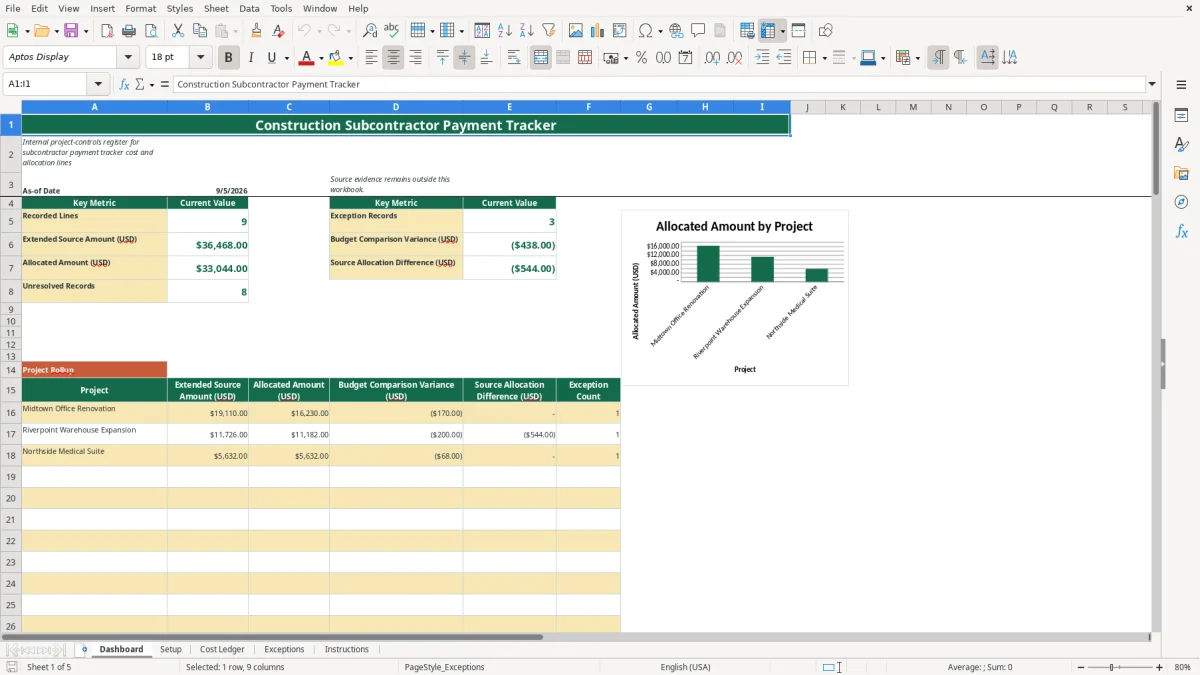
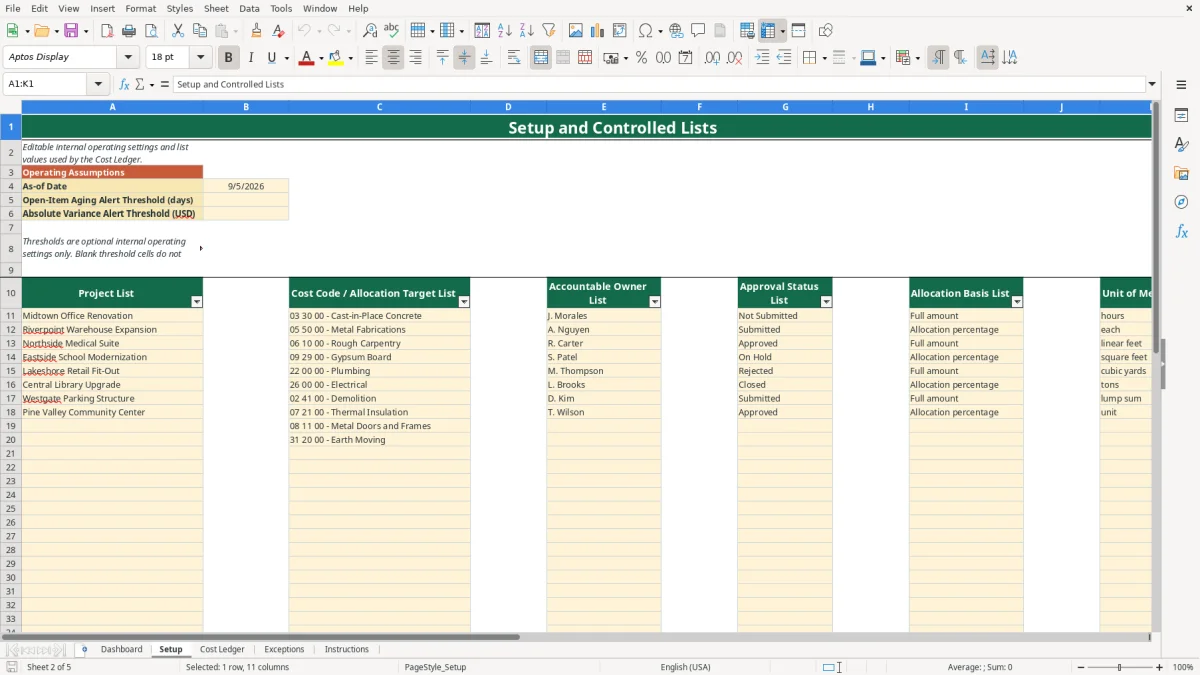
Final workbook preview
Four views generated from the verified XLSX.
How to use this workbook
Set internal assumptions and lists
On Setup, enter the As-of Date used for aging, such as 9/5/2026. You may also enter an open-item aging alert threshold in days and an absolute variance alert threshold in USD. These are optional internal settings; blank threshold cells do not create related exceptions. Update the project, cost code, owner, approval status, allocation basis, and UOM lists as needed.
Enter one controlled ledger record
In Cost Ledger, use a separate Line ID for every tracked record. Enter the project, allocation target, tracked subcontractor, vendor, worker, or asset, owner, transaction date, approval status, and source reference. Enter either Source Amount in USD or Quantity / Hours, an explicit UOM, and Unit Rate in USD per UOM. The workbook does not convert units.
Review calculations and follow-up items
Select Full amount to allocate the full calculated source amount, or select Allocation percentage and enter a percentage from 0% through 100%. Add a Budget / Comparison Amount in USD when using a budget comparison. Review the calculated columns, Dashboard, and Exceptions sheet. Do not overwrite calculated results; correct the underlying user-entry fields instead.
Benefits
Maintain one identifiable record for each cost or allocation line.
Assign an internal owner, approval status, and source reference.
Review project and cost-code totals in USD from ledger entries.
Identify incomplete, aging, variance, rejected, and on-hold records.
Features
Five worksheets: Dashboard, Setup, Cost Ledger, Exceptions, and Instructions.
Calculated extended amount, allocated amount, variance, review status, and aging in days.
List selections for project, cost code, owner, UOM, allocation basis, and approval status.
Dashboard rollups and an Exceptions view for internally flagged ledger records.
Construction payment tracker ledger
The Cost Ledger is the workbook’s central record for construction subcontractor payment tracker cost and allocation lines. Its user-entry fields include project, cost code or allocation target, tracked party or asset, accountable owner, transaction date, quantity or hours, UOM, unit rate, source amount, allocation basis, approval status, and source reference. The ledger has prepared operational rows from row 3 through row 122.
List selections are available for project, cost code or allocation target, accountable owner, UOM, allocation basis, and approval status. These selections help standardize entries across the workbook, but users must select values that fit the actual project record and maintain the Setup lists when their internal operating values change.
Amount allocation and variance logic
Extended Source Amount in USD uses the entered Source Amount when it is numeric. If that field is not numeric, the workbook uses Quantity / Hours multiplied by Unit Rate in USD per UOM when both inputs are numeric. If both bases are entered, the entered Source Amount takes precedence. No unit conversion or unit reinterpretation occurs.
Full amount allocation uses the complete extended source amount. Allocation percentage multiplies the extended source amount by the entered allocation percentage. When a Budget / Comparison Amount in USD is entered, the workbook calculates allocated amount less that comparison amount. Without a comparison amount, it calculates allocated amount less extended source amount as a source comparison. A calculated variance does not determine whether an amount is acceptable.
Aging, exceptions, and dashboard review
Open-item aging in days is calculated from the Setup As-of Date and the transaction date for records that are not resolved. The result cannot be below zero. Optional aging and absolute variance thresholds on Setup determine whether those specific exception indicators return Yes. An exception flag also identifies incomplete records and records with Rejected or On Hold approval status.
The Dashboard summarizes recorded lines, exception records, extended source amount, allocated amount, unresolved records, budget comparison variance, and source allocation difference. It also provides project and cost-code or allocation-target rollups, including exception counts. The Dashboard includes a chart based on displayed project rollup entries.
Workbook limits and review boundaries
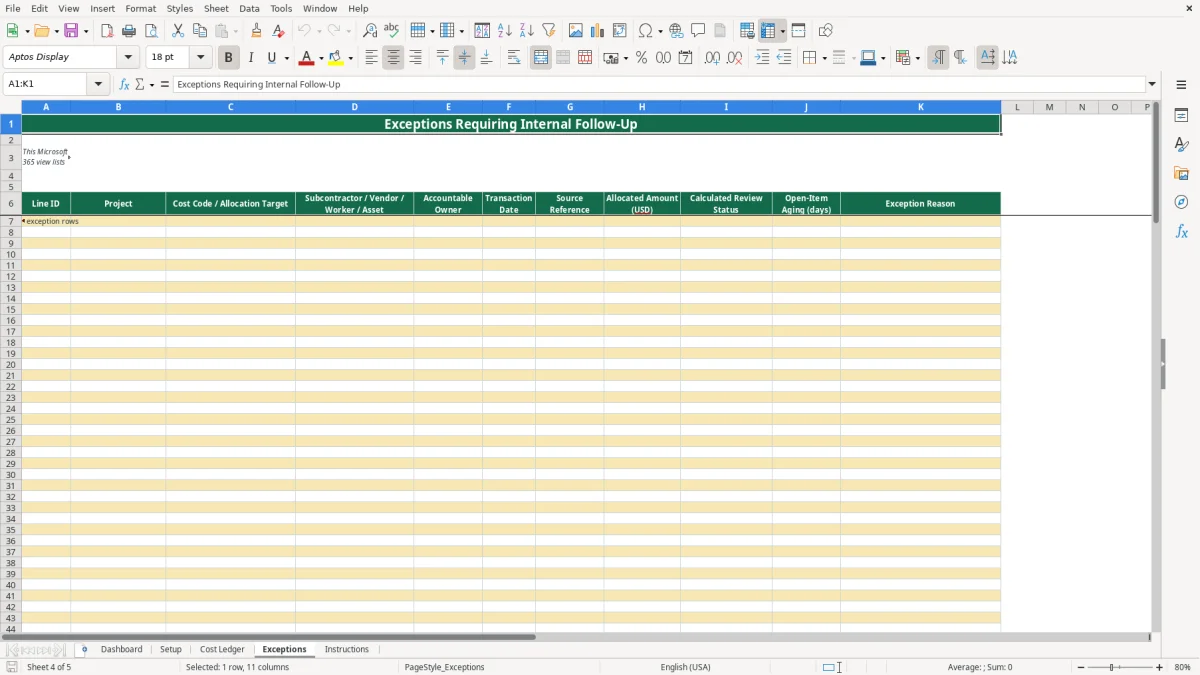
The Exceptions sheet uses a Microsoft 365 dynamic-array formula to list records where Exception Flag equals Yes. If dynamic-array functions are unavailable, filter the Cost Ledger directly by Exception Flag. The workbook is an internal controls aid and does not replace source systems, source documents, field verification, contractual authority, accounting review, audit procedures, or professional judgment.
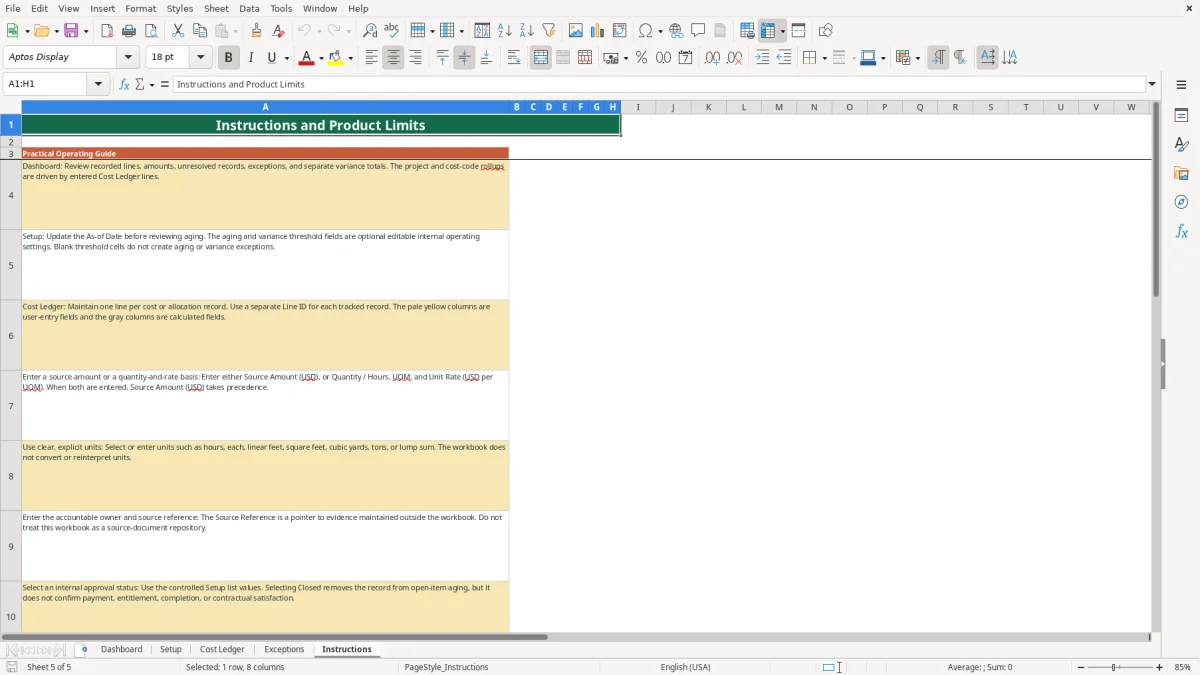
A source reference points to evidence held outside the workbook. An internal approval status, including Closed, is a workflow field rather than proof of payment, entitlement, accuracy, completion, or compliance. Review the supporting record and project context before acting on any calculated output.
Frequently asked questions
What should I enter for each ledger line?
Enter a Line ID, project, cost code or allocation target, tracked subcontractor, vendor, worker, or asset, accountable owner, transaction date, allocation basis, approval status, and source reference. Enter either Source Amount in USD or Quantity / Hours, UOM, and Unit Rate in USD per UOM. Allocation percentage also requires a percentage input.
How is open-item aging calculated?
Open-item aging in days equals the Setup As-of Date less the transaction date, with a minimum result of zero. Aging is blank for resolved records or when either relevant date is not numeric. An aging exception occurs only when an aging threshold is entered and the aging result exceeds it.
What does Closed mean in this workbook?
Closed changes the calculated review status to Resolved and removes the line from open-item aging. It is not payment confirmation, evidence of entitlement, or proof that the underlying record is accurate. Use it only as an internal operating status after your team’s review.
Why is a line shown on the Exceptions sheet?
A line is flagged when required inputs are missing, approval status is Rejected or On Hold, aging exceeds an entered threshold, or absolute variance exceeds an entered USD threshold. The Exception Reason output combines applicable causes so the reviewer can identify the internal follow-up item.
Can I use Exceptions without Microsoft 365?
The Exceptions sheet relies on Microsoft 365 dynamic-array functions. If those functions are unavailable, filter the Cost Ledger table for Exception Flag equal to Yes. The Cost Ledger remains the underlying record for reviewing entered values and calculated status fields.
Workbook file
Ready to put this workbook to work?
Download the verified XLSX, keep an untouched copy, and adapt a working copy to your project.
Download verified XLSXEditorial team
About the authors

Paige Sutton Vale
Workbook Systems Editor
Paige turns construction planning, cost-control, field, and closeout workflows into clear Excel workbook guides. She focuses on inputs, calculations, outputs, and practical limits.

Maren Ellsworth Keel
Workbook QA Reviewer
Maren reviews formula behavior, field labels, project-controls terminology, and workbook instructions so each resource stays within its documented scope.