Verified Excel workbook
Free 2026 Construction Equipment Rental Workbook in Excel
Track construction equipment rental costs, allocation, return exposure, and exceptions with a free Excel workbook for project controls.
Rental equipment costs can become difficult to review when rates, rental periods, source references, cost targets, and return dates sit in separate records. This workbook keeps those operating details in one controlled ledger. Download this free Excel workbook to record rental cost lines, assign accountable owners, and review calculated cost and exception information by project.
The workbook is built for an internal US construction project-controls workflow. You enter the source record details; Excel calculates extended source amount, allocated amount, budget or source variance, open-item aging, return exposure, and review status. It supports operational follow-up, not invoice validation, payment authorization, field verification, or contractual decisions.
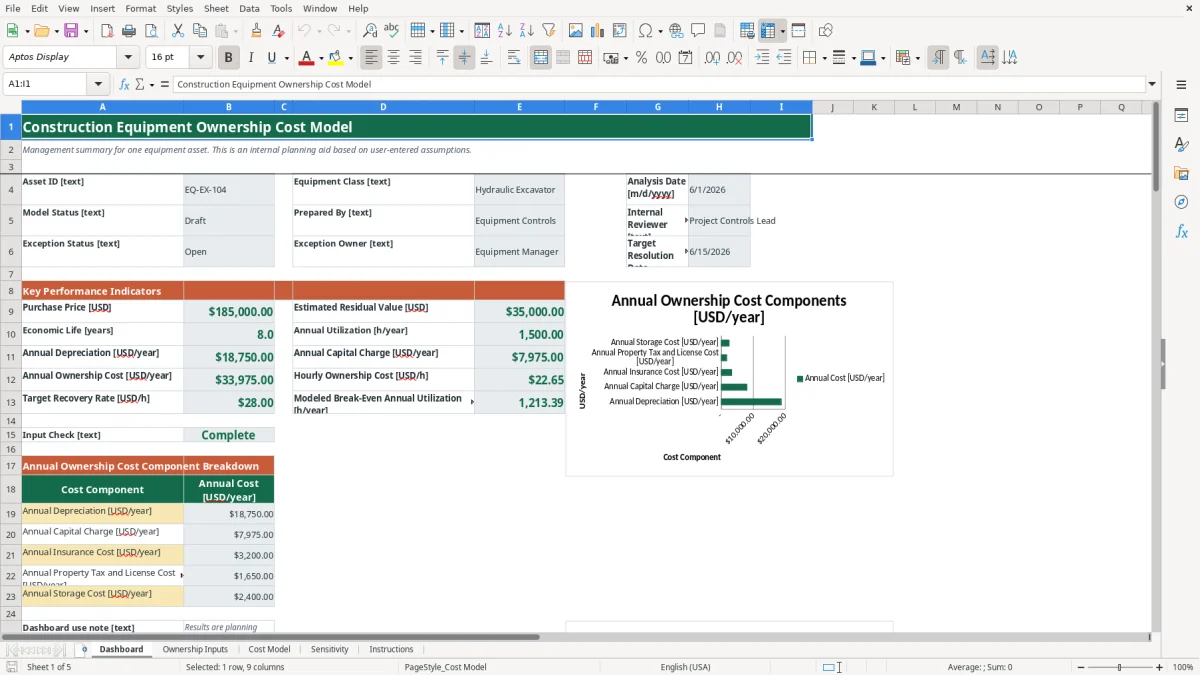
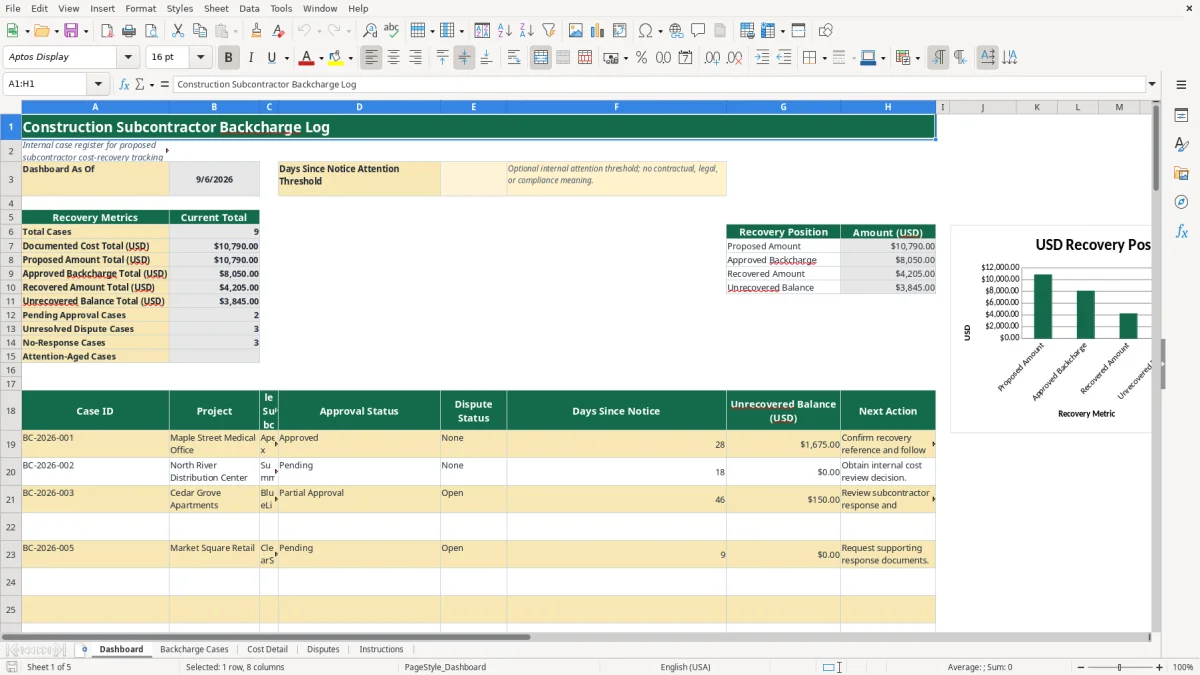
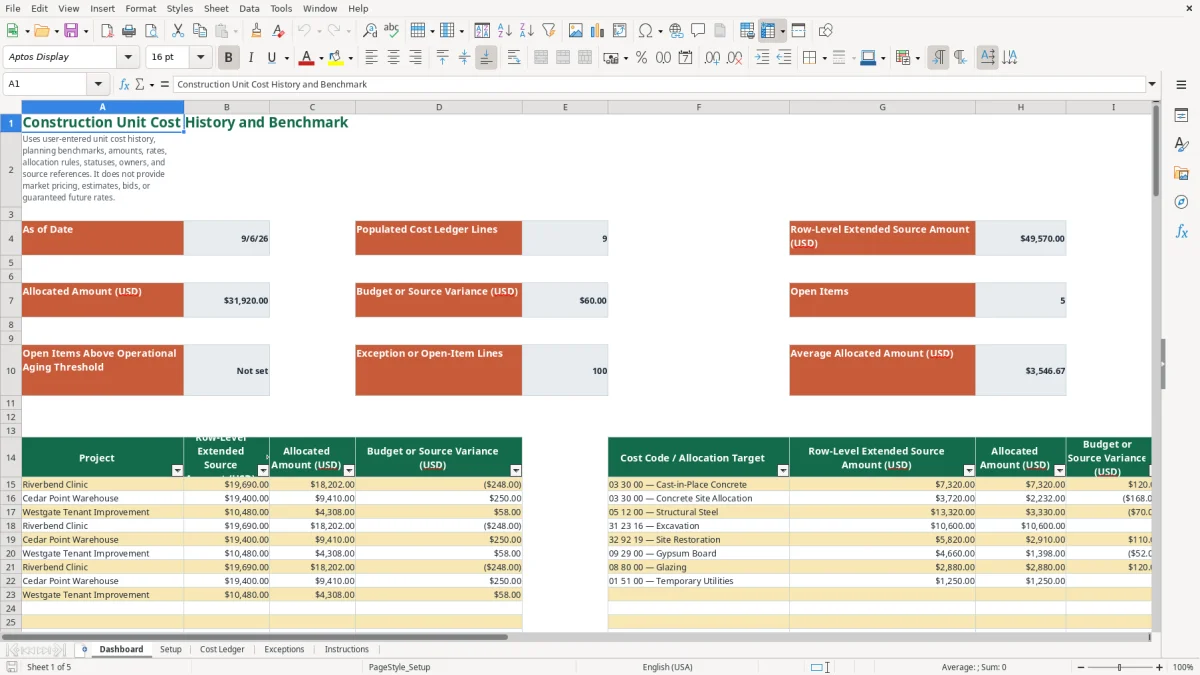
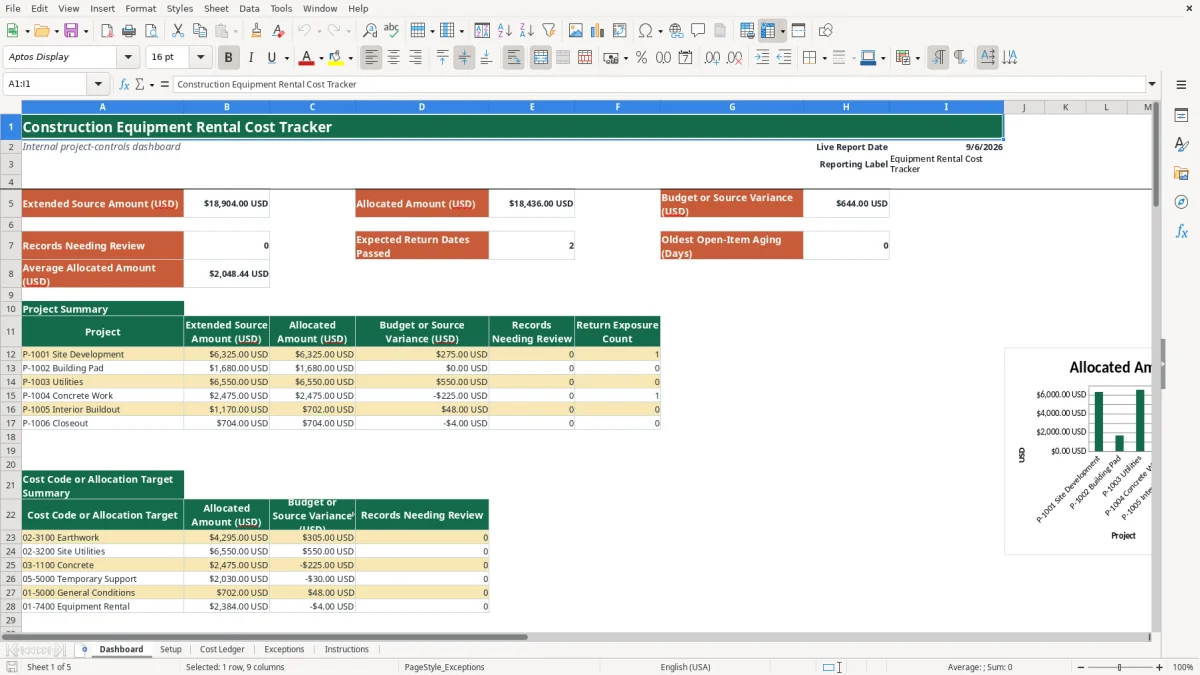
Final workbook preview
Four views generated from the verified XLSX.
How to use this workbook
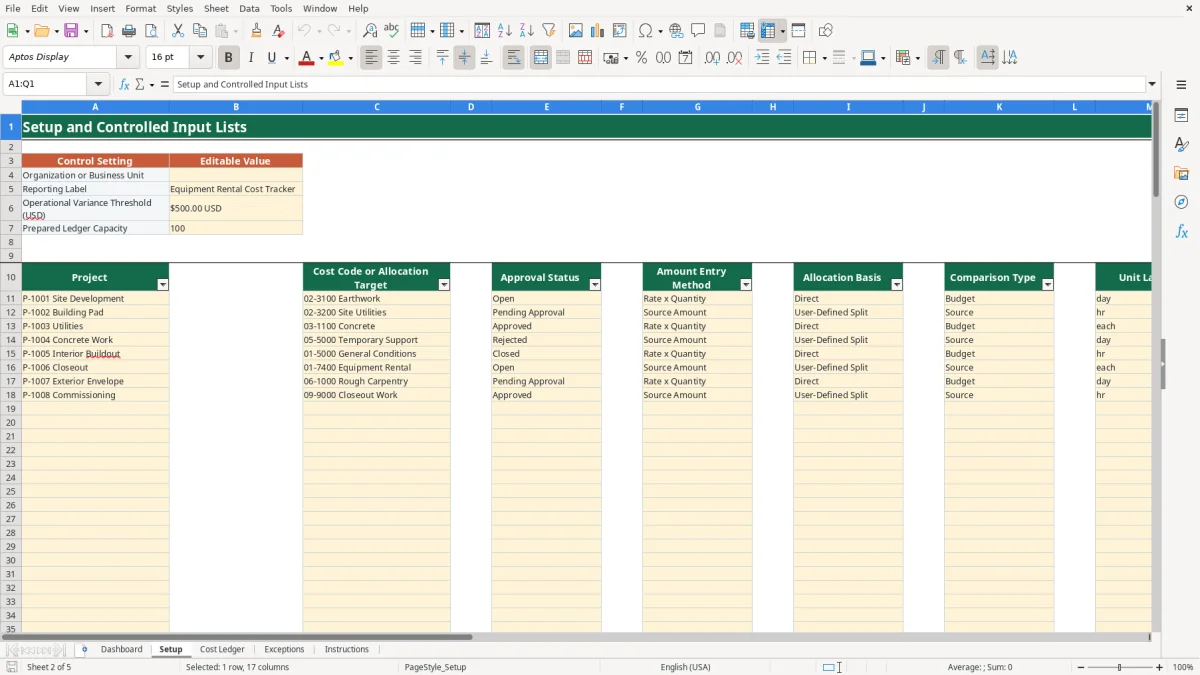
Set up controlled lists and threshold
Start on Setup. Confirm or revise the organization or business unit, reporting label, project names, cost codes or allocation targets, approval statuses, amount entry methods, allocation bases, comparison types, unit labels, and accountable owners. Set the editable Operational Variance Threshold in USD. The workbook is initially populated with a USD 500 threshold, which is an editable operating assumption rather than a required limit.
Enter one rental cost record per line
Use Cost Ledger rows 7 through 106 for prepared operational records. Enter a unique line ID, project, cost code or allocation target, vendor, worker, or asset, equipment description, transaction date, rental start and end dates, expected and actual return dates, approval status, accountable owner, and source reference. Enter dates in m/d/Y format and retain the supporting source evidence outside the workbook.
Choose the amount and allocation inputs
For a Rate x Quantity record, enter quantity, a unit label, and Unit Rate in USD per unit. For a Source Amount record, enter the Entered Source Amount in USD. Then enter the allocation basis, allocation percent, comparison type, and budget or source comparison amount in USD. Unit labels are user-selected operational labels. The workbook does not convert day, hr, each, or any other unit label.
Review calculated results and exceptions
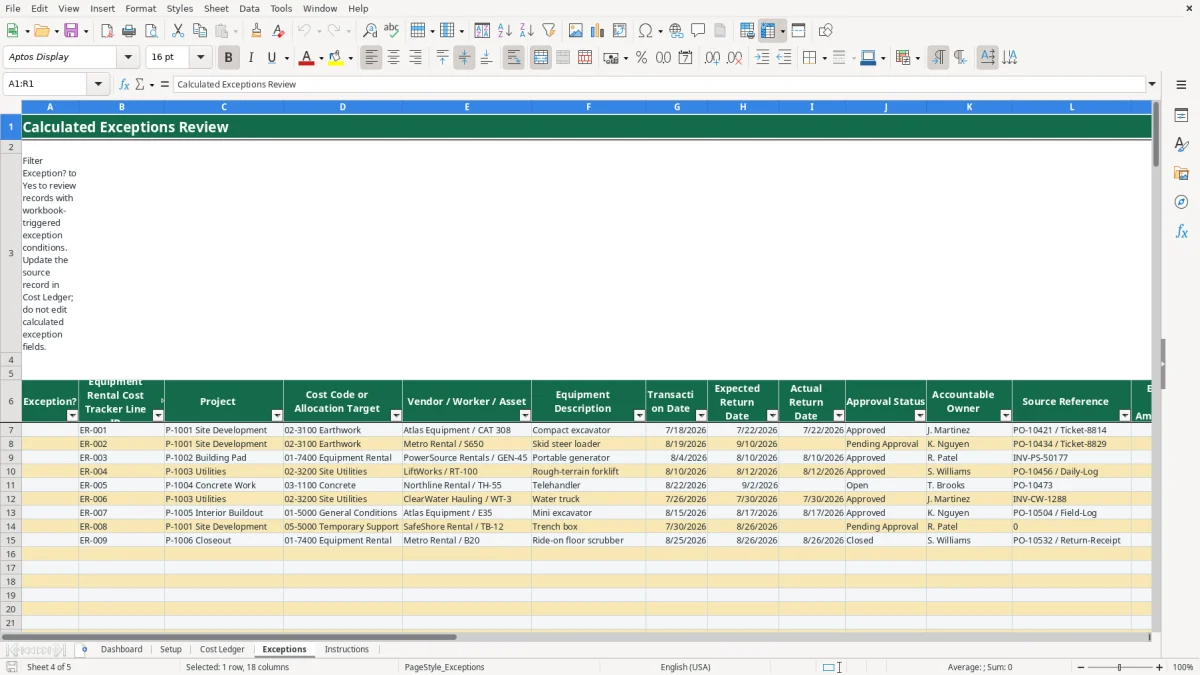
Do not overwrite calculated Cost Ledger columns W through AC. Excel calculates the extended source amount, allocated amount, variance, aging, return exposure, exception summary, and calculated review status. On Exceptions, filter Exception? to Yes and update the underlying Cost Ledger record after investigation. Use the Dashboard for a current review view, not as source evidence.
Maintain the prepared range
The ledger and Exceptions sheet each provide 100 prepared record rows. If the workflow needs more than 100 records, expand the prepared Cost Ledger and Exceptions ranges together and preserve the calculated formulas. Review formulas after any structural change before relying on revised totals.
Benefits
Keep equipment rental records tied to a project, cost code, owner, and source reference.
Compare calculated allocated amounts with user-entered budget or source comparison amounts in USD.
Identify unresolved approvals, missing references, uncalculated amounts, and passed expected return dates.
Review project and allocation-target totals without rebuilding calculations for each reporting cycle.
Features
A 100-row Cost Ledger with controlled lists for key project-controls entries.
Calculated USD amounts for rate-times-quantity or entered-source-amount records.
An Exceptions sheet that carries review details from each Cost Ledger record.
A Dashboard with project summaries, allocation-target summaries, and one project allocated-amount chart.
Equipment rental cost tracking in Excel
This construction equipment rental cost tracker Excel workbook organizes the line-level information needed for rental cost follow-up. The Cost Ledger captures the rental line ID, project, cost code or allocation target, vendor, worker, or asset, equipment description, transaction date, rental dates, return dates, approval status, accountable owner, and source reference. It also records the amount-entry method and allocation inputs. The ledger is the workbook's controlled input register. Its calculated fields are designed to summarize the records entered by the user rather than replace vendor documentation or other source systems.
Calculated rental cost and allocation fields
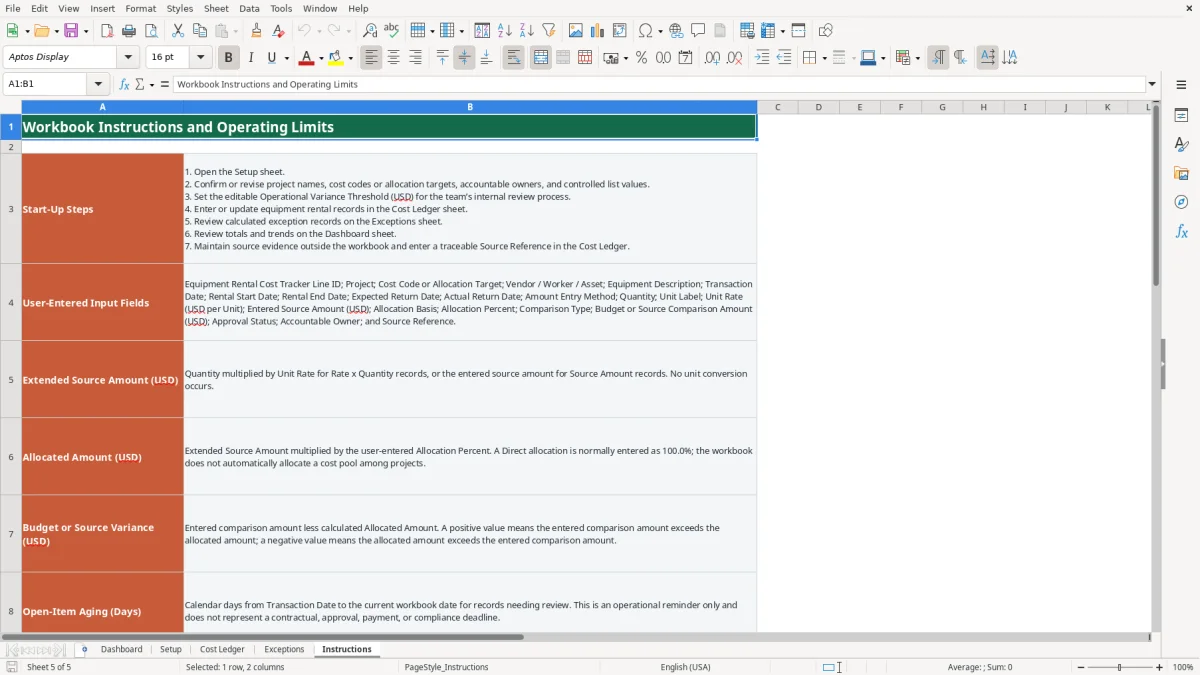
For Rate x Quantity entries, Extended Source Amount equals Quantity multiplied by Unit Rate in USD per unit. For Source Amount entries, the calculation uses the entered source amount in USD. Allocated Amount equals Extended Source Amount multiplied by the user-entered Allocation Percent. Budget or Source Variance equals the entered comparison amount less the calculated Allocated Amount. A positive result means the entered comparison amount exceeds the allocated amount; a negative result means the allocated amount exceeds that comparison amount. Allocation percentages and comparison amounts remain user-entered assumptions.
Return exposure and unresolved-item review
The workbook calculates Open-Item Aging in days from the transaction date to the current workbook date only for records needing review. It also identifies Return Exposure when an entered Expected Return Date has passed and no Actual Return Date is entered. Exception Summary can identify an amount that was not calculated, a missing source reference, unresolved approval, passed expected return date, or variance beyond the Setup threshold. A return-exposure result is an operating reminder; it does not confirm equipment location, rental termination, or stopped charges.
Frequently asked questions
What information do I enter in the rental cost tracker?
Enter the line ID, project, cost code or allocation target, vendor, worker, or asset, equipment description, dates, amount-entry method, quantity or source amount, allocation inputs, approval status, accountable owner, and source reference. The workbook uses these user-entered records to produce its calculated amounts and exception views.
How does the workbook calculate rental cost?
For Rate x Quantity records, it multiplies Quantity by Unit Rate in USD per unit. For Source Amount records, it uses the Entered Source Amount in USD. It then multiplies the extended source amount by the entered Allocation Percent to calculate Allocated Amount. No unit conversion occurs.
What causes a record to need review?
A record can receive calculated Review status when the workbook finds one or more triggered conditions, including an amount not calculated, a missing source reference, unresolved approval, expected return date passed, or variance beyond the user-defined operational threshold. Review status is a prompt for follow-up, not a finding about payment or entitlement.
Can I use the Dashboard for project reporting?
The Dashboard calculates extended source amount, allocated amount, variance, review counts, passed expected return dates, aging, and project and cost-code or allocation-target summaries from Cost Ledger records. It also includes a project allocated-amount chart. Results depend on the completeness and accuracy of the entered ledger data.
What are the workbook's limits?
This is an internal construction project-controls aid using user-entered amounts, rates, dates, assumptions, allocation percentages, statuses, and source references. It does not validate rental invoices, verify field usage, certify equipment return, determine contract rights, authorize payment, or provide accounting, tax, insurance, audit, legal, or professional advice.
Workbook file
Ready to put this workbook to work?
Download the verified XLSX, keep an untouched copy, and adapt a working copy to your project.
Download verified XLSXEditorial team
About the authors

Paige Sutton Vale
Workbook Systems Editor
Paige turns construction planning, cost-control, field, and closeout workflows into clear Excel workbook guides. She focuses on inputs, calculations, outputs, and practical limits.

Maren Ellsworth Keel
Workbook QA Reviewer
Maren reviews formula behavior, field labels, project-controls terminology, and workbook instructions so each resource stays within its documented scope.