Verified Excel workbook
Free 2026 Construction Project Budget Workbook in Excel
Free construction project budget template Excel workbook for 2026. Track approved baselines, changes, transfers, and control totals in USD.
The Construction Project Budget Workbook is a free Excel tool for maintaining an approved post-award cost-code budget rather than a job-cost ledger. Download the free workbook to enter baseline lines, approved changes, paired transfers, and one user-entered project control total. It calculates a current revised budget in USD and exposes unresolved records for review.
Five worksheets—Dashboard, Budget Baseline, Revisions and Transfers, Budget Control, and Instructions—separate data entry from project-level reconciliation. Use it when the team needs a consistent record of budget IDs, owners, references, and m/d/Y effective dates. The workbook uses your amounts and internal allocation rules; it does not decide whether a change is approved.
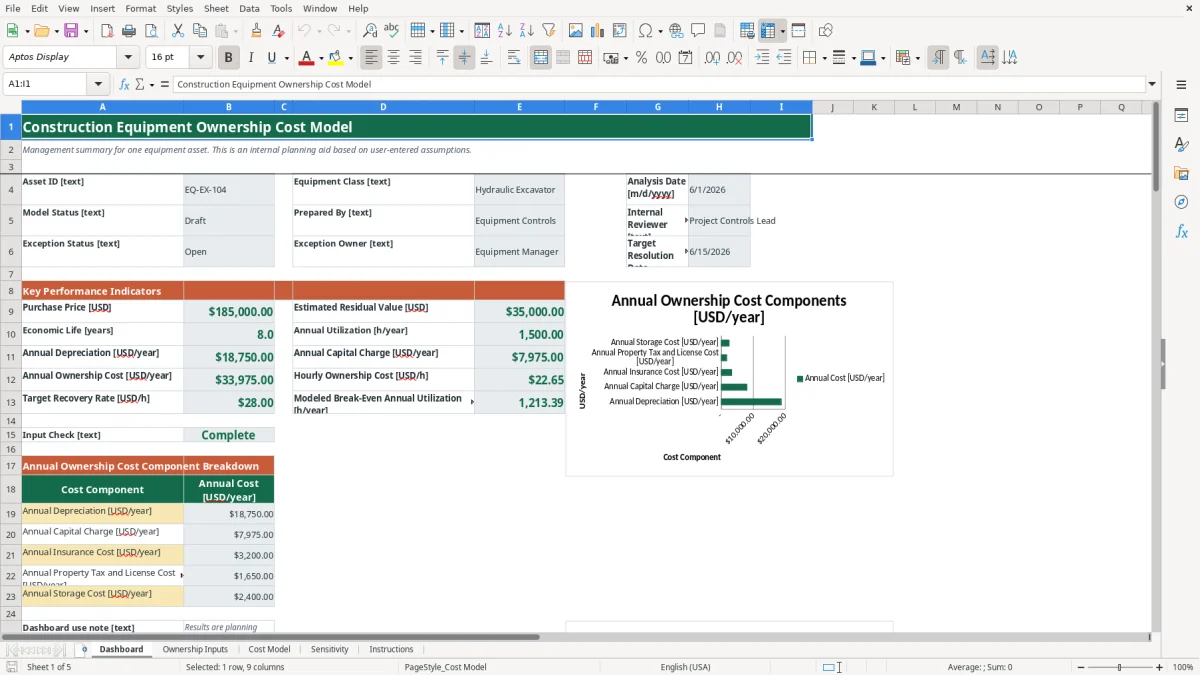
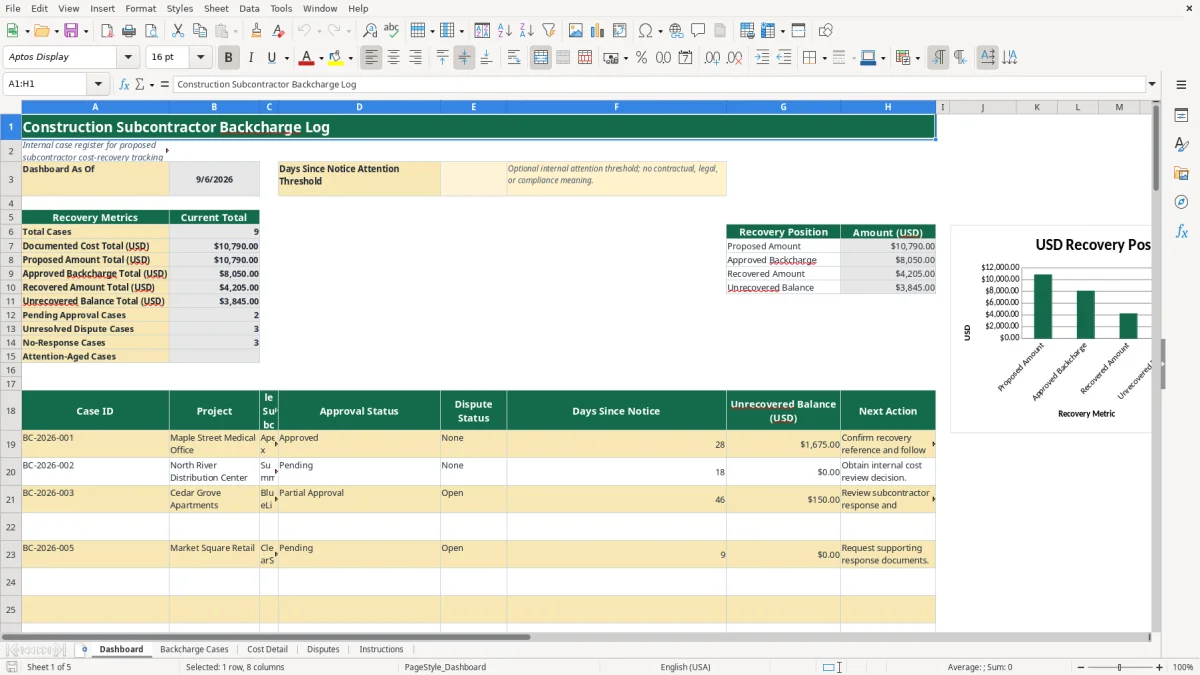
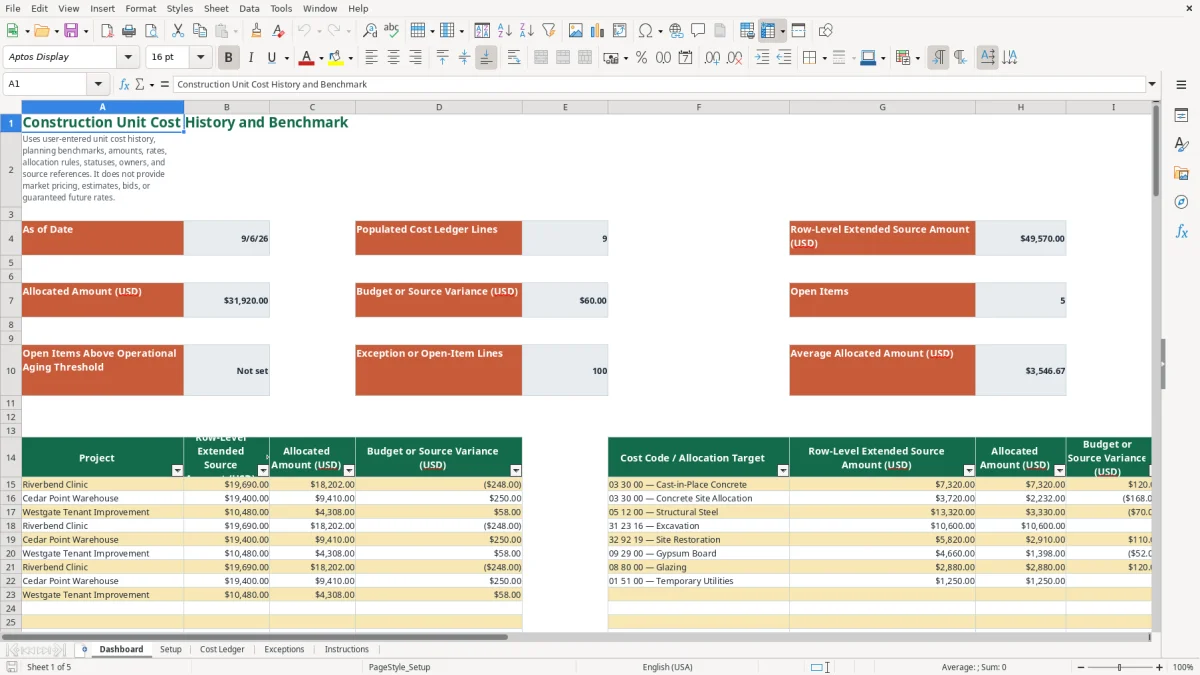
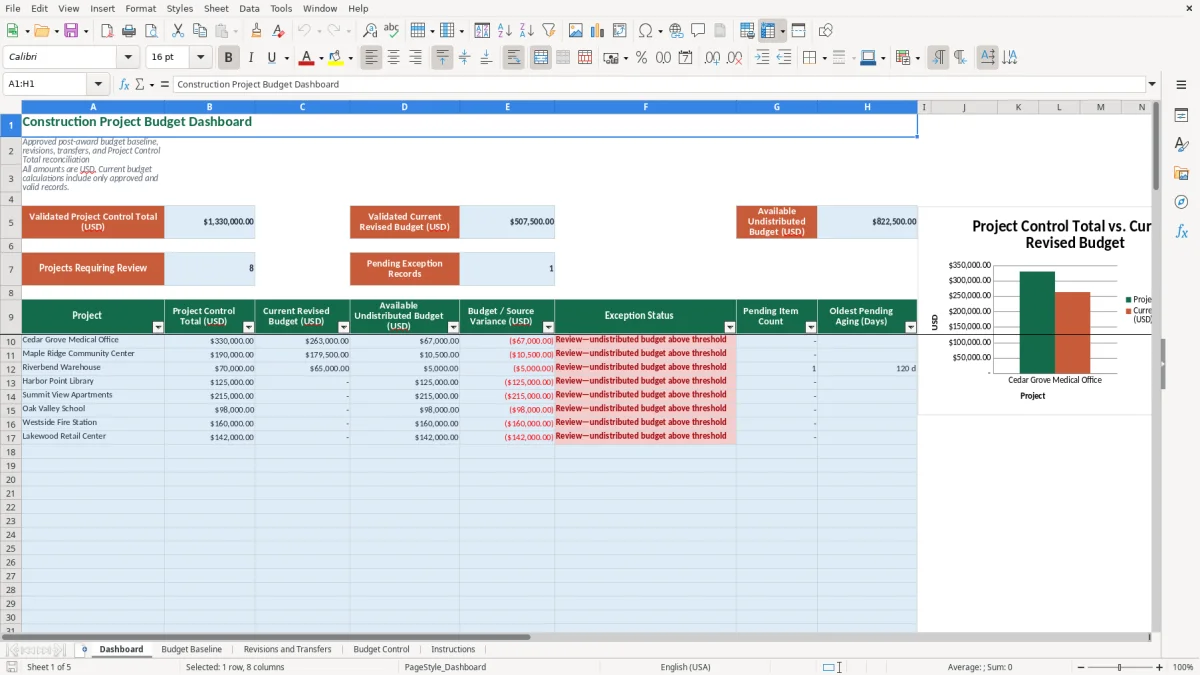
Final workbook preview
Four views generated from the verified XLSX.
How to use this workbook
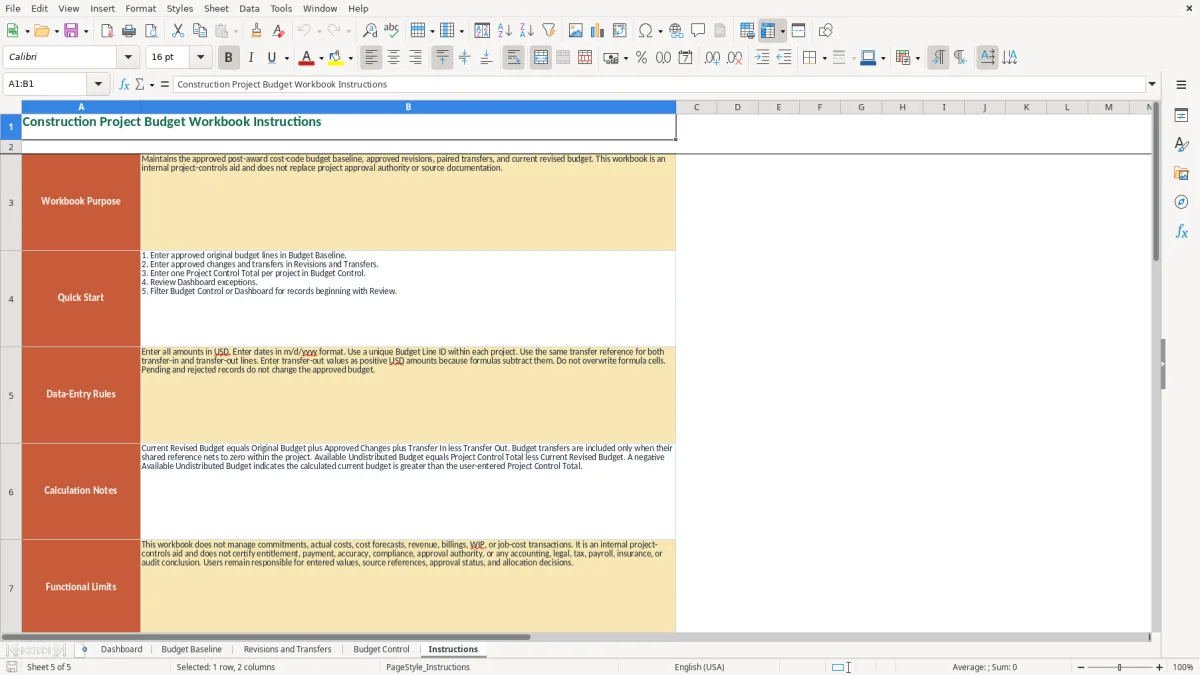
Review the Instructions worksheet first
Start with Instructions to confirm the intended workflow and functional limits. Establish the approved post-award baseline, record only approved budget activity, and reconcile it to an internal project control total. Enter all money values in USD and dates in m/d/Y format, such as 6/2/2026.
Load approved baseline lines
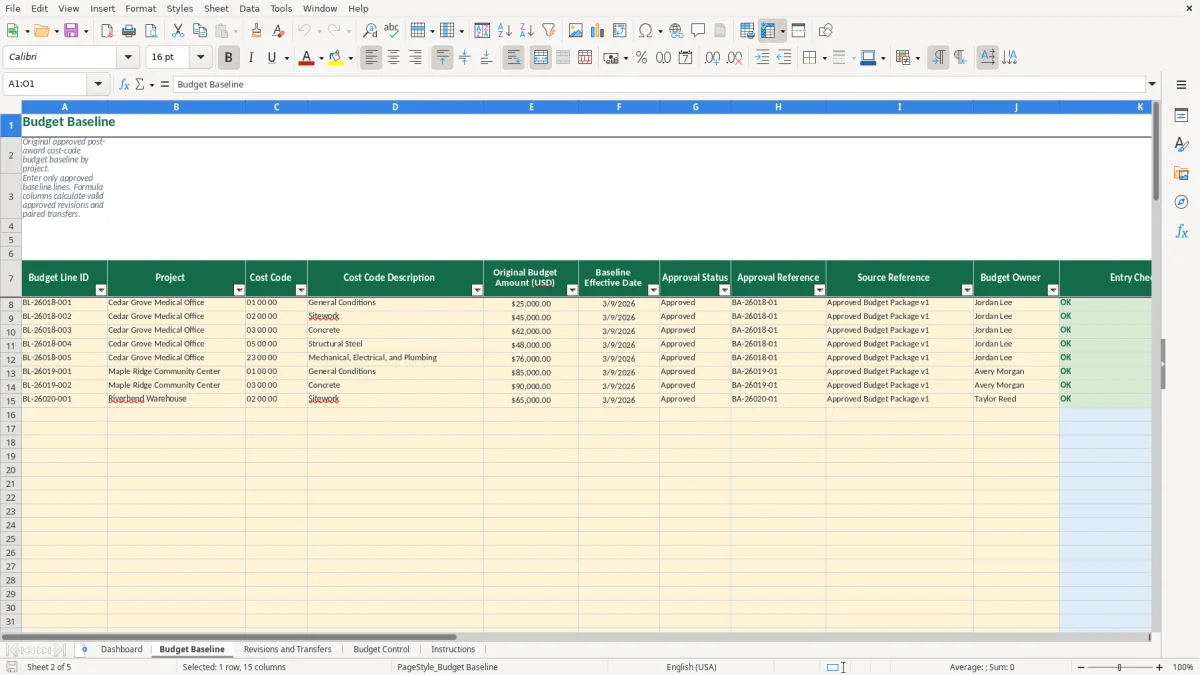
In Budget Baseline, enter a unique Budget Line ID within each project, project name, cost code, description, original budget amount in USD, baseline effective date, approval status, approval reference, source reference, and budget owner. Only records marked Approved with an OK entry check are included in the approved original budget calculation.
Record changes and transfers
Use Revisions and Transfers for an approved change, transfer in, or transfer out by budget line. Enter one positive amount in only one amount field for each record, along with the effective date, status, reference, source, and responsible owner. A transfer requires offsetting transfer-in and transfer-out records with the same transfer reference before it is included.
Reconcile project controls
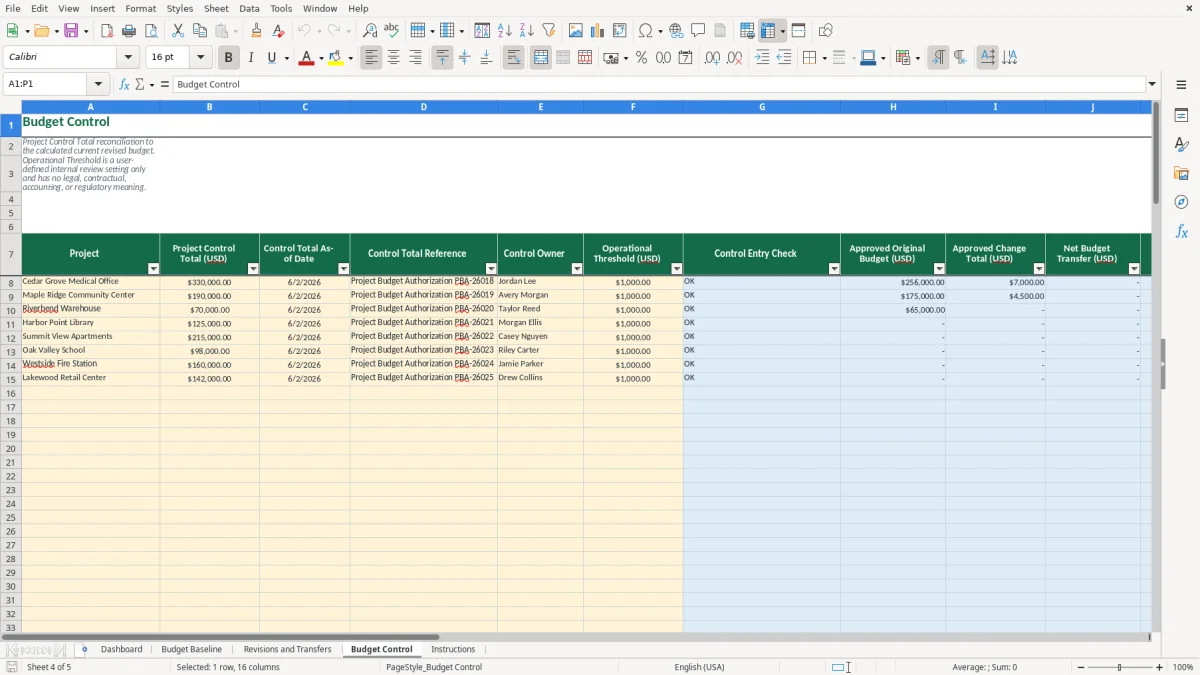
In Budget Control, enter one project control total in USD for each project, its as-of date, reference, control owner, and an optional operational threshold in USD. Review the Dashboard for calculated revised budget, available undistributed budget, pending item count, oldest pending aging in Days, and exception status.
Benefits
Maintain approved original budgets by project, cost code, owner, reference, and effective date.
Separate approved revisions from pending and rejected exception records.
Keep transfer-in and transfer-out amounts tied to a shared reference.
Compare the calculated revised budget with a user-entered control total.
Features
Five named worksheets organize baseline entry, revisions, project controls, dashboard review, and instructions.
Formula-driven checks identify incomplete entries and duplicate baseline or control records.
Approved change totals, net paired transfers, and revised budgets calculate in USD.
Dashboard shows reconciliations, pending counts, oldest pending aging in Days, and a comparison chart.
Approved construction budget baseline control
This construction project budget template Excel workbook starts with the Budget Baseline worksheet, where users enter original approved post-award budget lines by project and cost code. Each line includes a budget line ID, cost code description, original budget amount in USD, baseline effective date, approval status, approval reference, source reference, and budget owner.
The worksheet calculates an entry check and then calculates the current revised budget by line. Incomplete, unapproved, or duplicate baseline records are not included in approved baseline totals until the entry check returns OK. The workbook includes populated sample records to illustrate the workflow; replace them with your own project records before relying on the calculated totals.
Budget revisions and transfer records
The Revisions and Transfers worksheet provides a controlled register for approved change amounts and budget transfers. Each record identifies the project, budget line, cost code, effective date, approval or revision reference, source reference, responsible owner, and approval status. Pending and rejected records stay visible as exception records but do not change the approved budget calculation.
For a budget transfer, enter a positive amount as either transfer in or transfer out on each record, then use the same reference on both sides of the movement. The workbook checks whether approved transfer amounts with that shared reference net to zero. Only paired approved transfers flow into net budget transfer and current revised budget outputs.
Project control total reconciliation
Budget Control compares the user-entered Project Control Total in USD with the calculated current revised budget. Users also provide a control total as-of date, control total reference, control owner, and optional operational threshold in USD. The workbook calculates approved original budget, approved change total, net budget transfer, available undistributed budget, and budget/source variance.
Available undistributed budget equals the user-entered control total less the calculated current revised budget. A negative result produces a review message because the calculated budget exceeds the entered control total. The optional threshold is an internal review setting only. Treat each exception status as a prompt to verify source records, approvals, and data entry with the project team.
Frequently asked questions
What information do I enter in this workbook?
Enter approved baseline records in Budget Baseline, including project, budget line ID, cost code, description, original budget amount in USD, effective date, approval details, source reference, and owner. Enter approved changes or transfers in the revision register. In Budget Control, enter one project control total in USD, its as-of date, reference, owner, and optional operational threshold.
How does the workbook calculate current revised budget?
For valid approved baseline lines, current revised budget equals original budget plus approved change amount plus approved transfer in less approved transfer out. Approved change records must pass their entry check and match an approved baseline line. Transfer amounts are included only when the approved transfer records sharing a reference are paired and net to zero.
Do pending or rejected changes affect the calculated budget?
No. Pending and rejected revision or transfer records remain in the register for follow-up, but they do not alter approved change totals, net budget transfer, or current revised budget. Pending records can contribute to the pending item count and oldest pending aging in Days shown for the applicable project.
What does the workbook not track?
This workbook does not manage commitments, actual costs, cost-to-complete forecasts, earned revenue, billings, WIP, or job-cost transactions. It is an internal project-controls aid for approved budget baseline and revision records. It does not certify approval, entitlement, payment, accuracy, compliance, or any accounting, tax, insurance, contract, or legal result.
Workbook file
Ready to put this workbook to work?
Download the verified XLSX, keep an untouched copy, and adapt a working copy to your project.
Download verified XLSXEditorial team
About the authors

Paige Sutton Vale
Workbook Systems Editor
Paige turns construction planning, cost-control, field, and closeout workflows into clear Excel workbook guides. She focuses on inputs, calculations, outputs, and practical limits.

Maren Ellsworth Keel
Workbook QA Reviewer
Maren reviews formula behavior, field labels, project-controls terminology, and workbook instructions so each resource stays within its documented scope.