Verified Excel workbook
Free 2026 Construction Schedule of Values Workbook in Excel
Free 2026 Excel workbook for construction schedule of values: allocate USD contract value, track changes, completion, and remaining value.
Download this internal numerical control workbook to allocate a construction contract amount across schedule-of-values line items in USD. It supports the numerical schedule behind progress billing by organizing original scheduled value, approved changes, completed value, and remaining value. It does not turn those entries into a payment request or approval.
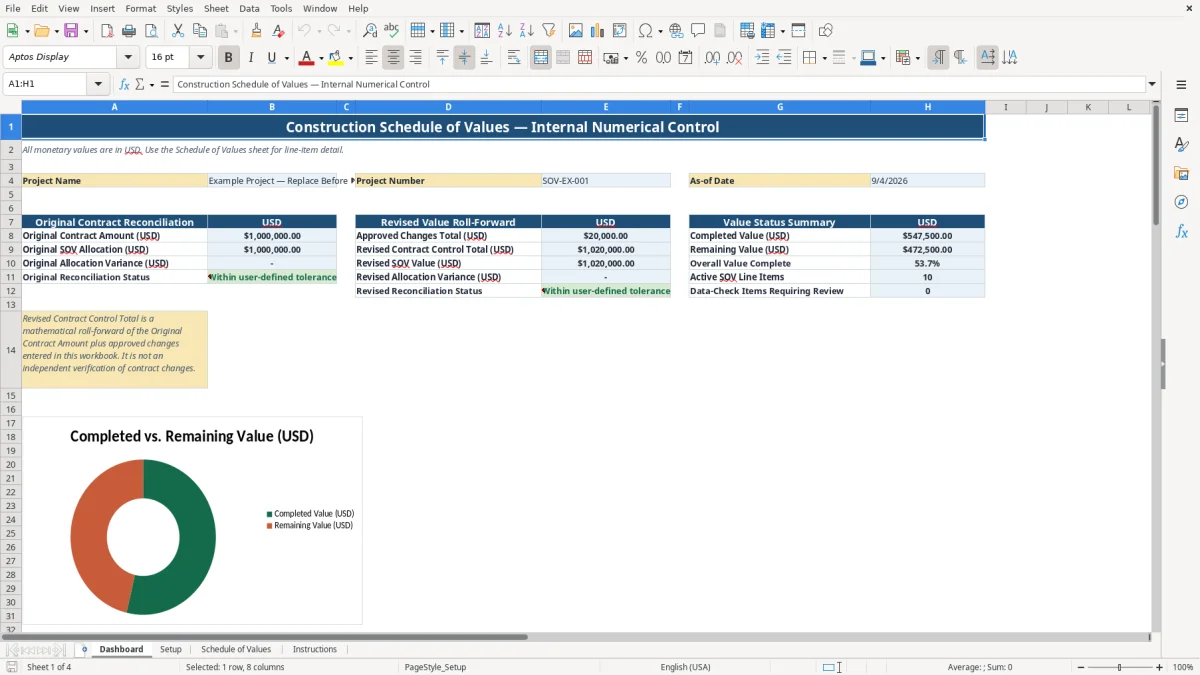
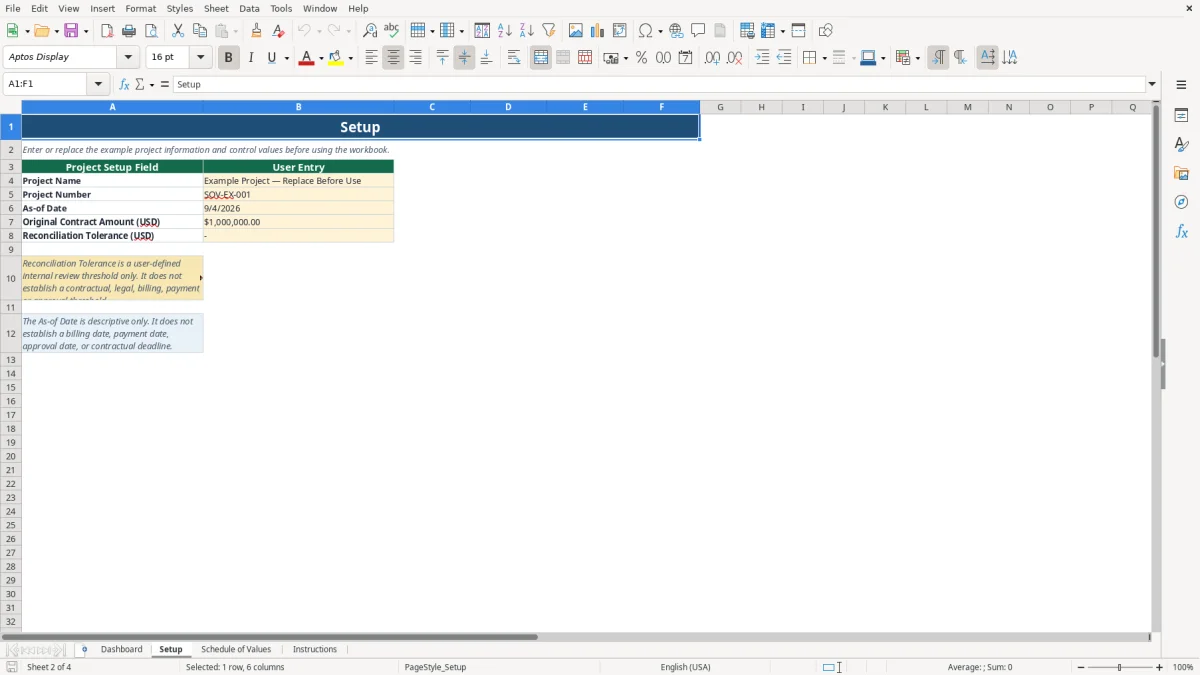
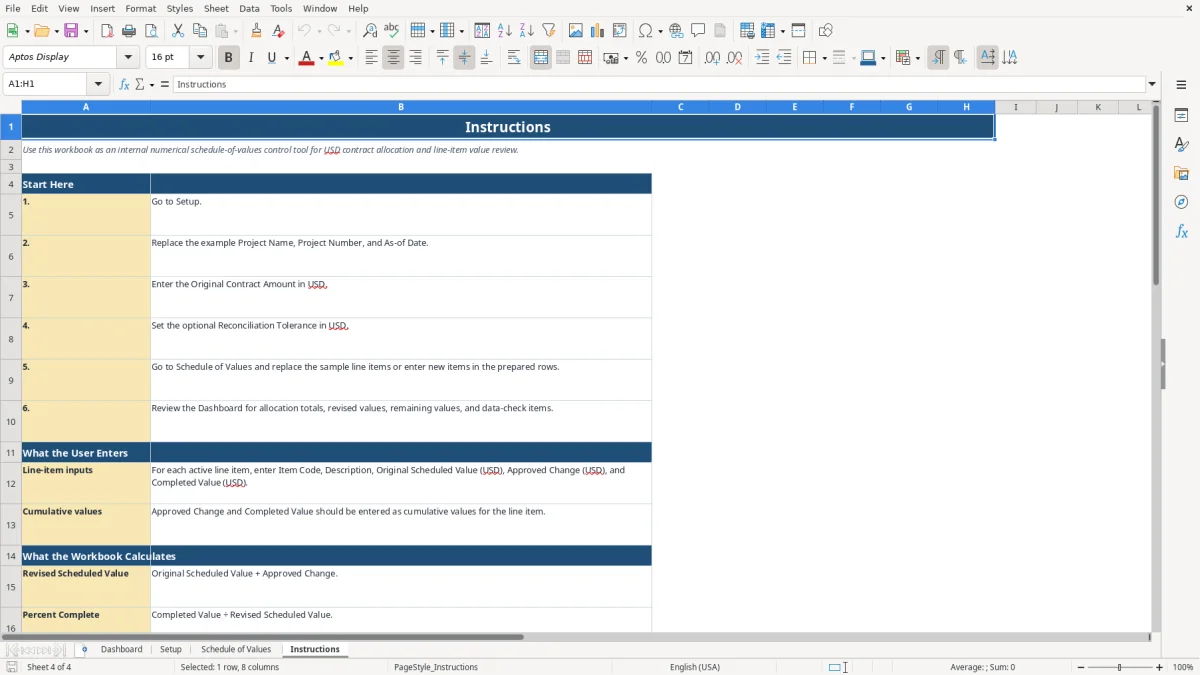
The file has four worksheets: Dashboard, Setup, Schedule of Values, and Instructions. Setup holds project name, project number, as-of date, original contract amount, and an optional reconciliation tolerance. The line-item sheet holds the working values, while Dashboard summarizes totals and review status. The as-of date is descriptive only and does not set a billing, payment, approval, or contract deadline.
Final workbook preview
Four views generated from the verified XLSX.
How to use this workbook
Set project controls
On Setup, replace the example Project Name and Project Number. Enter the As-of Date as m/d/Y, Original Contract Amount (USD), and any Reconciliation Tolerance (USD). The tolerance is an internal review threshold; it does not establish a billing, approval, payment, legal, or contract threshold. The date remains descriptive.
Enter the schedule of values
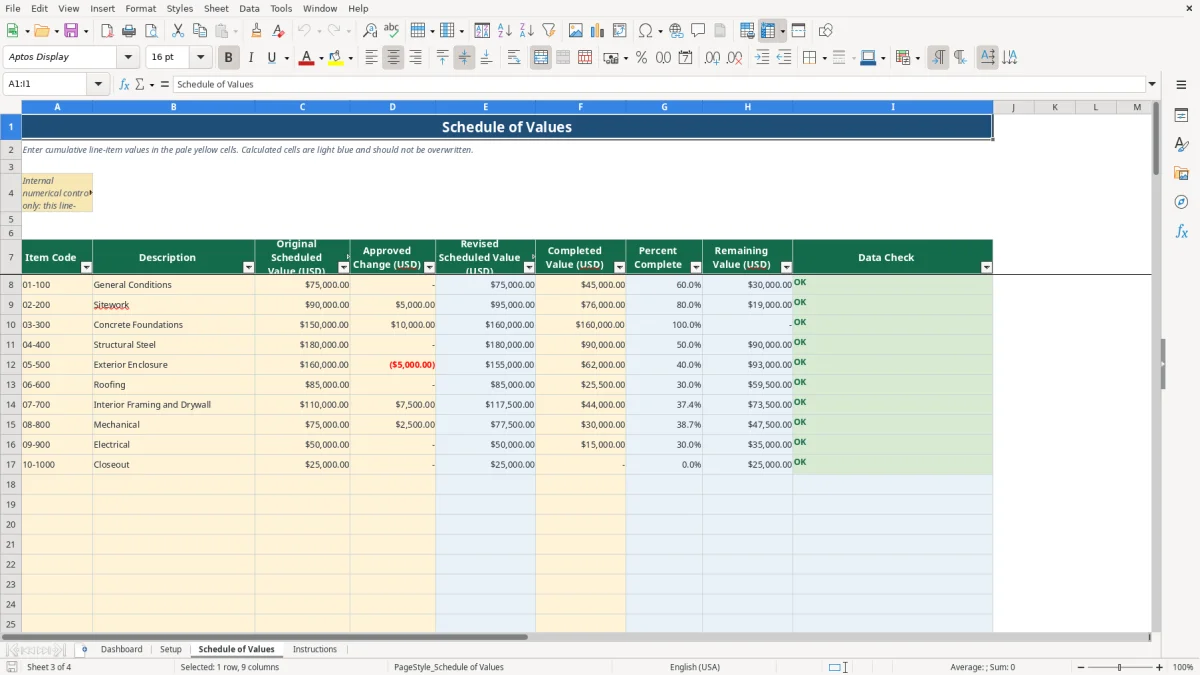
On Schedule of Values, enter an Item Code, Description, Original Scheduled Value (USD), Approved Change (USD), and Completed Value (USD) for each active item. Approved Change and Completed Value are cumulative line-item inputs. Use numeric USD entries in the amount fields. Do not replace calculated Revised Scheduled Value, Percent Complete, Remaining Value, or Data Check results.
Review calculated outputs
Revised Scheduled Value equals original scheduled value plus approved change. Percent Complete equals completed value divided by revised scheduled value when the revised value is positive. Remaining Value equals revised scheduled value less completed value. On Dashboard, compare original allocation and revised values with their related contract control totals and review the displayed variances.
Resolve review items
Use the Schedule of Values sheet to sort or filter Remaining Value (USD) for open items, such as values greater than $0.00. Filter Data Check results to find incomplete or inconsistent entries, then correct the underlying user input. Dashboard also counts active line items and items requiring data-check review.
Benefits
Keeps the original USD allocation visible against the entered original contract amount.
Rolls approved line-item changes into revised scheduled values for review.
Shows cumulative completion and remaining USD value for each active item.
Surfaces allocation variance and line-item data-check items on Dashboard.
Features
Includes Dashboard, Setup, Schedule of Values, and Instructions worksheets.
Provides 100 prepared operational line-item rows, from row 8 through row 107.
Calculates revised value, percent complete, and remaining value by line item.
Includes a Dashboard chart comparing completed value and remaining value totals.
Schedule of values construction template Excel workflow
A schedule of values construction template Excel search often reflects a need to break one contract amount into reviewable work items. This workbook handles that allocation as an internal numerical control: each item can carry a code, description, original scheduled value, approved change, and completed value in USD. The calculated columns give the revised scheduled value, percent complete, and remaining value. Allocation and reconciliation stay connected because Dashboard compares line-item totals with the original contract amount and its change roll-forward. The supplied sample entries are examples and should be replaced with project values before reviewing summaries.
Reconcile original and revised contract value
Original scheduled values are the starting allocation. When an approved change is entered for a line item, revised scheduled value is calculated as the original value plus that change. The Dashboard revised contract control total is the original contract amount plus total approved changes entered in the workbook. Its revised allocation variance compares the revised schedule total against that roll-forward. These are mathematical checks, so a within-tolerance message means only that the variance meets the user-entered USD tolerance. It is not independent confirmation of contract records or change authorization. Review underlying line items whenever a variance or status calls for follow-up.
Line-item review and remaining value
The prepared Schedule of Values area contains 100 operational rows, from row 8 through row 107. Each populated row has formulas for revised value, percent complete, remaining value, and a Data Check result. Data Check is a review flag for incomplete or inconsistent numerical entries, not an approval. Dashboard reports completed value, remaining value, overall value complete, active SOV line items, and the count of items needing review. The Dashboard chart uses the completed-value and remaining-value totals for a concise value status view. Use the line-item detail when a summary total needs investigation.
Frequently asked questions
What information do I enter in the workbook?
Enter Project Name, Project Number, As-of Date, Original Contract Amount (USD), and an optional Reconciliation Tolerance (USD) on Setup. For each active schedule-of-values item, enter Item Code, Description, Original Scheduled Value (USD), Approved Change (USD), and Completed Value (USD). Approved Change and Completed Value are cumulative inputs.
What does the workbook calculate?
For each active line item, the workbook calculates Revised Scheduled Value, Percent Complete, Remaining Value, and a Data Check result. Dashboard calculates original allocation variance, revised allocation variance, completed value, remaining value, overall value complete, active line-item count, and data-check item count.
What does a Data Check result mean?
A Data Check result identifies an incomplete or inconsistent line-item entry for internal numerical review. Review the item code, description, and USD inputs on that row, then correct the underlying entry if needed. A Data Check result is not a payment, approval, accounting, or contract decision.
Does this workbook create a pay application?
No. This workbook is limited to internal numerical schedule-of-values control. It does not create a certified pay application, authorize payment, calculate retainage, document change authorization, or interpret contract terms. Use project-required processes and records for those functions.
How many schedule-of-values line items are prepared?
The workbook contains 100 prepared operational rows, from row 8 through row 107. If more items are needed, the Schedule of Values table, calculated-column formulas, formatting, and data validation would need to be extended in Excel. The existing prepared range is the workbook’s stated operating area.
Workbook file
Ready to put this workbook to work?
Download the verified XLSX, keep an untouched copy, and adapt a working copy to your project.
Download verified XLSXEditorial team
About the authors

Paige Sutton Vale
Workbook Systems Editor
Paige turns construction planning, cost-control, field, and closeout workflows into clear Excel workbook guides. She focuses on inputs, calculations, outputs, and practical limits.

Maren Ellsworth Keel
Workbook QA Reviewer
Maren reviews formula behavior, field labels, project-controls terminology, and workbook instructions so each resource stays within its documented scope.