Verified Excel workbook
Free 2026 Construction Punch List Workbook in Excel
Track pre-completion construction punch items in Excel with assignments, due dates, age, overdue days, trade summaries, and closure references.
Download the free Construction Punch List Workbook in Excel to organize pre-completion items from discovery through team-tracked closure. The workbook is built for a practical register: one item per row, with a location or area, trade, assignee, dates, status, and an evidence reference. It supports field teams that need a shared operating list rather than scattered notes.
Use it before handover to log outstanding corrective work and see the work still open. Closed is a tracking status, not formal acceptance or proof that a correction was made. The workbook does not certify substantial completion, replace inspections, or manage post-handover warranty claims.
Final workbook preview
Four views generated from the verified XLSX.
How to use this workbook
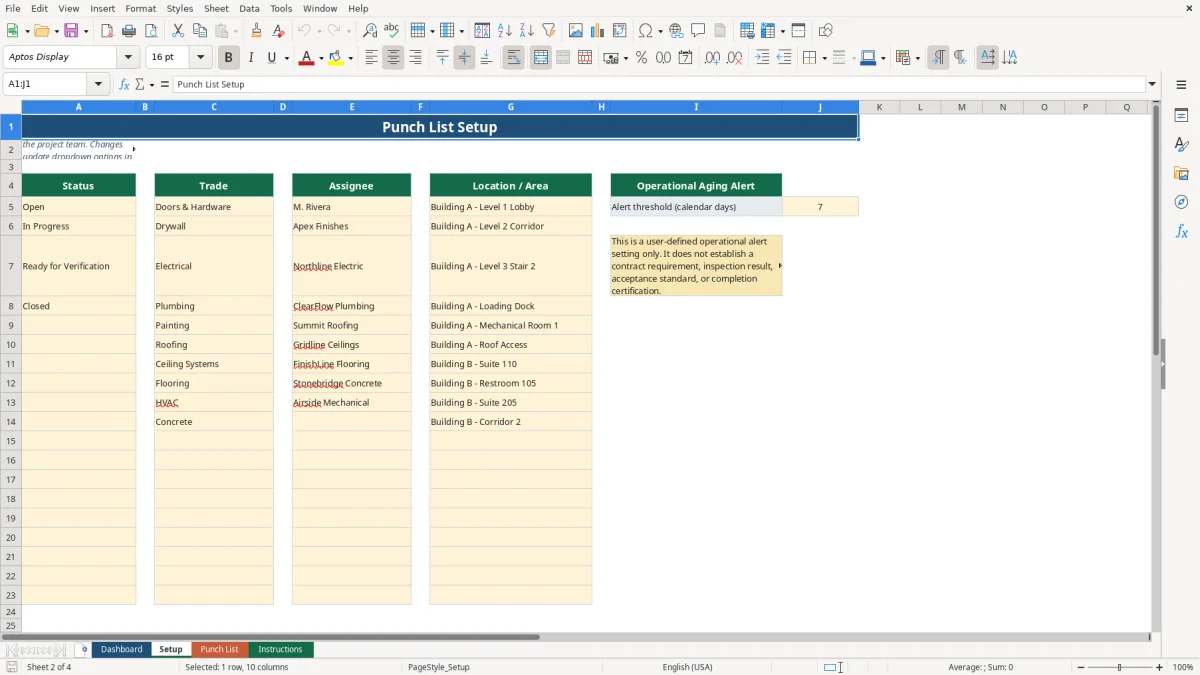
Set up project lists
Start on Setup and replace the sample status, trade, assignee, and location or area lists with project-specific entries. The Punch List cells for location, trade, assignee, and status use list validation tied to these Setup lists. The provided status choices are Open, In Progress, Ready for Verification, and Closed. The operational aging-alert input is user-defined and does not establish a contract requirement or inspection standard.
Clear samples and log items
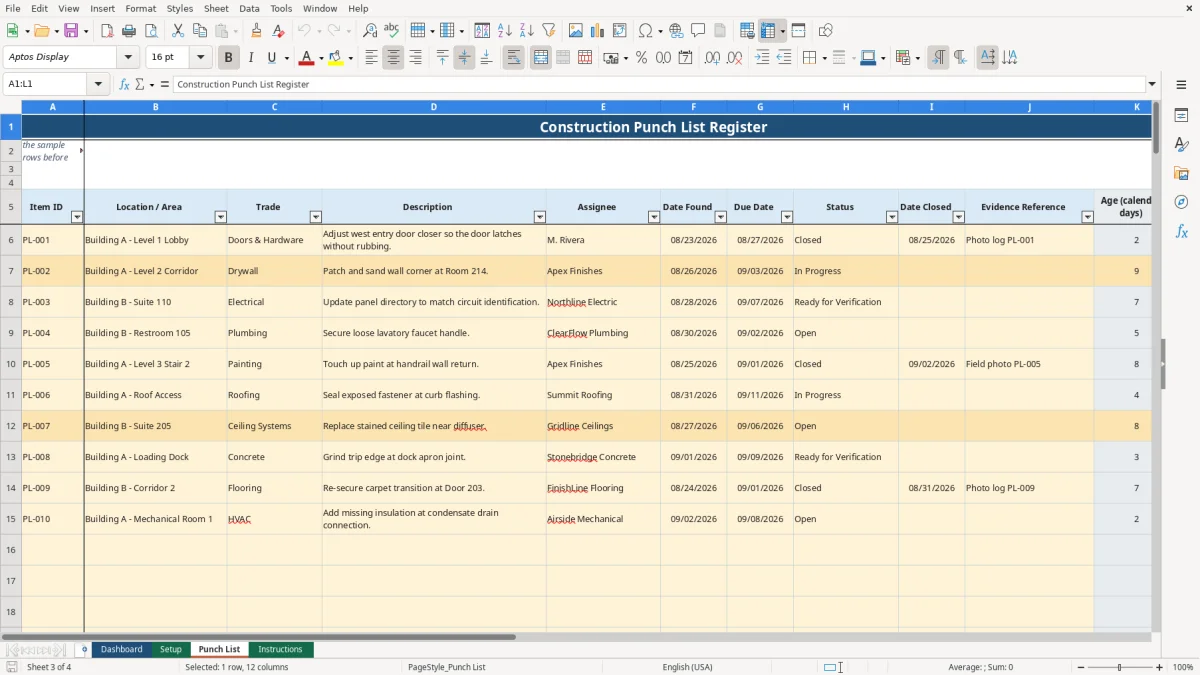
On Punch List, replace or clear the sample items before active project use. Then enter one item per row across the prepared register rows. Provide an Item ID, Location / Area, Trade, Description, Assignee, Date Found, Due Date, and Status. Enter dates in the workbook’s US date cells, such as 8/23/2026. A clear description should identify the corrective work without relying on unexplained shorthand.
Maintain status and closure details
Update the status as responsibility and follow-up progress change. When the project team internally treats an item as closed, enter Date Closed, set Status to Closed, and record an Evidence Reference. The evidence reference is user-managed: it can point to a photo log, report, email, or other supporting record, but the workbook does not store or verify that supporting material.
Review calculated outputs
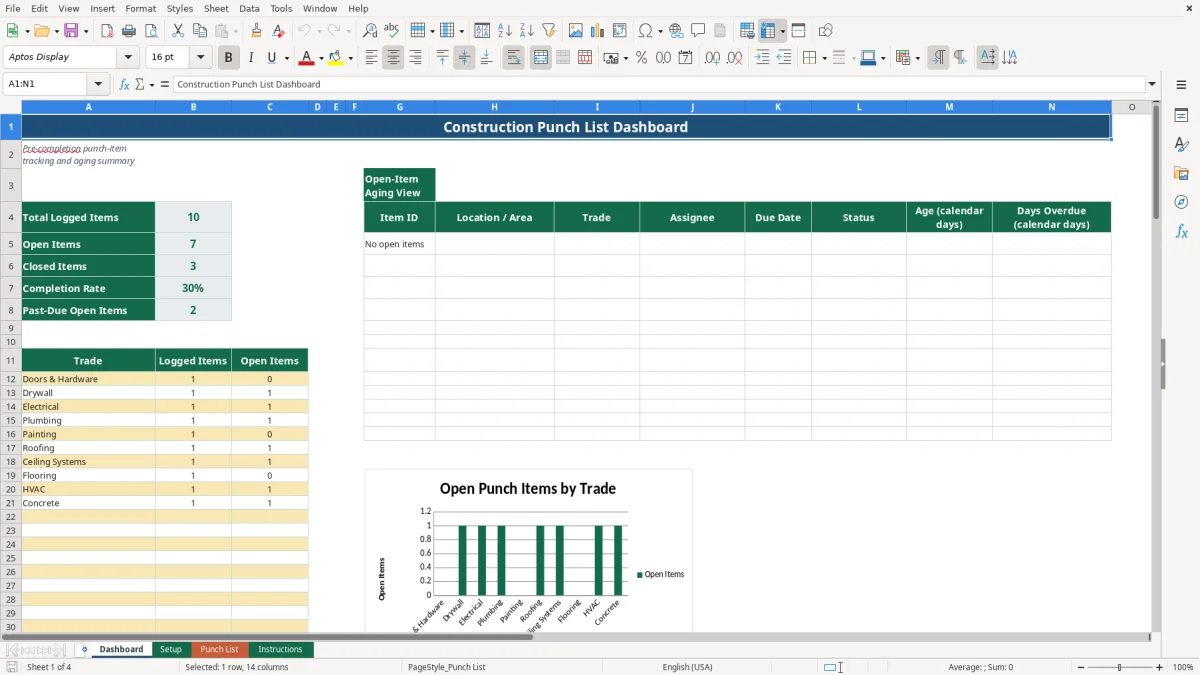
Use Dashboard to review total logged items, open items, closed items, completion rate, and past-due open items. Its open-item aging view shows key details for items not marked Closed. Age and overdue values use the current date through Excel’s TODAY() function, so results update when the workbook recalculates. Review the trade counts and chart as operational coordination information, not as a schedule or acceptance determination.
Benefits
Keeps pre-completion corrective items in one project register.
Assigns each logged item to a responsible person, contractor, vendor, or team.
Shows open, closed, past-due, and completion-rate tracking outputs.
Provides trade-based logged and open-item counts for review meetings.
Features
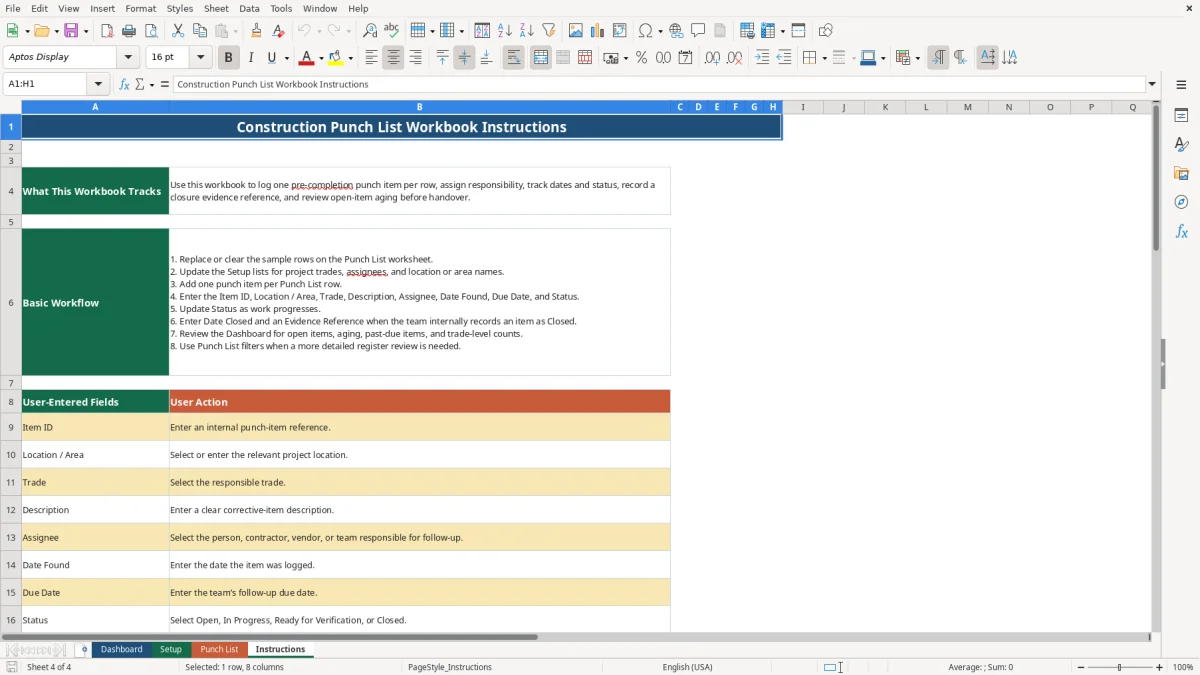
Four worksheets: Dashboard, Setup, Punch List, and Instructions.
A prepared Punch List register with 110 data rows, including sample entries.
Dropdown validation for location, trade, assignee, and status fields.
US date-entry cells and calculated calendar-day aging fields.
Construction punch list tracking in Excel
This construction punch list template Excel workbook is focused on pre-handover corrective items. The Punch List worksheet records Item ID, Location / Area, Trade, Description, Assignee, Date Found, Due Date, Status, Date Closed, and Evidence Reference. These are the user-entered fields that establish the working record for each item. The register also includes calculated Age and Days Overdue columns, so teams can review outstanding work without manually calculating calendar days.
The prepared register covers rows 6 through 115, with sample items already populated near the top. Clear or replace those samples before relying on the workbook for an active project. The workbook does not state that additional rows are automatically added beyond the prepared range.
Dashboard and trade summary outputs
The Dashboard calculates Total Logged Items, Open Items, Closed Items, Completion Rate, and Past-Due Open Items from the Punch List register. Completion Rate is calculated as closed items divided by total logged items. Open Items are rows with an Item ID whose status is not Closed, while Closed Items are rows marked Closed. Calculated dates are operational outputs, not certified milestones.
The dashboard also creates an open-item aging view with Item ID, location or area, trade, assignee, due date, status, age, and days overdue. Trade summary rows use trade names listed on Setup to calculate logged and open counts. A dashboard chart uses trade labels and open-item values for a high-level review.
Age, overdue days, and practical limits
For an open item, Age is the calendar-day difference between Date Found and the current date. For a Closed item, Age is the difference between Date Found and Date Closed. Days Overdue is 0 for Closed items and for open items with a due date that is today or later; otherwise it reflects calendar days past the entered Due Date. These formulas depend on complete dates and a populated status.
Pre-handover focus matters. This workbook is for outstanding completion items before handover. It does not replace inspections, certify substantial completion, establish acceptance, or manage post-handover warranty-period claims. A closed row and an evidence reference remain internal tracking information rather than confirmation of correction or formal acceptance.
Frequently asked questions
What information do I enter for each punch item?
Enter an Item ID, Location / Area, Trade, Description, Assignee, Date Found, Due Date, Status, Date Closed when applicable, and an Evidence Reference. Use a consistent Item ID approach so the team can discuss the same item across meetings and supporting records. One ID per item helps prevent multiple unrelated corrective actions from being combined in one row.
How are age and days overdue calculated?
Age is measured in calendar days from Date Found to the current date while an item remains open. Once an item is marked Closed and has a Date Closed, Age measures from Date Found to Date Closed. Days Overdue applies only to items not marked Closed and only after their entered Due Date has passed. Because the formulas use TODAY(), open-item values can change when Excel recalculates.
Does marking an item Closed mean it has been accepted?
No. Closed is a status used for internal tracking in this workbook. It does not mean formal acceptance, completion certification, inspection approval, or proof that the listed corrective work was completed. Teams should apply their own project review and documentation process before deciding how to use the Closed status.
Can this workbook track warranty defects after handover?
No. The workbook scope is pre-completion punch-item tracking before handover. It can record an evidence reference for a punch item, but it does not own post-handover warranty claims or warranty-period follow-up. Keeping pre-handover punch items separate from later warranty issues helps preserve a clearer operational record.
Workbook file
Ready to put this workbook to work?
Download the verified XLSX, keep an untouched copy, and adapt a working copy to your project.
Download verified XLSXEditorial team
About the authors

Paige Sutton Vale
Workbook Systems Editor
Paige turns construction planning, cost-control, field, and closeout workflows into clear Excel workbook guides. She focuses on inputs, calculations, outputs, and practical limits.

Maren Ellsworth Keel
Workbook QA Reviewer
Maren reviews formula behavior, field labels, project-controls terminology, and workbook instructions so each resource stays within its documented scope.
Continue exploring