Verified Excel workbook
Free 2026 Construction Daily Report Workbook in Excel
Free 2026 construction daily report template Excel workbook for weather, crew hours, equipment, deliveries, delays, and weekly activity review.
Use this free Construction Daily Report Workbook in Excel to organize the facts your field team enters for each project workday. One daily report row anchors the record, while crew, equipment, and delivery detail links back through its Report ID. Download the free workbook to start with a working register rather than a blank page, then replace the marked sample-only content before active use.
The workbook supports user-entered weather, site conditions, work performed, delays, visitors, notes, labor activity, equipment activity, and deliveries. It calculates selected daily and weekly activity totals from those entries. Review the source records before using a summary, because the workbook does not independently verify field conditions, hours, delivery activity, or notable events.
Final workbook preview
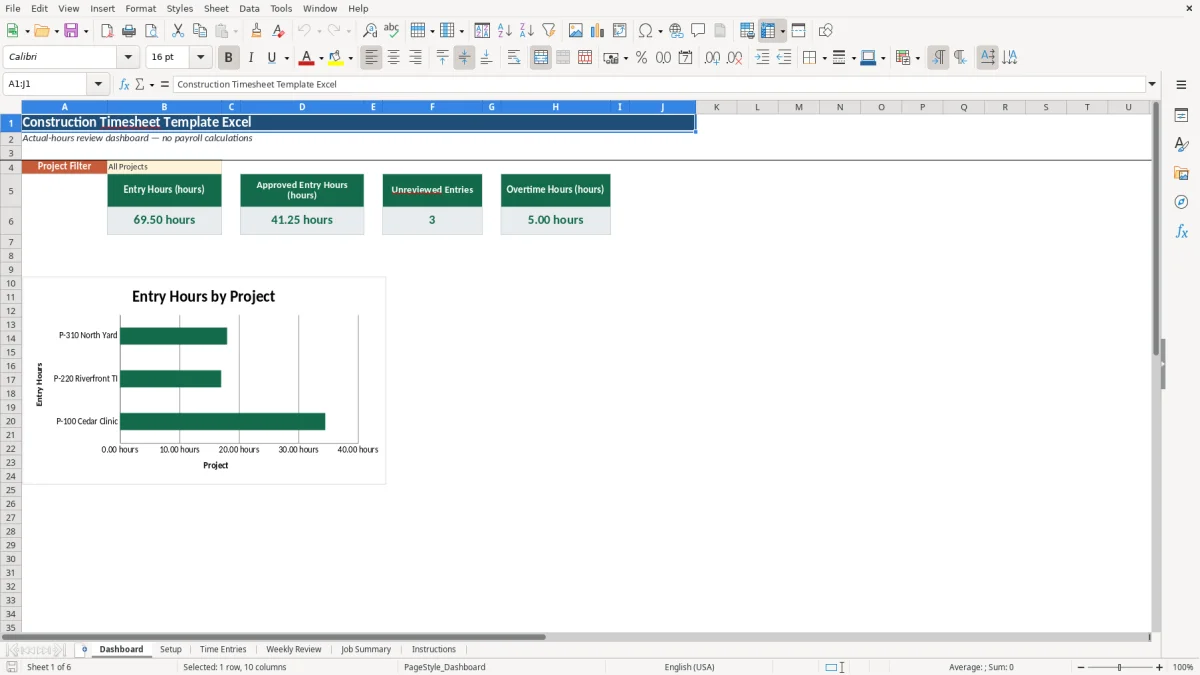
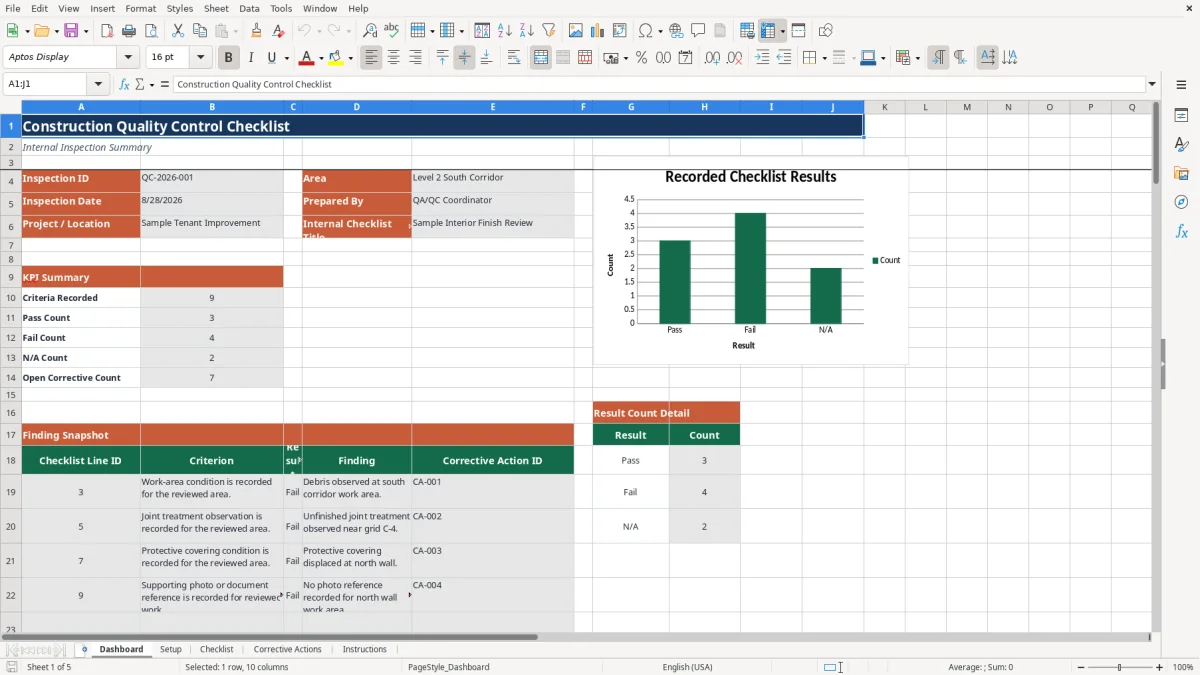
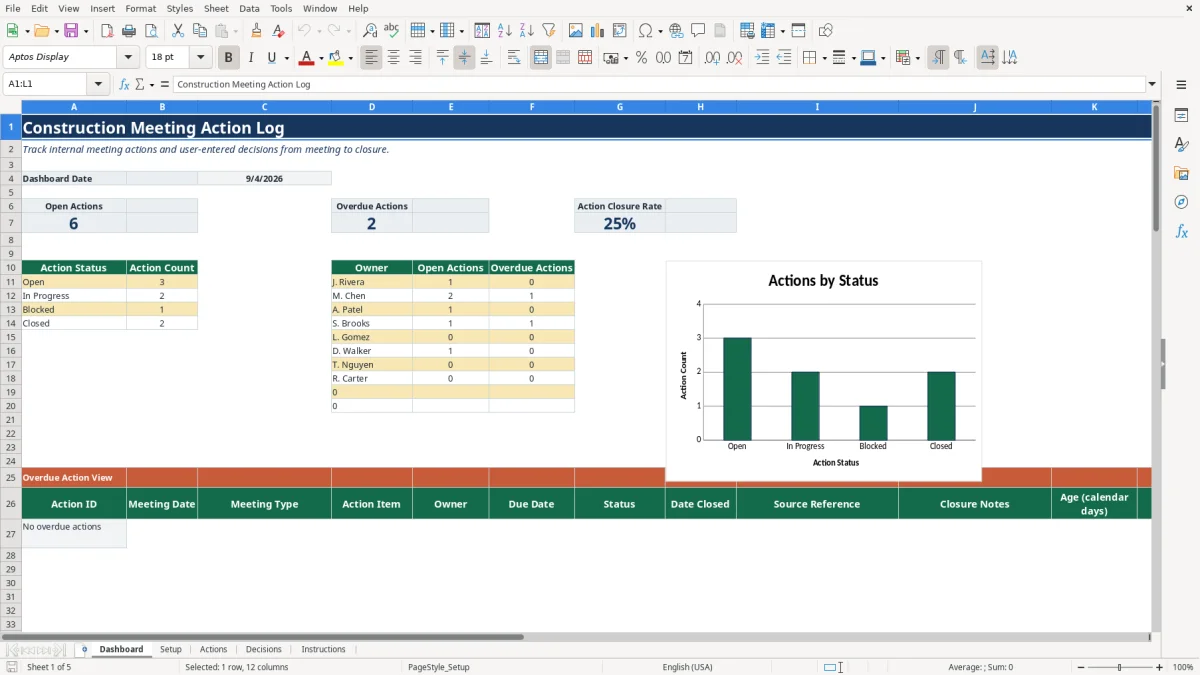
Four views generated from the verified XLSX.
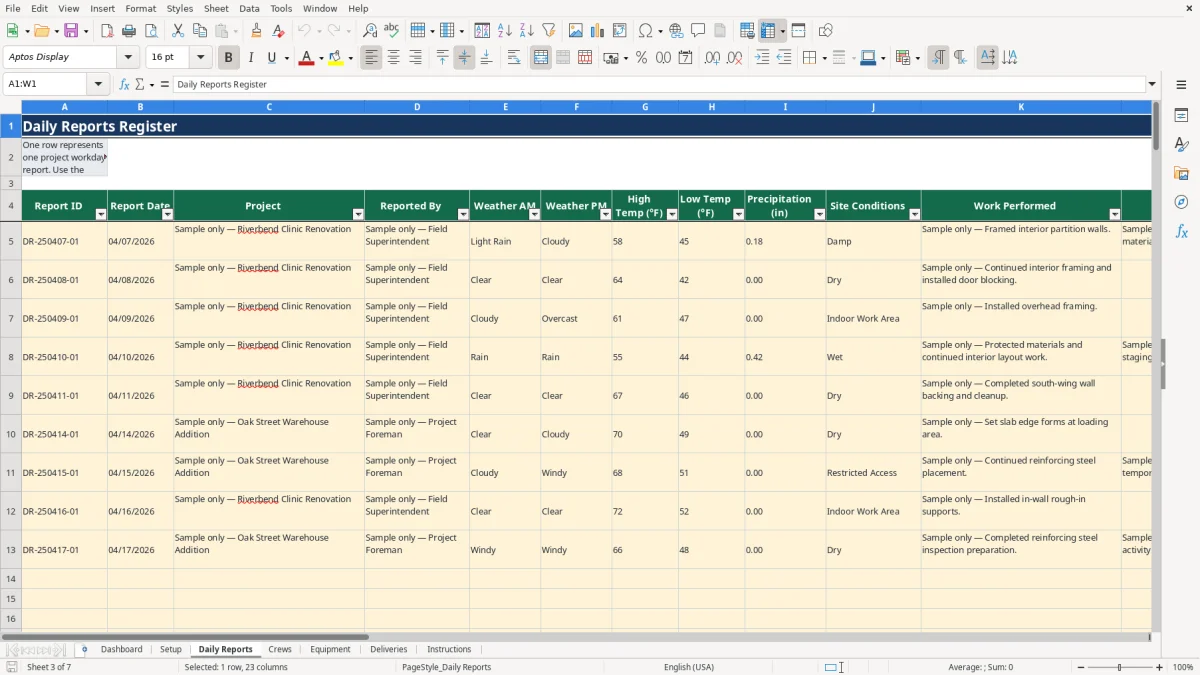
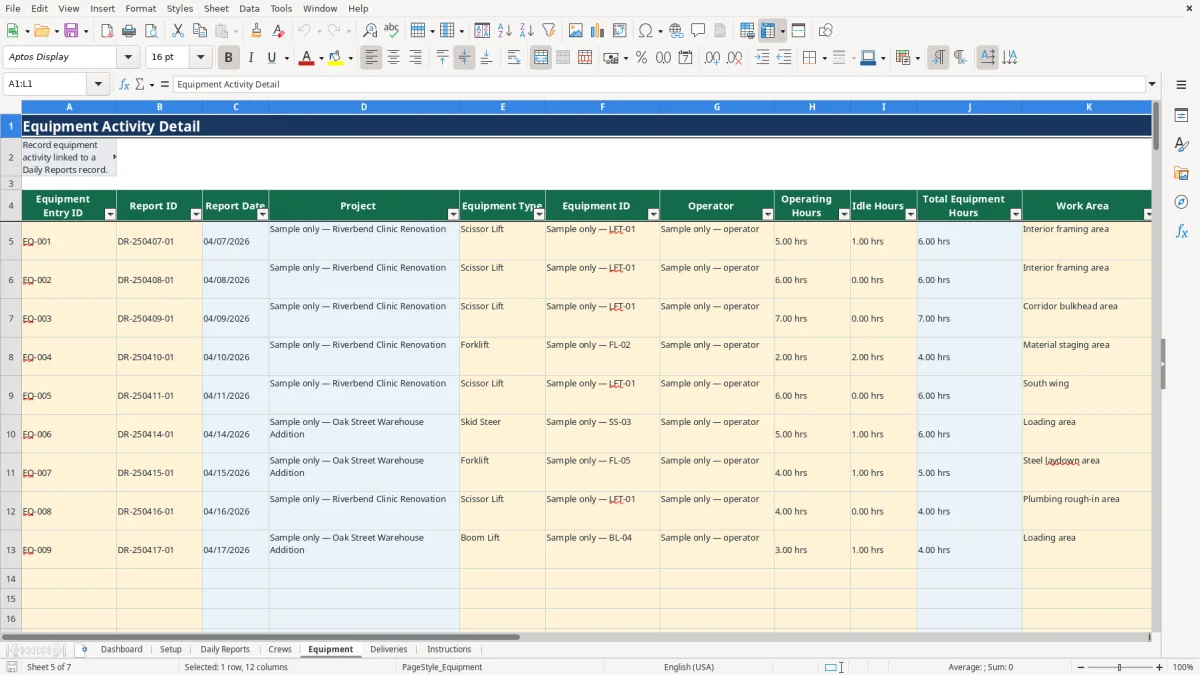
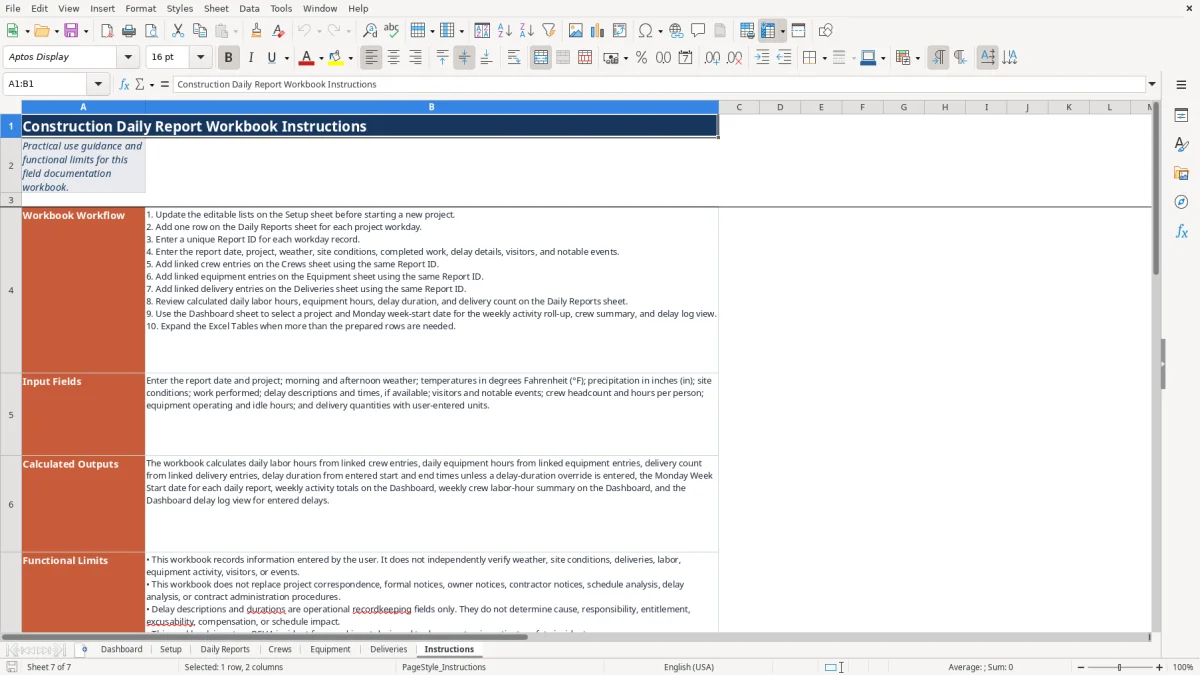
How to use this workbook
Set up project lists
Begin on the Setup sheet. Replace or add the sample-only project names, crew or trade names, weather descriptions, site conditions, equipment types, delivery statuses, and report statuses that fit your work. The sample-only entries are starting content, not real project history. Updating these lists before field entry helps keep project-specific selections consistent.
Create the daily report
On Daily Reports, enter a unique Report ID before adding linked detail. Then enter the report date in mm/dd/yyyy format, project, reported by, AM and PM weather, site conditions, work performed, visitors, and notable events or notes. Temperature inputs are in degrees Fahrenheit (°F), and precipitation is entered in inches (in). Add a delay description when there is a delay to record.
Link field activity details
Enter crew, equipment, and delivery activity on their respective sheets using the same Report ID from Daily Reports. Crew entries use headcount, regular hours per person, and overtime hours per person. Equipment entries use operating hours and idle hours. Delivery entries capture delivery time, vendor, material description, quantity, entered unit, ticket or PO reference, receiver, status, and notes.
Review the weekly summary
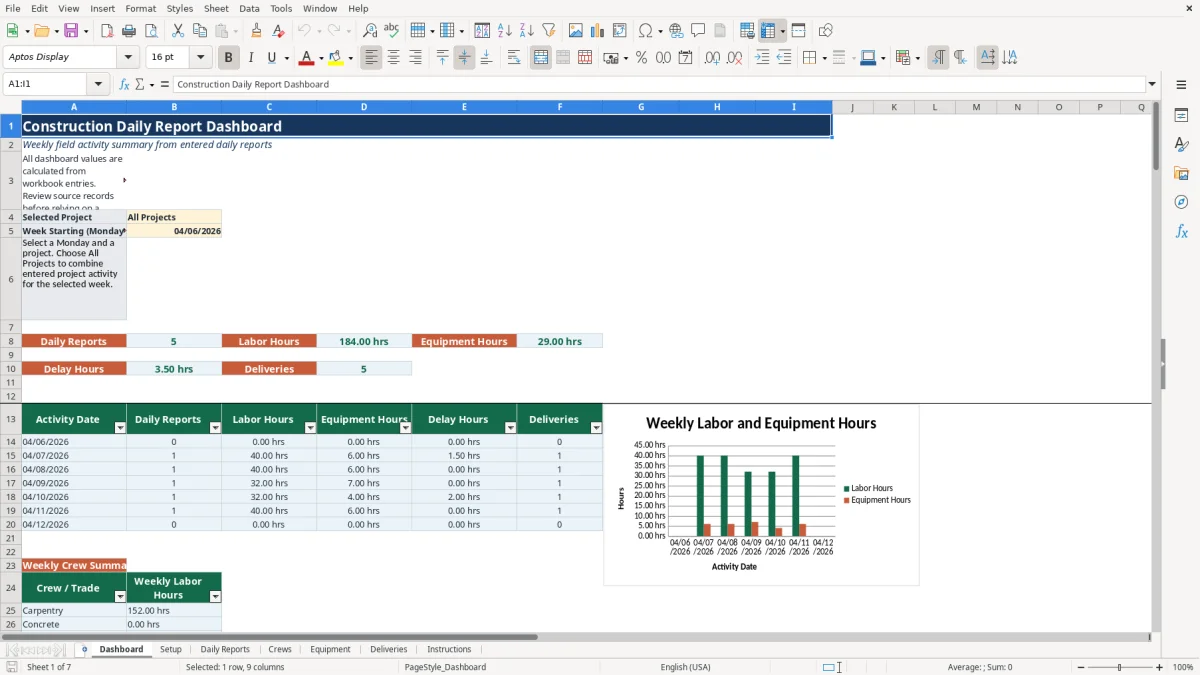
On the Dashboard, choose a project or All Projects and set the week-starting date to a Monday. The weekly view shows daily report count, labor hours, equipment hours, delay hours, and delivery count. It also provides a weekly crew summary and delay log view. If a Report ID changes, review related crew, equipment, and delivery rows so the links remain accurate.
Benefits
Keeps daily weather, work activity, visitors, delays, and notes together by project workday.
Separates crew, equipment, and delivery detail while linking each entry to a daily report.
Calculates labor hours, equipment hours, delay duration, and delivery counts from entered records.
Provides a weekly project or all-projects activity review on the Dashboard.
Features
Seven worksheets: Dashboard, Setup, Daily Reports, Crews, Equipment, Deliveries, and Instructions.
Daily Reports includes weather, temperatures in °F, precipitation in in, work, delays, visitors, notes, and status.
Crew detail calculates total labor hours from headcount and entered regular and overtime hours per person.
Equipment detail totals operating hours plus idle hours, while Dashboard rolls entered activity into selected weeks.
A practical construction daily report record in Excel
This construction daily report template Excel workbook is built around a whole-workday field record, not just a labor entry. Each Daily Reports row captures a report date, project, reporter, weather, high and low temperatures in °F, precipitation in in, site conditions, work performed, delays, visitors, and notes. It also includes a report status field. The Setup sheet provides editable lists for projects, crew or trade names, weather, site conditions, equipment types, delivery statuses, and report statuses. Enter the facts available to your team; blank fields remain blank rather than becoming assumed conditions.
Crew, equipment, and delivery entries linked by Report ID
The Crews, Equipment, and Deliveries sheets hold activity detail tied to a Daily Reports record. In Crews, the workbook calculates total labor hours as headcount multiplied by regular hours per person plus entered overtime hours per person. In Equipment, total equipment hours equal entered operating hours plus entered idle hours. Delivery quantities and units are user-entered as provided, with no unit conversion. A cost code may be entered with crew activity, but the workbook does not calculate USD costs, unit prices, or cost totals. Linked entries depend on the correct Report ID.
Weekly activity totals and delay review
The Dashboard summarizes entered activity by a selected Monday-starting week and either a selected project or All Projects. It calculates daily report count, labor hours, equipment hours, delay hours, and delivery count, then displays daily activity, a weekly crew summary, and a delay log view. Delay duration uses an entered override in hrs when provided; otherwise, it calculates from entered start and end times. The delay view is an operational review of user-entered descriptions and durations. It does not determine delay cause, responsibility, notice status, or entitlement.
Frequently asked questions
Is this workbook a crew timesheet?
No. It is not a worker-level or crew-level timesheet. The Crews sheet records summarized crew or trade activity linked to a daily report, including headcount and hours per person. Use it to support the daily field record and weekly activity review rather than to replace a separate actual-hours timesheet process.
How are daily labor hours calculated?
For each linked crew entry, total labor hours equal headcount multiplied by regular hours per person plus overtime hours per person. The Daily Reports sheet sums those crew totals by Report ID. The Dashboard then summarizes the entered daily labor hours for the selected week and project selection.
How does the workbook calculate delay duration?
Enter a delay description and, when available, start and end times. The workbook calculates duration in hrs from those times. If you enter a numeric delay duration override in hrs, that override is used instead. The result reflects entered information and does not establish a cause or responsibility.
What should I do with the sample-only entries?
Replace or remove sample-only projects, names, work descriptions, equipment, deliveries, and notes before using the workbook for an active project record. The visible sample-only rows are illustrative workbook content, not actual site history. Update the Setup lists first, then create new reports with unique Report IDs.
Can this workbook replace formal notices or an OSHA incident form?
No. This workbook records information entered by the user for daily field activity. It does not prove site conditions, replace formal notices, determine delay entitlement, or serve as an OSHA incident form. Review your project requirements and internal documentation process when deciding what additional records are needed.
Workbook file
Ready to put this workbook to work?
Download the verified XLSX, keep an untouched copy, and adapt a working copy to your project.
Download verified XLSXEditorial team
About the authors

Paige Sutton Vale
Workbook Systems Editor
Paige turns construction planning, cost-control, field, and closeout workflows into clear Excel workbook guides. She focuses on inputs, calculations, outputs, and practical limits.

Maren Ellsworth Keel
Workbook QA Reviewer
Maren reviews formula behavior, field labels, project-controls terminology, and workbook instructions so each resource stays within its documented scope.
Continue exploring