Verified Excel workbook
Free 2026 Construction Fuel Workbook in Excel
Track construction fuel tickets, allocate actual fuel quantities and USD costs, and review allocation exceptions with this Excel workbook.
Download the free 2026 Construction Fuel Cost Allocation Workbook in Excel to keep actual fuel ticket records, equipment assignments, project IDs, and cost codes together. It is built for an internal project-controls workflow that starts with the source fuel transaction and follows it through fuel-only allocation. The workbook records user-entered quantities in the stated unit, including US gal when that is the unit shown on the source ticket.
Use it when a fuel purchase or dispensing ticket must be assigned to the equipment, project, and cost code that received the fuel benefit. Source ticket discipline matters: unique ticket IDs, transaction dates, supporting references, owners, and documented allocation bases give the calculated reconciliation a usable record to work from.
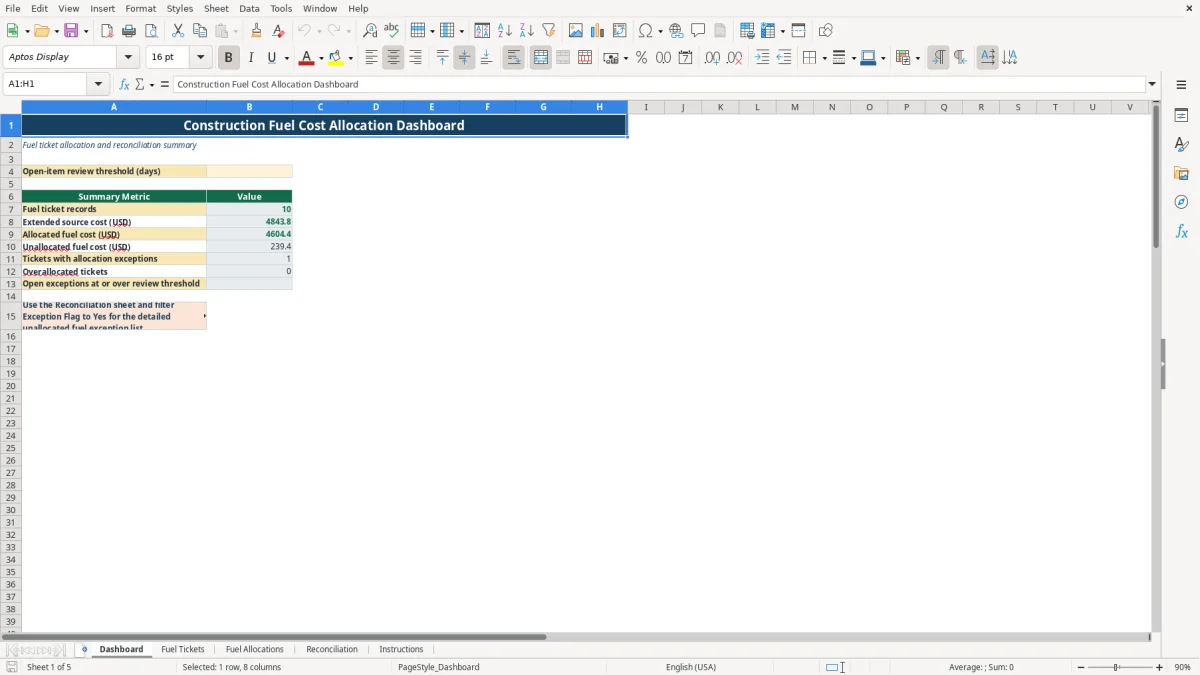
Final workbook preview
Four views generated from the verified XLSX.
How to use this workbook
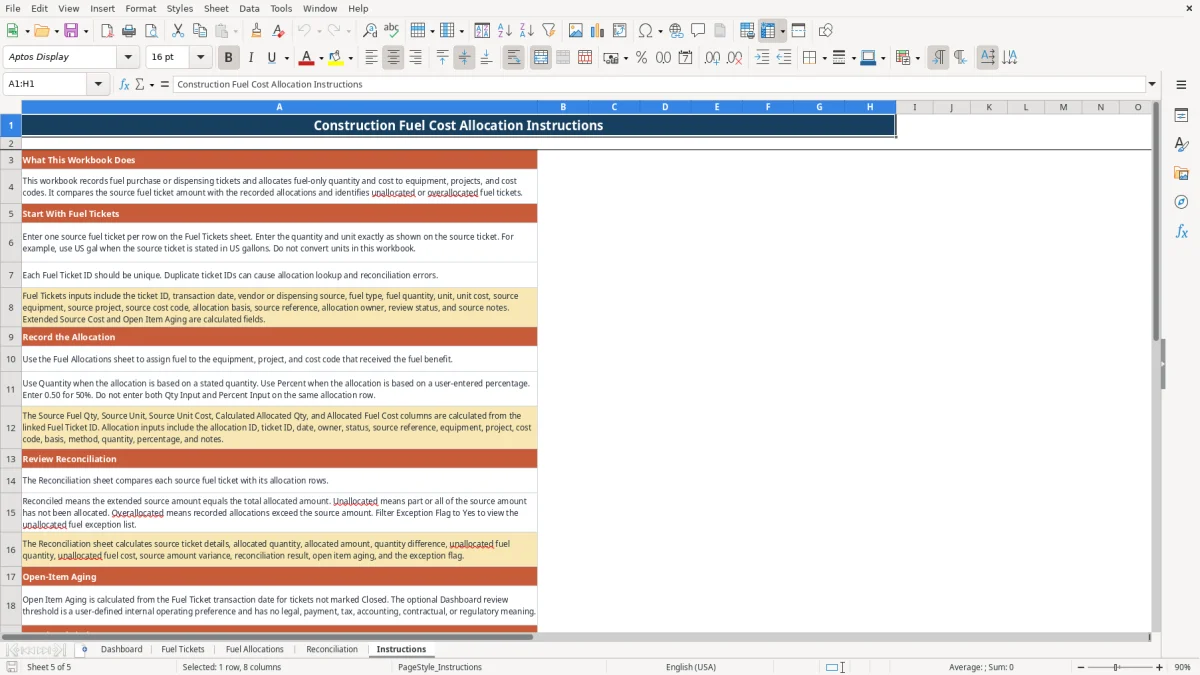
1. Record each fuel ticket
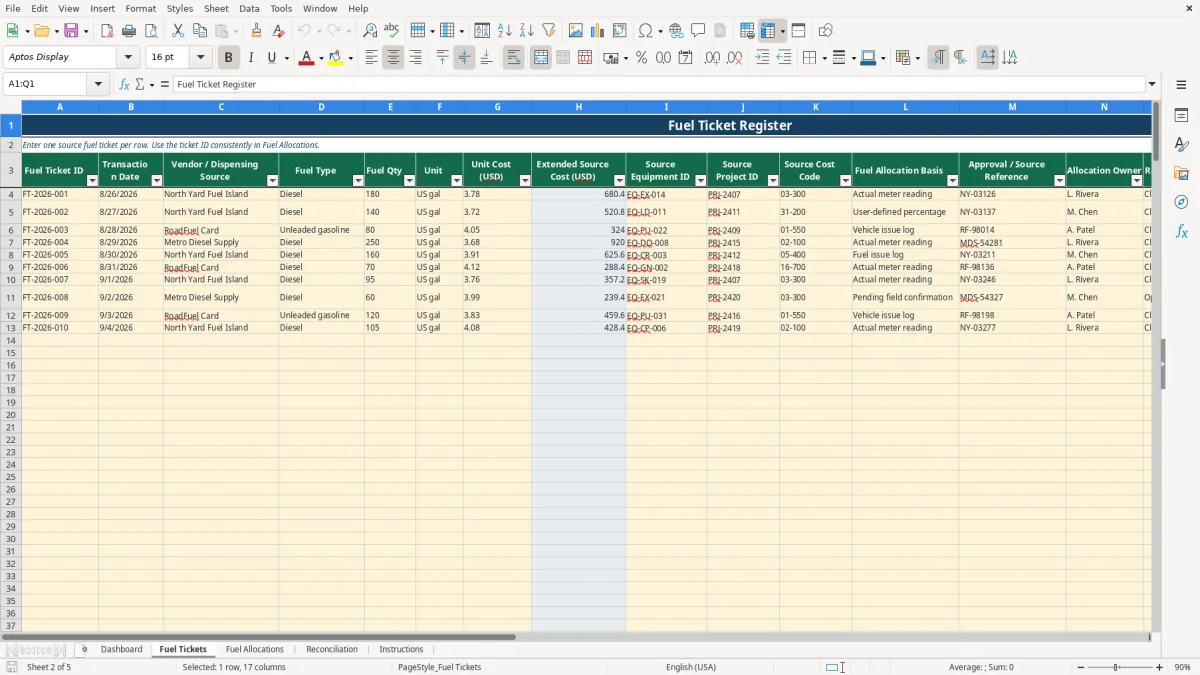
On Fuel Tickets, enter one source fuel ticket per row. Provide the fuel ticket ID, transaction date, vendor or dispensing source, fuel type, fuel quantity, stated unit, unit cost in USD, source equipment ID, project ID, cost code, allocation basis, approval or source reference, owner, review status, and notes. The workbook calculates Extended Source Cost (USD) by multiplying the entered fuel quantity by the entered unit cost.
2. Add allocation ledger rows
On Fuel Allocations, enter an allocation ID and select the linked fuel ticket ID. Enter the allocation date, owner, status, source or approval reference, receiving equipment ID, project ID, cost code, basis, and notes. Select Quantity or Percent as the allocation method. For Quantity, enter Qty Input. For Percent, enter Percent Input, such as 0.50 for 50%.
3. Use one allocation input method
Choose one method per row. The workbook calculates allocated quantity from the quantity input or the user-entered percentage of the linked source fuel quantity. It then calculates allocated fuel cost using the linked source unit cost in USD. Do not enter both Qty Input and Percent Input on the same allocation row.
4. Review reconciliation and aging
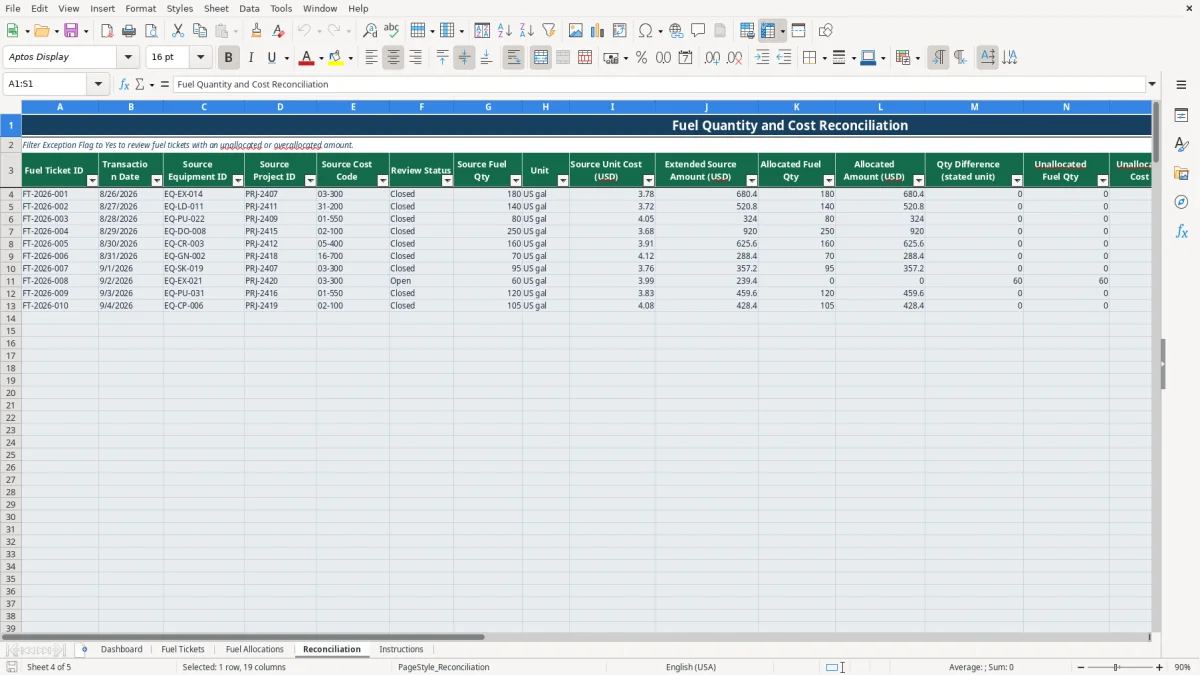
Open Reconciliation to compare source quantity and extended source amount with total allocated quantity and amount by ticket. Filter Exception Flag to Yes to focus on unallocated or overallocated records. On Dashboard, optionally enter a nonnegative whole-number review threshold in days to count open exceptions at or over that aging threshold. Open-item aging is calculated from the transaction date for tickets not marked Closed.
Benefits
Keeps fuel ticket details and allocation records linked by fuel ticket ID.
Calculates extended source cost from entered quantity and unit cost in USD.
Supports quantity-based or percentage-based fuel allocation entries.
Identifies unallocated and overallocated fuel amounts for internal review.
Features
Five worksheets: Dashboard, Fuel Tickets, Fuel Allocations, Reconciliation, and Instructions.
Prepared ticket, allocation, and reconciliation rows run from row 4 through row 253.
Fuel Ticket and Fuel Allocation records include Open, In Review, and Closed status choices.
Dashboard summarizes ticket count, USD source cost, allocated cost, unallocated cost, and exceptions.
Construction fuel ticket register in Excel
The Fuel Tickets worksheet is the source register for actual fuel purchases or dispensing issues. Its fields capture the ticket ID, transaction date, vendor or dispensing source, fuel type, fuel quantity, unit, unit cost in USD, and source equipment, project, and cost code. It also records the fuel allocation basis, approval or source reference, allocation owner, review status, and notes. Enter units as stated on the source ticket; the workbook does not convert quantities between units.
The extended source cost is a calculated output, rounded to USD cents when quantity and unit cost are present. The register also calculates open-item aging in days for a ticket that is not marked Closed. That aging is based on the entered transaction date and the current date in Excel.
Allocate fuel cost to equipment, projects, and cost codes
The Fuel Allocations worksheet creates the equipment and project fuel allocation ledger. Each allocation row links back to a Fuel Ticket ID and accepts the allocation date, owner, status, reference, equipment ID, project ID, cost code, basis, method, and notes. This lets a single source ticket be represented by more than one allocation row when the underlying fuel benefit is split.
With the Quantity method, the calculated allocated quantity uses the Qty Input. With the Percent method, it uses the user-entered Percent Input multiplied by the linked source fuel quantity. The linked ticket supplies the source quantity, stated unit, and source unit cost in USD. Allocated Fuel Cost (USD) is then calculated from allocated quantity and source unit cost.
Fuel quantity and cost reconciliation workflow
Reconciliation lists each fuel ticket and compares its extended source amount with the total allocated amount. It calculates allocated fuel quantity, quantity difference in the stated unit, unallocated fuel quantity, unallocated fuel cost in USD, and source amount variance in USD. The result is Reconciled when source and allocated amounts are equal, Unallocated when the variance is positive, and Overallocated when the variance is negative.
Exceptions require follow-up. The worksheet flags every result other than Reconciled as Yes. The Dashboard rolls up ticket records, extended source cost, allocated fuel cost, unallocated fuel cost, ticket exceptions, overallocated tickets, and open exceptions at or over the optional day threshold. It provides summary metrics, not charts or payment approval controls.
Frequently asked questions
What user inputs are required for a fuel ticket?
Enter the fuel ticket ID, transaction date, vendor or dispensing source, fuel type, fuel quantity, stated unit, unit cost in USD, and the available equipment, project, and cost-code references. The worksheet also provides fields for the allocation basis, approval or source reference, allocation owner, review status, and source notes. Use unique ticket IDs because allocation lookups and reconciliation are tied to that ID.
Can one fuel ticket be allocated across multiple pieces of equipment?
Yes. Create separate Fuel Allocations rows that reference the same Fuel Ticket ID, then enter the receiving equipment ID, project ID, and cost code for each allocation. Use either Quantity or Percent on each row. The reconciliation compares the combined allocation rows with the source ticket and identifies an unallocated or overallocated result when the amounts do not match.
What does the workbook calculate automatically?
It calculates extended source cost, allocated fuel quantity, allocated fuel cost, quantity difference, unallocated fuel quantity, unallocated fuel cost, source amount variance, reconciliation result, exception flag, and open-item aging. These outputs depend on user-entered ticket details and allocation inputs. The workbook does not independently verify the source document, allocation basis, approval reference, or entered unit cost.
What is outside this workbook’s scope?
This workbook is limited to actual fuel transactions and fuel-only allocation to equipment, projects, and cost codes. It does not manage non-fuel equipment rental, maintenance events, internal equipment charge pools, ownership economics, insurance premiums, tax determinations, or regulatory determinations. It is an internal project-controls aid and does not certify entitlement, payment, accuracy, or compliance.
Workbook file
Ready to put this workbook to work?
Download the verified XLSX, keep an untouched copy, and adapt a working copy to your project.
Download verified XLSXEditorial team
About the authors

Paige Sutton Vale
Workbook Systems Editor
Paige turns construction planning, cost-control, field, and closeout workflows into clear Excel workbook guides. She focuses on inputs, calculations, outputs, and practical limits.

Maren Ellsworth Keel
Workbook QA Reviewer
Maren reviews formula behavior, field labels, project-controls terminology, and workbook instructions so each resource stays within its documented scope.