Verified Excel workbook
Free 2026 Submittal Log Workbook in Excel
Free 2026 construction submittal log Excel workbook tracks packages, review cycles, dates, resubmittals, and required-on-site timing risk.
Track construction submittal packages and their review cycles in one practical Excel file. Download the free 2026 workbook to maintain package details, submissions, returns, resubmittals, and required-on-site dates without manually rebuilding the tracking calculations. It is intended for project teams monitoring administrative package progress and potential timing pressure.
The workbook keeps the package register separate from individual review-cycle records. That structure lets users review the latest cycle for each package while retaining the history of submitted and returned dates. Sample rows demonstrate the workflow and should be removed or replaced before using the file for an active project.
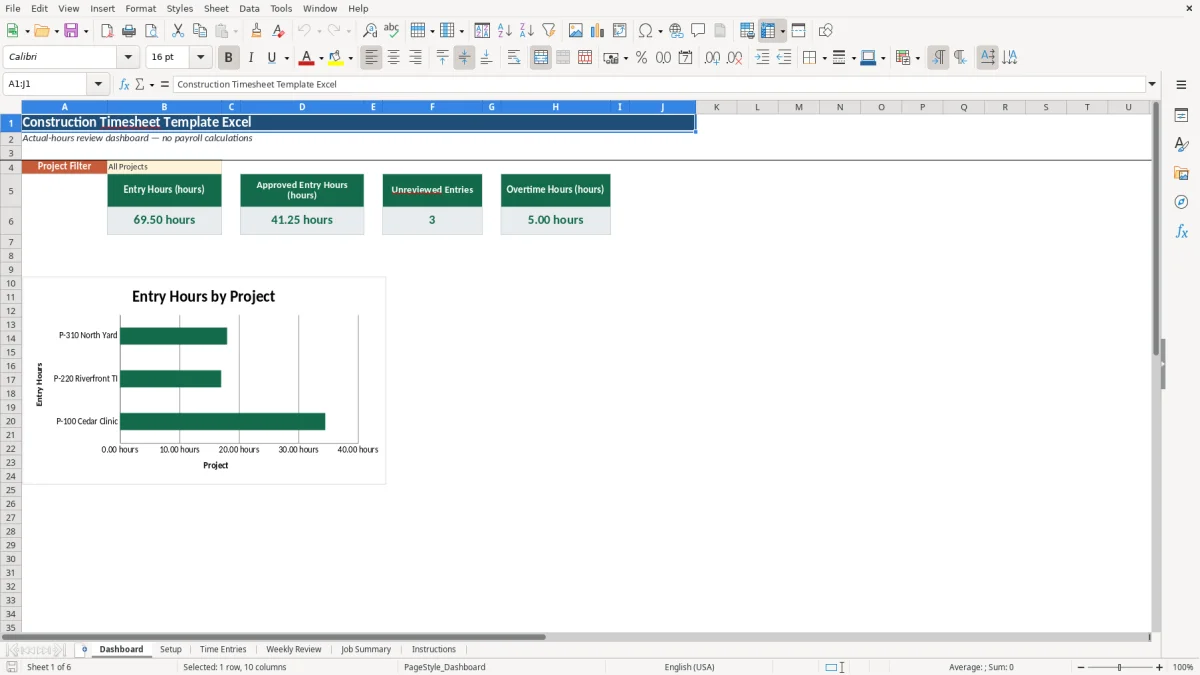
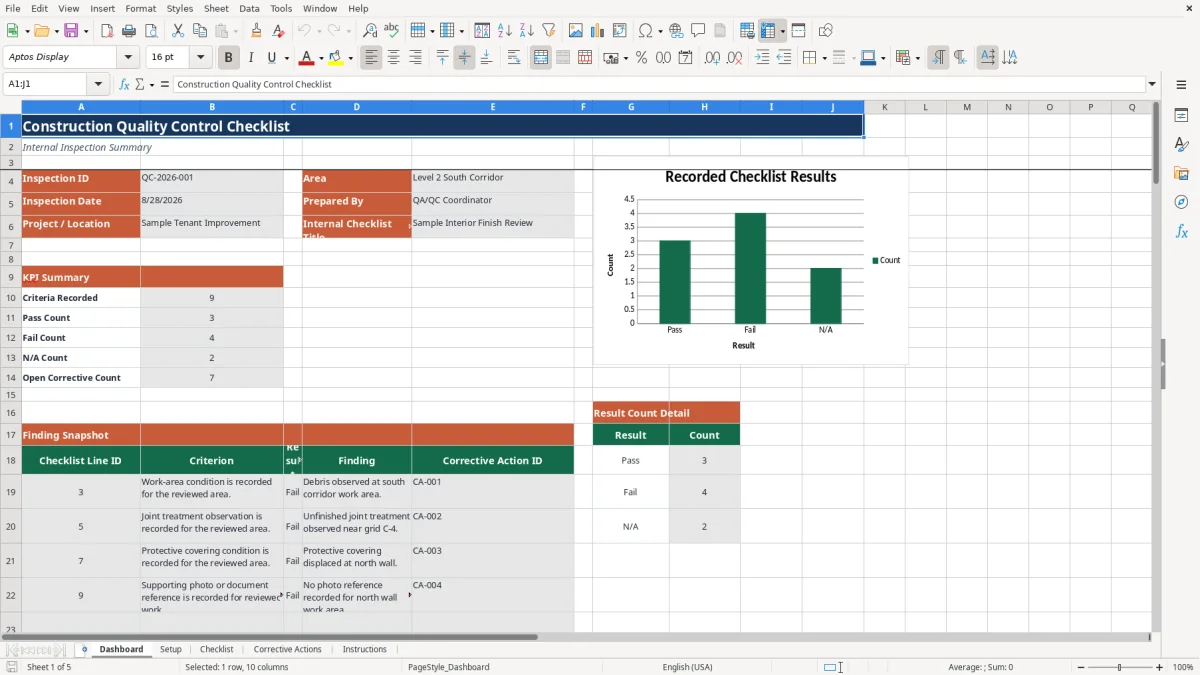
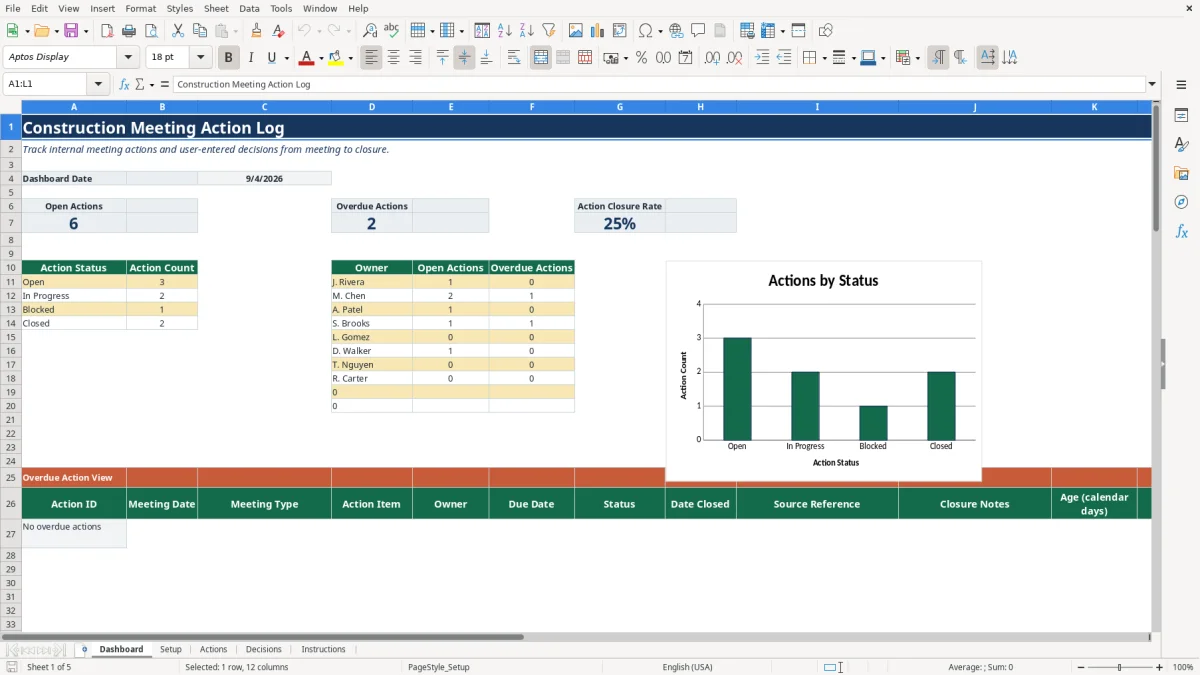
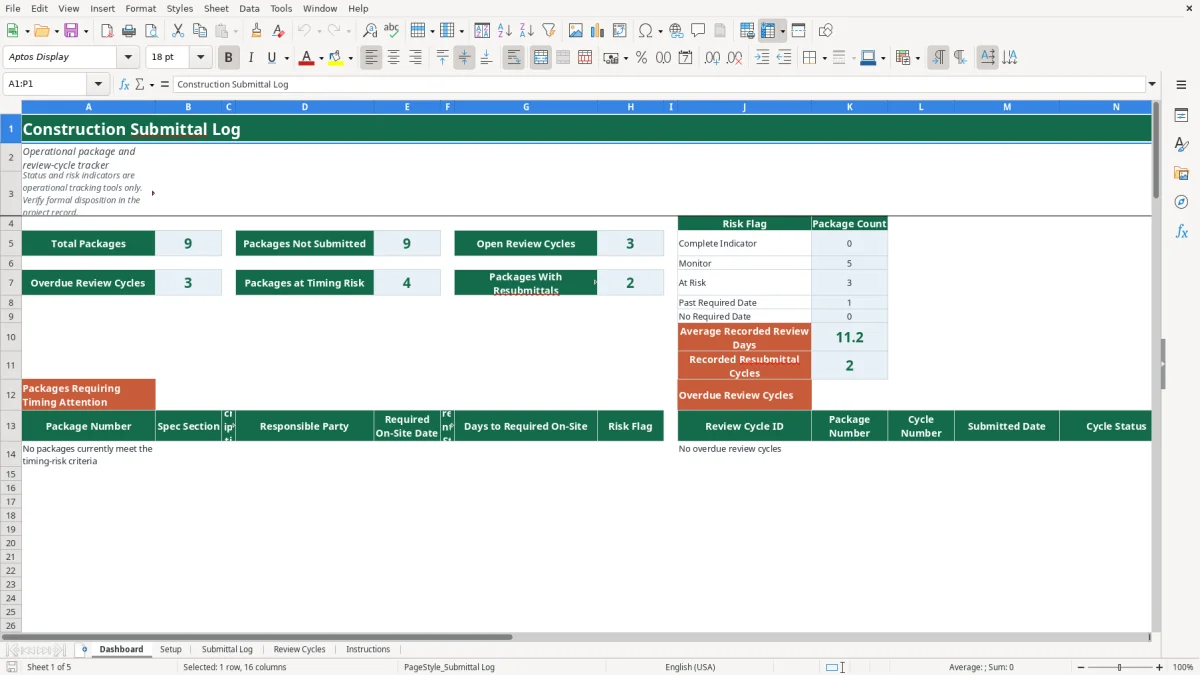
Final workbook preview
Four views generated from the verified XLSX.
How to use this workbook
Set internal tracking thresholds
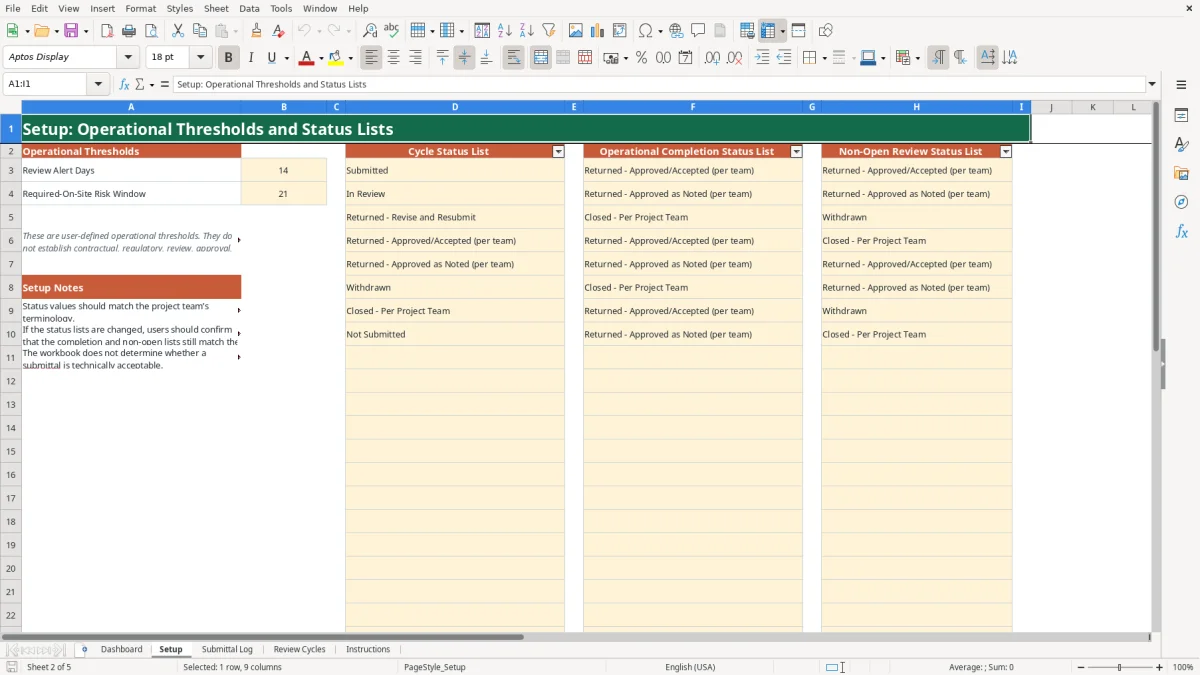
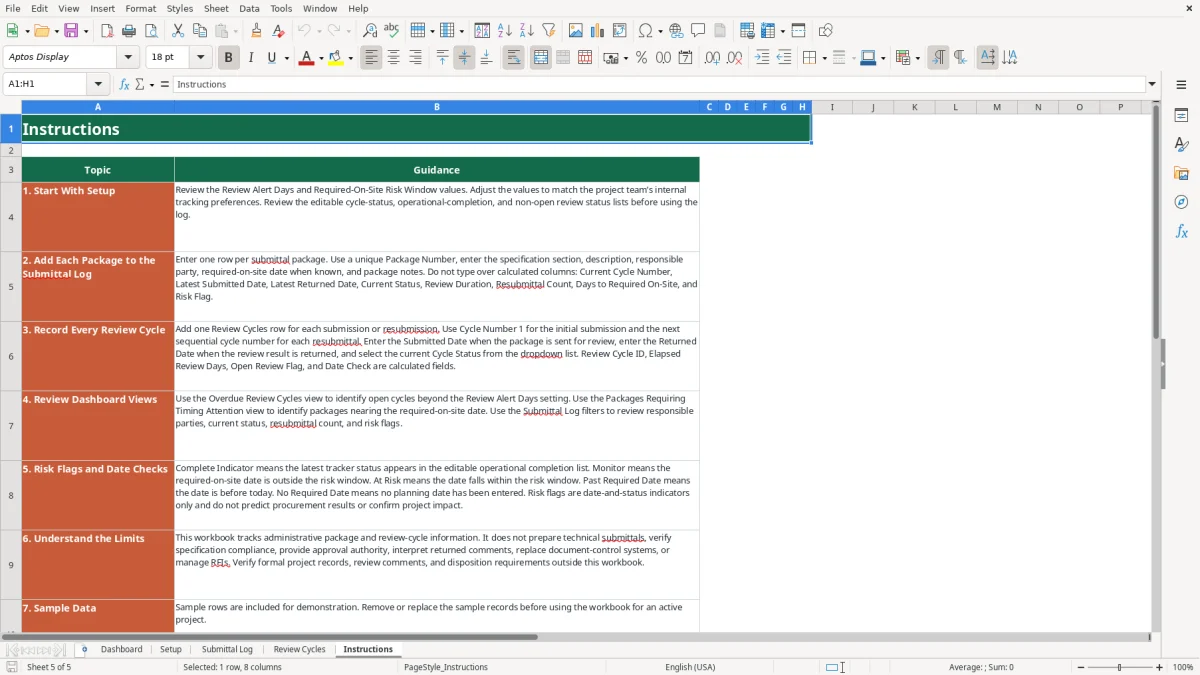
Start on Setup. Review the Review Alert Days and Required-On-Site Risk Window values, which begin at 14 calendar days and 21 calendar days. Adjust them to match internal project tracking preferences. Review the editable cycle-status, completion-status, and non-open-review status lists before entering project records.
Add package register information
In Submittal Log, enter one row per package. User inputs are Package Number, Spec Section, Description, Responsible Party, Required On-Site Date, and Package Notes. Use a unique Package Number. Enter applicable dates as Excel dates in m/d/yyyy format. Current cycle, dates, status, duration, resubmittal count, days to required-on-site, and risk flag are calculated fields.
Record submissions and returns
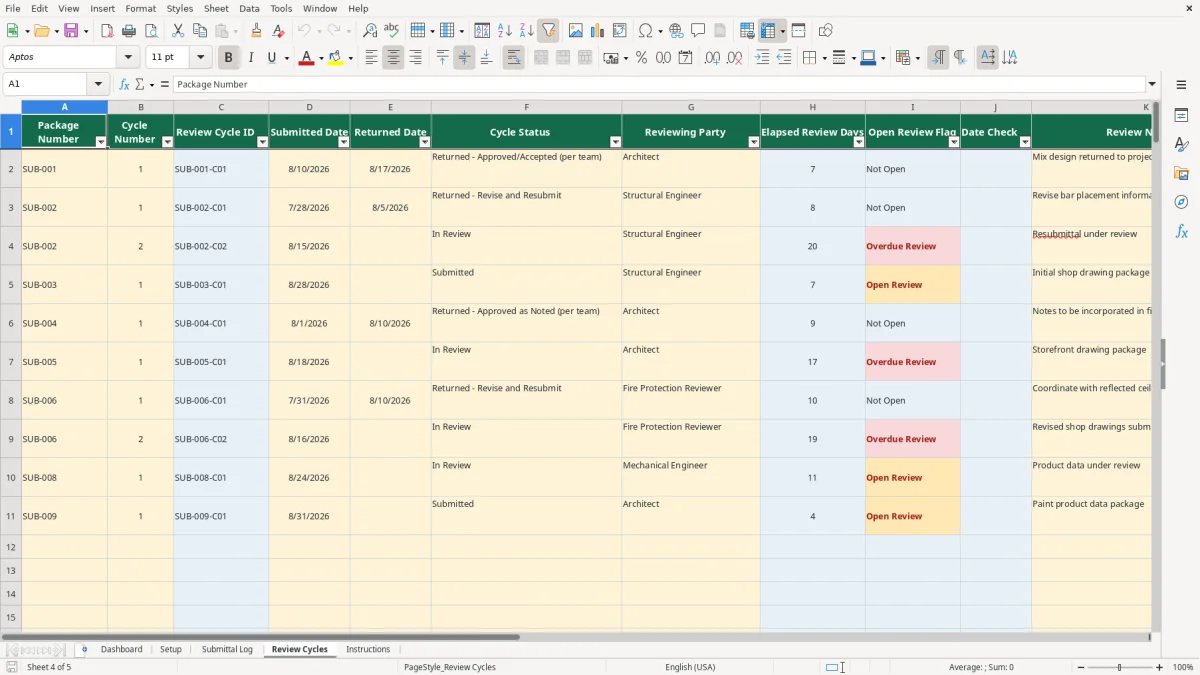
In Review Cycles, enter one row for every initial submission and resubmission. Record the Package Number, Cycle Number, Submitted Date, Returned Date when available, Cycle Status, Reviewing Party, and Review Notes. Use cycle number 1 for the initial record and sequential numbers for later cycles. The sheet calculates the review-cycle ID, elapsed review days, open-review flag, and a date check.
Review operational follow-up views
Use Dashboard to review total packages, packages not submitted, open and overdue review cycles, timing-risk packages, and packages with resubmittals. The dashboard also lists packages requiring timing attention and overdue review cycles. Review the underlying log entries before assigning follow-up actions.
Benefits
Tracks package details and review-cycle history separately.
Counts recorded resubmittal cycles for each package.
Identifies open reviews beyond an internal alert setting.
Highlights packages nearing their required-on-site dates.
Features
Five worksheets for setup, logs, dashboard, and instructions.
Prepared rows for 100 packages and 150 review cycles.
Calculated duration, status, resubmittal, and timing-risk fields.
Dashboard counts, filtered views, and a risk-count chart.
Construction submittal log Excel structure
This construction submittal log Excel workbook is organized around the package-review cycle. The Submittal Log contains package number, specification section, description, responsible party, required-on-site date, and package notes. Review Cycles holds the dated submission and return records associated with those packages.
The package register calculates its current-cycle summary from the highest recorded cycle number for each package. It pulls the latest submitted date, returned date, status, and review duration from that cycle. Accurate cycle entries drive the package summary, so users should keep package numbers and cycle numbering consistent.
Review-cycle and resubmittal tracking
Review Cycles includes Package Number, Cycle Number, Review Cycle ID, Submitted Date, Returned Date, Cycle Status, Reviewing Party, Elapsed Review Days, Open Review Flag, Date Check, and Review Notes. The Review Cycle ID is generated from the package number and cycle number.
Elapsed Review Days are calculated as calendar days from submitted date to returned date, or from submitted date to the current date when no return date is entered. The workbook identifies an open cycle beyond the Setup review-alert value as Overdue Review. A returned cycle or a status in the non-open list is shown as Not Open.
Required-on-site timing indicators
Required On-Site Date is entered by the user in Submittal Log. Days to Required On-Site is calculated against the current date. Based on that date, the risk-window setting, and the latest package status, the Risk Flag can show Complete Indicator, Monitor, At Risk, Past Required Date, or No Required Date.
The Dashboard timing-attention view lists packages flagged At Risk or Past Required Date. These are operational indicators only. They help organize follow-up but do not establish a required procurement date, project schedule commitment, or formal disposition of a submittal.
Frequently asked questions
What information do I enter?
Enter package information in Submittal Log: Package Number, Spec Section, Description, Responsible Party, Required On-Site Date, and Package Notes. In Review Cycles, enter each submission or resubmission with its package number, cycle number, submitted date, returned date when available, status, reviewing party, and notes.
How are review duration and resubmittals calculated?
Elapsed Review Days is the calendar-day difference between submitted and returned dates, or between the submitted date and the current date for an open cycle. The package-level Review Duration uses the latest cycle. Resubmittal Count is based on recorded cycles with submitted dates after the initial cycle.
Does Complete Indicator mean approved?
No. Complete Indicator means the latest tracker status appears in the editable operational completion-status list on Setup. It does not confirm technical acceptance, formal approval, specification conformance, or authority to proceed. Verify formal disposition in the project record.
Can I change statuses and thresholds?
Yes. Setup includes editable Review Alert Days, Required-On-Site Risk Window, cycle-status, completion-status, and non-open-review status lists. Confirm that any changed list still matches the intended internal workflow. These settings do not create contractual, regulatory, review, approval, or procurement requirements.
Which Excel versions support the dashboard views?
Dashboard filtered views use Microsoft 365 dynamic-array functions. In an Excel version without dynamic-array support, those views may not populate as intended. The underlying Submittal Log and Review Cycles records remain available for review, subject to functions supported by the installed Excel version.
Workbook file
Ready to put this workbook to work?
Download the verified XLSX, keep an untouched copy, and adapt a working copy to your project.
Download verified XLSXEditorial team
About the authors

Paige Sutton Vale
Workbook Systems Editor
Paige turns construction planning, cost-control, field, and closeout workflows into clear Excel workbook guides. She focuses on inputs, calculations, outputs, and practical limits.

Maren Ellsworth Keel
Workbook QA Reviewer
Maren reviews formula behavior, field labels, project-controls terminology, and workbook instructions so each resource stays within its documented scope.
Continue exploring