Verified Excel workbook
Free Construction RFI Workbook in Excel for 2026
Free 2026 construction RFI log workbook in Excel for tracking requests, response dates, aging, overdue items, and responsibility summaries.
Download this free Construction RFI Log Workbook to maintain a working register of project requests for information in Excel. Enter each RFI number, subject, submitted date, responsible party, due date, status, response date, and response reference in one record row.
The workbook includes Dashboard, Setup, RFI Log, and Instructions worksheets. It calculates RFI age, days overdue, open counts, and average response days from entered dates and status settings. These are practical tracking results in calendar days; the workbook does not interpret documents, authorize work, or establish project obligations.
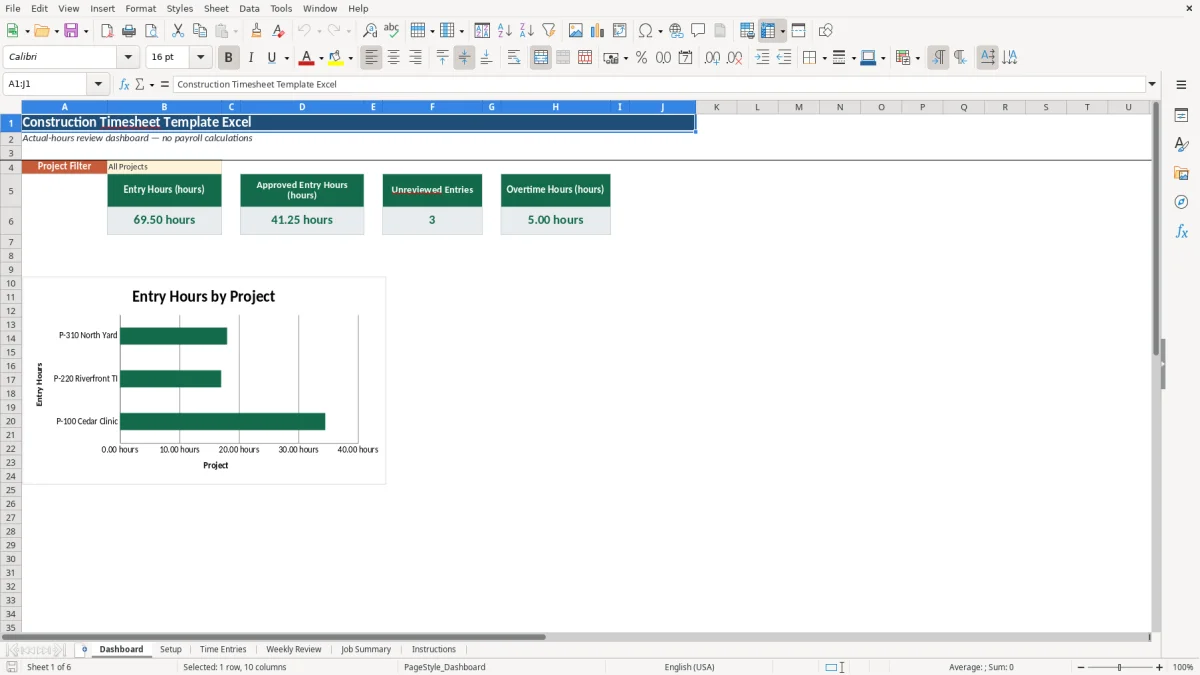
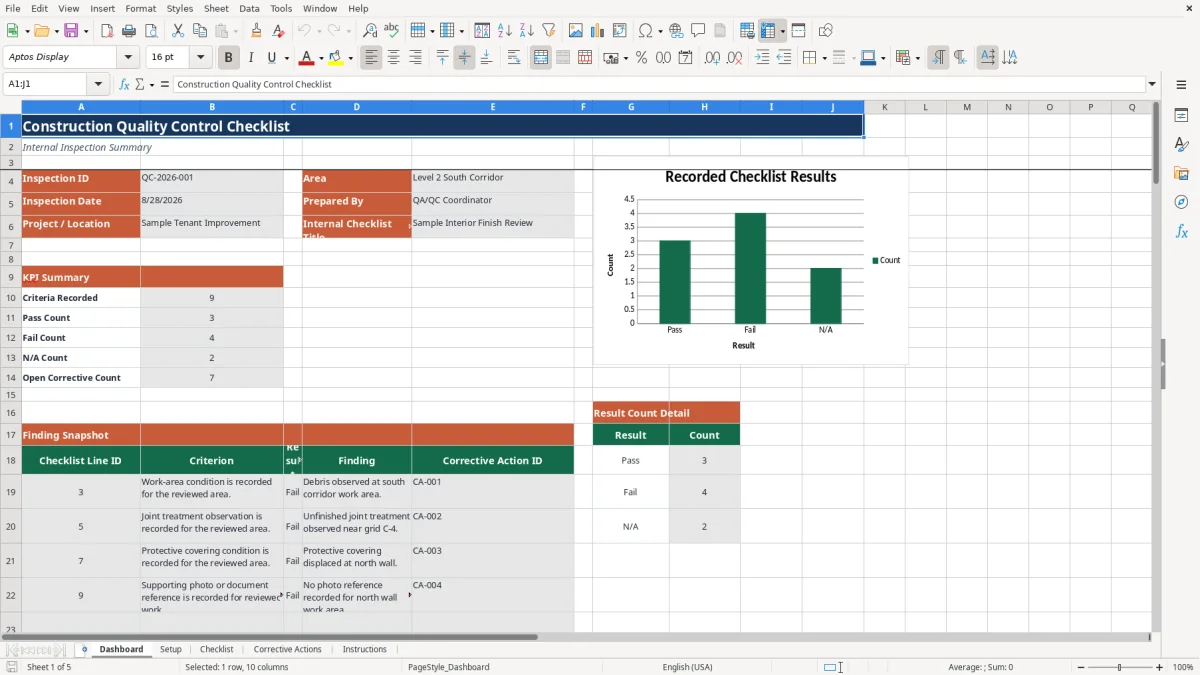
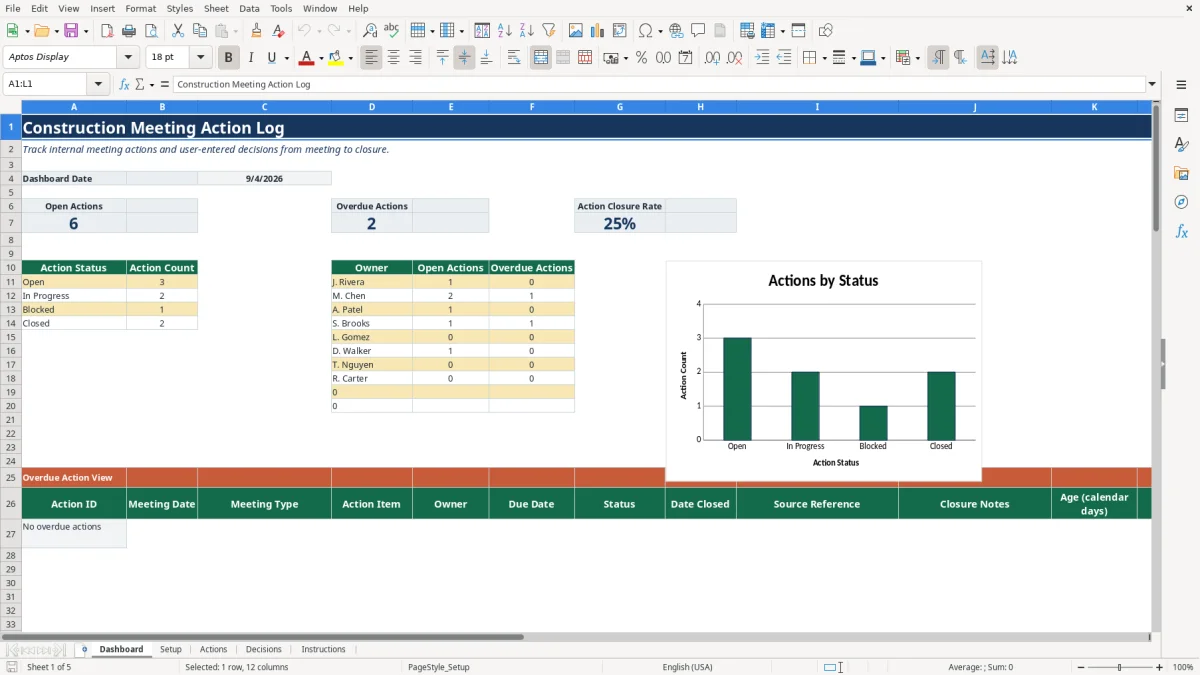
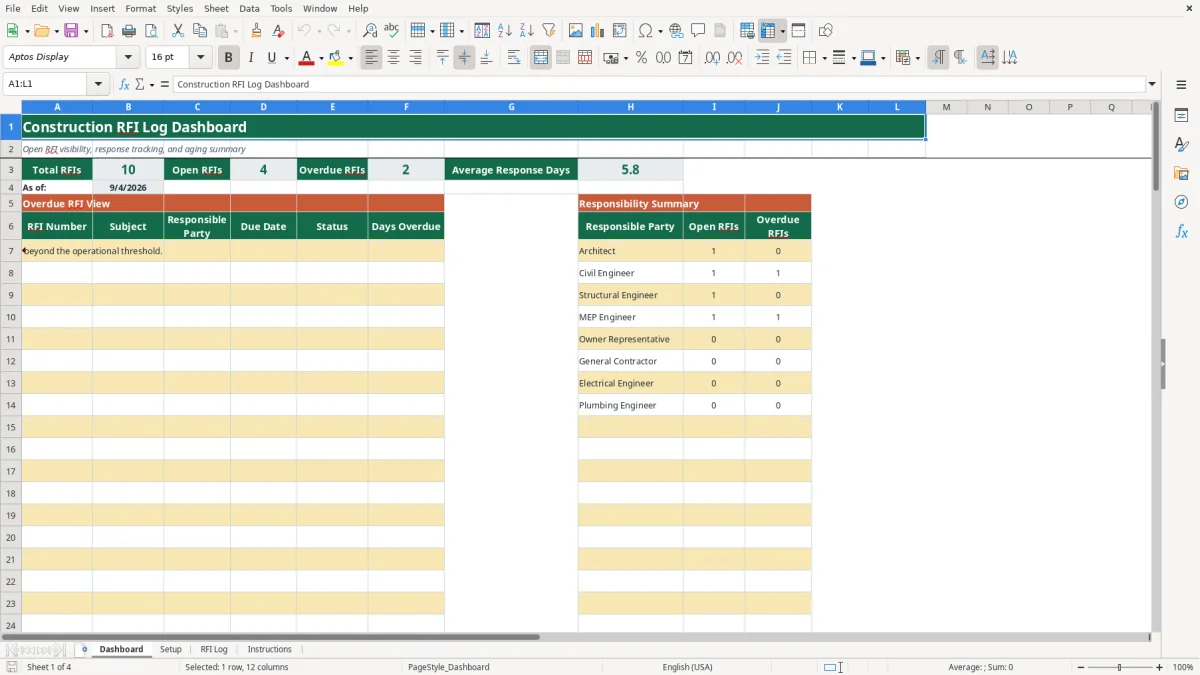
Final workbook preview
Four views generated from the verified XLSX.
How to use this workbook
Review Setup before entering records
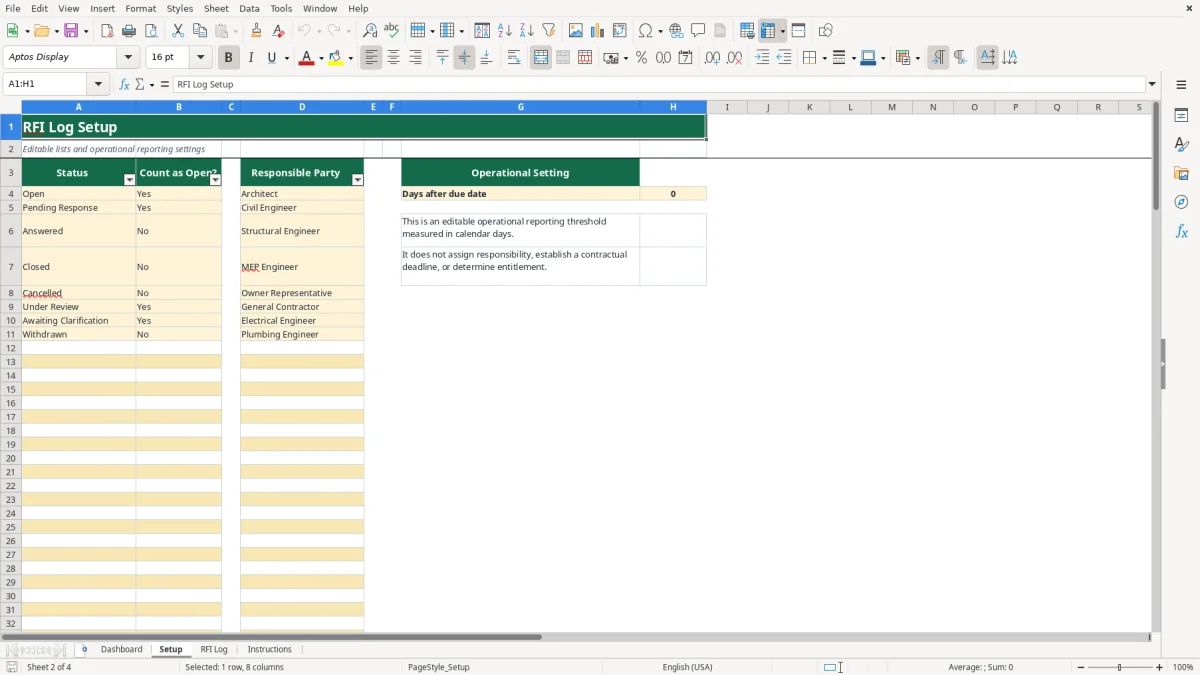
Use the Setup sheet to review the Status list, the paired Count as Open? settings, and the Responsible Party list. The selected status and its Yes or No setting determine whether an RFI is calculated as open. Update these lists if the project team uses different tracking terms.
Setup also contains Days after due date, initially set to 0. This editable whole-number setting is an operational reporting threshold measured in calendar days. It controls the Dashboard overdue count and view; it does not assign responsibility or create a contractual deadline.
Enter one RFI per row
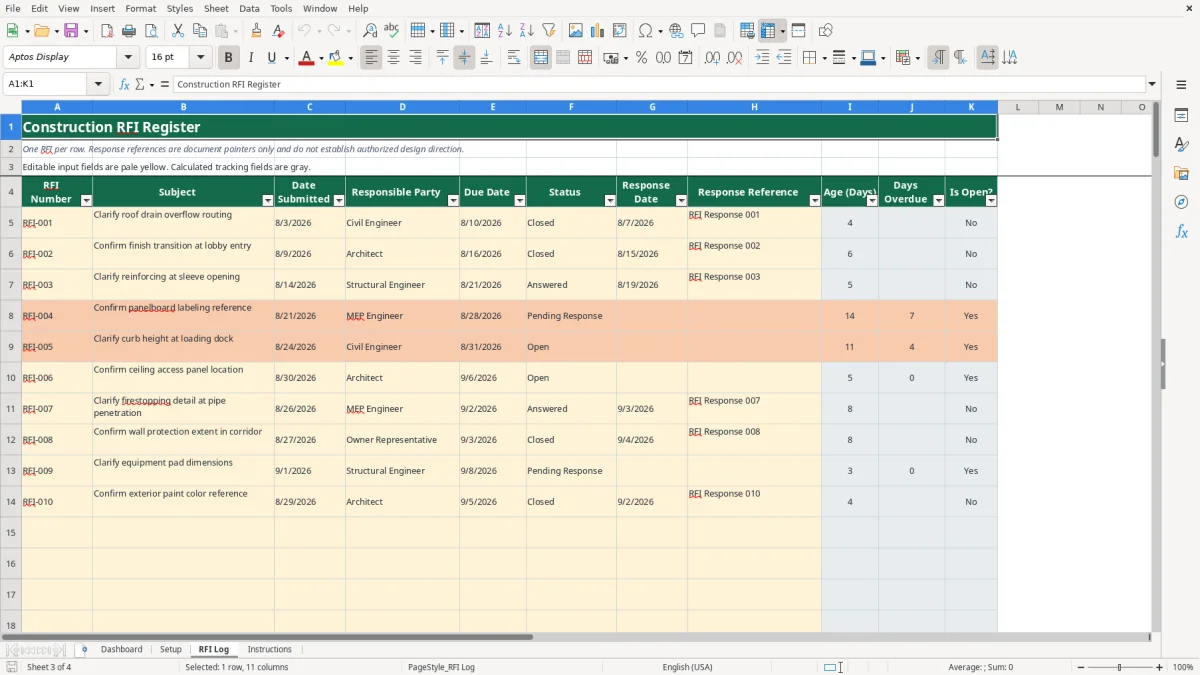
On RFI Log, enter RFI Number, Subject, Date Submitted, Responsible Party, Due Date, Status, Response Date, and Response Reference. Enter valid Excel dates, which display as m/d/yyyy. Responsible Party and Status are selected from the Setup lists. Use the response reference to identify a related response document or record.
Use calculated fields as tracking outputs
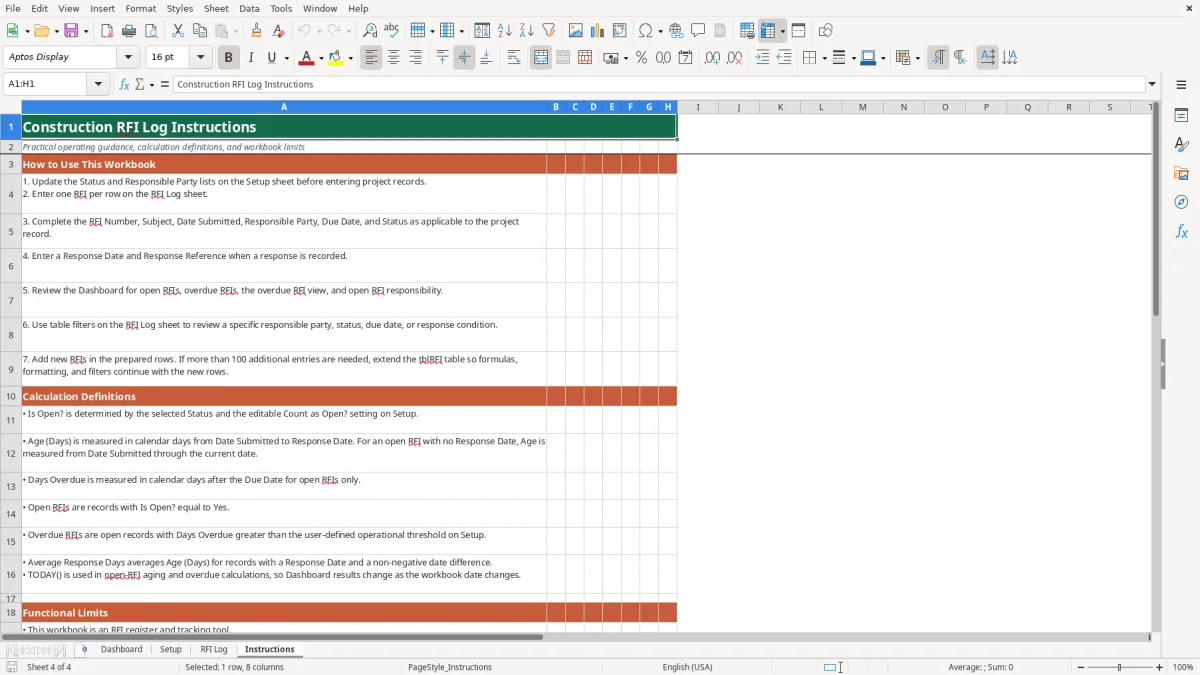
Age (Days), Days Overdue, and Is Open? are calculated outputs. Age measures from Date Submitted to Response Date when a response date is recorded. For an open RFI without a response date, age measures from Date Submitted through the current date. Days Overdue applies only to open RFIs and does not show a negative result.
Review Dashboard follow-up items
Use the Dashboard to review total RFIs, open RFIs, overdue RFIs, average response days, the overdue RFI view, and the responsibility summary. Open-item aging uses TODAY(), so age and overdue results change as the current date changes. Use the RFI Log table filters to focus on a status, responsible party, due date, or response condition.
Benefits
Keep RFI dates, responsibility, status, and response references in one register.
Review open and overdue RFI counts without manually totaling records.
See open and overdue RFI counts by responsible party on the Dashboard.
Adjust statuses, responsible parties, and overdue reporting logic for the project.
Features
RFI Log inputs for identifiers, dates, responsibility, status, and response references.
Calculated Age (Days), Days Overdue, and Is Open? columns on RFI Log.
Dashboard reporting for total, open, overdue, and average response-day results.
Editable Setup lists for statuses, open-status mapping, responsible parties, and threshold days.
Construction RFI register in Excel
A construction RFI register helps a project team keep questions and response activity visible in one place. The RFI Log sheet contains user-entry fields for RFI Number, Subject, Date Submitted, Responsible Party, Due Date, Status, Response Date, and Response Reference. Each row represents one RFI record.
The number identifies the record, while the subject provides a short description for review. The responsible party, due date, and status support follow-up reporting. A Response Reference identifies a related source record. It is a document pointer only, not a technical answer, design interpretation, approval, or direction to proceed.
RFI age and overdue reporting
The workbook calculates Age (Days) using entered dates. When Date Submitted and Response Date are both valid, age is the calendar-day difference between them. When an RFI remains open without a response date, age is calculated from Date Submitted through the current date. A record without a valid submitted date does not produce an age value.
Days Overdue is calculated for open RFIs only. It measures calendar days after the entered Due Date and returns zero when the due date has not passed. Dashboard overdue reporting includes open RFIs with Days Overdue greater than the editable Setup threshold. Overdue is a reporting result, not a determination of a party's duty, performance, or entitlement.
Dashboard responsibility summary
The Dashboard calculates total RFIs, open RFIs, overdue RFIs, and average response days from the RFI Log. Average Response Days uses records with a Response Date and a non-negative date difference. The Dashboard also lists qualifying overdue records with their RFI number, subject, responsible party, due date, status, and days overdue.
The responsibility summary reports open and overdue RFI counts for responsible parties maintained on Setup. This supports routine coordination and follow-up. The summary does not assign fault, determine response authorization, or replace the project’s document-control procedures. Verify source documents and approvals outside the workbook.
Frequently asked questions
What information do users enter in the RFI Log?
Users enter RFI Number, Subject, Date Submitted, Responsible Party, Due Date, Status, Response Date, and Response Reference. These fields create the tracking record and support Dashboard reporting. The response reference should identify a related document or project record that users can verify separately.
Which values are calculated by the workbook?
RFI Log calculates Age (Days), Days Overdue, and Is Open? The Dashboard calculates total RFIs, open RFIs, overdue RFIs, and average response days. It also produces an overdue RFI view and responsibility summary from the entered RFI records and Setup settings.
How is an RFI counted as open?
Is Open? is based on the selected Status and its Count as Open? value on Setup. A status mapped to Yes is counted as open, while a status mapped to No is not. Users can edit the mapping to fit their internal reporting process.
What does Days after due date control?
Days after due date is the editable calendar-day threshold on Setup, initially set to 0. An open RFI is included in Dashboard overdue reporting only when its Days Overdue value is greater than this setting. This is user-defined operational logic, not a contractual response period.
Can the workbook approve work or determine cost and schedule impact?
No. This workbook tracks RFI records, dates, responsibility, status, response references, aging, and overdue reporting. It does not draft RFI forms, technical questions, responses, design interpretations, or design direction. It does not approve work, determine authorization, calculate USD cost impact, calculate schedule impact, or determine contract entitlement.
Workbook file
Ready to put this workbook to work?
Download the verified XLSX, keep an untouched copy, and adapt a working copy to your project.
Download verified XLSXEditorial team
About the authors

Paige Sutton Vale
Workbook Systems Editor
Paige turns construction planning, cost-control, field, and closeout workflows into clear Excel workbook guides. She focuses on inputs, calculations, outputs, and practical limits.

Maren Ellsworth Keel
Workbook QA Reviewer
Maren reviews formula behavior, field labels, project-controls terminology, and workbook instructions so each resource stays within its documented scope.
Continue exploring