Verified Excel workbook
3-Week Construction Workbook in Excel – Free 2026
Free 2026 Excel workbook for rolling three-week construction make-ready planning, constraints, weekly commitments, carryovers, and PPC review.
Keep near-term field planning focused with this free three-week construction make-ready workbook. Download the Excel workbook to organize eligible work from the master schedule into activity-week records, identify prerequisites, assign constraint ownership, and document specific weekly commitments. It is built for US construction teams working in a rolling planning window with dates shown as m/d/yyyy.
The workbook separates the work of making activities ready from managing the full project schedule. Users enter planning data in the Make-Ready Plan, while the Dashboard, Constraints, and Weekly Commitments worksheets present calculated or filtered views. Use it as a coordination tool for the next three weeks, not as a replacement for the master schedule.
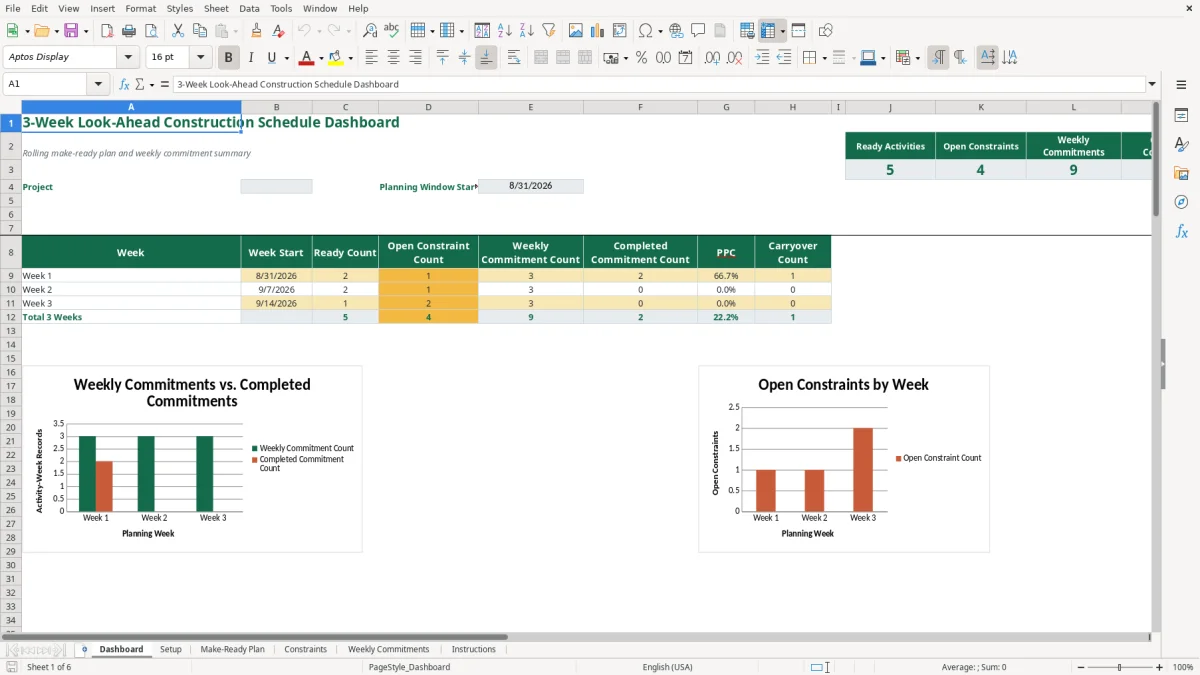
Final workbook preview
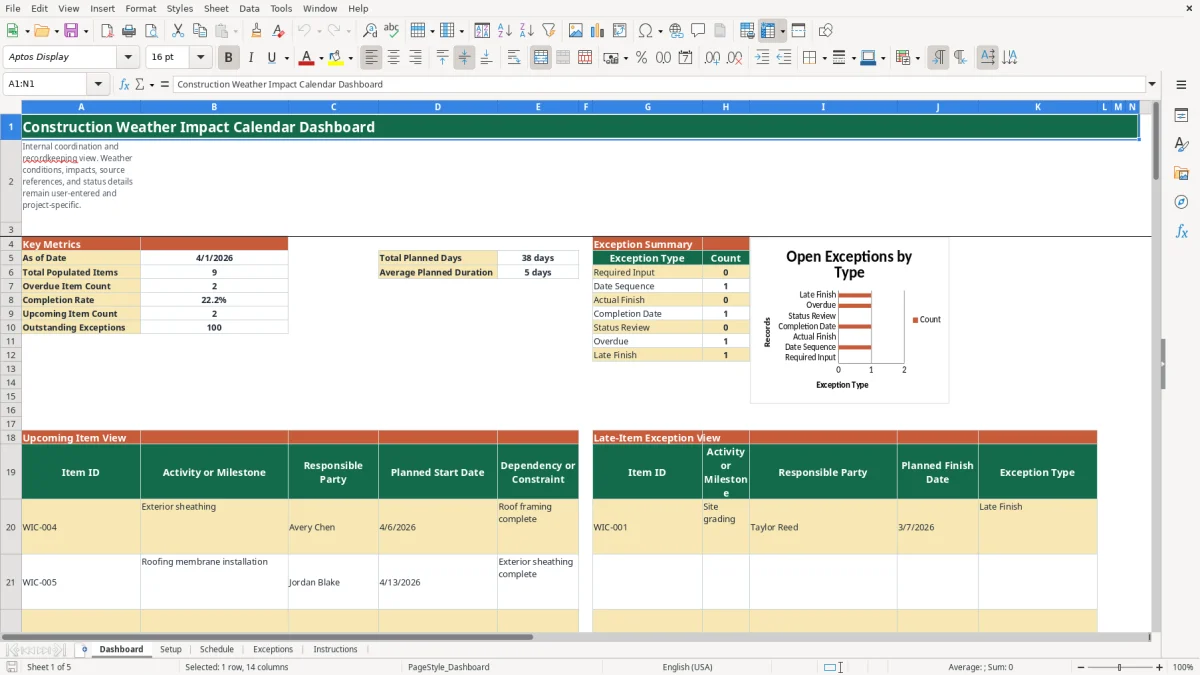
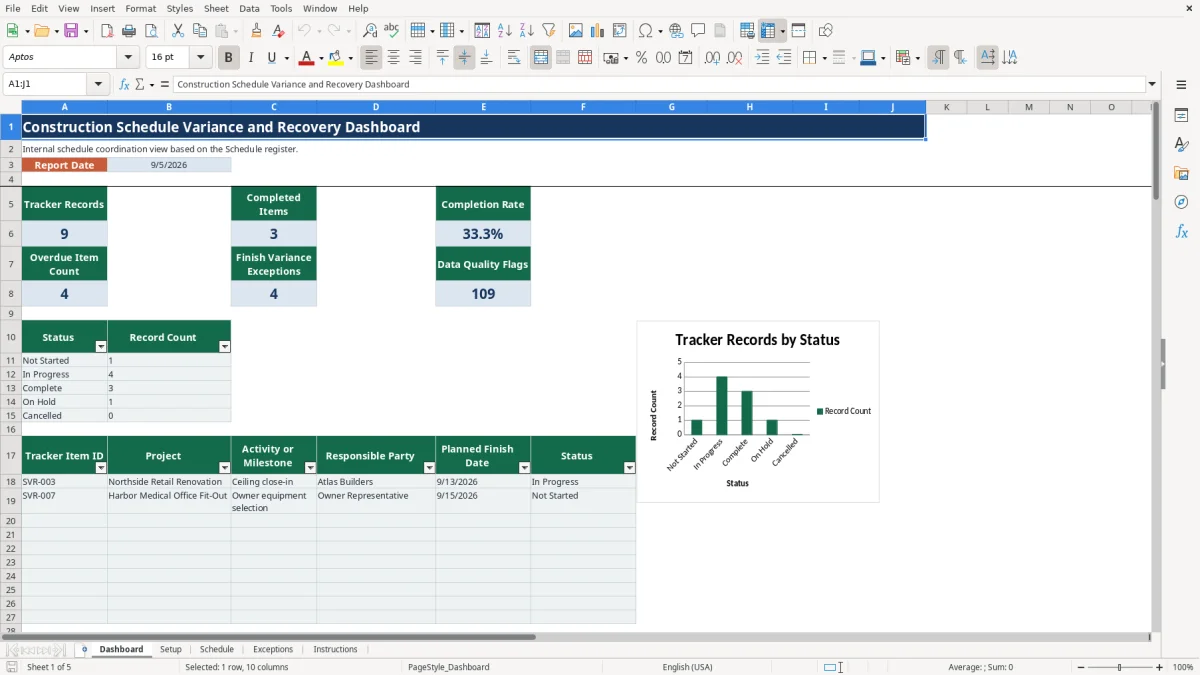
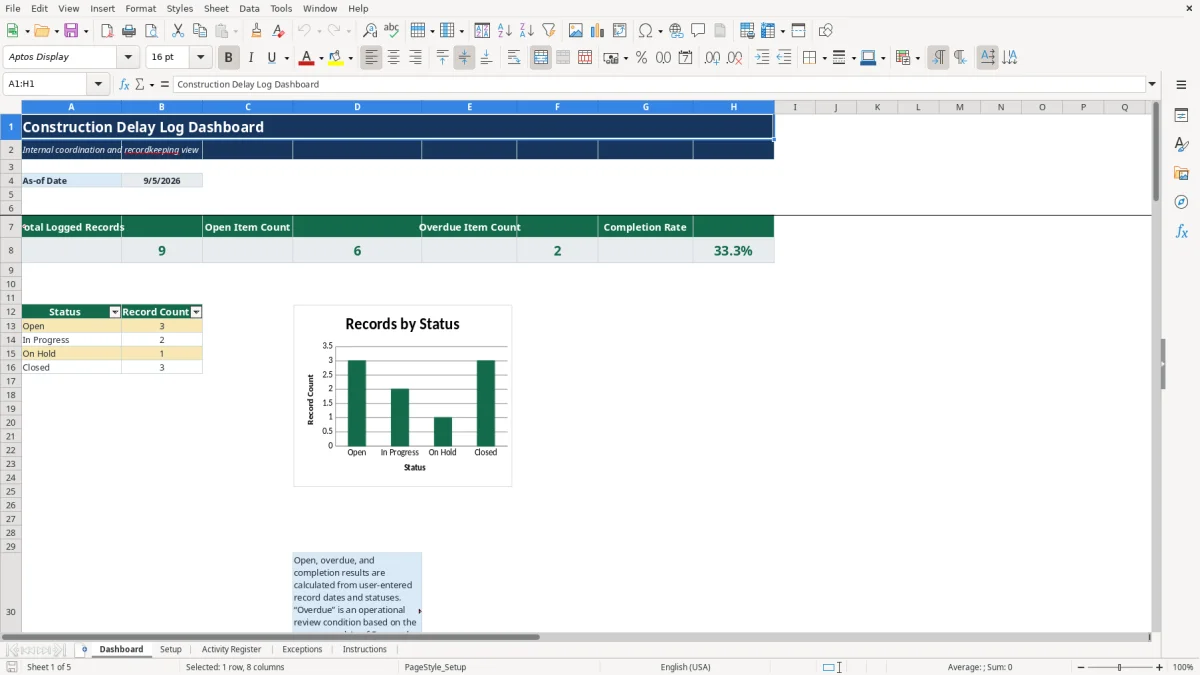
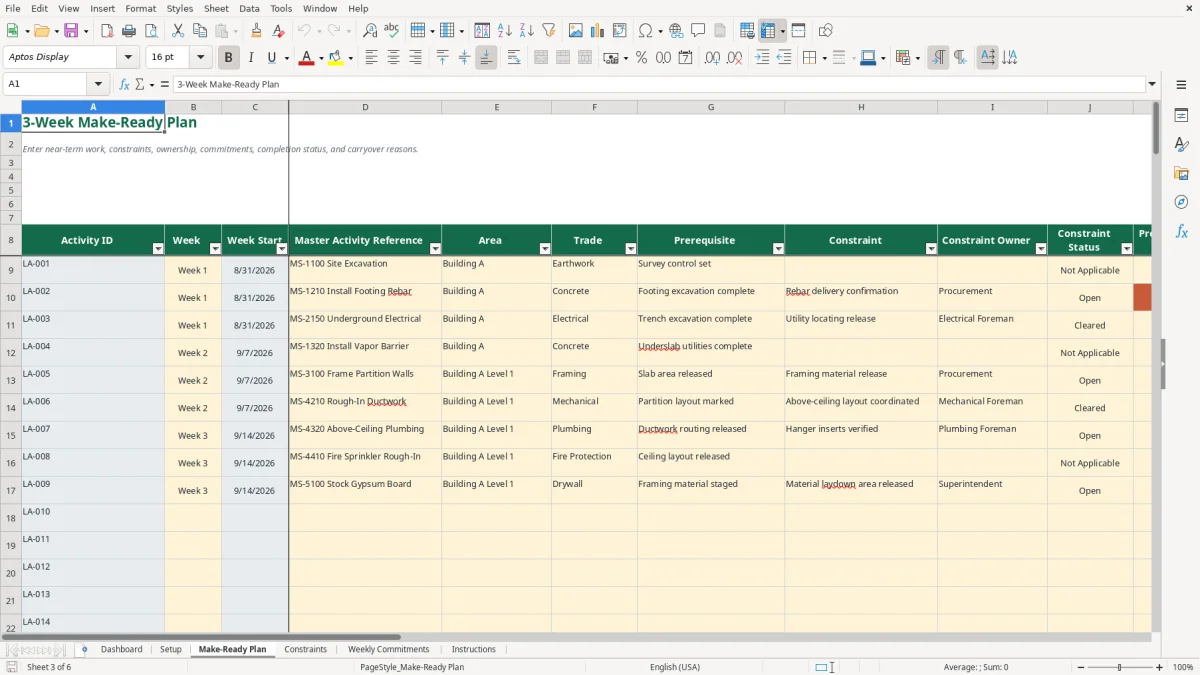
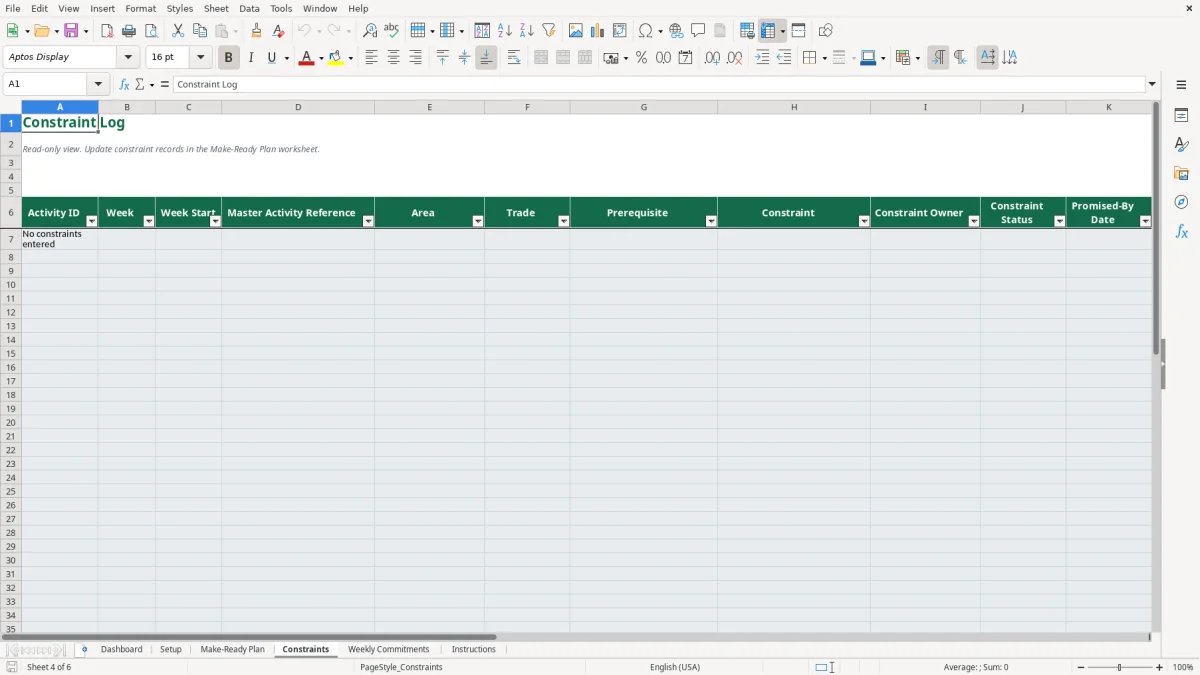
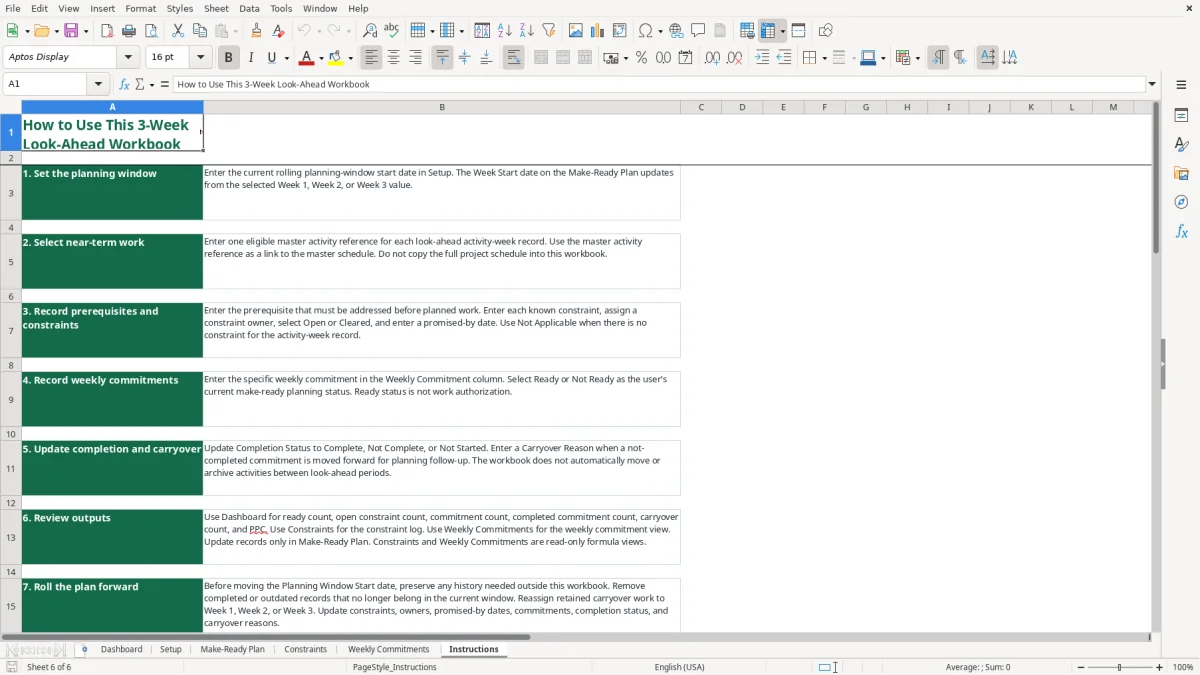
Four views generated from the verified XLSX.
How to use this workbook
Set the rolling window
On Setup, enter the Planning Window Start date. The workbook maps Week 1 to that date, then calculates Week 2 and Week 3 starts in seven-day increments. You can also enter the project name, prepared by, and as-of date for planning context. Use m/d/yyyy dates, such as 8/31/2026.
Enter near-term activity-week records
In Make-Ready Plan, enter an Activity ID, choose Week 1, Week 2, or Week 3, and add the master activity reference, area, and trade. The Week Start column is calculated from the selected week. Use one record for each look-ahead activity-week item rather than copying the entire master schedule.
Document blockers and commitments
Enter the prerequisite and any known constraint, then assign a constraint owner, status, and promised-by date. Add a specific weekly commitment and select the current make-ready and completion statuses. Ready is a planning status; it does not authorize work or confirm that work will occur.
Review and roll forward
Update completion status and enter a carryover reason when follow-up is needed. Review the Dashboard, the read-only Constraints log, and the read-only Weekly Commitments view. Before changing the planning-window start date, preserve any history your team needs outside this workbook and remove records no longer within the current window.
Benefits
Focus weekly coordination on eligible near-term activity-week records.
Assign owners and promised-by dates to known constraints.
Separate current make-ready status from commitment completion status.
Review PPC and carryovers from user-entered commitment records.
Features
Six worksheets: Dashboard, Setup, Make-Ready Plan, Constraints, Weekly Commitments, and Instructions.
Prepared Make-Ready Plan entry range from row 9 through row 117.
Calculated Week Start dates based on the selected three-week window.
Two Dashboard charts for weekly commitments and open constraints.
A focused three-week construction planning workbook
For teams searching for a 3 week look ahead construction schedule template excel, this workbook provides a narrower make-ready planning workflow. It links each near-term record to a master activity reference, then captures the area, trade, prerequisite, constraint, owner, promised-by date, and commitment information needed for weekly coordination. The master schedule remains separate and continues to own the full task sequence and baseline.
The Make-Ready Plan is the primary user-entry worksheet. Its prepared columns support activity IDs, week selection, master activity references, readiness information, completion status, carryover reasons, and notes. Week selection is limited to Week 1, Week 2, or Week 3, and the corresponding Week Start is calculated from the Setup worksheet.
Constraint and commitment views without duplicate entry
Enter constraints and commitments once in Make-Ready Plan. The Constraints worksheet creates a read-only log of records with a nonblank constraint, including the prerequisite, owner, status, promised-by date, make-ready status, and notes. The Weekly Commitments worksheet creates a read-only view of records with a nonblank weekly commitment, including completion status, carryover reason, constraint owner, and promised-by date.
This arrangement keeps data maintenance in one place. A rebar delivery confirmation, utility locating release, or other user-identified issue can be tracked against its related activity-week record. The workbook does not determine whether a constraint is valid, cleared, or adequately owned; those are user-entered planning decisions.
Dashboard counts and PPC explained
The Dashboard summarizes ready activities, open constraints, weekly commitments, completed commitments, PPC, and carryovers by week, with a three-week total. Ready Count is based on entered activity-week records marked Ready. Open Constraint Count requires both a nonblank constraint and an Open constraint status. Carryover Count is based on a nonblank carryover reason.
PPC is calculated as Completed Commitment Count divided by Weekly Commitment Count and remains blank when no commitments are entered. PPC measures only entered commitments and their entered completion status. It does not measure productivity, validate readiness, authorize work, forecast results, or guarantee completion. The optional PPC Attention Threshold on Setup is a user-defined planning cue.
Functional limits and Excel considerations
This is a rolling three-week make-ready workbook. It does not duplicate the full project schedule, calculate critical path, forecast the entire project, or support delay and entitlement claims. It contains no cost, quantity, production-rate, labor, equipment, or USD budgeting inputs. Use the master schedule and other project records for information outside this workbook’s stated scope.
The Constraints and Weekly Commitments views use dynamic-array formulas to display filtered records. If the Excel version in use does not support dynamic arrays, the workbook instructions direct users to filter the Make-Ready Plan instead. Calculated views depend on complete inputs, including the selected week, statuses, commitments, and carryover reasons.
Frequently asked questions
Is this workbook a full construction schedule?
No. It is limited to a rolling three-week make-ready plan for eligible near-term work. The workbook records a master activity reference but does not replace the master schedule, recalculate critical path, or forecast the full project.
Where do I update a constraint or weekly commitment?
Update both items in Make-Ready Plan. Constraints and Weekly Commitments are read-only calculated views that pull records from that worksheet when a constraint or weekly commitment has been entered.
How does the workbook calculate PPC?
PPC equals the Completed Commitment Count divided by the Weekly Commitment Count. It is blank when no weekly commitments are entered. It reflects entered completion status only, not productivity or a prediction of future completion.
What dates should I enter?
Enter the Planning Window Start and Promised-By Date values as dates in m/d/yyyy format, such as 9/3/2026. The workbook calculates the Week Start date from the selected Week 1, Week 2, or Week 3 value.
What if my Excel version does not show the filtered views?
The Constraints and Weekly Commitments worksheets rely on dynamic-array formulas. If those formulas are unsupported in your Excel version, use the Make-Ready Plan worksheet as the source record and filter it for constraints or entered weekly commitments.
Workbook file
Ready to put this workbook to work?
Download the verified XLSX, keep an untouched copy, and adapt a working copy to your project.
Download verified XLSXEditorial team
About the authors

Paige Sutton Vale
Workbook Systems Editor
Paige turns construction planning, cost-control, field, and closeout workflows into clear Excel workbook guides. She focuses on inputs, calculations, outputs, and practical limits.

Maren Ellsworth Keel
Workbook QA Reviewer
Maren reviews formula behavior, field labels, project-controls terminology, and workbook instructions so each resource stays within its documented scope.
Continue exploring