Verified Excel workbook
Free 2026 Temporary Works Schedule Workbook in Excel
Download a free temporary works schedule Excel workbook to track planned dates, owners, dependencies, exceptions, and calculated status views.
Download the free Temporary Works Schedule Workbook in Excel to keep temporary works activities, milestones, dates, responsible parties, dependencies, and source references in one controlled register. The workbook is built for project planning and coordination, helping a team review what is finished, open, upcoming, overdue, or missing key record details.
Use the controlled schedule register to maintain user-entered records, then review calculated status views on the Dashboard and Exceptions sheets. This workbook is a planning and coordination aid; it does not design, approve, authorize, or verify temporary works, site operations, or safe-work methods.
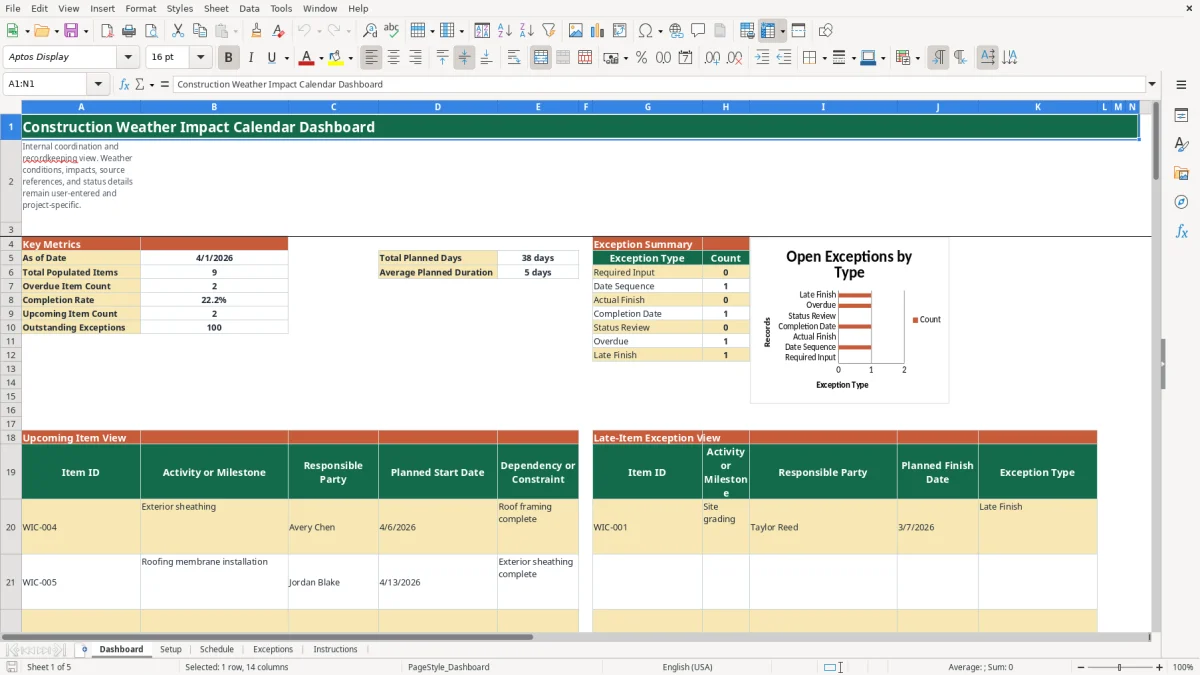
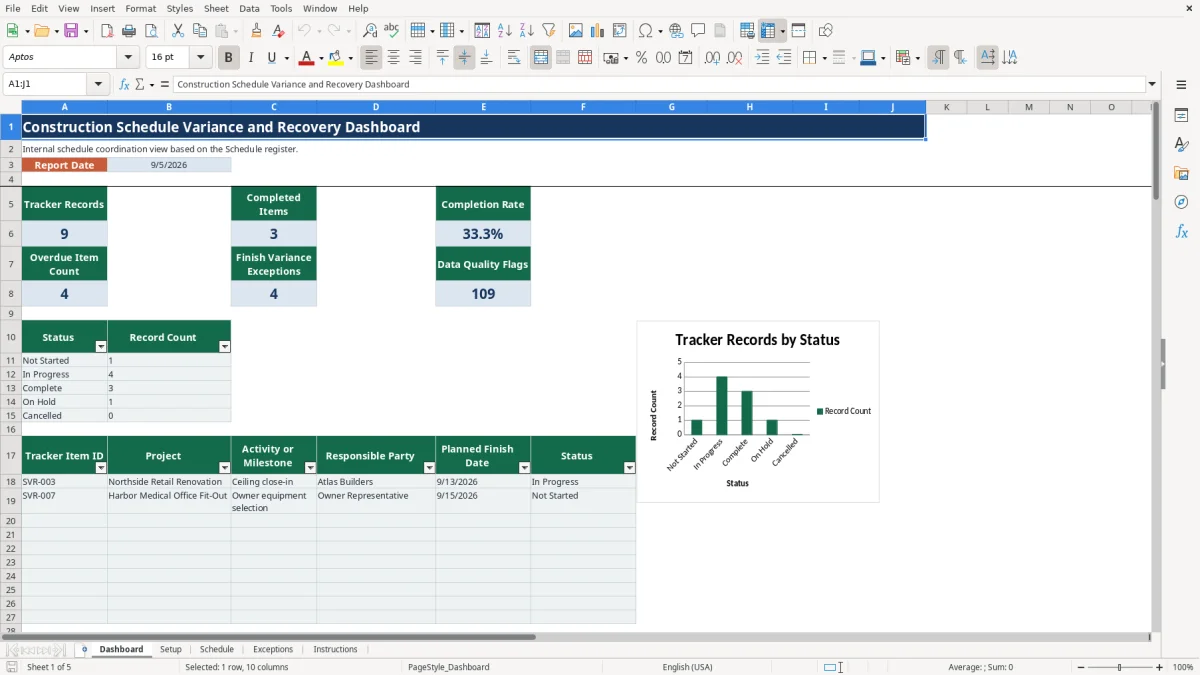
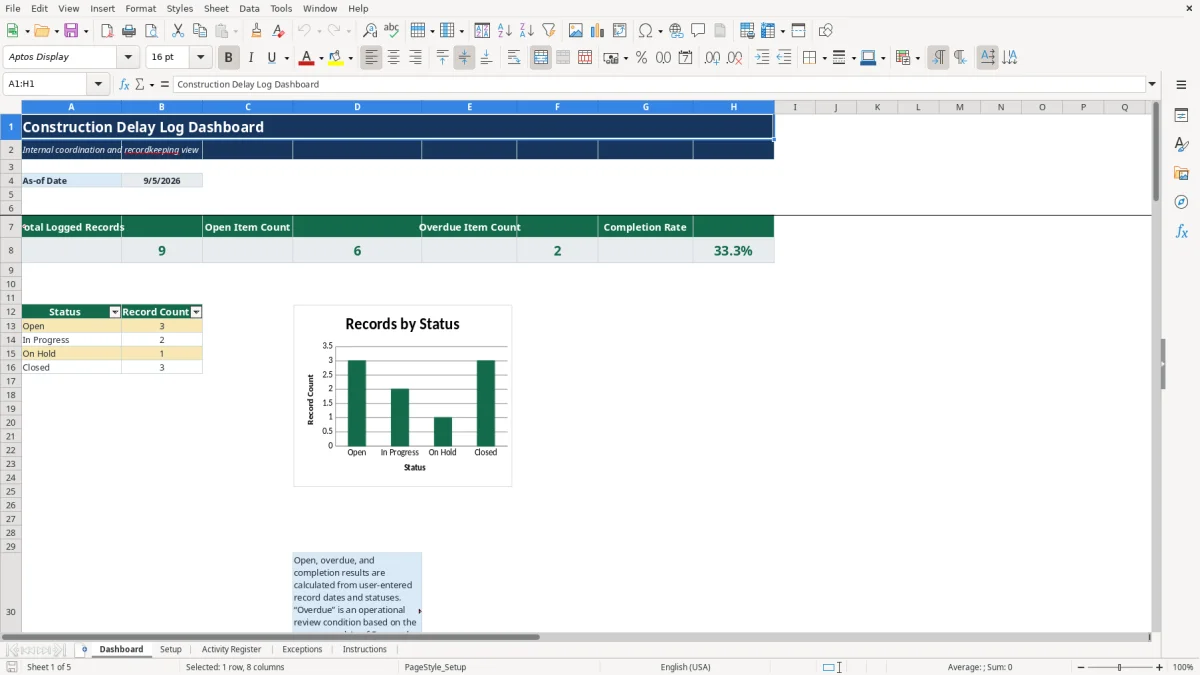
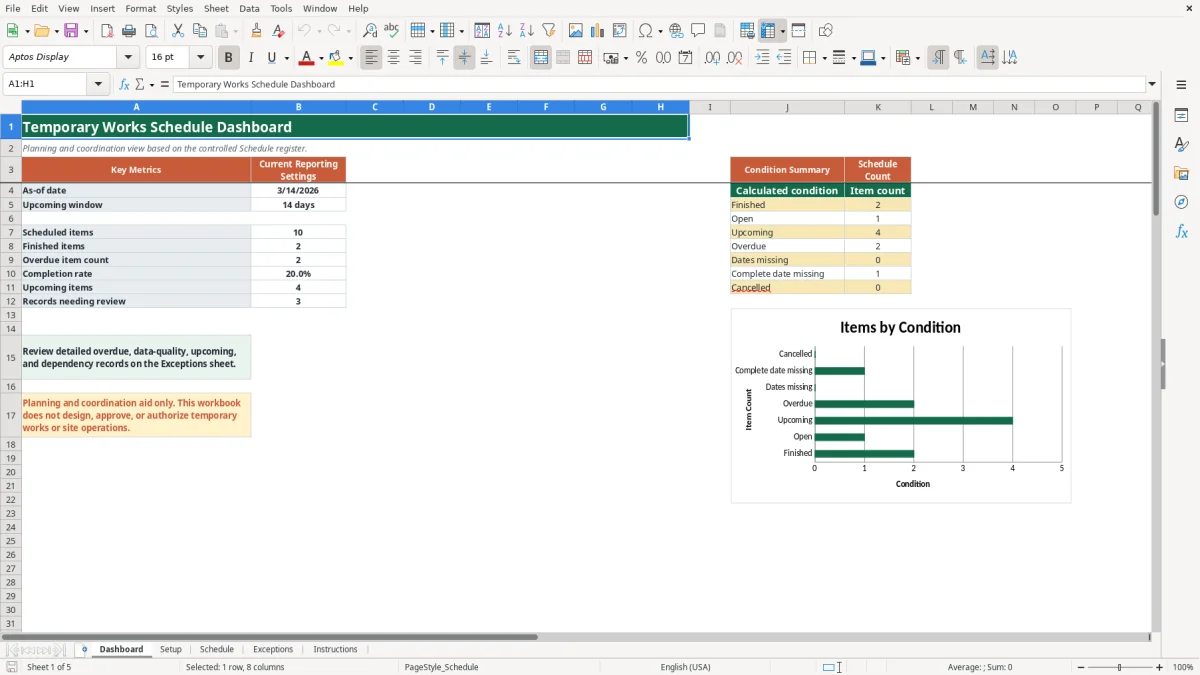
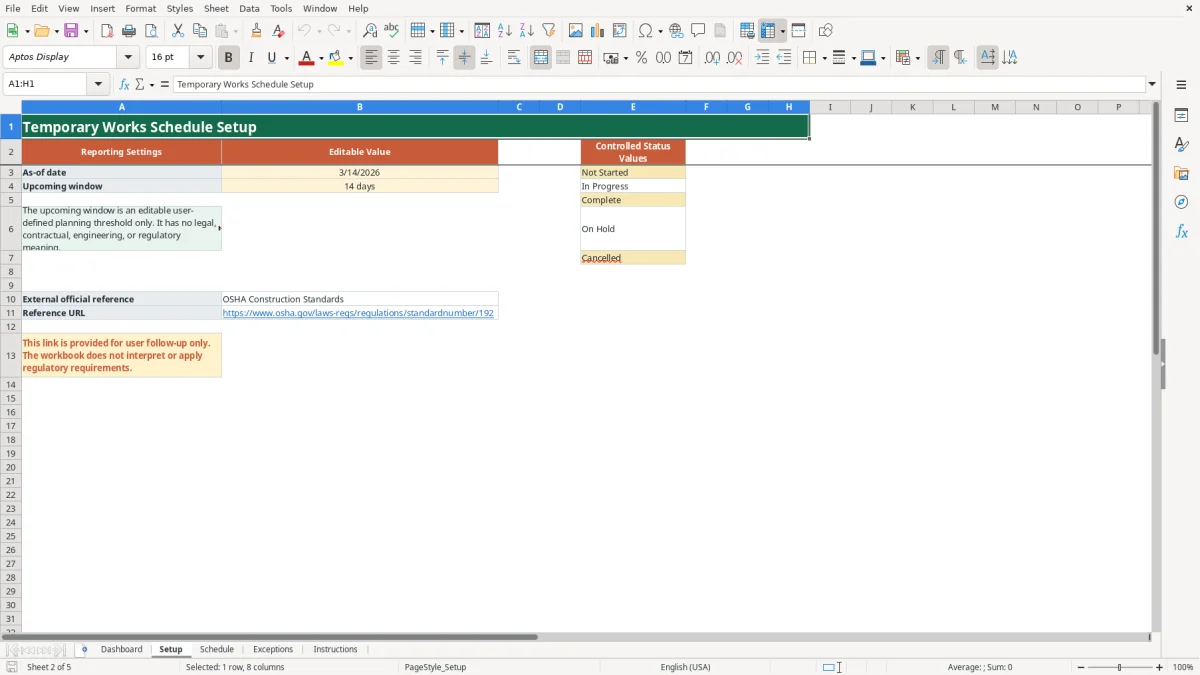
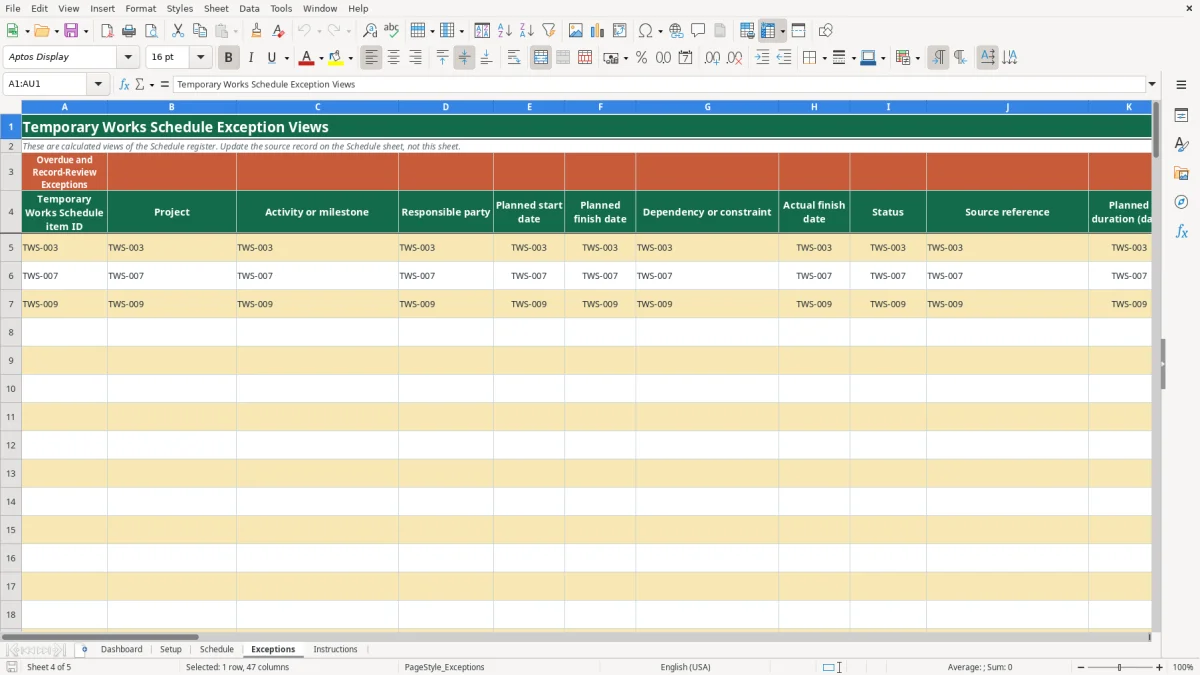
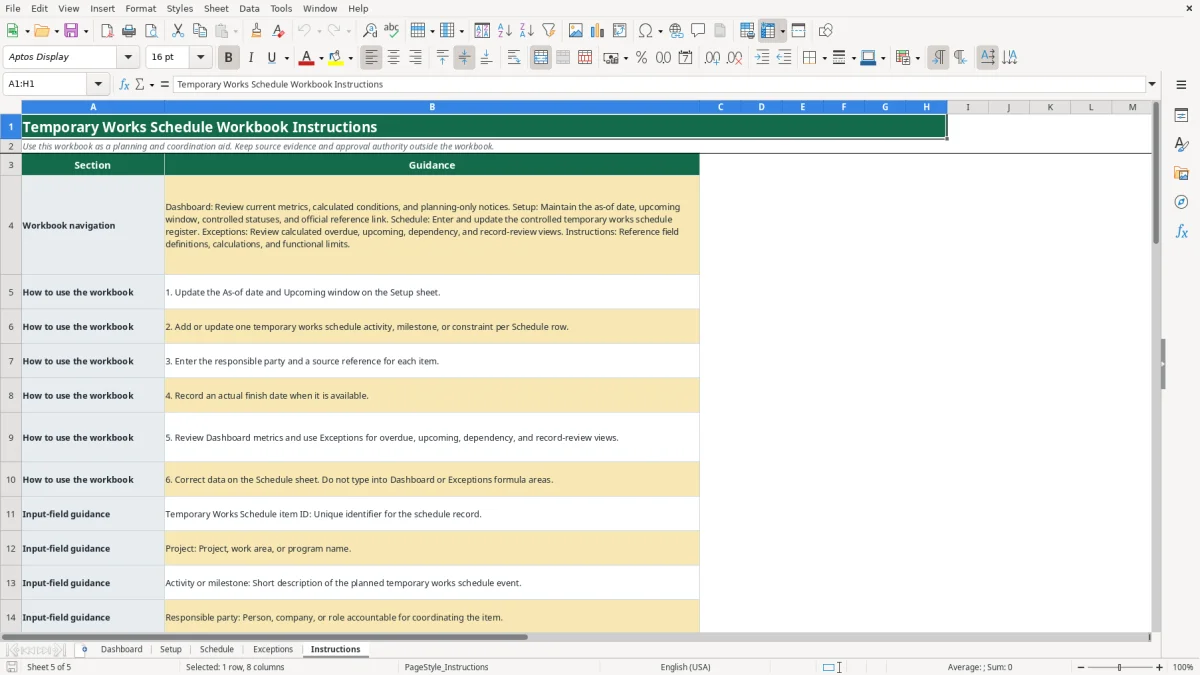
Final workbook preview
Four views generated from the verified XLSX.
How to use this workbook
Set the reporting date
Start on the Setup sheet. Enter the reporting as-of date in m/d/yyyy format and set the upcoming window as a whole number of days. The upcoming window is a user-defined planning threshold only. It does not establish a contractual, engineering, legal, or regulatory deadline.
Maintain one Schedule record per item
On the Schedule sheet, enter one activity, milestone, or constraint per row. Provide the Temporary Works Schedule item ID, project, activity or milestone, responsible party, planned start date, planned finish date, dependency or constraint, actual finish date when available, status, and source reference. Use the controlled status choices: Not Started, In Progress, Complete, On Hold, or Cancelled.
Review calculated fields without overwriting them
The workbook calculates planned duration in days from planned finish date minus planned start date. It also calculates finish variance in days from actual finish date minus planned finish date. Calculated condition, record check, and exception flag are outputs. Update the underlying Schedule row rather than typing into formula fields.
Use Dashboard and Exceptions in review meetings
Review scheduled-item counts, finished items, overdue item count, completion rate, upcoming items, and records needing review on Dashboard. Then use Exceptions for the detailed overdue and record-review list, upcoming items, and the constraint and dependency list. Confirm actions, ownership, and source documents outside the workbook.
Benefits
Keeps temporary works schedule records, owners, dates, and references together.
Separates user-entered schedule details from calculated conditions and exceptions.
Highlights overdue, upcoming, dependency, and record-review items for coordination.
Provides a concise dashboard for recurring schedule-status discussions.
Features
Five worksheets: Dashboard, Setup, Schedule, Exceptions, and Instructions.
A Schedule register with 110 prepared operational data-entry rows.
Calculated duration, finish variance, condition, record-check, and exception fields.
Dashboard counts and an exception sheet with three calculated schedule views.
Temporary works schedule Excel register
A temporary works schedule needs more than a list of dates. This workbook gives each schedule item a unique ID, project name, activity or milestone description, accountable responsible party, planned dates, dependency or constraint, status, actual finish date, and source reference. That structure supports a repeatable coordination record instead of relying on disconnected notes or verbal updates.
The Schedule sheet is the source register for this workflow. The Dashboard and Exceptions sheets display calculated views of that register, so corrections belong in the Schedule record. Keep drawings, meeting records, engineering information, approvals, and other supporting evidence outside the workbook.
Calculated schedule conditions and date checks
The workbook calculates planned duration in days when both planned dates are entered. It calculates finish variance in days when an actual finish date is available. An actual finish date produces a Finished calculated condition; a Cancelled status produces a Cancelled condition when no actual finish date is entered.
Other calculated conditions can identify Open, Upcoming, Overdue, Missing dates, or Complete - actual date missing records. The record check also identifies missing responsible parties, planned dates, statuses, source references, and planned finish dates that occur before planned start dates. These are data-quality prompts, not findings about field readiness or authorization.
Exception views for planning conversations
The Exceptions sheet provides separate calculated views for overdue and record-review exceptions, upcoming items, and constraints and dependencies. This gives project teams a focused starting point for look-ahead discussions while retaining the related dates, owner, status, and source reference from the Schedule register.
The Dashboard summarizes schedule counts by calculated condition and includes a chart based on those condition counts. Review the overdue item count and completion rate as coordination indicators only. Completion rate is calculated from populated schedule items with an actual finish date; it does not confirm physical completion, quality, inspection, approval, or safe execution.
Frequently asked questions
What information do I enter in the Temporary Works Schedule Workbook?
Enter the item ID, project, activity or milestone, responsible party, planned start date, planned finish date, dependency or constraint, actual finish date, status, and source reference on the Schedule sheet. Dates are user-entered planning dates in m/d/yyyy format. The source reference can point to an external document, drawing, meeting record, or schedule location.
How does the workbook identify upcoming and overdue items?
The calculated condition compares planned finish dates with the as-of date and the upcoming window maintained on Setup. The upcoming window is measured in days and is editable by the user. An Upcoming or Overdue label is a calculated scheduling signal for review, not a direction to perform, delay, approve, or stop work.
What causes an item to be flagged for review?
An exception flag displays Review when the calculated condition is Overdue, Missing dates, or Complete - actual date missing, or when the record check is not OK. Record checks identify missing responsible parties, dates, status values, or source references, as well as a planned finish date before its planned start date.
Does this workbook approve temporary works or replace site review?
No. The workbook organizes schedule records and calculated status views only. It does not design, approve, authorize, inspect, or verify temporary works, shutdowns, crane operations, rigging, picks, exclusion zones, or safe-work methods. Qualified project and safety specialists should review plans against current site, engineering, manufacturer, and other applicable requirements.
Workbook file
Ready to put this workbook to work?
Download the verified XLSX, keep an untouched copy, and adapt a working copy to your project.
Download verified XLSXEditorial team
About the authors

Paige Sutton Vale
Workbook Systems Editor
Paige turns construction planning, cost-control, field, and closeout workflows into clear Excel workbook guides. She focuses on inputs, calculations, outputs, and practical limits.

Maren Ellsworth Keel
Workbook QA Reviewer
Maren reviews formula behavior, field labels, project-controls terminology, and workbook instructions so each resource stays within its documented scope.
Continue exploring