Verified Excel workbook
Free 2026 Construction Risk Register Workbook in Excel
Free 2026 construction risk register Workbook in Excel for tracking owners, dates, open items, overdue exceptions, and project status reviews.
Keep unresolved construction risk-register records in one working file instead of scattered meeting notes. Download the free Excel workbook to log accountable parties, dates, status, source references, and notes in a controlled Activity Register. It is built for internal operational review across listed projects.
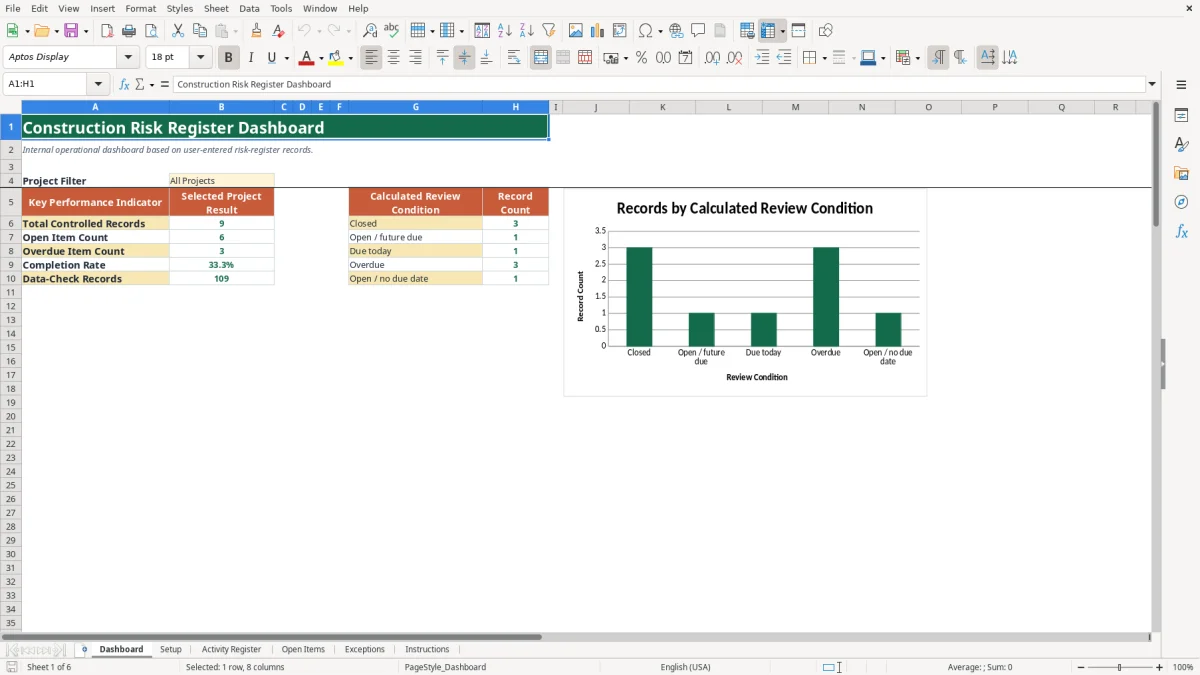
The workbook contains six worksheets: Dashboard, Setup, Activity Register, Open Items, Exceptions, and Instructions. User-entered records feed calculated elapsed days, open-item and overdue-item counts, completion rate, and calculated review conditions. A project filter lets the dashboard and linked views focus the review on one listed project or all projects, without replacing underlying source records or project-specific judgment.
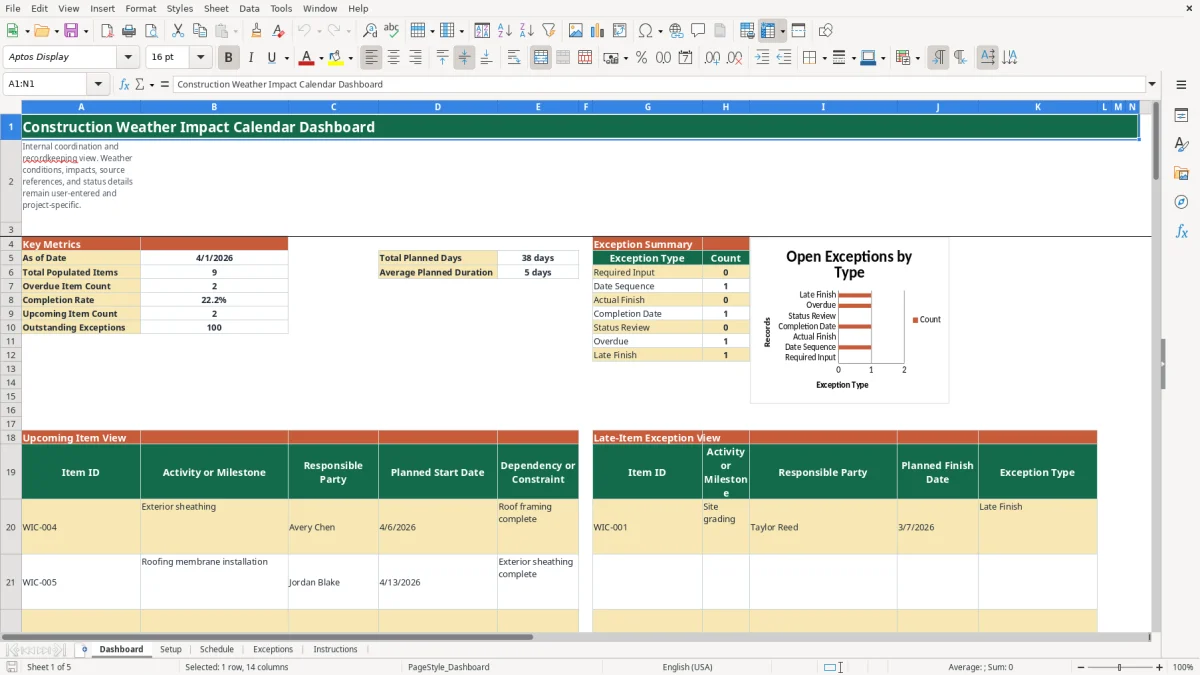
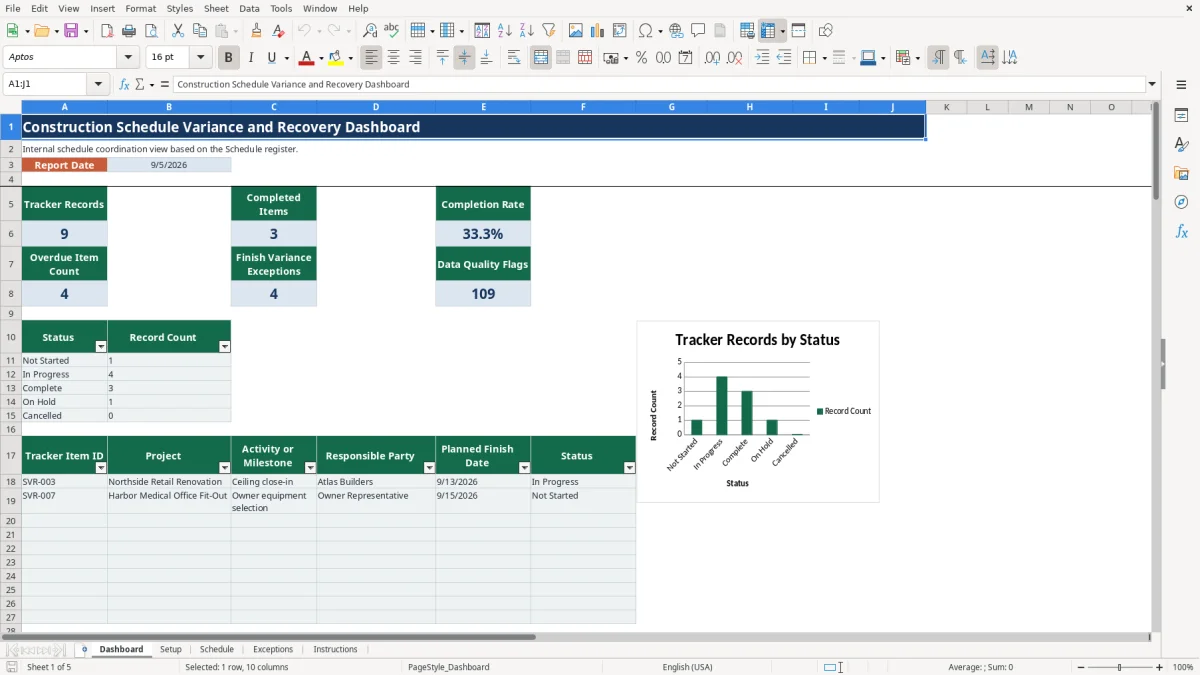
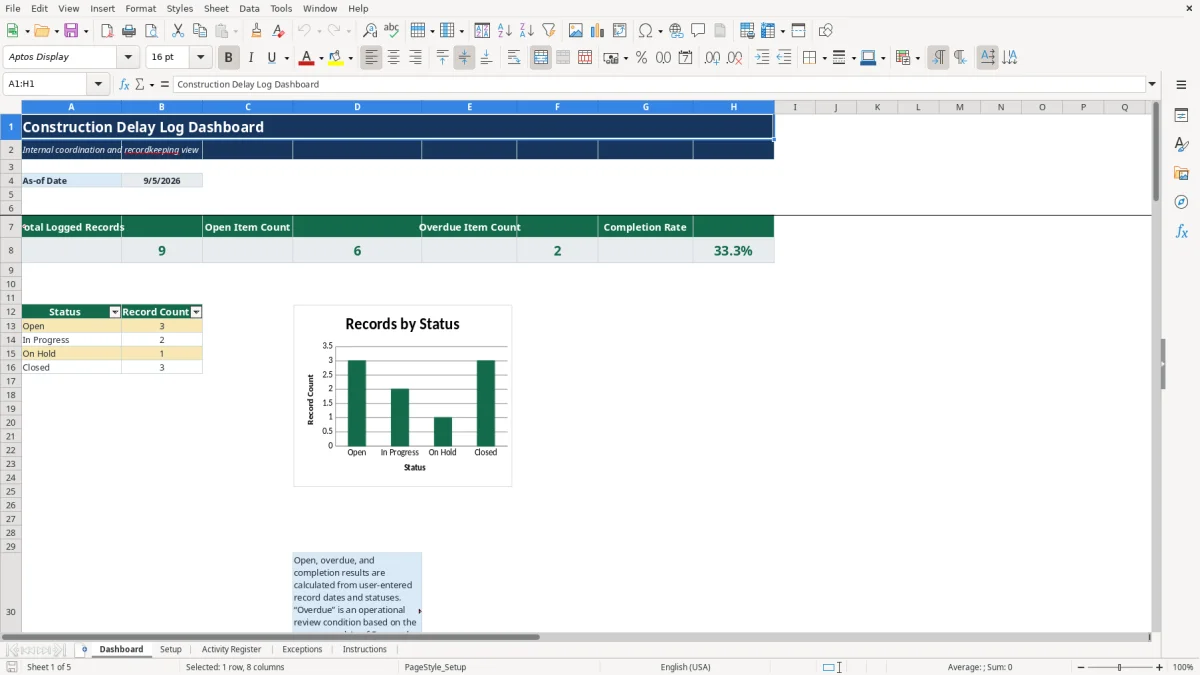
Final workbook preview
Four views generated from the verified XLSX.
How to use this workbook
Set the review controls
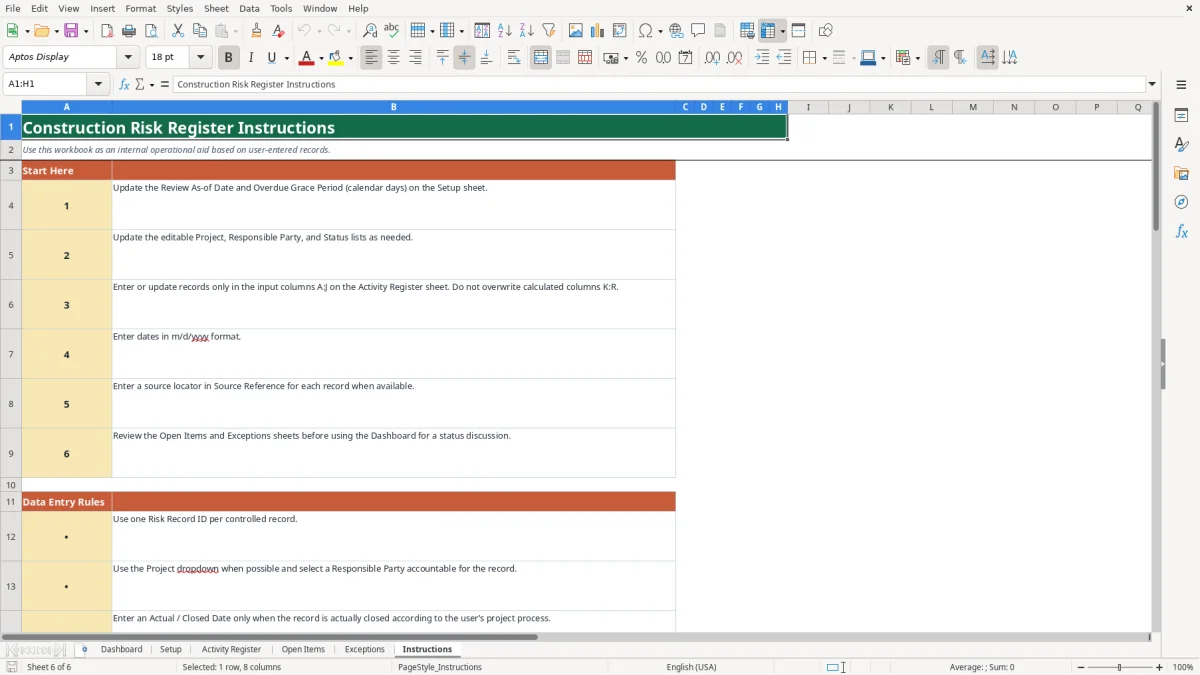
Start on the Setup sheet. Enter the Review As-of Date in m/d/yyyy format and set the Overdue Grace Period in calendar days. These are editable operational controls that drive the workbook’s date-based review calculations. They do not establish project, contractual, legal, or regulatory requirements.
Maintain the Activity Register
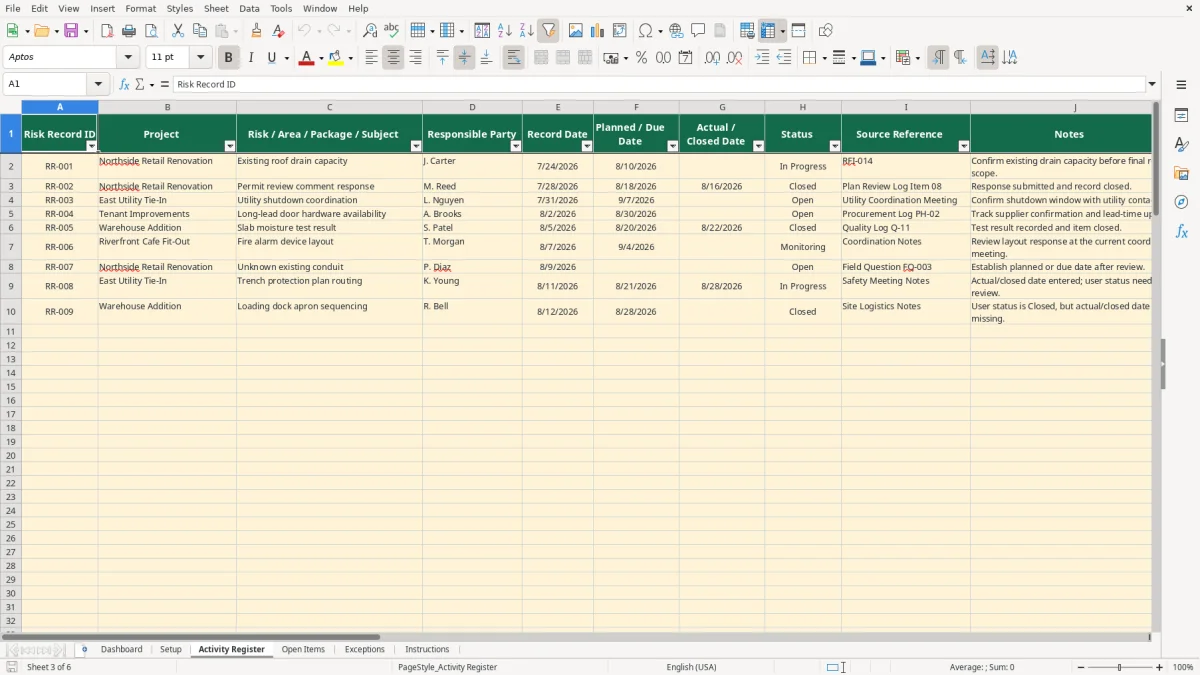
Enter or update records only in columns A:J of the Activity Register. The user-input fields are Risk Record ID, Project, Risk or Area or Package or Subject, Responsible Party, Record Date, Planned or Due Date, Actual or Closed Date, Status, Source Reference, and Notes. The prepared register includes rows 2 through 110. Visible example records illustrate the format and are not project findings. Do not overwrite columns K:R, which contain calculations and review flags.
Check open work and exceptions
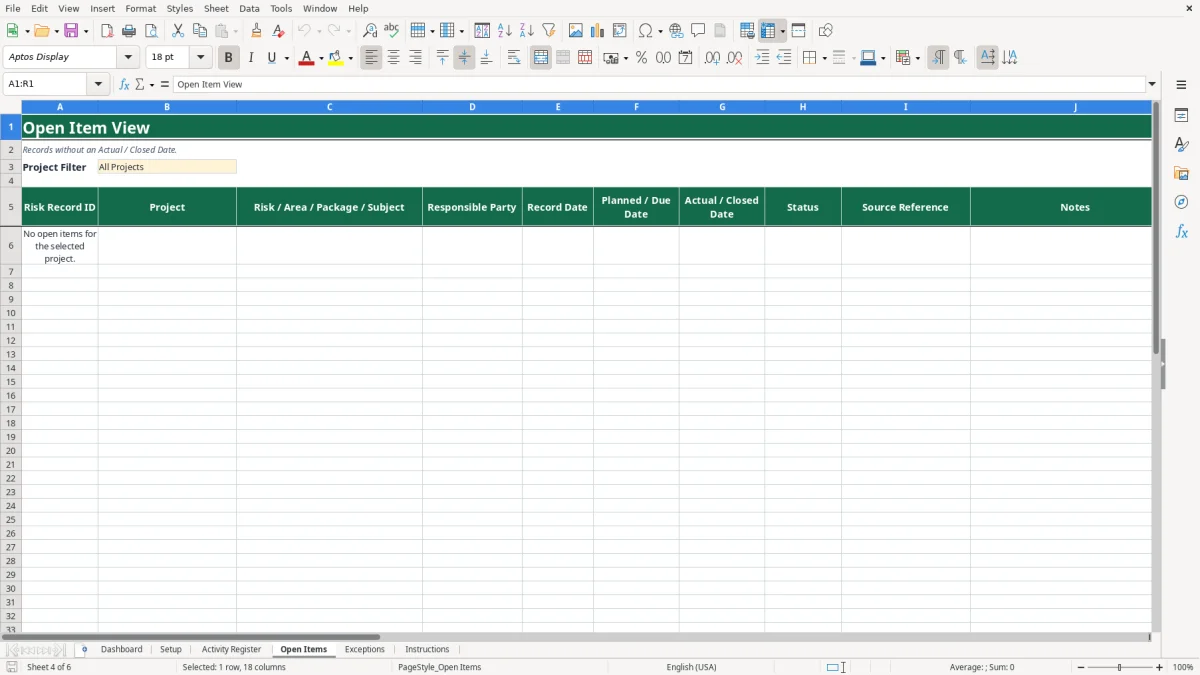
Use the Open Items sheet to review records without an Actual or Closed Date. Use Exceptions to review overdue records under the current review controls and records carrying a Data Check message. Review the exception detail before deciding what follow-up is appropriate. Update source records outside the workbook as needed; Source Reference is a locator, not stored evidence.
Use the dashboard for the review discussion
Select All Projects or a listed project in the Dashboard filter. The dashboard reports total controlled records, open-item count, overdue-item count, completion rate, data-check records, and counts by calculated review condition. Update the Review As-of Date for each review cycle; the workbook does not use TODAY().
Benefits
Keep each controlled record’s owner, dates, source locator, and notes together.
Separate records without actual or closed dates into a focused open-item view.
Surface overdue or data-check records for follow-up during internal reviews.
Compare selected-project record counts and completion rate on the dashboard.
Features
Six worksheets: Dashboard, Setup, Activity Register, Open Items, Exceptions, and Instructions.
109 prepared register rows with user inputs in columns A:J and calculations in K:R.
Editable project, responsible-party, status, review-date, and grace-period controls.
Project-filtered dashboard counts and a calculated review-condition chart.
Construction risk register Excel workflow
This construction risk register Excel workbook organizes one controlled record for each Risk Record ID. The main register captures the project, subject, responsible party, record date, planned or due date, actual or closed date, status, source reference, and notes. Project, responsible party, and status fields use lists maintained on Setup, helping a team use its selected operational terms consistently.
The workbook is focused on record control, dates, responsibilities, and unresolved exceptions. It is not a risk-scoring tool: the workbook does not calculate severity, probability, cost impact, or schedule impact. Teams should retain their source evidence outside the workbook and apply their own project review process.
Open items, due dates, and overdue review
Calculated fields in the Activity Register measure elapsed days in calendar days from the Record Date through the Actual or Closed Date, or through the current Review As-of Date when a record remains open. An open-item flag is based on whether Actual or Closed Date is blank. The completion rate on Dashboard is based on records with an Actual or Closed Date.
The calculated review condition can identify Closed, Open or future due, Due today, Overdue, and Open or no due date. Overdue status uses the editable Review As-of Date and calendar-day grace period. These calculated labels are review aids, not independent determinations of a deadline or obligation. The Exceptions sheet returns overdue records and records with a Data Check message for the selected project.
Project dashboard and data checks
The Dashboard provides selected-project or all-project counts for total controlled records, open items, overdue items, completion rate, and data-check records. It also summarizes records by calculated review condition and includes a chart based on those condition counts. The Open Items and Exceptions sheets inherit the Dashboard project selection, allowing a focused discussion without manually rebuilding a list.
Data checks can identify missing or invalid record dates and mismatches between Closed status and Actual or Closed Date. For example, a Closed status without an actual or closed date is flagged, as is an actual or closed date paired with a status other than Closed. Resolve the underlying entry and source record before relying on the dashboard summary.
Frequently asked questions
What information do I enter in the risk register?
Enter one Risk Record ID per controlled record, then add the project, subject, responsible party, record date, planned or due date when available, actual or closed date when applicable, status, source reference, and notes. The editable input area is columns A:J on the Activity Register. Columns K:R are calculated outputs.
How does the workbook identify an overdue item?
An open record with a valid planned or due date is marked overdue when its due date plus the Setup grace period is earlier than the Review As-of Date. The Days Past Due field uses calendar days. A closed record is not marked overdue by this calculation because it has an Actual or Closed Date.
Does this workbook assess construction risk severity?
No. The workbook tracks risk-register controlled records and their review status, but it does not calculate likelihood, severity, priority, cost exposure, schedule exposure, or mitigation effectiveness. Use project-specific judgment and the relevant source records when evaluating the meaning of an entry.
What happens if a record is marked Closed without a closed date?
The Data Check field identifies that mismatch, and the record is included in the Exceptions view. To clear the issue, enter the Actual or Closed Date when the record is actually closed under the user’s project process, or revise the status if it is still open.
Will the Open Items and Exceptions views work in every Excel version?
Those views use dynamic-array FILTER formulas. If the Excel version in use does not support dynamic arrays, review the Activity Register directly and filter its prepared register using the Open Item Flag, Overdue Item Flag, Data Check, or Exception Flag fields.
Workbook file
Ready to put this workbook to work?
Download the verified XLSX, keep an untouched copy, and adapt a working copy to your project.
Download verified XLSXEditorial team
About the authors

Paige Sutton Vale
Workbook Systems Editor
Paige turns construction planning, cost-control, field, and closeout workflows into clear Excel workbook guides. She focuses on inputs, calculations, outputs, and practical limits.

Maren Ellsworth Keel
Workbook QA Reviewer
Maren reviews formula behavior, field labels, project-controls terminology, and workbook instructions so each resource stays within its documented scope.
Continue exploring