Verified Excel workbook
Free 2026 Concrete Pour Schedule Workbook in Excel
Free 2026 Concrete Pour Schedule Workbook in Excel for tracking planned activities, dates, owners, constraints, status, and exceptions.
Coordinate planned concrete activities with a structured schedule register for dates, responsible parties, constraints, and status. Download the Free 2026 Concrete Pour Schedule Workbook in Excel to maintain scheduled placement activities and milestones in one location, then review calculated schedule exceptions and summary counts.
This workbook supports internal schedule control based on user-entered records. It organizes planned concrete pour schedule items, source-reference pointers, and actual finish dates when available. It does not confirm field conditions, record completed pours, reconcile batch-ticket attributes, evaluate test results, or replace project source records.
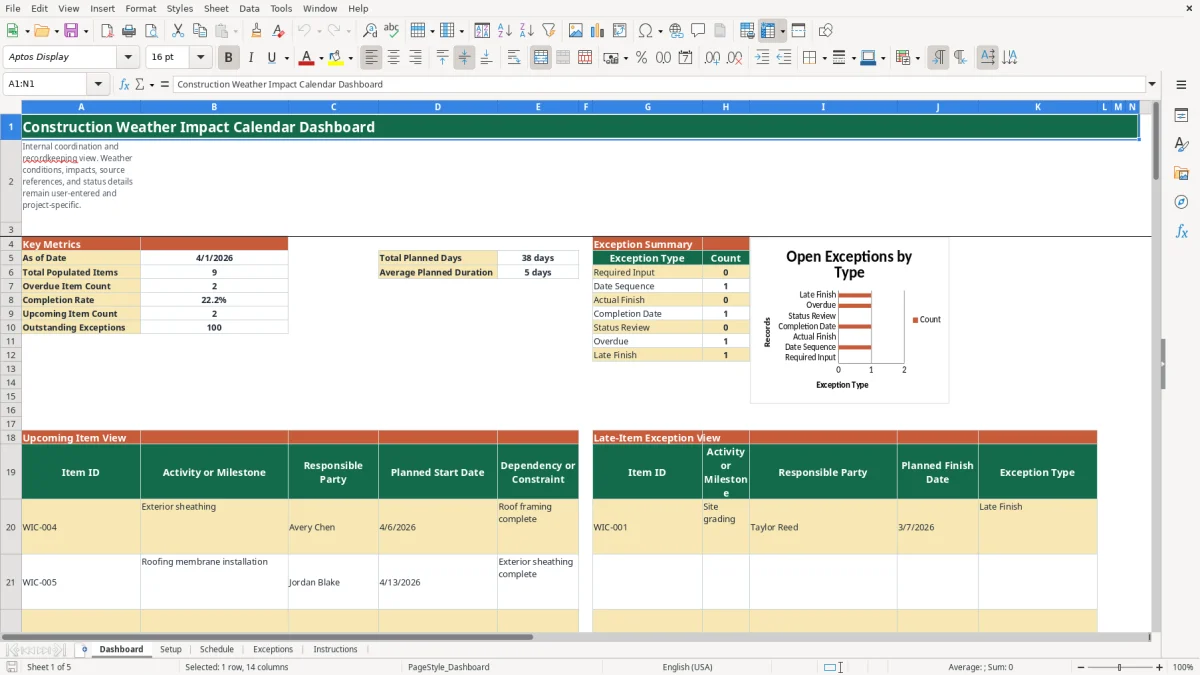
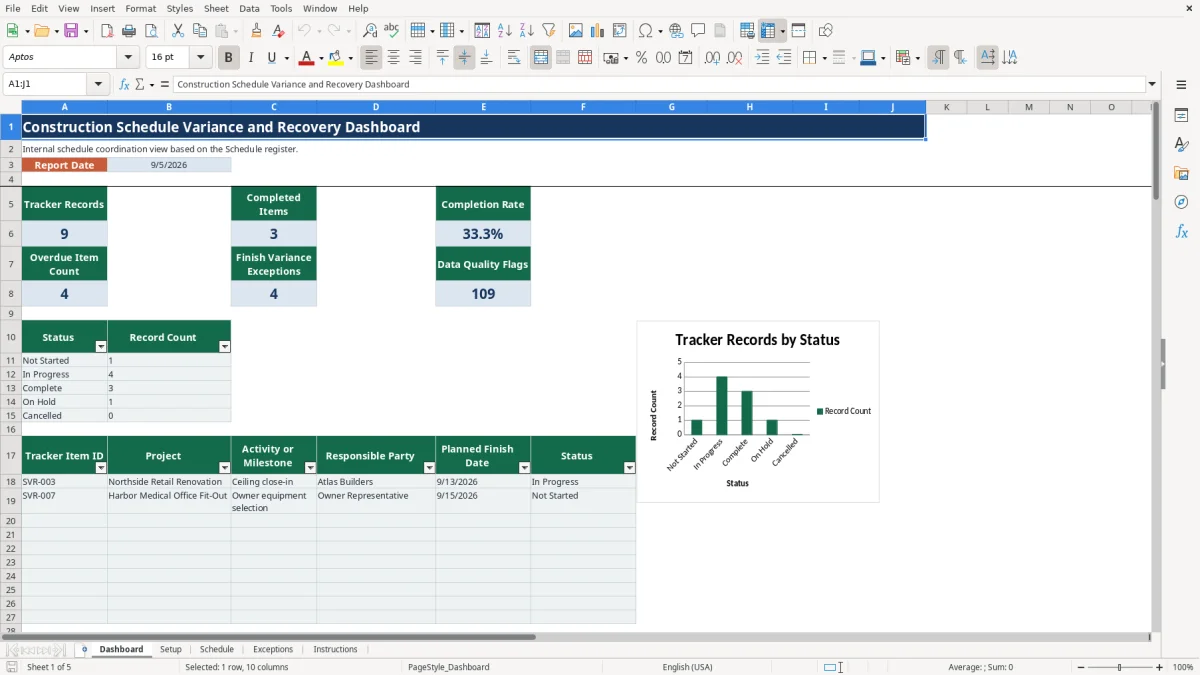
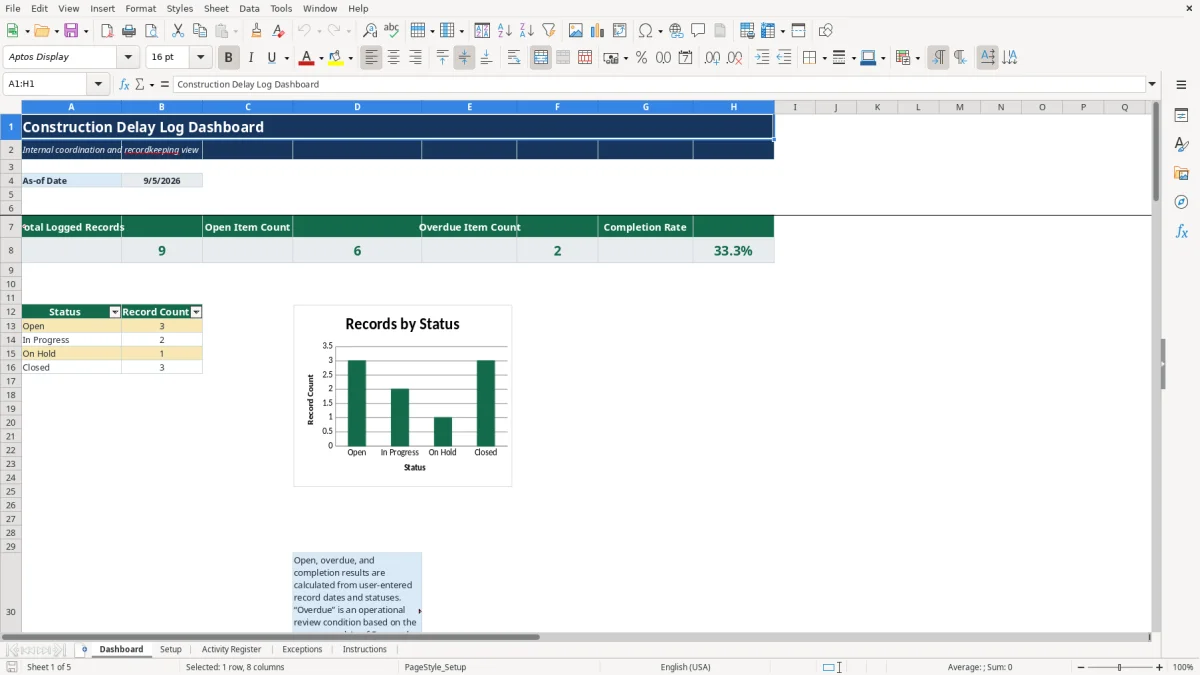
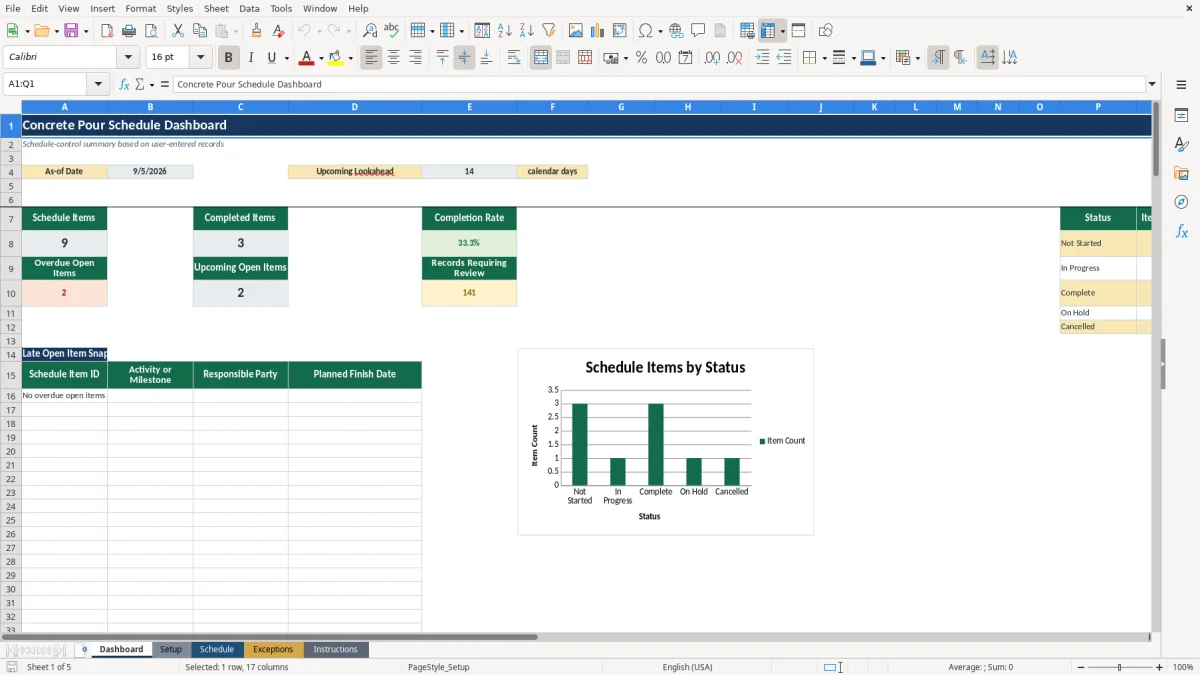
Final workbook preview
Four views generated from the verified XLSX.
How to use this workbook
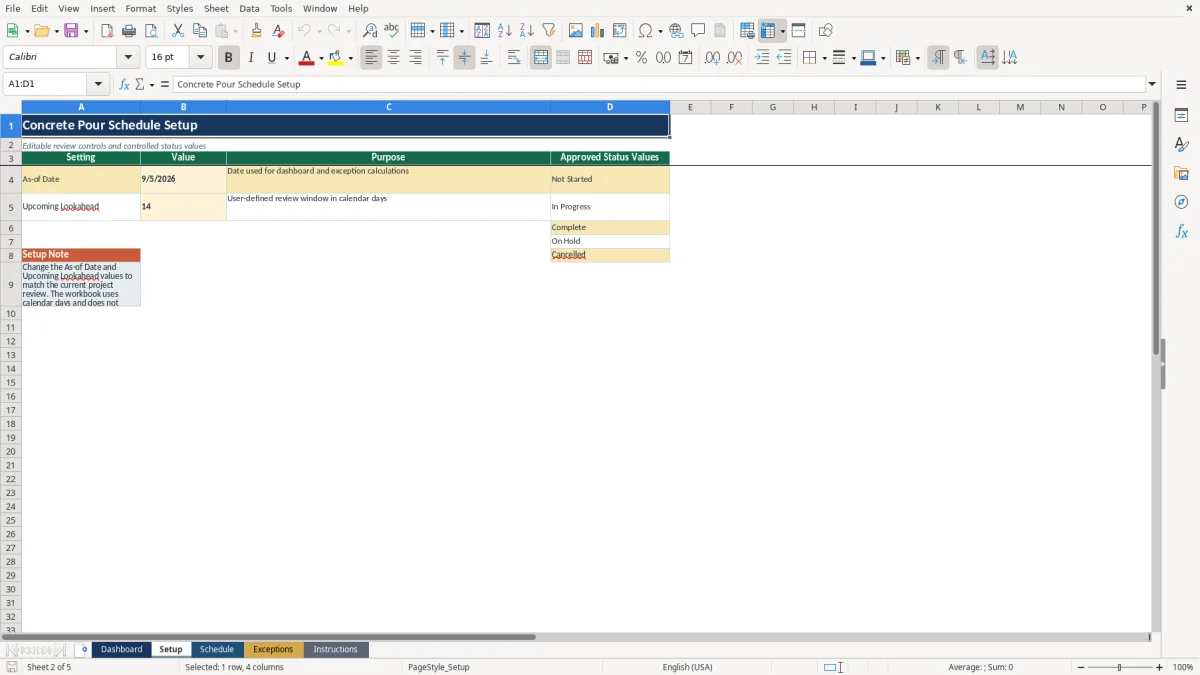
Confirm the review controls
Start on Setup and review the As-of Date used for dashboard and exception calculations. The initial As-of Date uses the current date formula, but it can be changed for a specific review date. Enter the Upcoming Lookahead as a whole number of calendar days. The prepared value is 14 calendar days.
Add a schedule record
On Schedule, use one row for each planned concrete activity, milestone, or constraint. Enter a unique Schedule Item ID, project, activity or milestone, responsible party, planned start date, planned finish date, dependency or constraint, status, and source reference. Dates are displayed in m/d/Y format.
Update status and actual finish
Select Not Started, In Progress, Complete, On Hold, or Cancelled from the approved status list. Enter an Actual Finish Date when it is available for schedule-control reporting. A Complete status without an actual finish date is identified by the workbook Data Check.
Review the calculated outputs
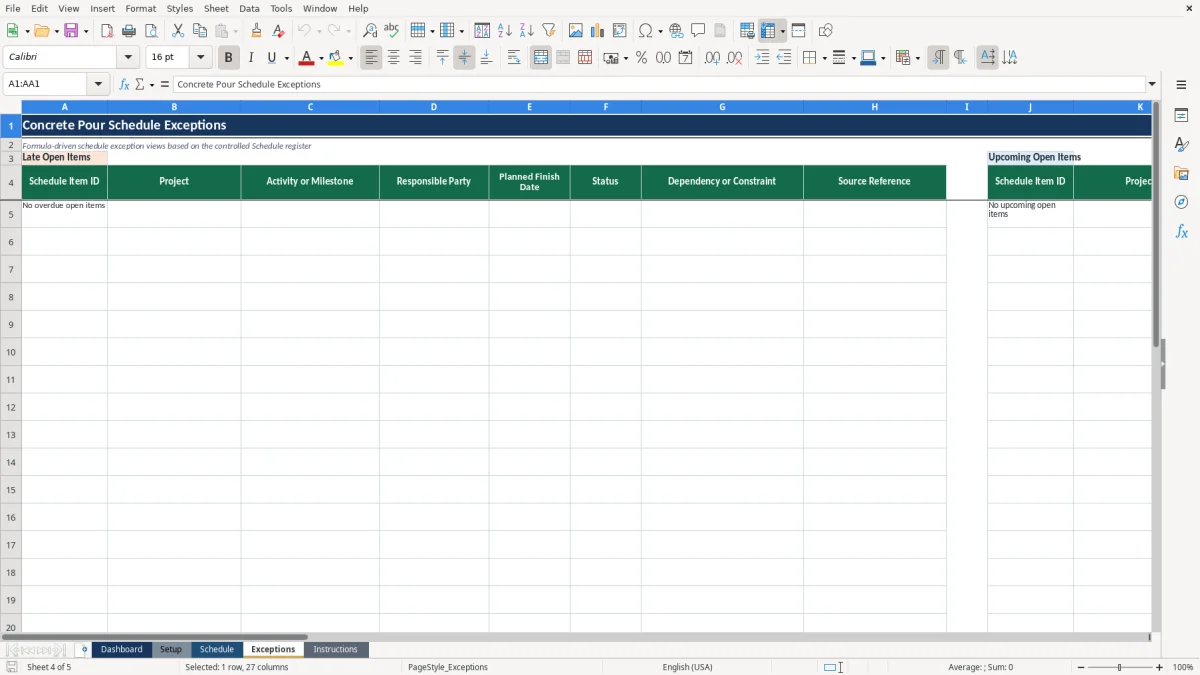
Check Data Check before relying on summary outputs. Calculated fields show planned duration, finish variance, overdue status, and upcoming status. Use Dashboard to review counts and completion rate. Use Exceptions to review late open items, upcoming open items, and entered dependencies or constraints.
Benefits
Maintain planned concrete activities, owners, dates, constraints, status, and source references in one register.
Identify overdue open items and upcoming open items from user-entered schedule dates.
Review calendar-day duration, finish variance, completion rate, and status counts consistently.
Separate planned schedule control from completed-pour records and supporting source documentation.
Features
Five worksheets: Dashboard, Setup, Schedule, Exceptions, and Instructions.
A Schedule register with 150 prepared rows for operational schedule entries.
Date-entry validation and an approved-list status input for Schedule records.
Formula-driven dashboard counts, exception views, calculated fields, and a status-count chart.
Concrete pour schedule register in Excel
A concrete pour schedule works best when each planned item has an identifiable record. The Schedule worksheet captures the user-entered Schedule Item ID, project, activity or milestone, responsible party, planned start date, planned finish date, dependency or constraint, actual finish date, status, and source reference. This gives project teams a defined record for each planned schedule item.
The source reference is a pointer to supporting project information. Maintain source records outside the workbook and review them as needed for the project discussion.
Calendar-day schedule calculations
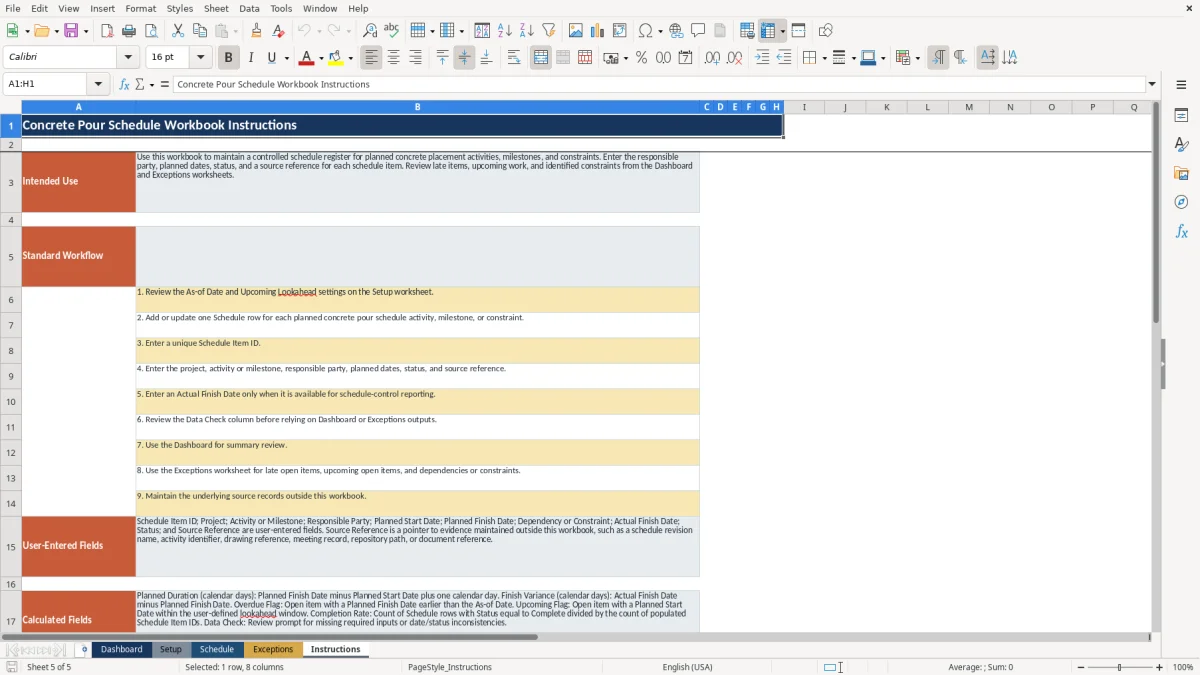
The workbook calculates Planned Duration in calendar days as planned finish date minus planned start date plus one calendar day. It calculates Finish Variance in calendar days as actual finish date minus planned finish date. These calculations use the entered dates and do not apply workday calendars, holiday calendars, or any other calendar adjustment.
The Data Check column identifies missing required inputs, a planned finish date before the planned start date, a Complete status without an actual finish date, and an actual finish date before the planned start date. A result is a review prompt, not a confirmation of conditions or completion.
Overdue and upcoming schedule review
An item is flagged Overdue when its status is Not Started, In Progress, or On Hold and its planned finish date is before the Setup As-of Date. An item is flagged Upcoming when it has one of those open statuses and its planned start date falls from the As-of Date through the selected lookahead window.
The Exceptions worksheet displays separate formula-driven lists for late open items, upcoming open items, and records with an entered dependency or constraint. These views update from the controlled Schedule register as users change records or Setup controls.
Dashboard summary and functional boundary
The Dashboard calculates schedule item count, completed item count, completion rate, overdue open item count, upcoming open item count, records requiring review, and counts by approved status. Completion rate is calculated from Schedule records with an entered item ID and a status of Complete. The dashboard also includes a chart based on the status counts.
This internal operational aid manages planned concrete pour schedule activities, milestones, and constraints. It does not reconcile batch-ticket details, record completed pours, evaluate test results, establish contractual authority, or replace source documents.
Frequently asked questions
What information is entered for each schedule item?
Enter the Schedule Item ID, project, activity or milestone, responsible party, planned start date, planned finish date, dependency or constraint, actual finish date when available, status, and source reference. Use the source reference to point to the related project record rather than duplicate it in the workbook.
How does the workbook calculate duration and variance?
Planned Duration is planned finish date minus planned start date plus one calendar day. Finish Variance is actual finish date minus planned finish date. Both outputs use calendar days and do not convert the result to workdays.
What causes an item to be marked overdue?
An item is marked Overdue when it is Not Started, In Progress, or On Hold and its planned finish date is earlier than the selected As-of Date. Cancelled and Complete items are not included in that overdue flag logic.
Can this workbook be used as a concrete pour log?
No. This workbook is for planned schedule records, responsibilities, dates, constraints, and exceptions. It does not record completed pours or reconcile batch-ticket attributes. Keep completed-pour records and supporting evidence in the appropriate project source records.
What if my Excel version does not support the Exceptions lists?
The Exceptions worksheet uses Microsoft 365 dynamic-array formulas. If those formulas are unavailable, review the Schedule worksheet directly, including the Overdue Flag, Upcoming Flag, Dependency or Constraint, and Data Check columns.
Workbook file
Ready to put this workbook to work?
Download the verified XLSX, keep an untouched copy, and adapt a working copy to your project.
Download verified XLSXEditorial team
About the authors

Paige Sutton Vale
Workbook Systems Editor
Paige turns construction planning, cost-control, field, and closeout workflows into clear Excel workbook guides. She focuses on inputs, calculations, outputs, and practical limits.

Maren Ellsworth Keel
Workbook QA Reviewer
Maren reviews formula behavior, field labels, project-controls terminology, and workbook instructions so each resource stays within its documented scope.
Continue exploring