Verified Excel workbook
Free 2026 Construction Weather Impact Workbook in Excel
Free 2026 construction weather impact calendar Workbook in Excel for tracking planned work, weather observations, dates, owners, and exceptions.
Download this Free 2026 Construction Weather Impact Workbook in Excel to maintain a project-specific schedule record for weather observations, reported impacts, activities, milestones, and constraints. It gives construction teams one place to enter dates, responsible parties, status, dependencies, and source references for internal coordination.
Users maintain the underlying records on Schedule. The workbook then calculates planned duration in days, finish variance in days, review status, exception type, overdue status, and upcoming status. Dashboard and Exceptions summarize those records for review, while source evidence remains outside the workbook.
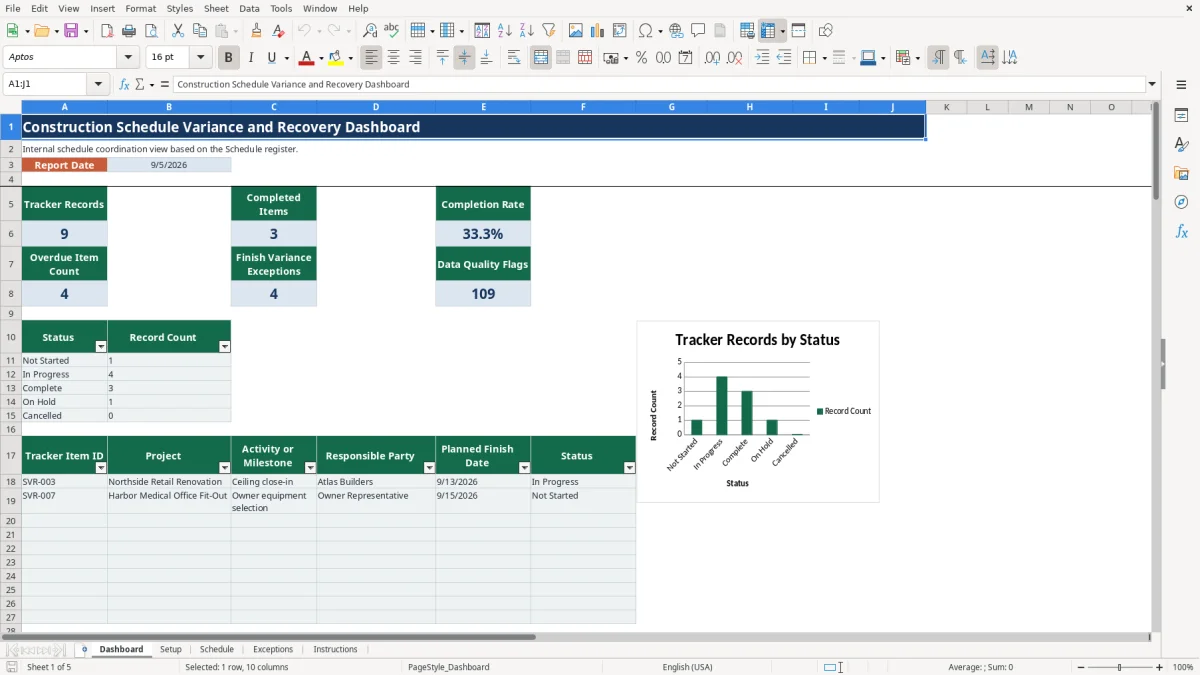
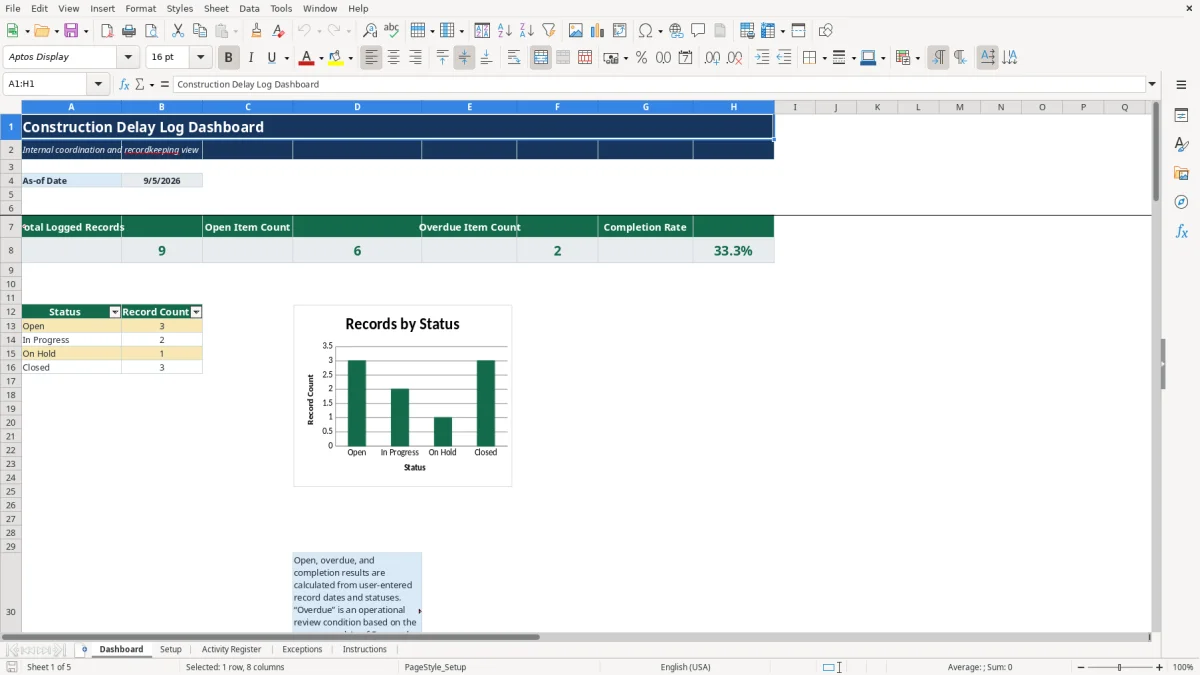
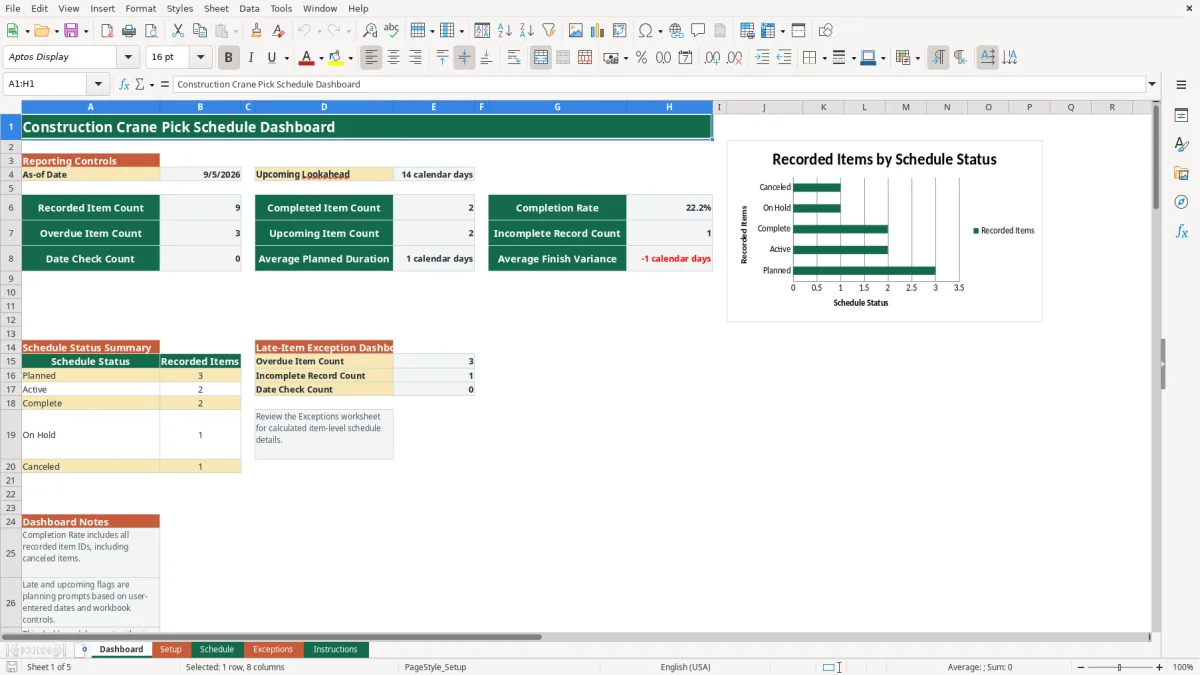
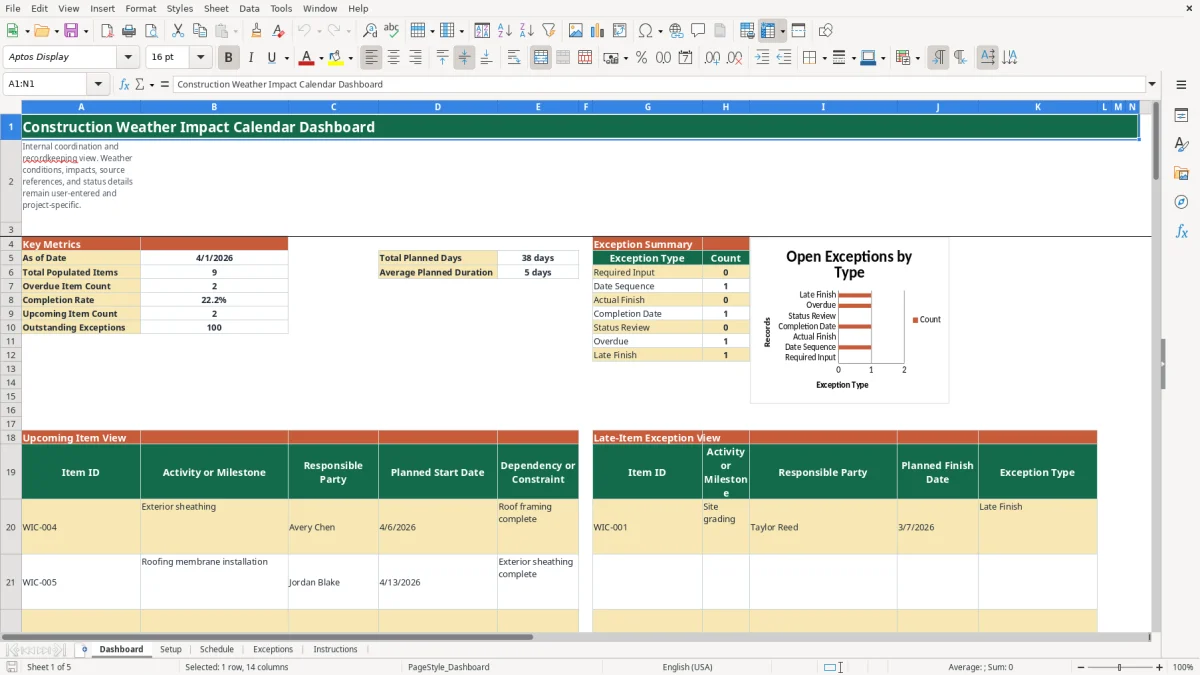
Final workbook preview
Four views generated from the verified XLSX.
How to use this workbook
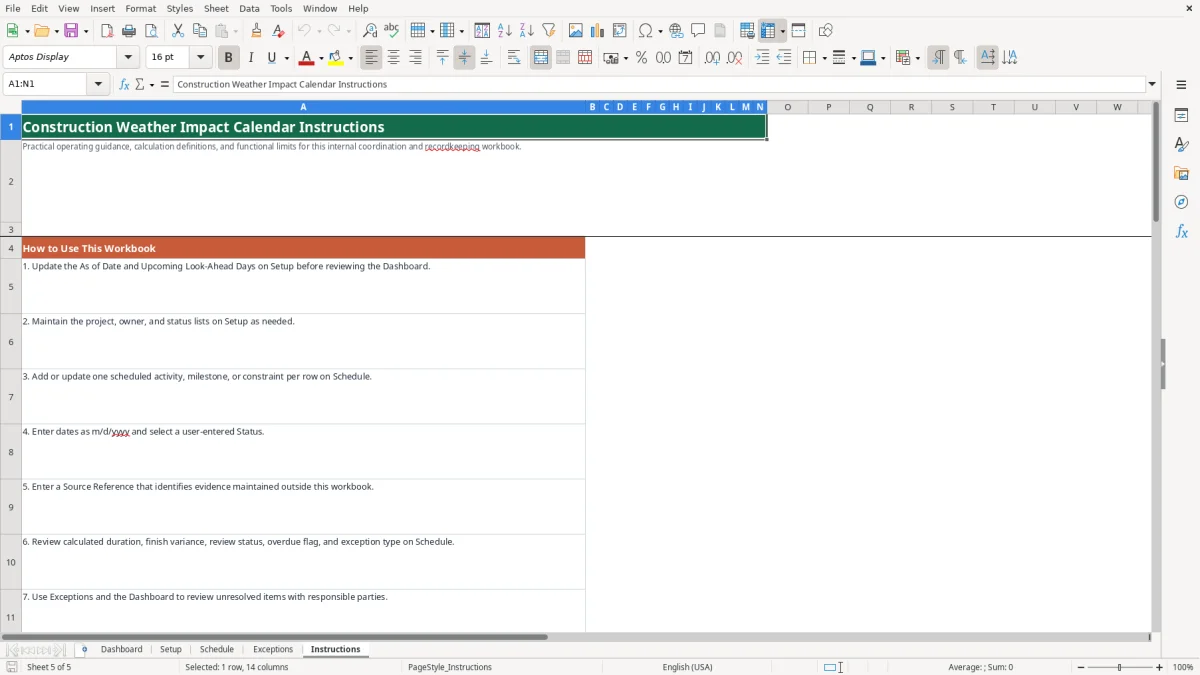
Set the review controls
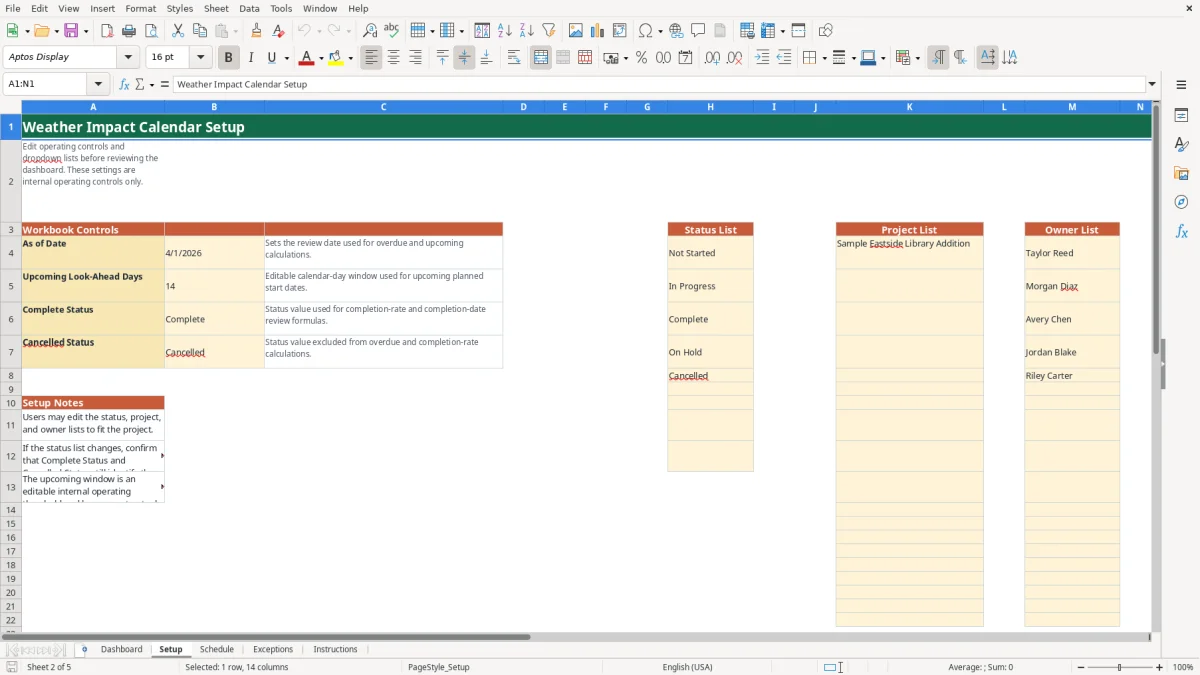
Start on Setup. Enter the As of Date in m/d/yyyy format and set Upcoming Look-Ahead Days from 0 through 365. Confirm that Complete Status and Cancelled Status match the statuses your project team intends to use. These inputs affect overdue, upcoming, completion-rate, and completion-date review calculations.
Enter each scheduled record
On Schedule, enter one item per row for a scheduled activity, milestone, or constraint. Provide the item ID, project, activity or milestone, responsible party, planned start date, planned finish date, dependency or constraint, status, and source reference. Enter the weather observation date, weather impact description, actual finish date, or applicable combination of those fields.
Check calculated outputs
Schedule calculates Planned Duration in Days, Finish Variance in Days, Calculated Review Status, Exception Type, Overdue Flag, and Upcoming Flag. Do not replace those calculated values with manual entries. Verify planned dates before acting on a review result because a planned finish date earlier than the planned start date requires date sequence review.
Review exceptions and dashboard results
Use Dashboard to review key metrics, upcoming items, late-item exceptions, and the constraint and dependency list. Use Exceptions as a formula-linked review sheet. When information needs correction, update the source record on Schedule rather than editing linked values on Exceptions.
Benefits
Keep dated weather-impact records, responsible parties, constraints, and source references in one register.
Review planned work approaching its start date through a user-set calendar-day look-ahead period.
Identify missing inputs, planned-date sequence issues, overdue items, and late finish dates.
Use calculated review views to organize follow-up on unresolved project records.
Features
Schedule register for item IDs, projects, activities, owners, dates, impacts, status, and references.
Setup controls for As of Date, look-ahead days, completion status, cancellation status, projects, and owners.
Calculated calendar-day duration, finish variance, review status, exception type, overdue flag, and upcoming flag.
Dashboard metrics, exception summary chart, upcoming-item view, late-item view, and dependency list.
Construction weather impact calendar workflow
This construction weather impact calendar Excel workbook organizes records around scheduled activities, milestones, and constraints that may be affected by weather conditions. The Schedule sheet is the controlled input register. Users enter the project, accountable party, planned dates, dependency or constraint, weather observation date, impact description, actual finish date, status, and source reference.
A source reference can identify related material maintained outside the workbook. For example, a team may use the reference field to point to a project weather log, field record, or schedule update. The reference is a traceability pointer; it does not confirm, test, or validate the material it identifies.
What the calculations measure
Planned Duration in Days is calculated as an inclusive calendar-day count from the planned start date through the planned finish date. Finish Variance in Days is calculated as actual finish date minus planned finish date. A positive finish variance reflects an entered actual finish later than the entered planned finish, while a negative result reflects an earlier actual finish.
Calculated Review Status and Exception Type identify record conditions requiring attention, including required inputs, planned date sequence review, actual finish date review, completion date needs, status review, overdue items, and upcoming items. These are internal review signals based on user-entered information and Setup controls.
Dashboard and exception review
Dashboard reports total populated items, total planned days, average planned duration, overdue item count, completion rate, upcoming item count, and outstanding exceptions. It also contains an exception summary chart, an upcoming item view, a late-item exception view, and a constraint and dependency list. These outputs help organize a focused review with responsible parties.
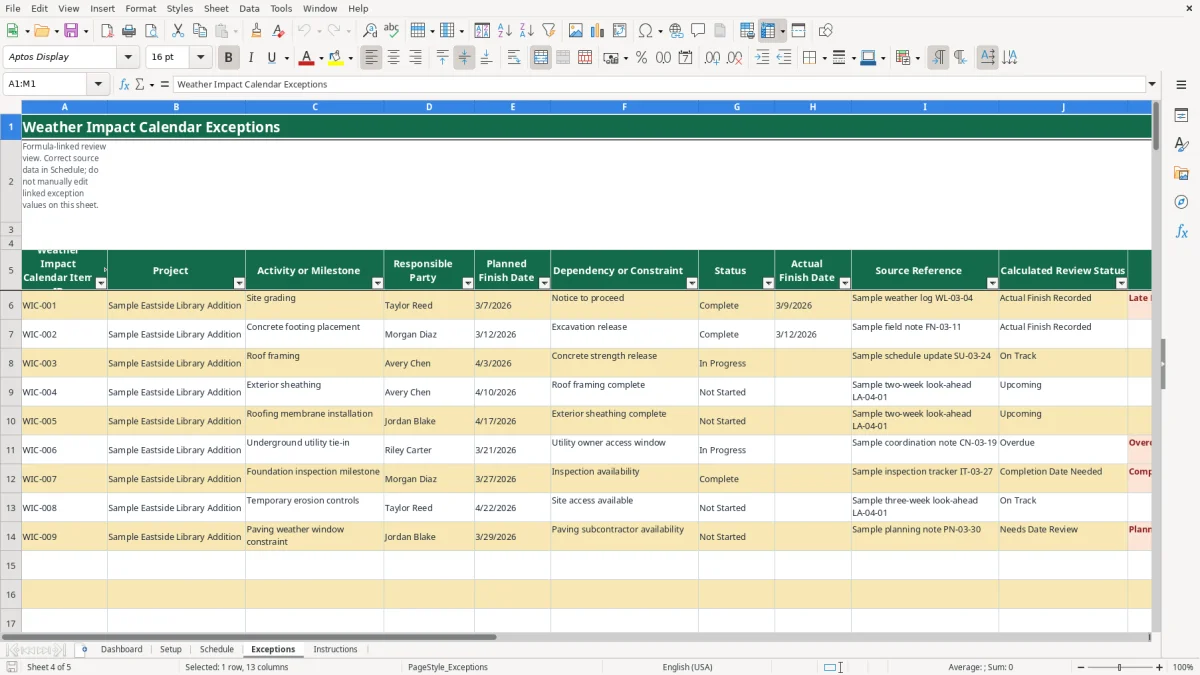
The Exceptions sheet is formula-linked to Schedule. It displays the item ID, project, activity or milestone, responsible party, planned finish date, dependency or constraint, status, actual finish date, source reference, calculated review status, exception type, overdue flag, and finish variance. Update Schedule when a record changes.
Completion rate and functional limits
Completion Rate counts populated records with the configured Complete Status and an actual finish date, divided by populated records excluding the configured Cancelled Status. Its result depends on the status values, actual finish dates, and control settings entered by the user. Review the result with the underlying Schedule records before relying on it for project discussions.
This workbook is an internal coordination and recordkeeping aid only. It does not establish weather causation, excusable delay, delay entitlement, responsibility for delay, official meteorological evidence, or source-record sufficiency. A qualified reviewer should verify the workbook before publication and use.
Frequently asked questions
What information is entered on the Schedule sheet?
Users enter the weather impact calendar item ID, project, activity or milestone, responsible party, planned start date, planned finish date, dependency or constraint, weather observation date, weather impact description, actual finish date, status, and source reference. These user inputs drive the calculated Schedule, Dashboard, and Exceptions outputs.
How does the workbook identify an overdue item?
An item can receive an overdue flag when the As of Date is after its planned finish date, no actual finish date is entered, and the item status is not the configured Cancelled Status. The result depends on valid user-entered dates and Setup values. It is a follow-up indicator, not a determination of delay responsibility.
Can project, owner, and status lists be changed?
Yes. Setup contains editable lists for statuses, projects, and owners. If the status list is changed, confirm that Complete Status and Cancelled Status continue to identify the intended values. Those configured statuses affect completion-rate, overdue, upcoming, and completion-date review calculations.
Should users enter information directly on Exceptions?
No. Exceptions is a formula-linked review view of Schedule data. Correct the item’s dates, status, responsible party, dependency or constraint, or source reference on Schedule. The linked Exceptions values will then reflect the updated source record.
Does this workbook establish a weather delay claim?
No. The workbook records user-entered weather observations, reported activity impacts, schedule dates, ownership, status, and source references for internal coordination. It does not determine weather causation, excusable delay, entitlement, or whether any record supports a contractual, legal, technical, or regulatory conclusion.
Workbook file
Ready to put this workbook to work?
Download the verified XLSX, keep an untouched copy, and adapt a working copy to your project.
Download verified XLSXEditorial team
About the authors

Paige Sutton Vale
Workbook Systems Editor
Paige turns construction planning, cost-control, field, and closeout workflows into clear Excel workbook guides. She focuses on inputs, calculations, outputs, and practical limits.

Maren Ellsworth Keel
Workbook QA Reviewer
Maren reviews formula behavior, field labels, project-controls terminology, and workbook instructions so each resource stays within its documented scope.