Verified Excel workbook
Free 2026 Construction Delay Log Workbook in Excel
Track construction delay records, owners, dates, open items, and due exceptions in a Free 2026 construction delay log Workbook in Excel.
Keep delay log activity records in one controlled register when teams need one place to record unresolved subjects, assigned responsibility, dates, and document references. Download the free workbook to begin with an Excel register designed for internal coordination and recordkeeping. It brings user-entered activity records into a common review workflow rather than scattering follow-up across emails and meeting notes.
The Construction Delay Log Workbook in Excel centers on a controlled activity record: a user-entered ID, project, area, responsible party, record date, due date, actual or closed date, status, source reference, and notes. Calculations summarize elapsed calendar days, open items, overdue items, and completion rate as of the date you set. It is built to surface follow-up conditions, not to decide why a delay occurred or what it means under a contract.
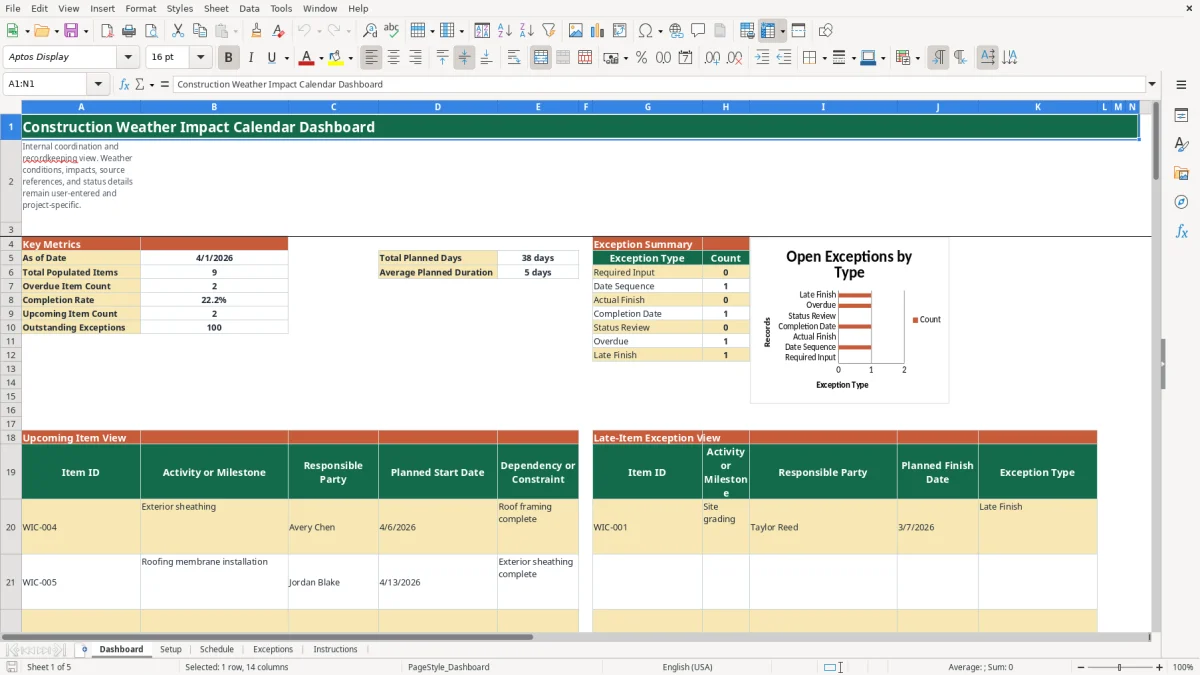
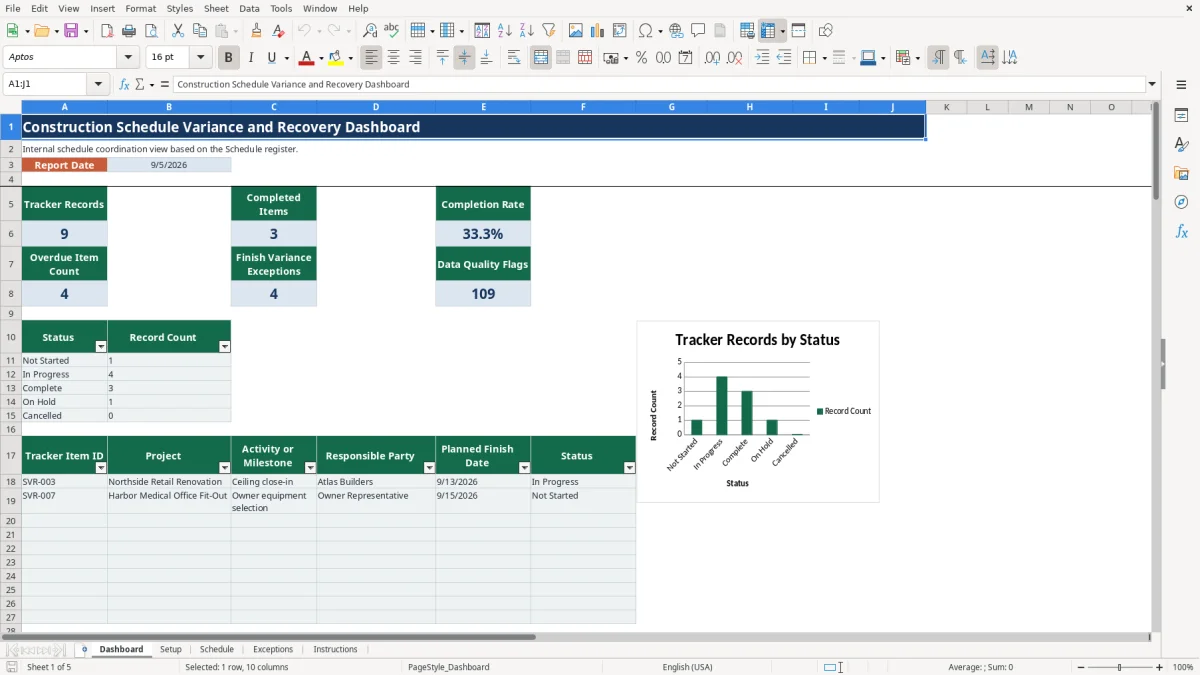
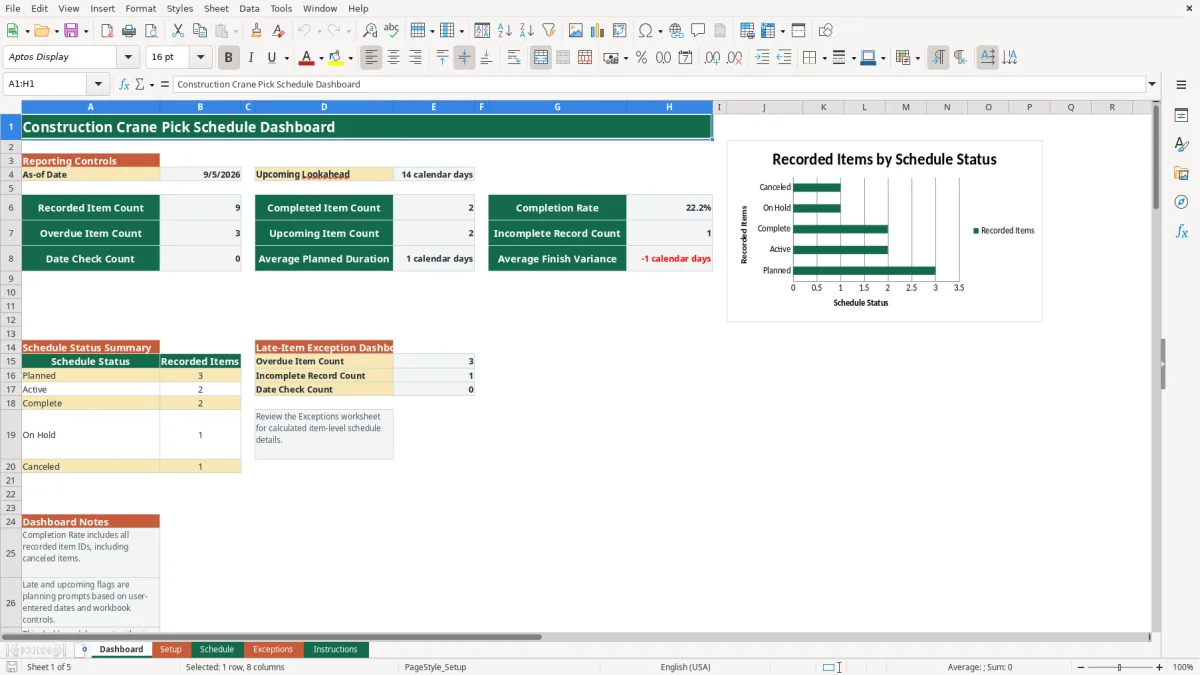
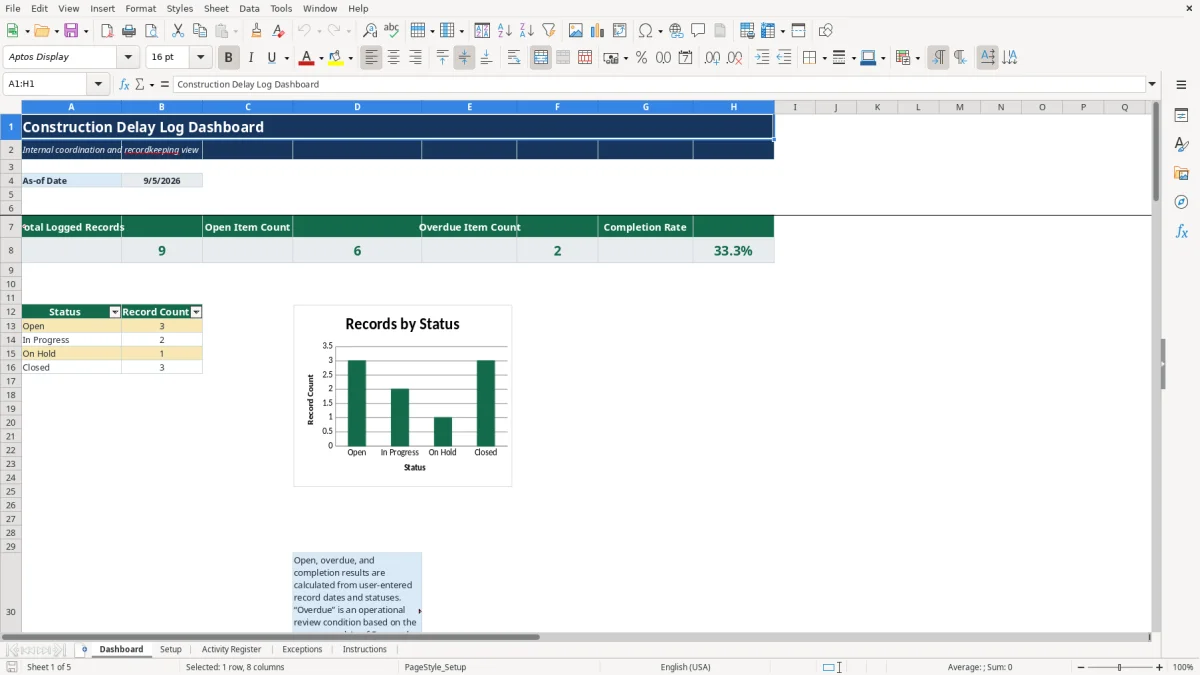
Final workbook preview
Four views generated from the verified XLSX.
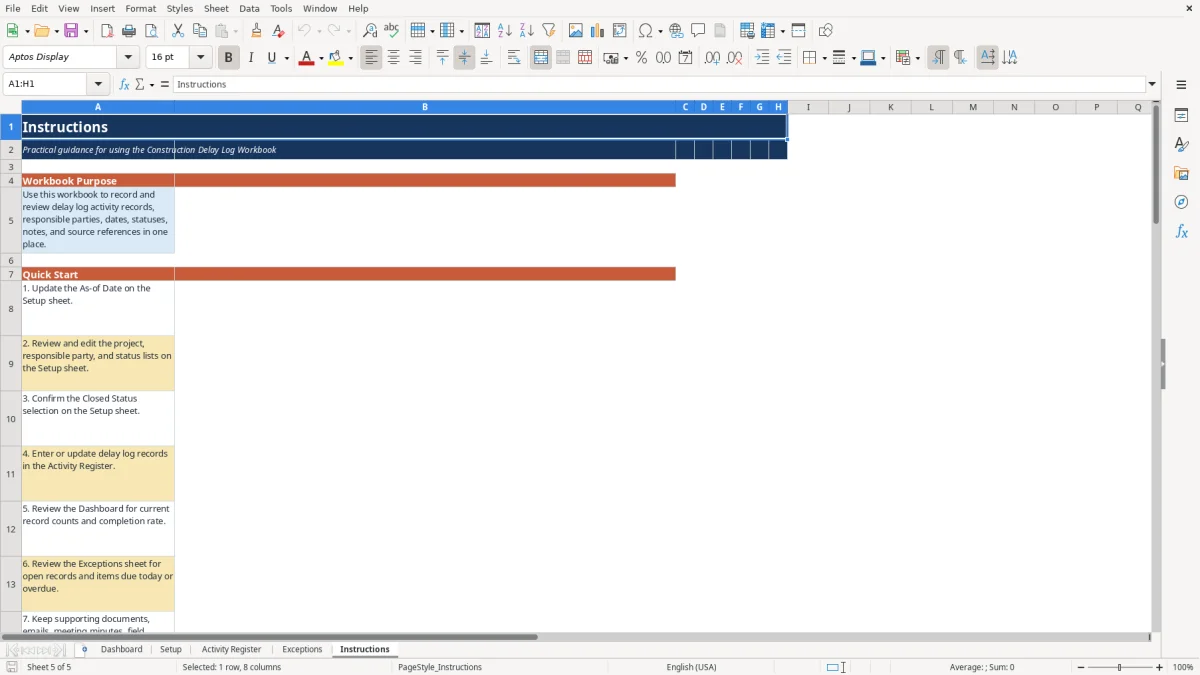
How to use this workbook
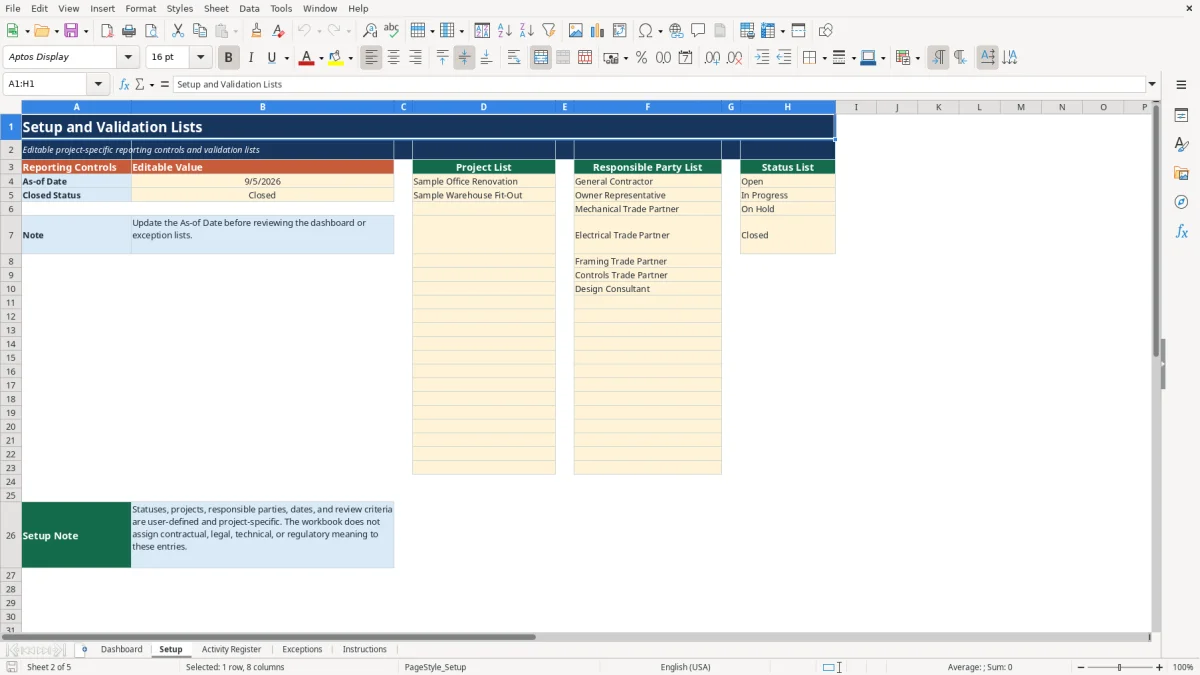
Configure reporting controls
Start on Setup. Enter the reporting As-of Date in m/d/yyyy, then confirm the Closed Status. Review or edit the project, responsible party, and status lists for the job. The Dashboard and Exceptions calculations use these project-specific controls.
Create one record per row
On Activity Register, enter one record per row. Use a unique text Delay Log Record ID, select a project and responsible party, and complete the area or subject, dates, status, source reference, and notes. Enter dates in m/d/yyyy. Keep supporting files outside the workbook and use Source Reference to point to them.
Check calculated results
Review the calculated results without replacing them. Elapsed Days uses calendar days from Record Date to Actual or Closed Date, or to the selected As-of Date when no closed date is entered. Open Item Flag is driven by status, while overdue requires an open record and a due date before the As-of Date.
Review dashboard and exceptions
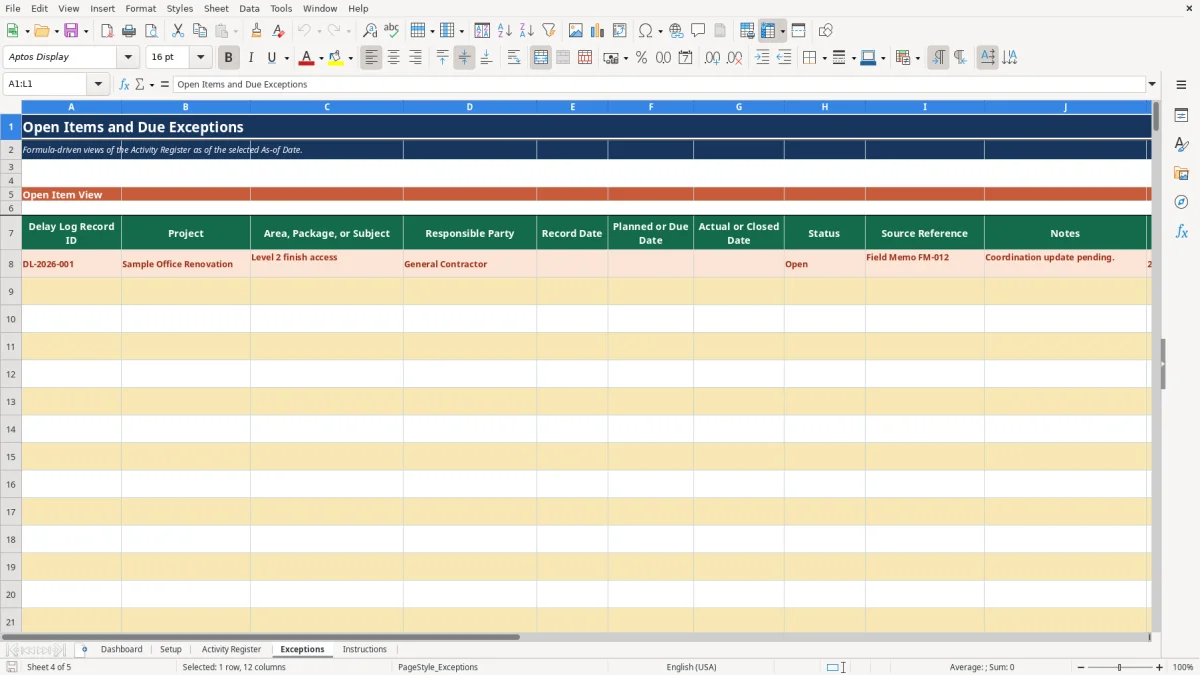
Use Dashboard for total logged records, open-item count, overdue-item count, completion rate, and status counts. Use Exceptions for the formula-driven open-item view and the due-and-overdue list. Resolve or update the underlying Activity Register row; the review sheets pull their values from that register.
Benefits
Centralizes project-specific delay log entries, accountable parties, and source references.
Separates open records and due-date exceptions from the main register.
Uses a user-selected As-of Date for repeatable operational reviews.
Summarizes recorded status counts and completion rate on the Dashboard.
Features
Five worksheets: Dashboard, Setup, Activity Register, Exceptions, and Instructions.
Editable lists support project, responsible party, status, and Closed Status selections.
Formula-driven elapsed calendar days, open flags, overdue flags, and due-status labels.
Prepared Activity Register rows 8 through 107 with linked exception views.
Construction delay log Excel workflow
The construction delay log Excel workflow is based on a discrete delay log record, not a schedule calculation. In Activity Register, each record identifies a project, area, package, or subject and accountable party. It also carries Record Date, Planned or Due Date, Actual or Closed Date, Status, Source Reference, and Notes. The project and responsible-party selections pull from editable lists on Setup, while the user maintains the content and date choices. A source reference can point a reviewer to a field memo, RFI, meeting minutes, or another external record. That keeps the register focused on current coordination information.
Dashboard and exception review
The Dashboard converts Activity Register entries into total logged records, open item count, overdue item count, completion rate, and a status count summary with a chart. Completion rate is closed records divided by total logged records. The selected Closed Status on Setup determines the status regarded as closed. The Exceptions sheet presents two formula-driven views: open records and records due today or overdue. Due Status can show Not open, Due date not entered, Overdue, Due today, or Future due based on entered values and the As-of Date. These are operational review labels, not findings about delay responsibility.
Internal coordination boundary
This workbook serves internal coordination and recordkeeping. It preserves user-entered references, but supporting documents and other evidence remain outside the file. Dates, status names, closed-status choice, responsibilities, and review criteria are user-defined and project-specific. The workbook does not assess causation, contractual entitlement, damages, time extensions, technical adequacy, or legal consequences. It also does not replace schedule variance and recovery tracking, which uses a different primary record and workflow. Before using results for a project decision, have an appropriate qualified reviewer confirm the inputs, formulas, and intended use. Calculated counts depend on entered data.
Frequently asked questions
What counts as an open item?
A record with a text Delay Log Record ID and a Status that does not match the Setup sheet’s selected Closed Status receives an open-item flag. The Dashboard open-item count sums those flagged records, and the Exceptions open-item view draws from the same register. This is an internal follow-up calculation; it does not evaluate the underlying delay or assign responsibility.
How does the workbook determine overdue?
An item is overdue when it is open, has a Planned or Due Date, and that date is before the selected As-of Date. An open item dated exactly on the As-of Date is labeled Due today. The Exceptions sheet includes the due-today and overdue conditions in its due-and-overdue list, so users can review both from the underlying records.
Does the workbook store supporting documents?
Supporting documents, emails, field reports, meeting minutes, and other evidence are not stored in this workbook workflow. Enter a concise Source Reference in the Activity Register, then retain the referenced material in the project’s separate record location. Notes may provide coordination context, but they do not substitute for the underlying evidence.
Can this workbook analyze schedule impacts or time extensions?
No. The workbook controls delay log records, dates, responsibilities, statuses, and exceptions. It does not determine delay causation, contractual entitlement, damages, time extensions, or schedule recovery. Use its calculated counts and elapsed calendar days as internal coordination information, and have a qualified reviewer assess any decision that requires project-specific analysis.
Workbook file
Ready to put this workbook to work?
Download the verified XLSX, keep an untouched copy, and adapt a working copy to your project.
Download verified XLSXEditorial team
About the authors

Paige Sutton Vale
Workbook Systems Editor
Paige turns construction planning, cost-control, field, and closeout workflows into clear Excel workbook guides. She focuses on inputs, calculations, outputs, and practical limits.

Maren Ellsworth Keel
Workbook QA Reviewer
Maren reviews formula behavior, field labels, project-controls terminology, and workbook instructions so each resource stays within its documented scope.
Continue exploring