Verified Excel workbook
Free 2026 Construction Crane Pick Schedule Workbook in Excel
Plan crane pick schedule dates, owners, dependencies, and exceptions with a Free 2026 Workbook in Excel for US construction coordination.
Keep user-approved crane pick activities, milestones, constraints, and reservation windows in one controlled schedule register. Download this free workbook to record planned dates, actual finish dates, responsible parties, dependencies, status, and source references. It gives US construction teams a focused coordination view without treating a schedule record as approval to perform crane work.
The workbook includes Dashboard, Setup, Schedule, Exceptions, and Instructions worksheets. Users enter and maintain records on Schedule, while the remaining worksheets provide controls, calculated views, and guidance. This is a planning and coordination aid; it does not design, approve, authorize, or certify crane operations, rigging, picks, shutdowns, exclusion zones, or safe-work methods.
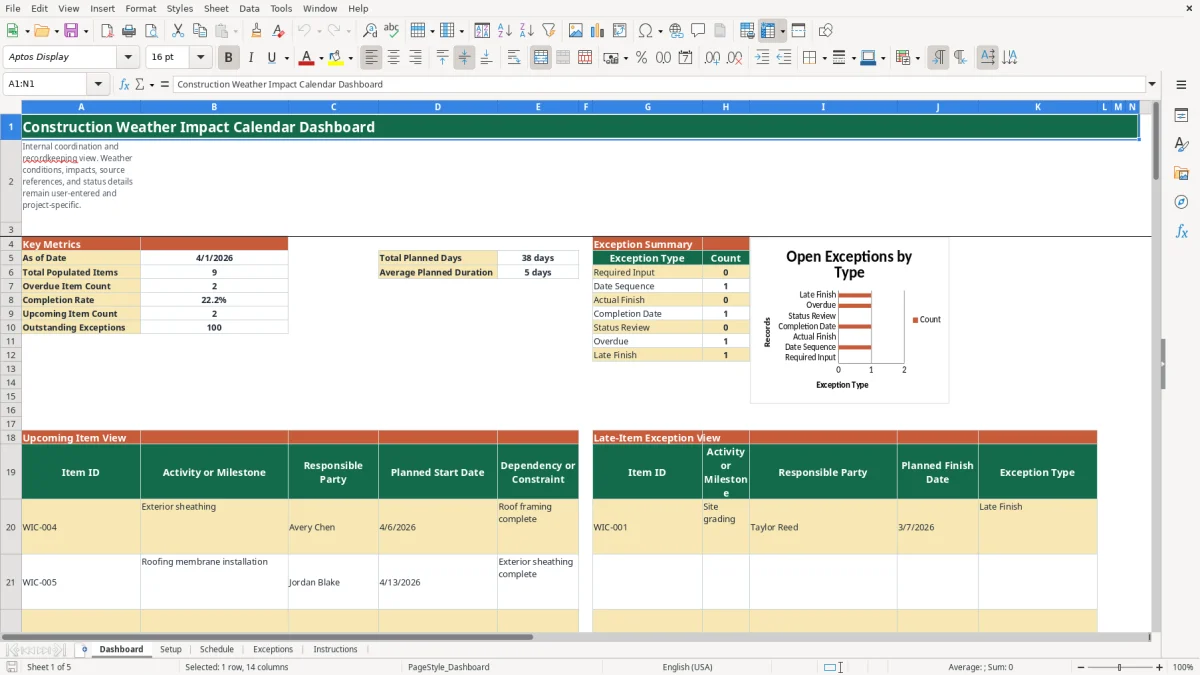
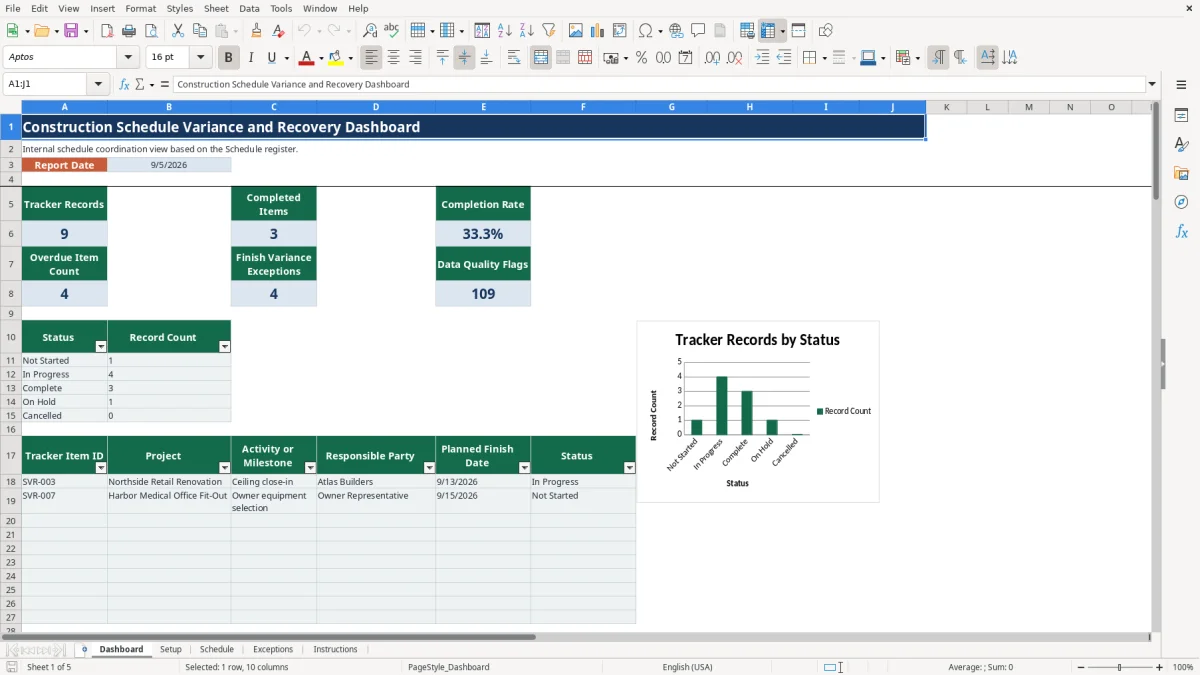
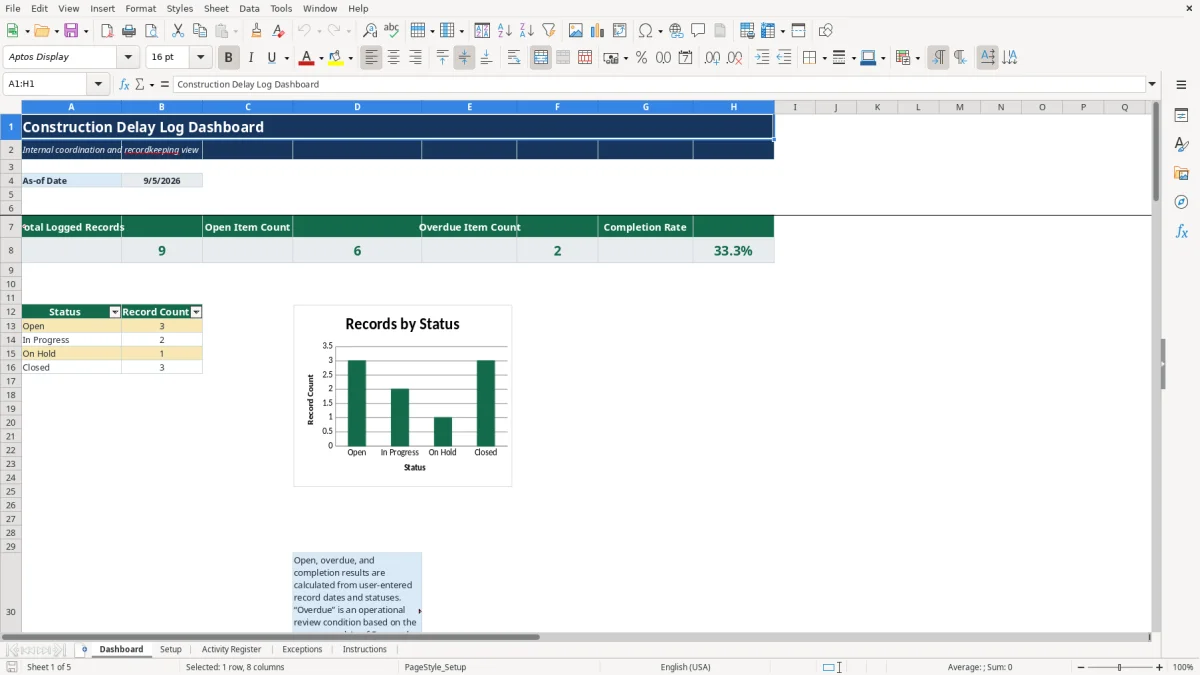
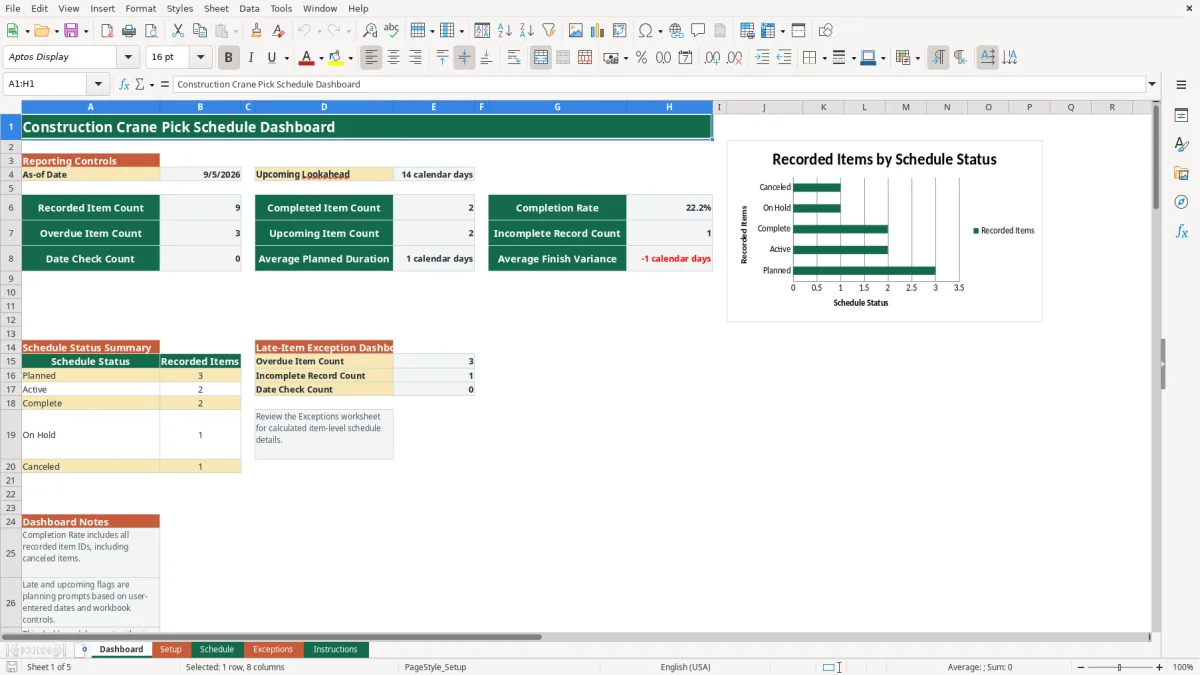
Final workbook preview
Four views generated from the verified XLSX.
How to use this workbook
Set reporting controls
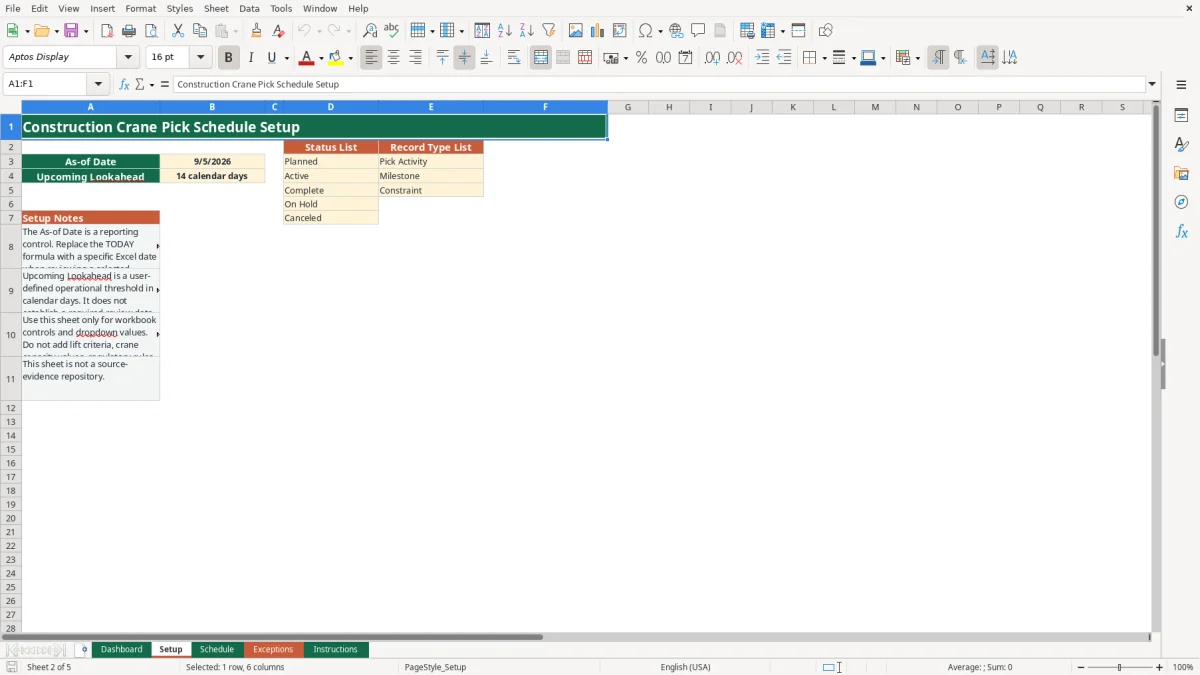
On Setup, review the As-of Date and Upcoming Lookahead. The As-of Date begins with a TODAY formula and can be replaced with a reporting date such as 9/1/2026. Enter the lookahead as a whole number of calendar days. It is a user-defined planning threshold, not a required deadline.
Enter Schedule records
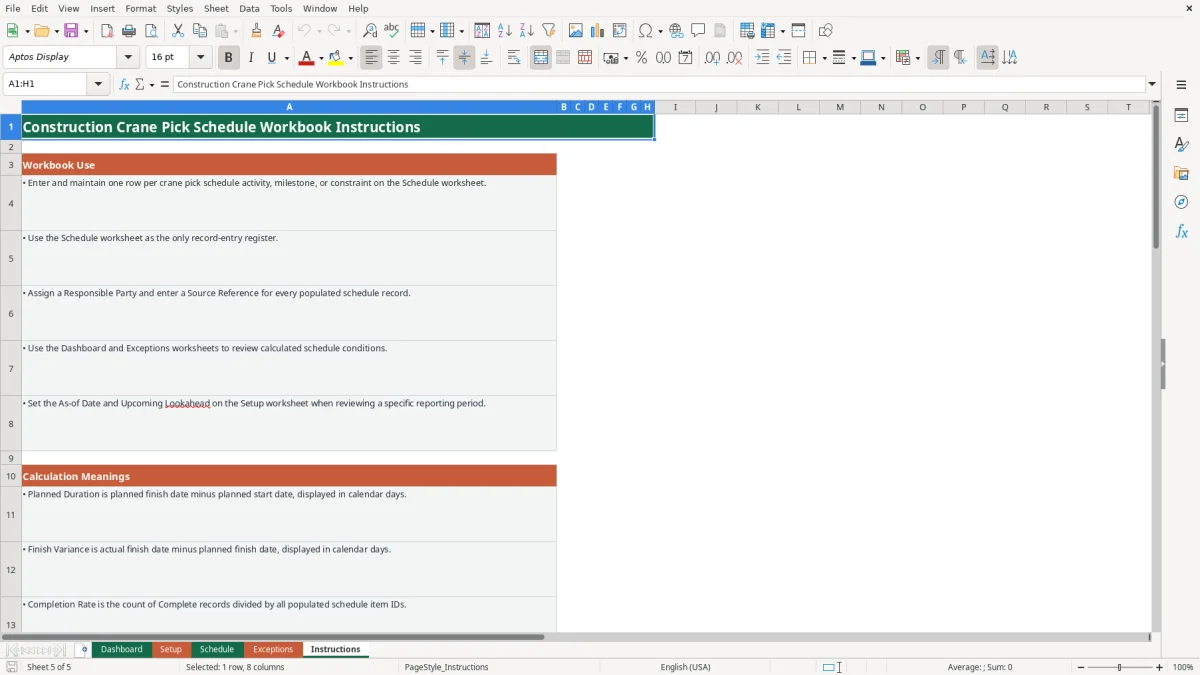
Use Schedule as the only record-entry worksheet. Add one row for each crane pick schedule activity, milestone, or constraint. Enter the item ID, project, record type, activity or milestone, responsible party, planned start date, planned finish date, dependency or constraint, status, and source reference. Add an Actual Finish Date when appropriate.
- Select Pick Activity, Milestone, or Constraint.
- Select Planned, Active, Complete, On Hold, or Canceled.
- Enter dates in the displayed m/d/yyyy format.
Review calculated fields
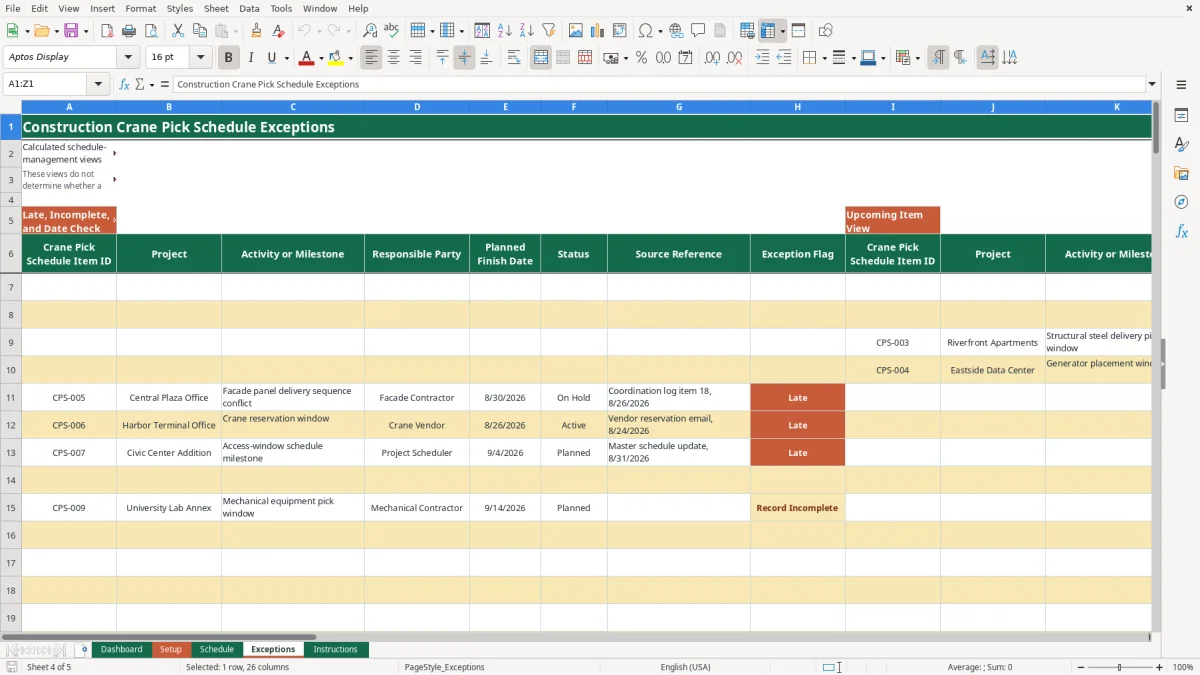
Schedule calculates Planned Duration as planned finish date minus planned start date in calendar days. It calculates Finish Variance as actual finish date minus planned finish date. The Exception Flag identifies Late, Upcoming, Record Incomplete, or Date Check conditions from entered records and Setup controls.
Coordinate follow-up
Use Dashboard for summary counts and Exceptions for item-level review. Check the underlying Schedule record and source reference before coordinating follow-up. Supporting evidence remains outside the workbook, and actual crane-operation planning requires qualified project and safety specialist review.
Benefits
Keep planned dates, owners, constraints, status, and source references together.
Review calculated late, upcoming, incomplete, and date-check conditions.
Calculate planned duration and finish variance in calendar days.
Separate schedule coordination from crane-operation authorization decisions.
Features
Schedule includes 110 prepared rows for controlled schedule records.
Dashboard calculates counts, completion rate, and average date-based results.
Exceptions provides exception, upcoming, and dependency or constraint views.
Setup contains the as-of date, lookahead, status list, and record-type list.
Construction crane pick schedule Excel register
This construction crane pick schedule Excel workbook centers on a controlled Schedule register. Each record includes a crane pick schedule item ID, project, schedule record type, activity or milestone, responsible party, planned dates, dependency or constraint, actual finish date, status, and source reference. The register supports coordination of user-approved scheduling records, related milestones, and reservation windows.
Use the record type field to distinguish Pick Activity, Milestone, and Constraint entries. The workbook manages scheduling information; it does not replace a lift plan, readiness record, engineering review, manufacturer information, or site-specific procedure.
Calendar-day calculations and dashboard results
When valid planned dates are entered, the workbook calculates Planned Duration in calendar days. When a planned finish date and actual finish date are available, it calculates Finish Variance in calendar days. A planned finish date earlier than the planned start date is identified as a Date Check condition.
Dashboard reports recorded item count, completed item count, completion rate, overdue item count, upcoming item count, incomplete record count, date check count, average planned duration, and average finish variance. Completion Rate includes all populated item IDs, including canceled items.
Exception and dependency review
Exceptions provides a Late, Incomplete, and Date Check View, an Upcoming Item View, and a Constraint and Dependency List. These calculated views bring together applicable register details, including item ID, project, activity or milestone, responsible party, dates, status, source reference, and exception flag.
A Record Incomplete condition indicates that required schedule information is missing. A Complete record also requires an actual finish date. Review the Schedule row and source reference before changing dates or assigning follow-up.
Workbook scope and limits
This workbook does not retrieve, validate, approve, or retain supporting evidence. It does not contain crane capacity values, lift criteria, engineering checks, rigging selections, exclusion-zone controls, temporary-works design, shutdown authorization, or regulatory compliance logic.
The Instructions worksheet includes external OSHA reference links only. Schedule status is not permission to proceed. Qualified project and safety specialists must review actual crane-operation planning outside the workbook against current project, site, engineering, manufacturer, and regulatory requirements.
Frequently asked questions
What information do I enter in the crane pick schedule?
Enter one Schedule row for each activity, milestone, or constraint. Inputs include the item ID, project, record type, activity or milestone, responsible party, planned start and finish dates, dependency or constraint, actual finish date, status, and source reference. The workbook uses those inputs for date calculations and schedule flags.
How does the workbook identify a late item?
A record is flagged Late when it is not Complete or Canceled and its planned finish date is earlier than the selected As-of Date. This is a calculated planning condition based on entered dates and Setup controls. It does not assign responsibility or determine whether crane work may proceed.
What does Upcoming mean in the workbook?
Upcoming identifies open records with planned start dates within the user-defined Upcoming Lookahead period. Setup begins with a 14-calendar-day lookahead, which users may change. It is a reporting control, not a mandated notice period or operational deadline.
Can this workbook replace a lift plan or readiness tracker?
No. The workbook tracks scheduling records, dates, responsibilities, dependencies, source references, and calculated exceptions. It does not create or approve lift plans, crane-operation authorization, rigging decisions, exclusion-zone controls, or safe-work methods. Those activities require separate records and specialist review.
Where should supporting documents be stored?
Keep supporting documents in the project’s established record system. In Source Reference, enter a concise document identifier, correspondence reference, file path, or hyperlink. The workbook does not retrieve, validate, approve, or retain the external source evidence.
Workbook file
Ready to put this workbook to work?
Download the verified XLSX, keep an untouched copy, and adapt a working copy to your project.
Download verified XLSXEditorial team
About the authors

Paige Sutton Vale
Workbook Systems Editor
Paige turns construction planning, cost-control, field, and closeout workflows into clear Excel workbook guides. She focuses on inputs, calculations, outputs, and practical limits.

Maren Ellsworth Keel
Workbook QA Reviewer
Maren reviews formula behavior, field labels, project-controls terminology, and workbook instructions so each resource stays within its documented scope.
Continue exploring