Verified Excel workbook
Free 2026 Construction Utility Coordination Workbook in Excel
Track construction utility coordination records, responsible parties, dates, and exceptions in a free 2026 Excel workbook for internal project reviews.
Utility coordination follow-up can become scattered across emails, meeting notes, and project logs. Download the free workbook to keep coordination records, responsible parties, dates, statuses, source references, and notes in one controlled register. It supports US construction teams that need a practical internal view of project follow-up by project, area, package, or subject.
The workbook contains Dashboard, Setup, Activity Register, Exceptions, and Instructions worksheets. Users enter project-specific information in the Activity Register. Formulas calculate elapsed days, open-item flags, overdue-item flags, completion flags, and exception categories from entered dates, statuses, and Setup classifications. Dashboard and Exceptions provide calculated review views based on those entries.
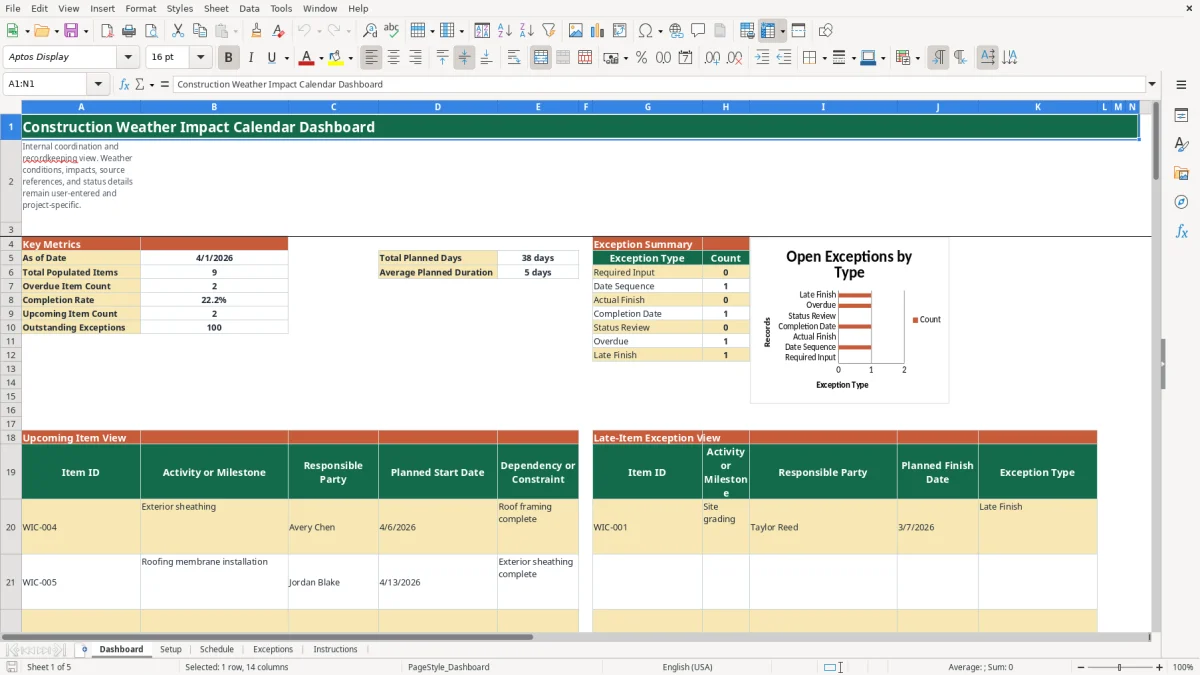
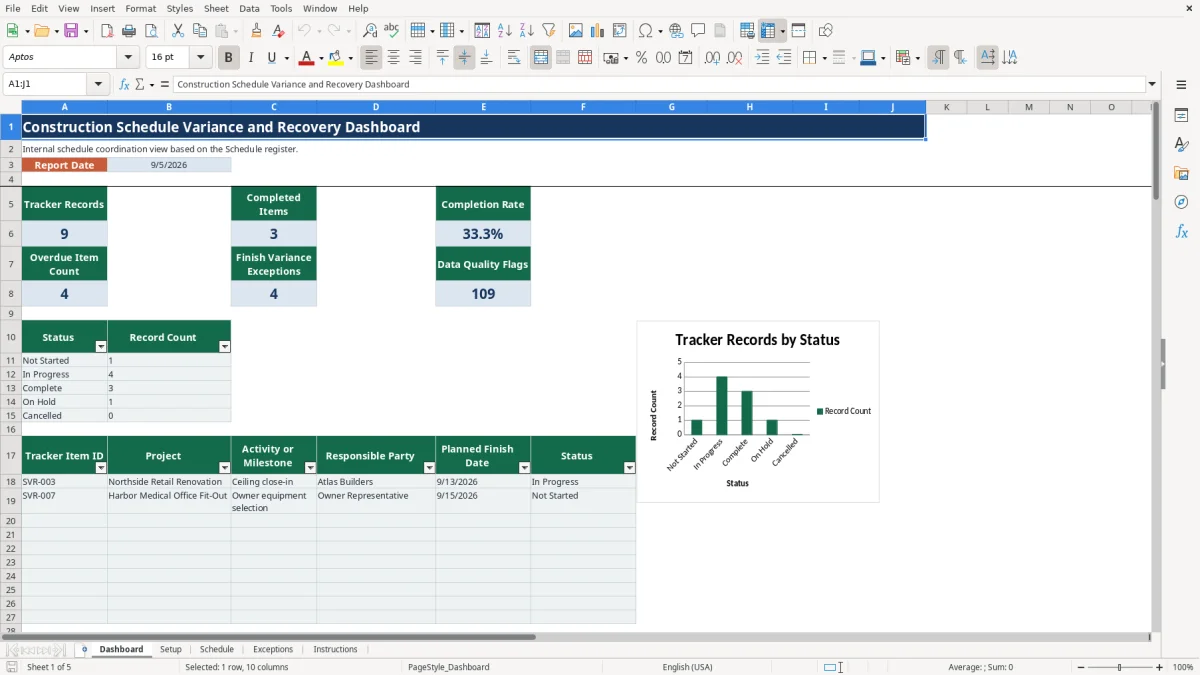
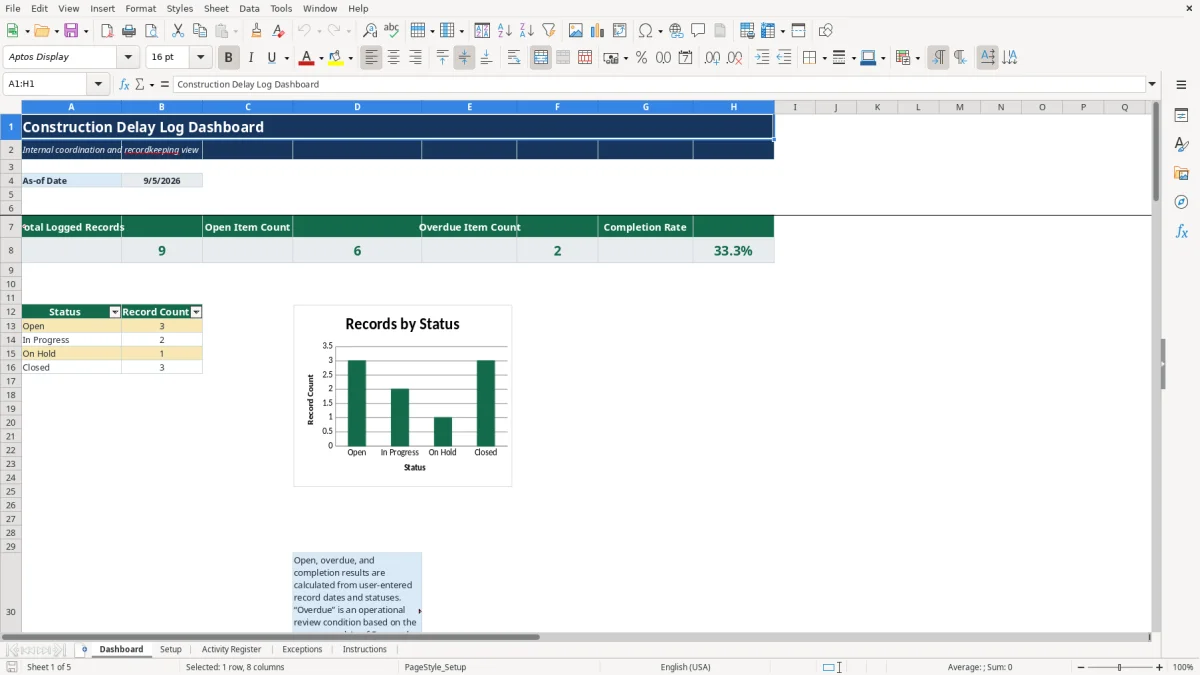
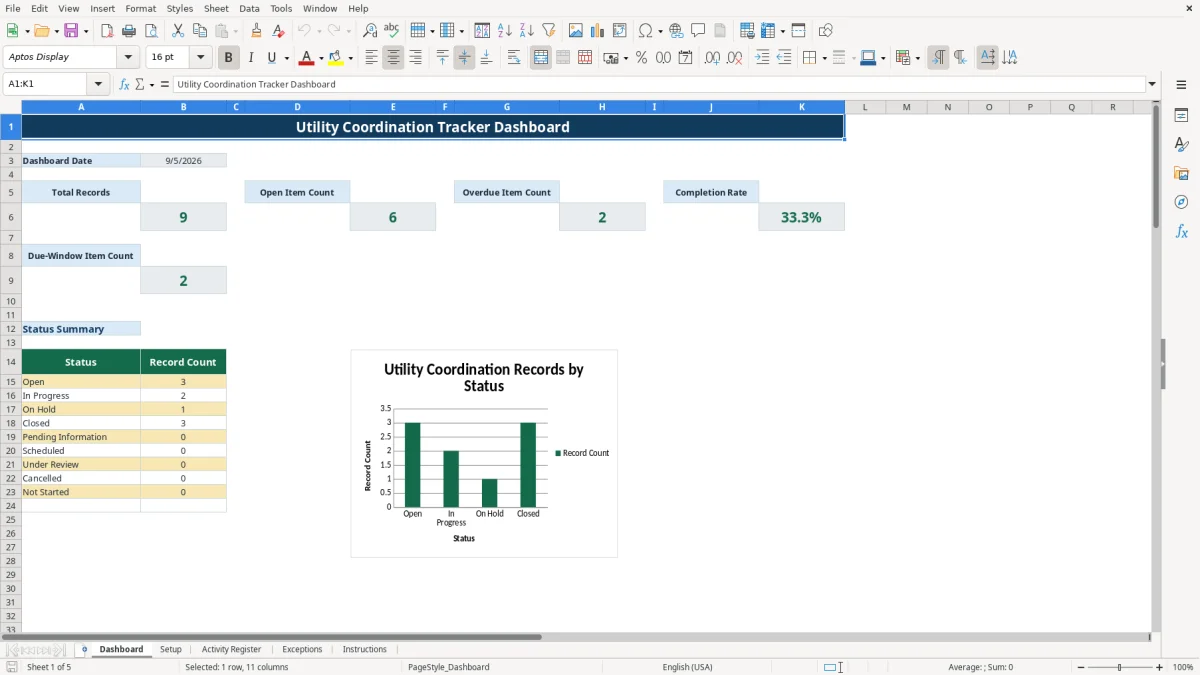
Final workbook preview
Four views generated from the verified XLSX.
How to use this workbook
Review Setup first
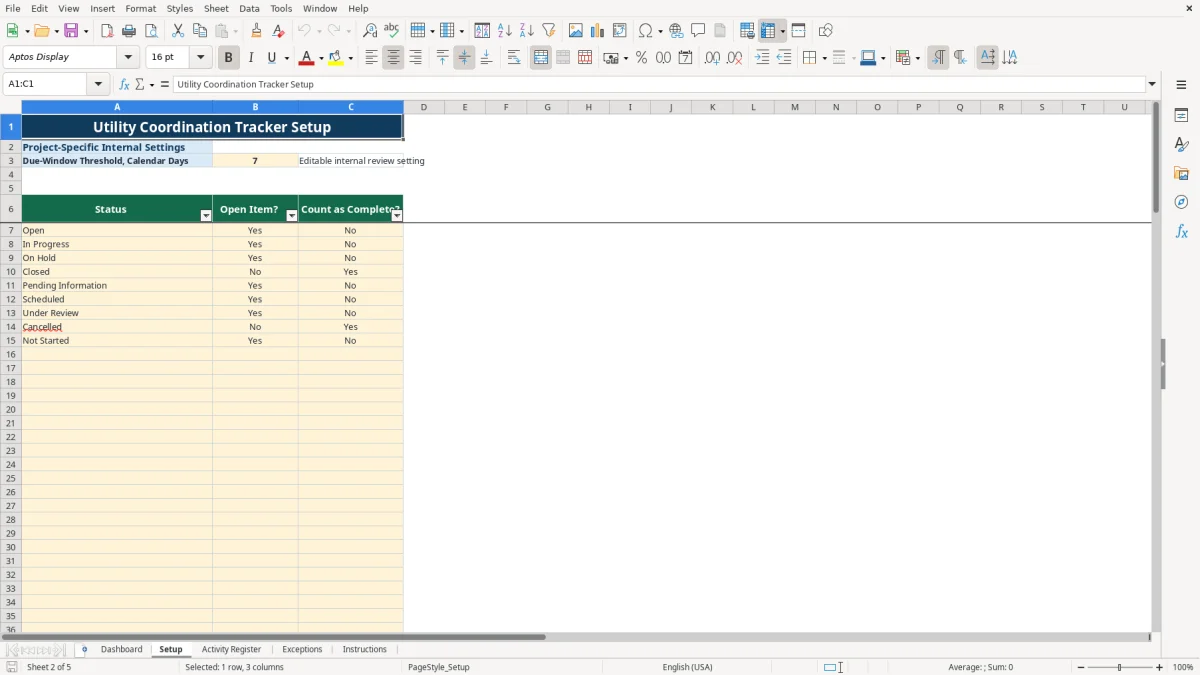
Set the due-window threshold in Calendar Days for the project’s internal review preference. The prepared Setup field accepts a whole number from 0 through 365. Review the status configuration list and identify whether each status counts as an open item or as complete. If status names or classifications change, review existing register records for matching status values.
Add one record per activity
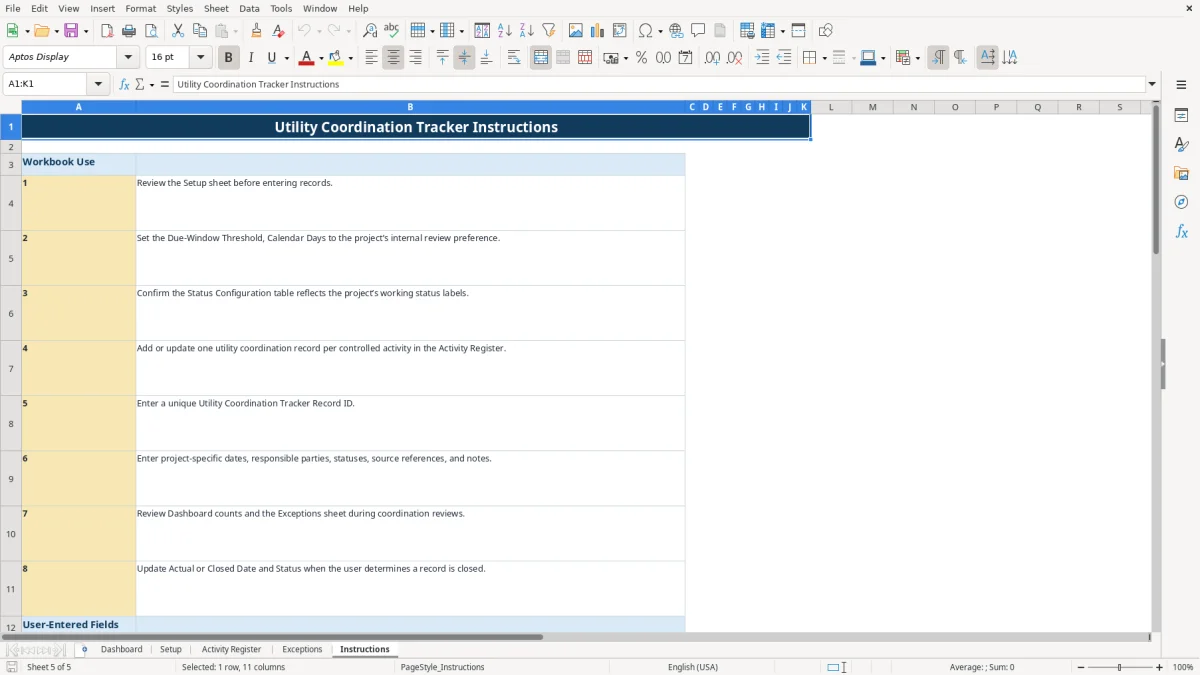
Enter one row per controlled activity in the Activity Register. User-entered fields are record ID, project, area, package, or subject, responsible party, Record Date, Planned or Due Date, Actual or Closed Date, status, source reference, and notes. Record IDs are checked for duplicates within the prepared register. Date entries use m/d/Y dates, and an actual or closed date must be blank or no earlier than the Record Date.
Maintain the project record
Update dates, responsible parties, statuses, references, and notes as coordination information changes. Source Reference is a pointer to evidence maintained outside the workbook, such as an email reference, meeting-note reference, or document identifier. A closing date does not independently determine completion; open and completion results follow the selected status and its Setup classification.
Review calculated views
Use Dashboard to review total records, open item count, overdue item count, completion rate, due-window item count, and status counts. Use Exceptions for records categorized as Due Window or Overdue. The prepared register covers 100 rows, from row 7 through row 106. Expansion requires extending the register table, formulas, validations, Dashboard ranges, and Exceptions formula range.
Benefits
Keep utility coordination records, accountable parties, and source references together.
Separate project-entered details from calculated status indicators.
Review open, overdue, and due-window records in dedicated views.
Use project-specific status classifications and a Calendar Days threshold.
Features
Five worksheets: Dashboard, Setup, Activity Register, Exceptions, and Instructions.
A prepared 100-row register for IDs, parties, dates, statuses, references, and notes.
Calculated elapsed days, open-item, overdue-item, completion, and exception fields.
Dashboard totals and an Exceptions view for due-window and overdue records.
Utility coordination record control
This construction utility coordination tracker Excel workbook centers on a controlled activity record. It is not a permit register, source document repository, field-verification system, or utility design record. The Activity Register captures the record ID, project, area, package, or subject, responsible party, dates, status, source reference, and notes.
Use the record ID as the project’s unique reference for each coordination item. The workbook checks duplicate IDs within its prepared register range, but users remain responsible for entering meaningful IDs and reviewing the records they create.
Status and date calculations
The workbook calculations depend on user-entered dates and statuses. Elapsed Days measures from Record Date through Actual or Closed Date when a valid closing date exists. If there is no closing date, the calculation measures through the current workbook date. Open Item Flag and Completion Flag follow the classification assigned to the selected status on Setup.
Completion rate divides records classified as complete by total records with a record ID. An overdue item is open and has a Planned or Due Date before the current workbook date. A due-window item is open and due from the current workbook date through the configured Calendar Days threshold.
Dashboard and exceptions review
The Dashboard calculates total record count, open item count, overdue item count, completion rate, due-window item count, and status counts. The status summary uses the status labels configured on Setup. Review these outputs with the underlying Activity Register because the calculations reflect the information maintained by the user.
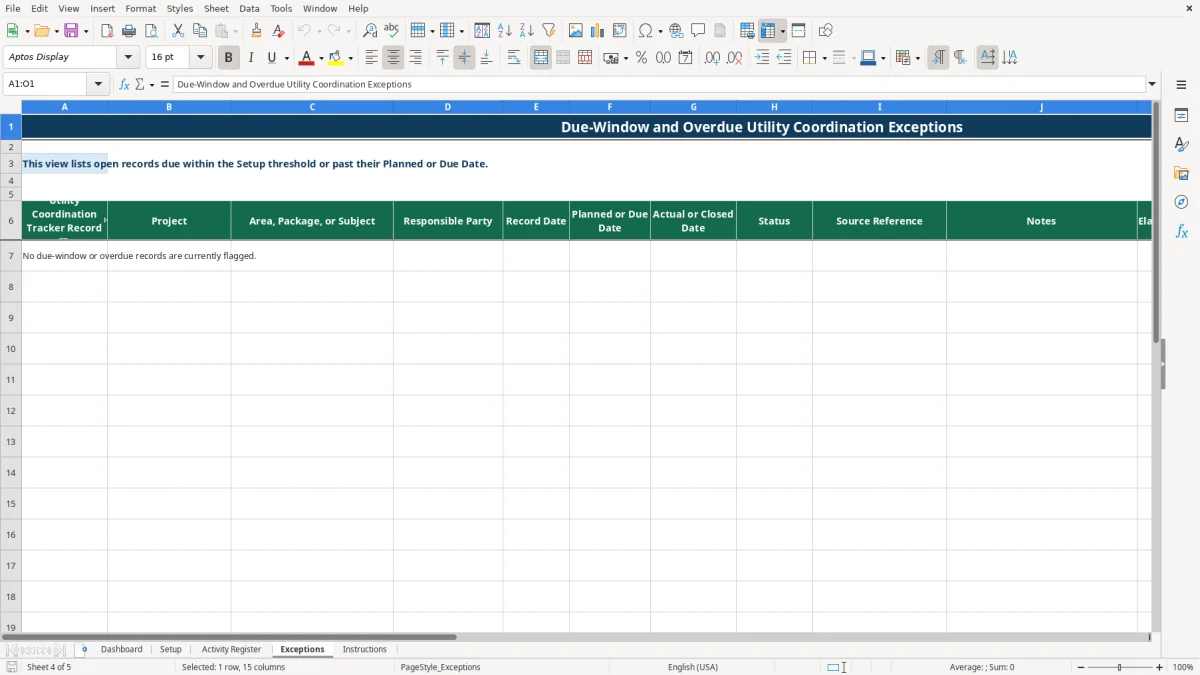
The Exceptions worksheet produces a filtered list of nonblank records categorized as Due Window or Overdue. It includes the register details and calculated fields needed for an internal follow-up discussion. It is a review view, not a substitute for the complete register or source materials.
Functional limits
This workbook is an internal coordination and recordkeeping aid. It does not verify source references, retain underlying correspondence, determine actual work completion, or establish acceptance. Its calculated views do not independently confirm that a utility coordination action occurred.
The workbook does not replace source systems, professional judgment, field verification, contractual authority, or regulatory determinations. Users should review project dates, status classifications, responsible parties, and references before using workbook results for project communication or decision support.
Frequently asked questions
What information do users enter?
Users enter the Utility Coordination Tracker Record ID, project, area, package, or subject, responsible party, Record Date, Planned or Due Date, Actual or Closed Date, status, source reference, and notes. These are project-specific inputs, and the workbook does not independently verify them.
How are overdue items calculated?
An item is overdue when its selected status is configured as open and its Planned or Due Date is before the current workbook date. A blank planned or due date does not produce an overdue result. A status not configured as open also does not produce an overdue result.
Can users change the status list?
Yes. Setup includes a status configuration table where users can revise status labels and classify each as open or complete. Users should avoid classifying the same status as both open and complete, then review existing Activity Register entries after any status-list revision.
What appears on the Exceptions worksheet?
Exceptions lists nonblank Activity Register records with a calculated Due Window or Overdue exception category. The view includes project, responsible party, dates, status, source reference, notes, and calculated fields to support internal review of the flagged record.
Does the workbook retain supporting correspondence?
No. The Source Reference field points to evidence maintained outside the workbook. It may identify an email, meeting note, document identifier, or another user-defined reference. The workbook does not store or validate the underlying source evidence.
Workbook file
Ready to put this workbook to work?
Download the verified XLSX, keep an untouched copy, and adapt a working copy to your project.
Download verified XLSXEditorial team
About the authors

Paige Sutton Vale
Workbook Systems Editor
Paige turns construction planning, cost-control, field, and closeout workflows into clear Excel workbook guides. She focuses on inputs, calculations, outputs, and practical limits.

Maren Ellsworth Keel
Workbook QA Reviewer
Maren reviews formula behavior, field labels, project-controls terminology, and workbook instructions so each resource stays within its documented scope.
Continue exploring