Verified Excel workbook
Free 2026 Construction Logistics Workbook in Excel
Free 2026 construction site logistics Workbook in Excel for tracking zones, access windows, laydown areas, constraints, and late items.
Download this free construction site logistics constraint and zone schedule Workbook in Excel to maintain operational records for zones, access windows, laydown areas, activities, milestones, and constraints. It gives a project team one tabular register for assigning responsible parties, recording planned and actual dates, and retaining a source reference for each item.
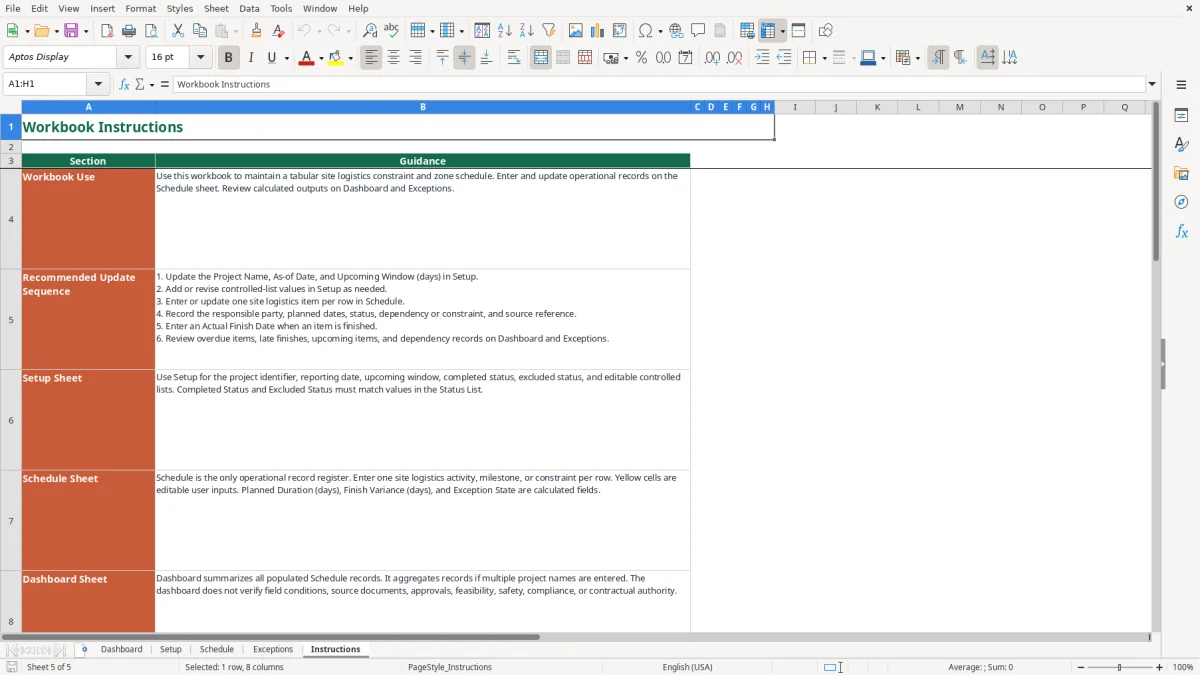
The workbook is built for practical coordination review, not for creating a logistics drawing. Enter records on the Schedule sheet, set the reporting date and upcoming window on Setup, then review calculated counts and filtered exception views. Source records remain outside the workbook. Users should review project-specific conditions and supporting records before acting on any schedule entry.
Final workbook preview
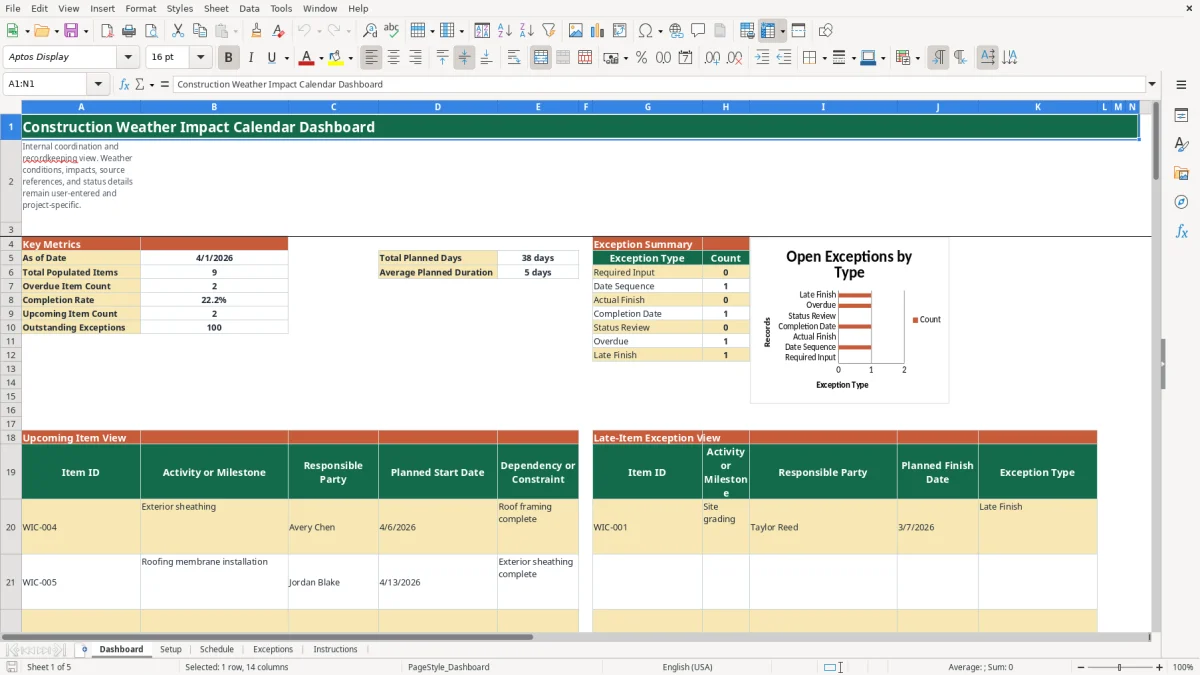
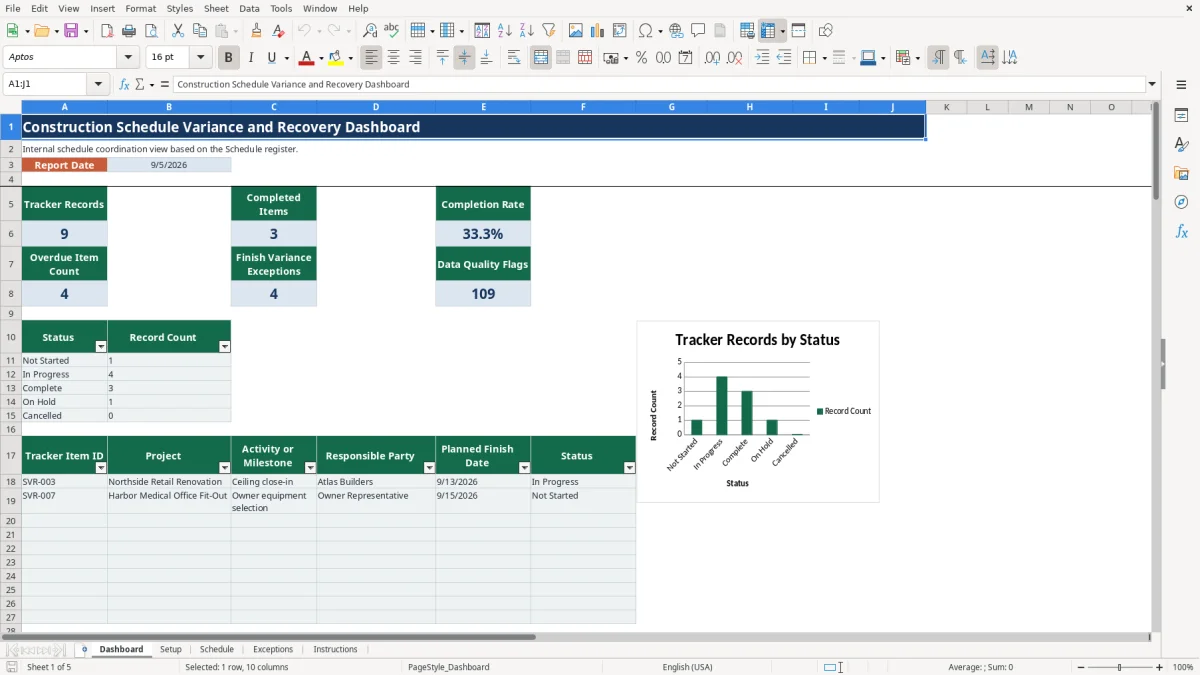
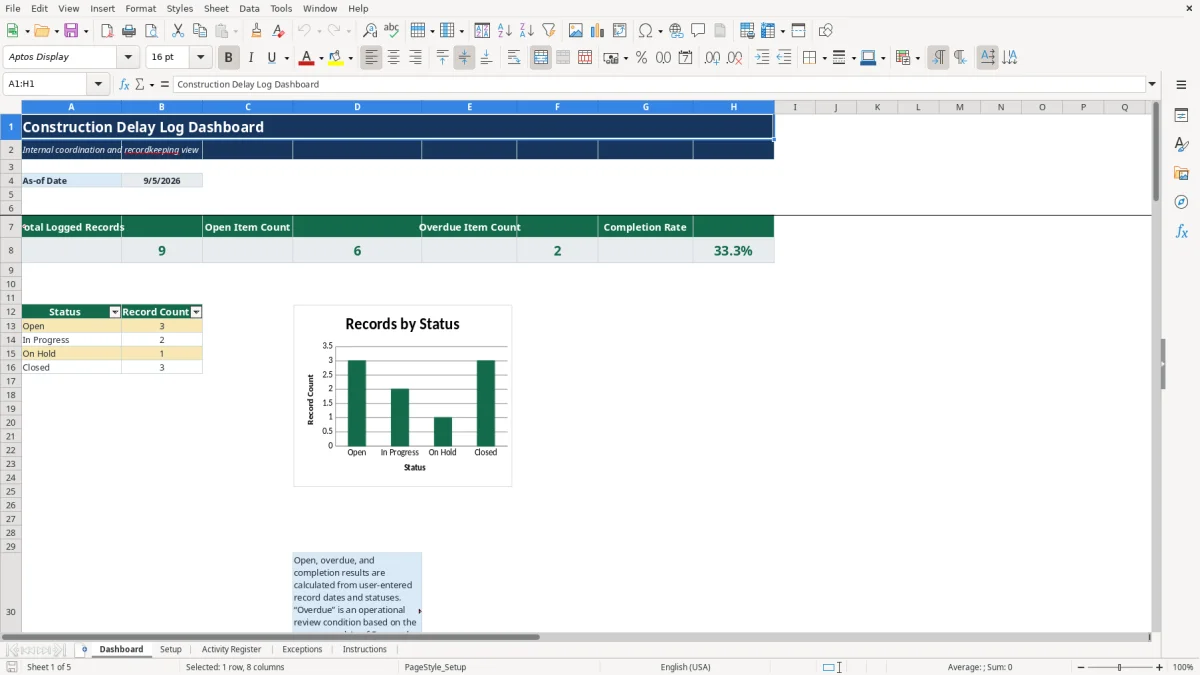
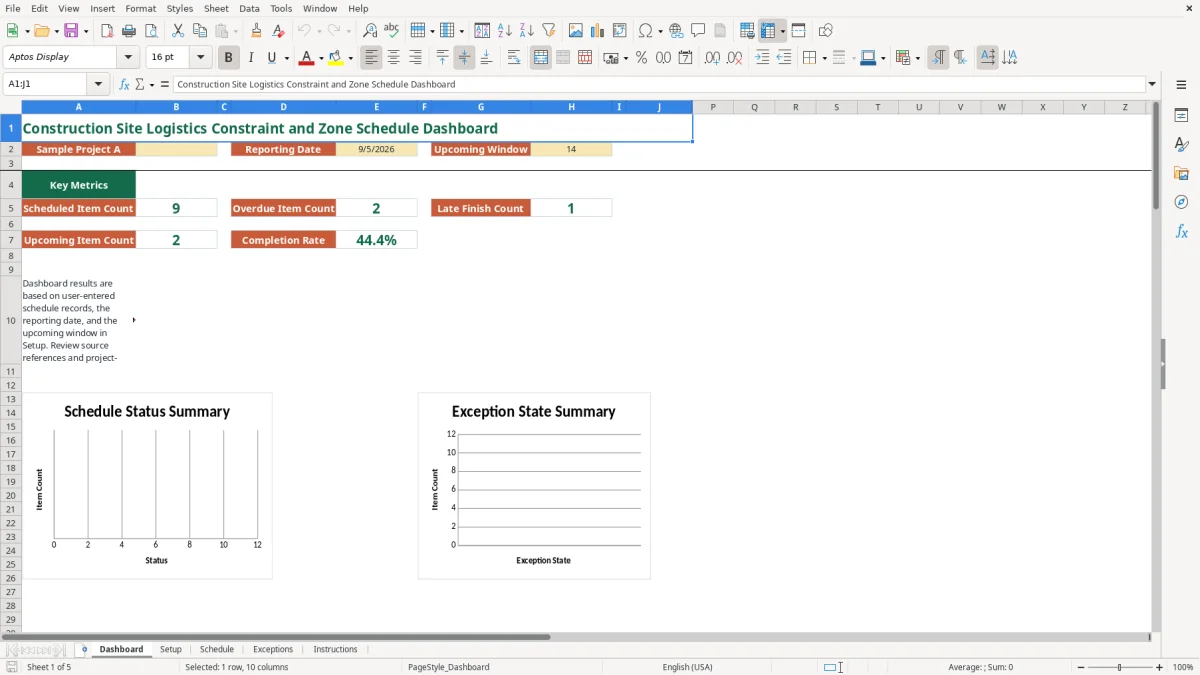
Four views generated from the verified XLSX.
How to use this workbook
Set reporting controls
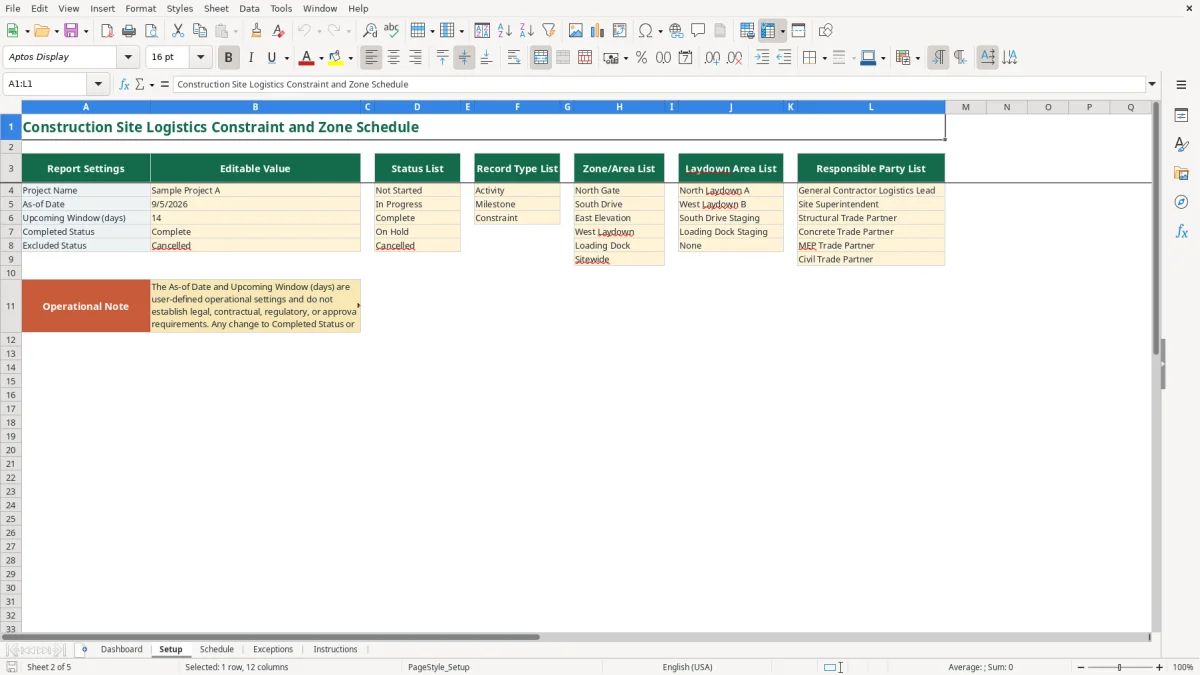
Start on Setup and enter the Project Name, As-of Date, and Upcoming Window in days. The As-of Date drives overdue logic, while the upcoming window identifies planned starts from that date through the selected number of calendar days. Setup also contains editable lists for status, record type, zone or area, laydown area, and responsible party. Keep status settings aligned. The completed and excluded status entries affect dashboard and exception calculations.
Maintain one record per item
Use Schedule as the operational record register. Enter one activity, milestone, or constraint per row in columns A through N: Item ID, project, zone or area, access window, laydown area, record type, activity or milestone, responsible party, planned start date, planned finish date, dependency or constraint, actual finish date, status, and source reference. Dates are entered in m/d/yyyy format. The prepared Schedule register runs from row 6 through row 114.
Review calculated schedule results
Do not overwrite the calculated columns. Planned Duration uses planned start and planned finish dates and counts inclusive calendar days. Finish Variance compares actual finish to planned finish when an actual finish date is entered. A positive variance is late, and a negative variance is early. Exception State evaluates the dates, status, and As-of Date to identify overdue, late finish, early finish, or no exception outcomes.
Use views for coordination follow-up
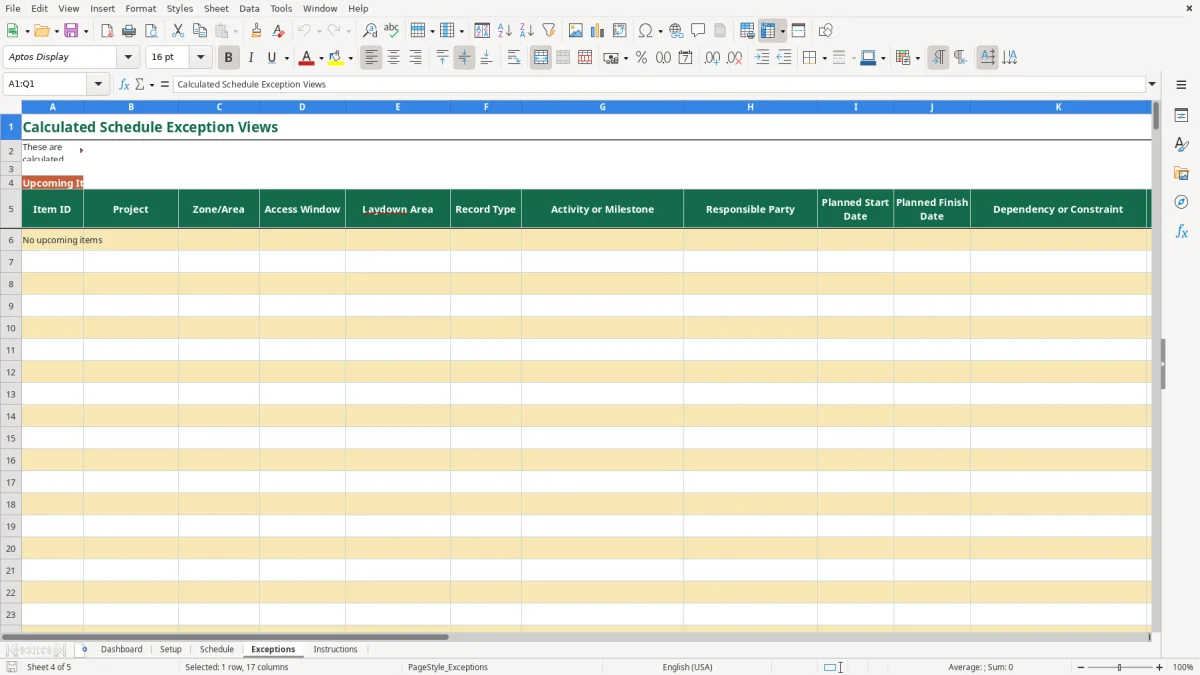
Open Exceptions to review calculated upcoming items, records with a dependency or constraint, and late-item exceptions. The Dashboard summarizes scheduled item count, overdue item count, late finish count, upcoming item count, completion rate, status counts, and exception-state counts. Update Setup or Schedule to refresh those outputs. Do not type into calculated views.
Benefits
Keeps zone, access, laydown, and constraint records in one register.
Shows upcoming records based on the user-entered reporting window.
Separates planned dates from actual finish dates for clearer follow-up.
Retains source references that point users to supporting project records.
Features
Five worksheets: Dashboard, Setup, Schedule, Exceptions, and Instructions.
A controlled Schedule table with prepared rows 6 through 114.
Calculated duration, finish variance, exception state, and dashboard metrics.
Dynamic views for upcoming items, dependencies, constraints, and late items.
Construction site logistics schedule control in Excel
A construction site logistics constraint and zone schedule Excel workflow helps teams organize operational items that can affect movement, staging, and planned work by area. Each Schedule record can identify a zone or area, access window, laydown area, responsible party, planned dates, dependency or constraint, status, and source reference. This structure is useful when delivery timing, area turnover, staging availability, or access restrictions need a traceable coordination record.
The workbook supports activities, milestones, and constraints as separate record types. One item per row makes it easier to distinguish an action from a restriction or a dated turnover point without treating the register as a site logistics drawing.
Calculated dates and exception states
The Schedule sheet calculates Planned Duration in days when planned start and planned finish dates are present. The duration uses inclusive calendar days, so the planned start date and planned finish date are both included. Finish Variance in days is calculated only after an actual finish date is entered, comparing actual finish against planned finish.
Exception State identifies an overdue item when its planned finish is before the Setup As-of Date, no actual finish is entered, and its status is neither the completed status nor the excluded status selected in Setup. It also identifies late and early finishes from variance. These are calculated operational indicators based on user-entered records, not field verification or approval decisions.
Dashboard and exception review workflow
The Dashboard provides a concise review of populated Schedule records. It counts scheduled items, overdue items, late finishes, and items with planned starts inside the current upcoming window. It also displays counts by status and exception state. Completion Rate is calculated from records assigned the Setup completed status, excluding records assigned the Setup excluded status from the denominator.
The Exceptions sheet provides three calculated views: upcoming items, a constraint and dependency list, and a late-item exception list. Refresh the inputs first by updating Setup settings and the Schedule register. These views help focus coordination discussions, but the workbook does not determine whether an item is acceptable for the project.
Frequently asked questions
What information do I enter in the Schedule sheet?
Enter the editable fields from Item ID through Source Reference. This includes project, zone or area, access window, laydown area, record type, activity or milestone, responsible party, planned and actual finish dates, status, and any dependency or constraint. Columns for planned duration, finish variance, and exception state are calculated outputs.
How does the upcoming item view work?
The view filters Schedule records with a planned start date on or after the Setup As-of Date and on or before the As-of Date plus the Setup Upcoming Window in days. Records with the selected completed or excluded status are not included in that upcoming view.
What causes an item to appear as overdue or late finish?
An overdue result requires a planned finish before the As-of Date, no actual finish date, and a status other than the Setup completed or excluded status. A late finish result requires an actual finish date later than planned finish. Review the underlying record and its source reference before deciding follow-up actions.
Does this workbook create a site logistics plan or drawing?
No. The workbook maintains a tabular schedule of logistics-related activities, milestones, and constraints. It does not create a site logistics drawing, verify field conditions, approve means and methods, or establish contractual authority. Supporting evidence and project-specific review remain outside the workbook.
Workbook file
Ready to put this workbook to work?
Download the verified XLSX, keep an untouched copy, and adapt a working copy to your project.
Download verified XLSXEditorial team
About the authors

Paige Sutton Vale
Workbook Systems Editor
Paige turns construction planning, cost-control, field, and closeout workflows into clear Excel workbook guides. She focuses on inputs, calculations, outputs, and practical limits.

Maren Ellsworth Keel
Workbook QA Reviewer
Maren reviews formula behavior, field labels, project-controls terminology, and workbook instructions so each resource stays within its documented scope.
Continue exploring