Verified Excel workbook
Free 2026 Construction Permit Tracker Workbook in Excel
Free 2026 construction permit tracker Workbook in Excel with a controlled register, calculated exception views, and dashboard review totals.
Manage user-entered construction permit-tracker activities, ownership, dates, statuses, and source references in one internal file. Download the free 2026 Workbook in Excel to maintain a controlled register and review records that remain open, fall within the internal due window, or calculate as overdue from entered dates.
The workbook includes Dashboard, Setup, Activity Register, Exceptions, and Instructions worksheets. Users enter and maintain tracker details in the register, while Excel calculates elapsed days, open-item counts, overdue-item counts, completion rate, and related review views. It does not identify required permits, interpret codes, verify deadlines, represent approval, or replace state or local authority decisions.
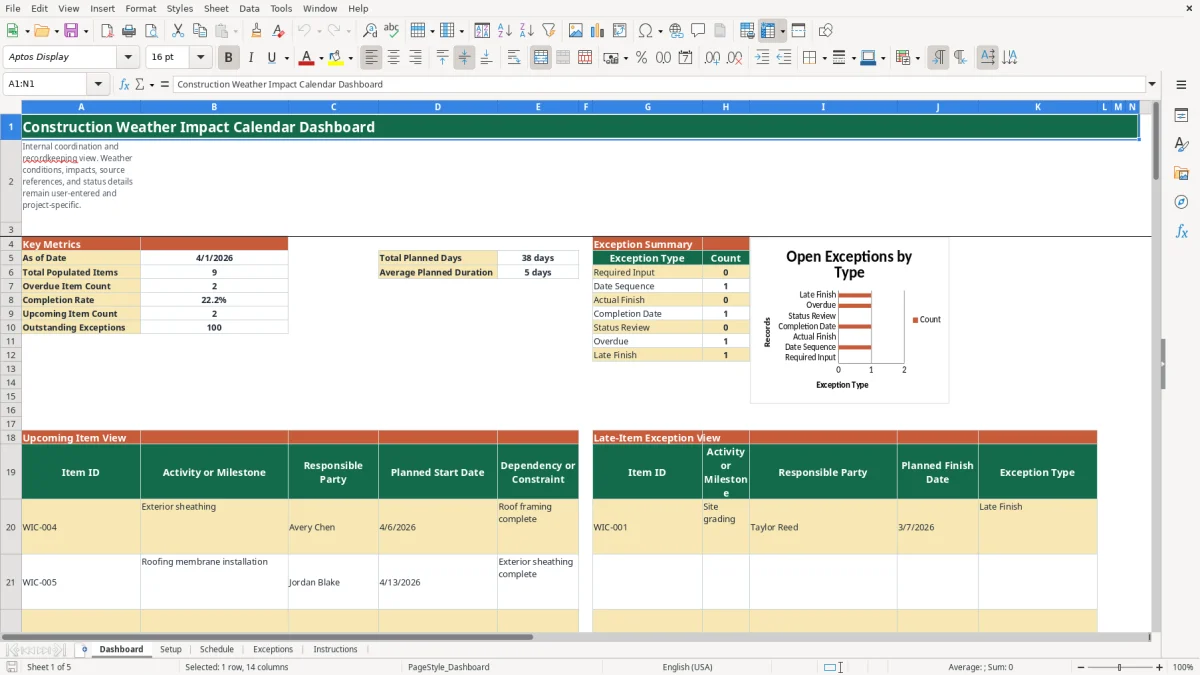
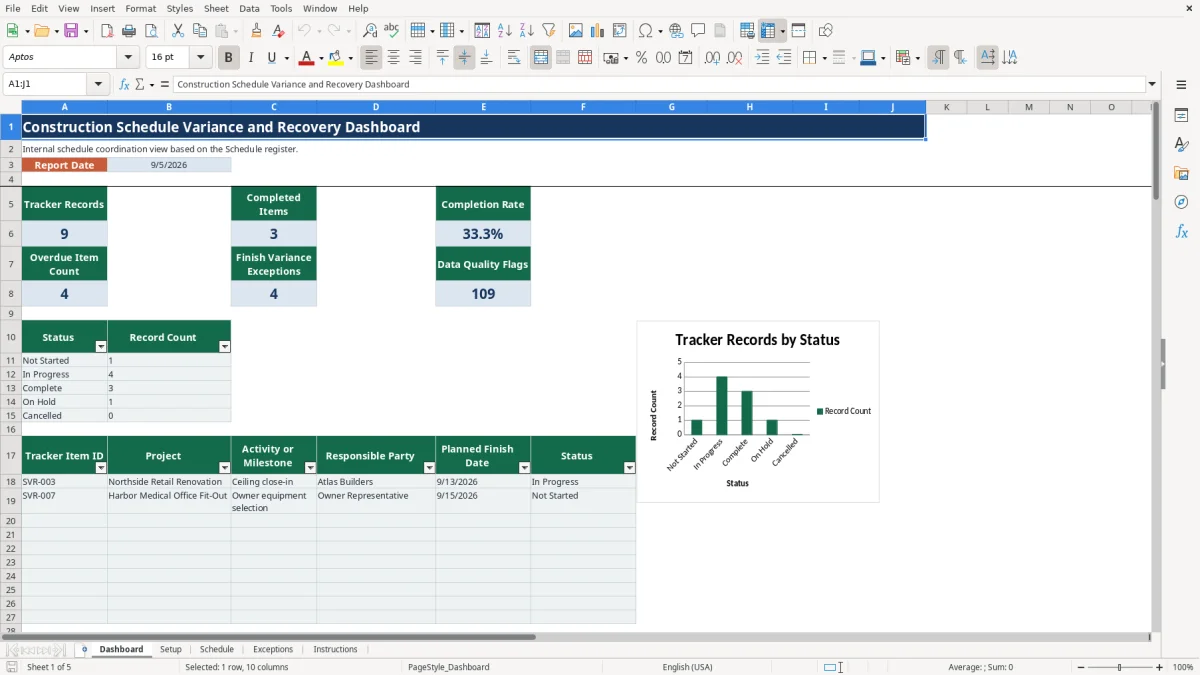
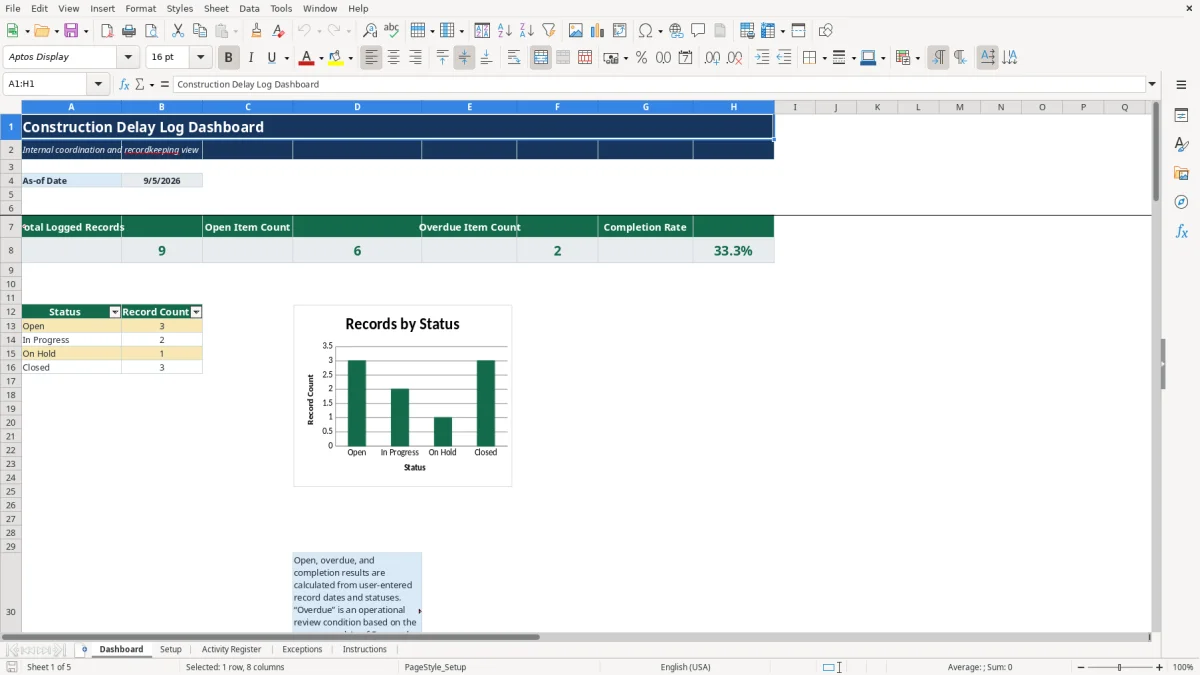
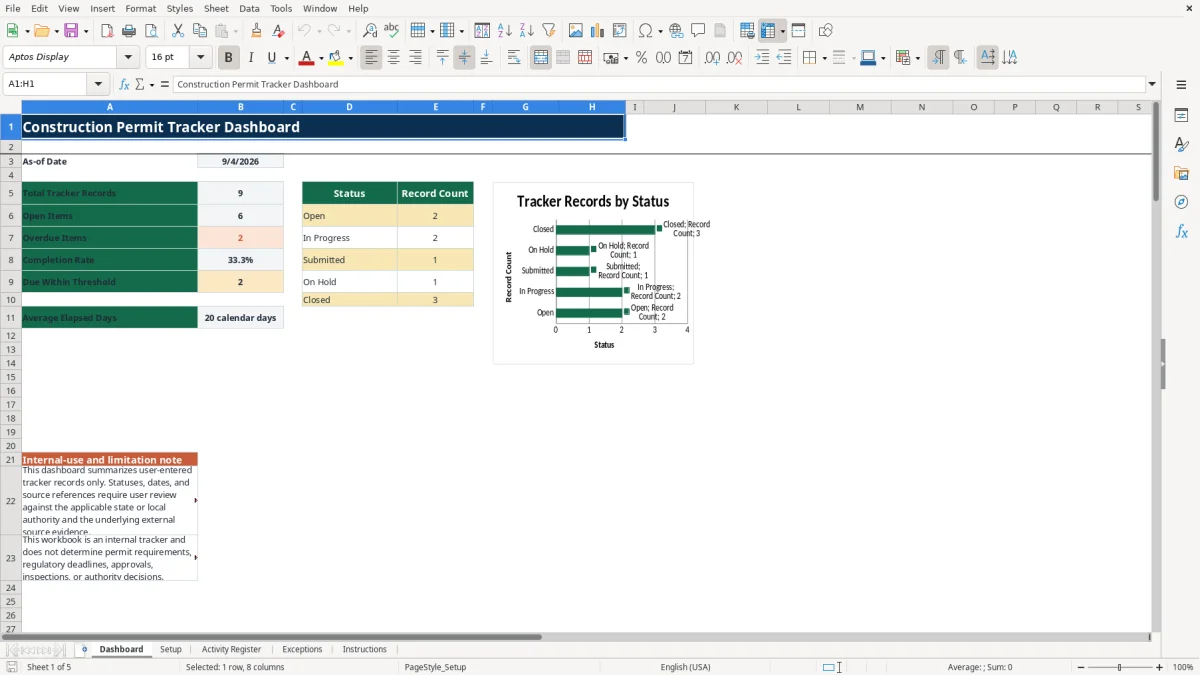
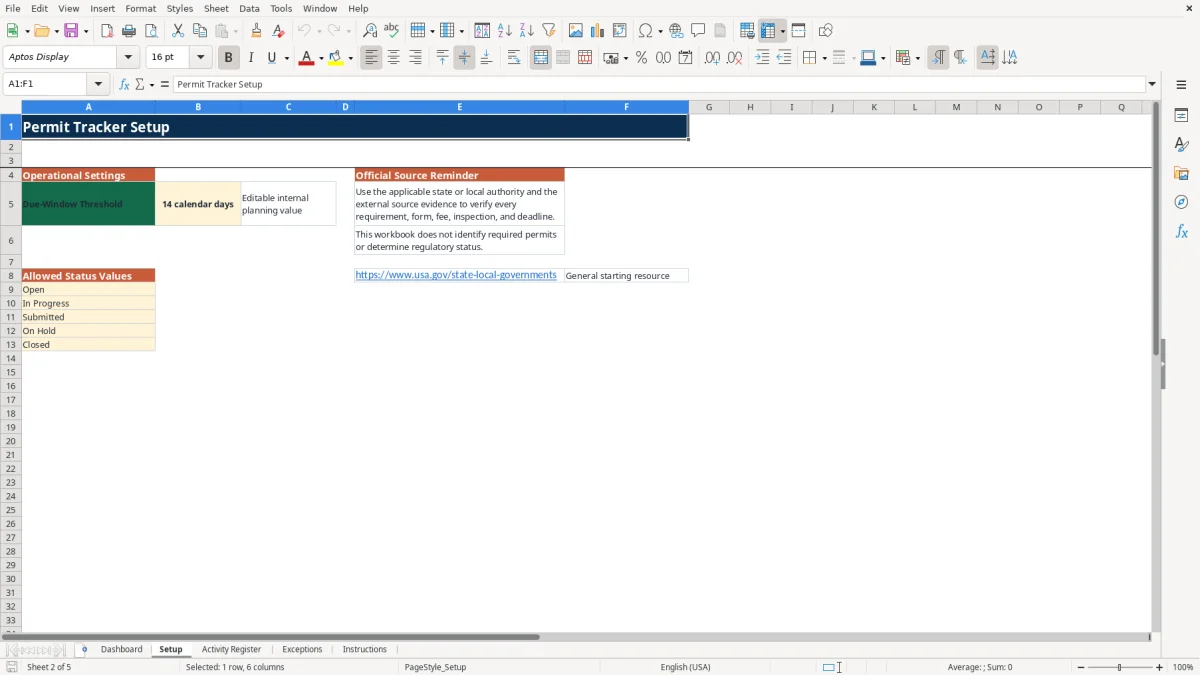
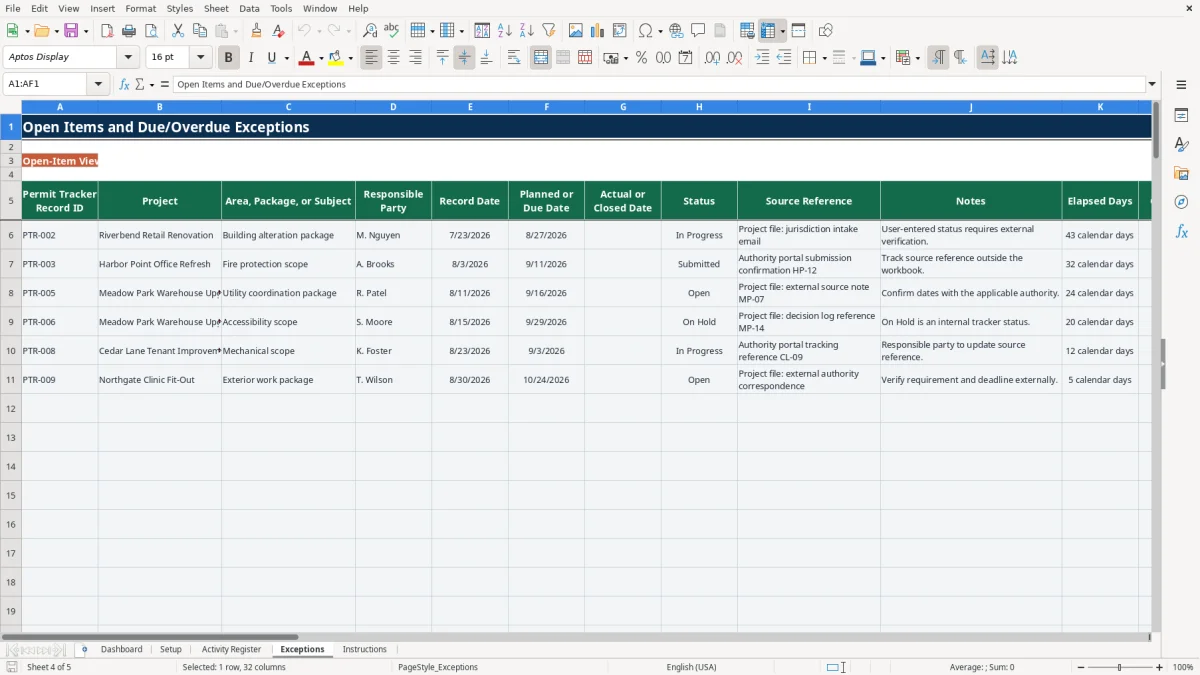
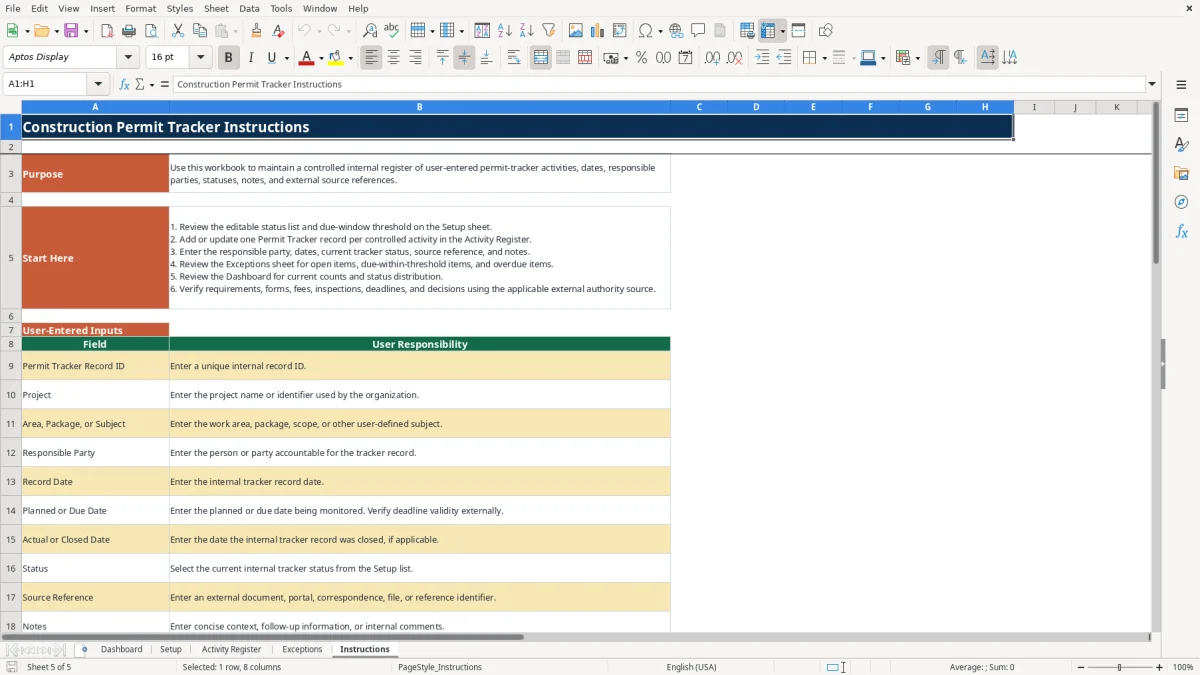
Final workbook preview
Four views generated from the verified XLSX.
How to use this workbook
Review the setup sheet
Start on Setup. The Due-Window Threshold is an editable internal planning value, initially set to 14 calendar days. The workbook uses it to identify open records due from the current Excel date through the selected threshold.
Enter a controlled activity record
Use Activity Register for user-entered information. Complete Permit Tracker Record ID, Project, Area, Package, or Subject, Responsible Party, Record Date, Planned or Due Date, Actual or Closed Date, Status, Source Reference, and Notes. Enter dates in m/d/Y format.
- Use a unique internal record ID.
- Assign an accountable responsible party.
- Use Source Reference for an external file, correspondence, or portal identifier.
Maintain the current record status
Select the current internal status from the provided list: Open, In Progress, Submitted, On Hold, or Closed. Enter an Actual or Closed Date when appropriate. Do not overwrite calculated columns for elapsed days, item flags, exceptions, or view ranks.
Review calculated outputs
Use Dashboard for totals and status counts. Use Exceptions for the open-item view and due and overdue exception list. Check source details outside the workbook before relying on a date, status, or reference for project follow-up.
Benefits
Keep tracker records, responsible parties, dates, statuses, notes, and source references together.
Review calculated open items and due or overdue exceptions without manual counts.
Use the provided internal status values for consistent record updates.
See dashboard totals, completion rate, and status counts from entered register data.
Features
Five worksheets for setup, entry, calculated review, dashboarding, and instructions.
Activity Register fields for IDs, project details, ownership, dates, status, references, and notes.
Date validation and status-list validation in the Activity Register entry area.
Formula-driven elapsed days, open items, overdue items, exceptions, and dashboard summaries.
Construction permit tracker register in Excel
Activity Register is the central user-entry worksheet for this construction permit tracker workflow. It records the internal Permit Tracker Record ID with project, area, package, or subject, responsible party, dates, status, source reference, and notes. This gives a project-controls team one consistent place to maintain each tracked activity and its follow-up context.
The calculated columns follow the user-input fields. Supporting evidence remains outside the workbook; Source Reference records an identifier or location that helps a reviewer locate the related external information. Users remain responsible for the accuracy and currency of entered records.
Open items and due-date exception review
Elapsed Days calculates calendar days from Record Date through Actual or Closed Date when a valid closed date is entered. Without an Actual or Closed Date, it calculates through the current Excel date. Open Item calculates as 1 when a record has an ID and its status is not Closed; otherwise, it calculates as 0.
Overdue Item calculates as 1 when a non-Closed record has a Planned or Due Date before the current Excel date. The Due/Overdue Exception output identifies overdue records or open records due within the Setup threshold. These are internal review indicators based on user-entered data.
Dashboard and exception views
Dashboard summarizes Total Tracker Records, Open Items, Overdue Items, Completion Rate, Due Within Threshold, Average Elapsed Days, and record counts by status. Completion Rate calculates as Closed records divided by all records with a Permit Tracker Record ID. The dashboard also includes a chart based on status counts.
Exceptions provides an Open-Item View and a separate Due and Overdue Exception List drawn from Activity Register. Use the underlying register when a reviewer needs to confirm entered dates, responsible party, source reference, notes, or internal status.
Functional limits for internal tracking
This workbook tracks only user-entered permit requirements and statuses as internal tracker records. It does not determine permit requirements, interpret codes, establish regulatory deadlines, verify fees or forms, confirm inspections, or represent authority approval. The applicable state or local authority remains the source for those determinations.
Use the workbook to organize information already identified by the project team and to surface unresolved entries for review. Verify each requirement externally against applicable authority information, project records, and supporting source evidence.
Frequently asked questions
What information do users enter in the workbook?
Users enter the Permit Tracker Record ID, project details, responsible party, record date, planned or due date, actual or closed date, status, source reference, and notes. Elapsed days, item flags, exceptions, and ranks are calculated outputs.
How does the workbook calculate an overdue item?
An Overdue Item calculates as 1 when a record has an ID, is not Closed, has a valid Planned or Due Date, and that entered date is before the current Excel date. It does not verify an external deadline.
Can the due-window threshold be changed?
Yes. Setup includes an editable Due-Window Threshold that is initially 14 calendar days. Enter a whole-number internal planning value. The workbook uses that value to identify open records due through the selected review window.
Does Submitted or Closed prove approval?
No. Status is an internal selection from the provided list. Submitted or Closed does not prove approval, determine regulatory standing, confirm an inspection result, or establish an authority decision. Review the related source information externally.
Where are supporting permit documents stored?
The workbook records a Source Reference rather than storing supporting evidence. Enter an external document, portal, correspondence, file, or reference identifier that helps the team locate the source material during review.
Workbook file
Ready to put this workbook to work?
Download the verified XLSX, keep an untouched copy, and adapt a working copy to your project.
Download verified XLSXEditorial team
About the authors

Paige Sutton Vale
Workbook Systems Editor
Paige turns construction planning, cost-control, field, and closeout workflows into clear Excel workbook guides. She focuses on inputs, calculations, outputs, and practical limits.

Maren Ellsworth Keel
Workbook QA Reviewer
Maren reviews formula behavior, field labels, project-controls terminology, and workbook instructions so each resource stays within its documented scope.
Continue exploring