Verified Excel workbook
Free 2026 Construction Startup Checklist Workbook in Excel
Free 2026 construction project startup checklist Workbook in Excel for project-defined requirements, blockers, owners, evidence, and due dates.
Project startup items can become difficult to review when responsibilities, internal target dates, supporting records, and unresolved conditions are tracked in separate places. Download this free Workbook in Excel to organize project-defined startup requirements before mobilization or first work. The register records responsibility, due dates, status, evidence references, blockers, escalation ownership, and notes in one project control file.
The Construction Project Startup Readiness Workbook contains Dashboard, Setup, Startup Requirements, Blockers, and Instructions worksheets. It is intended for internal visibility of prerequisites across project setup, information, access, procurement, communication, and other user-configured phases. It does not provide a universal construction checklist, authorize mobilization, approve plans, issue permits, replace contract review, or duplicate the master schedule.
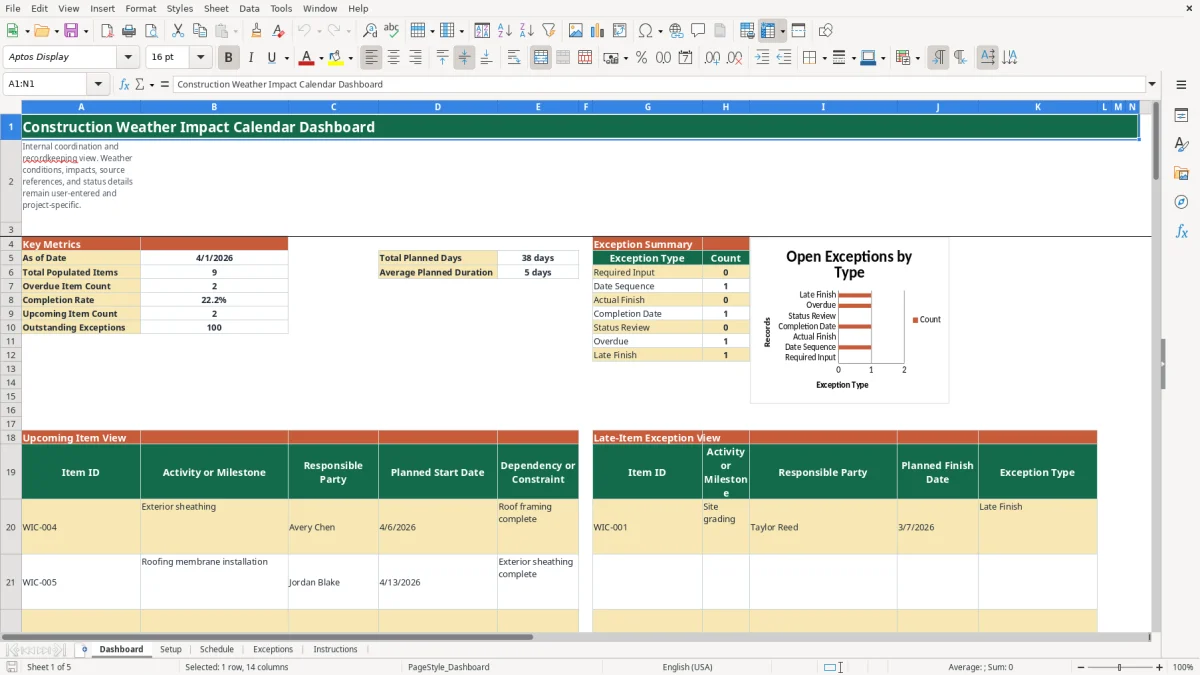
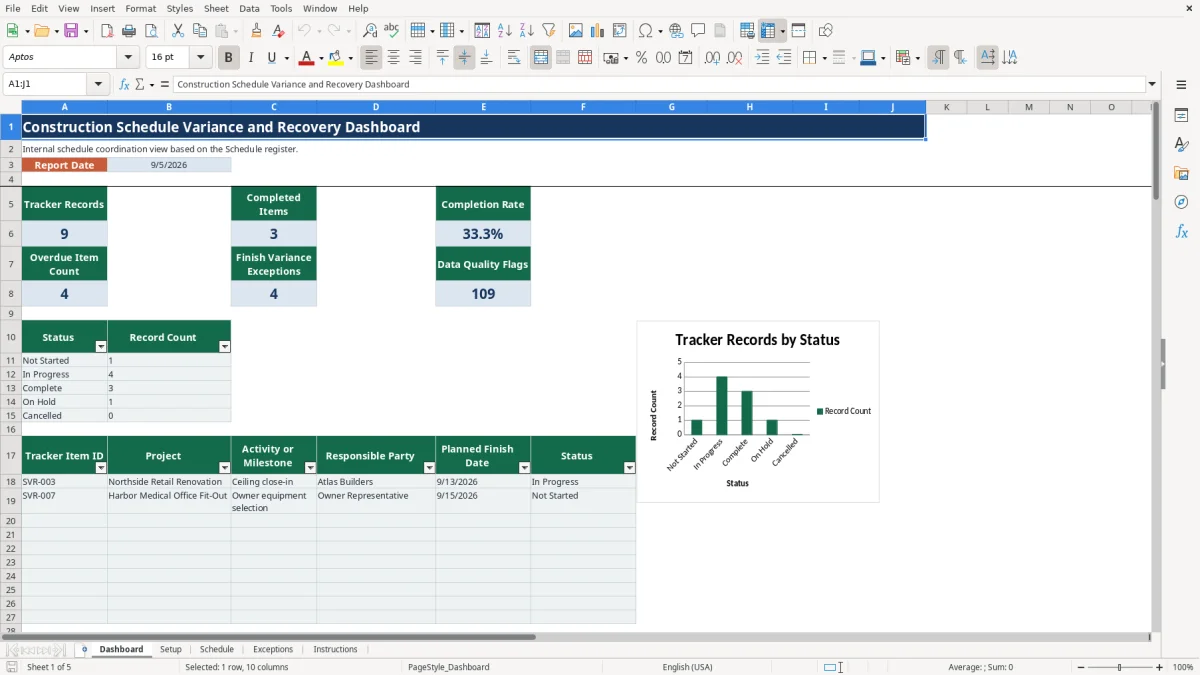
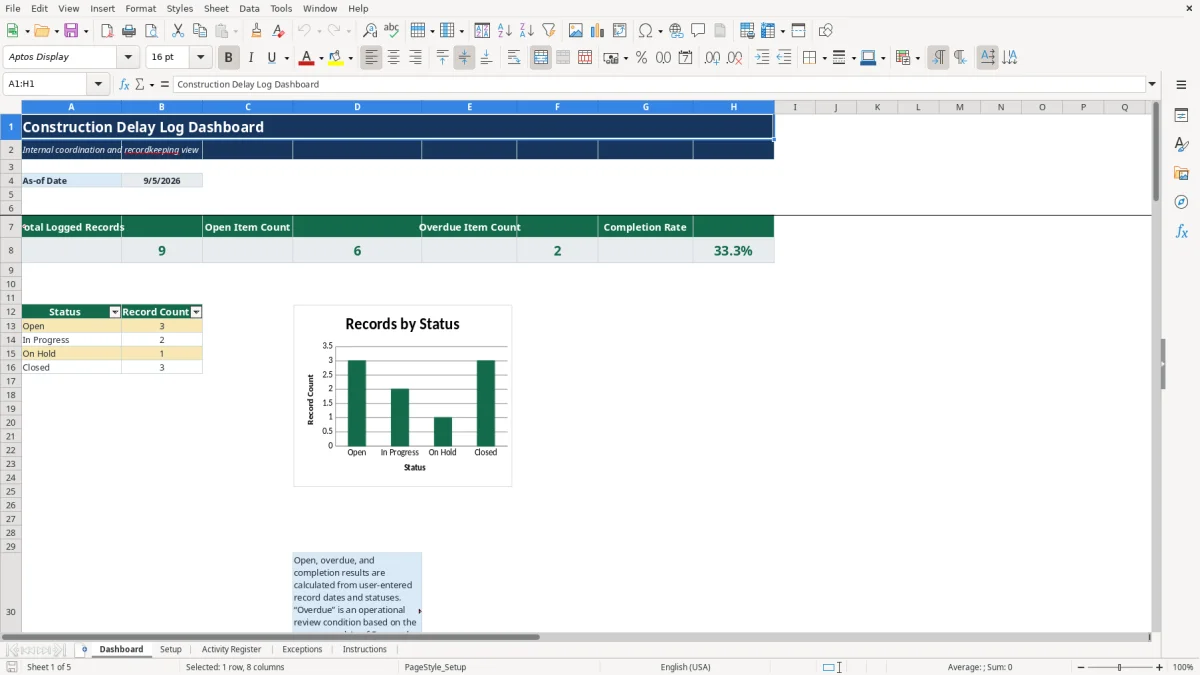
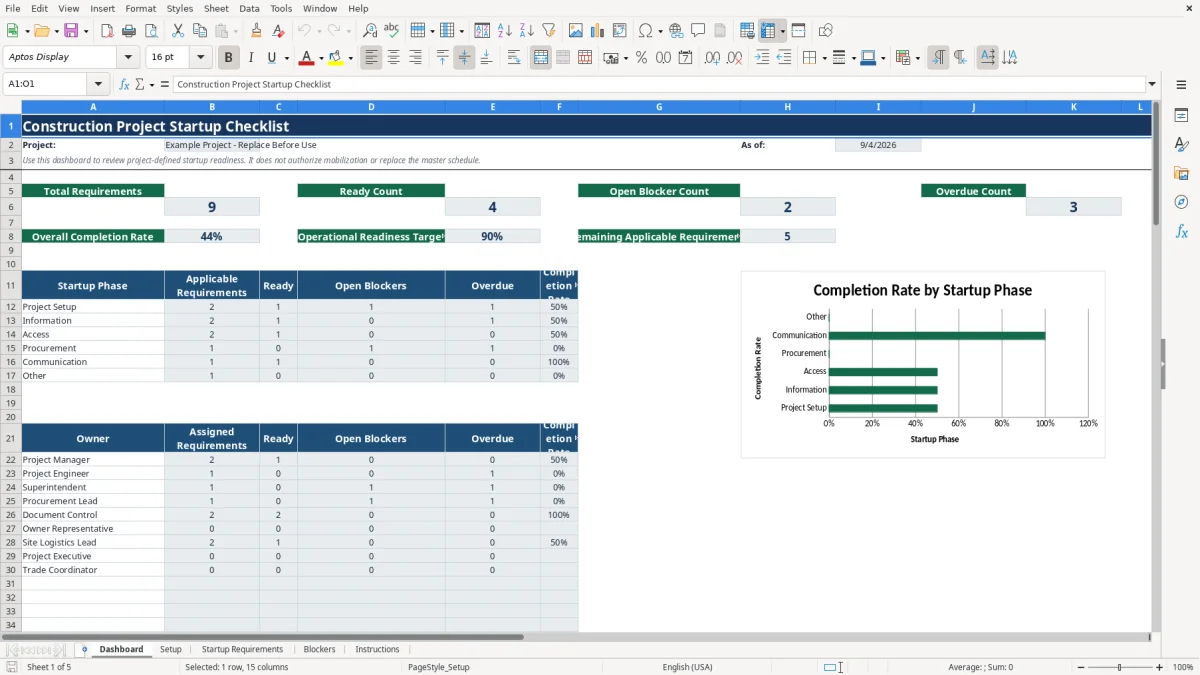
Final workbook preview
Four views generated from the verified XLSX.
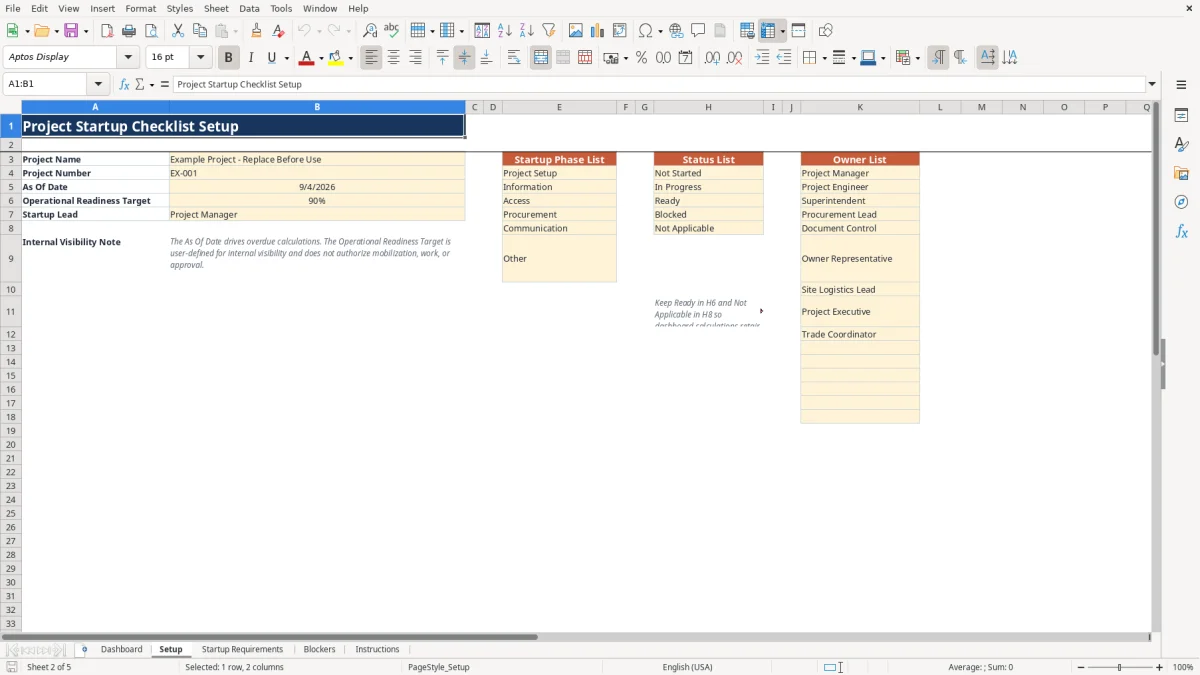
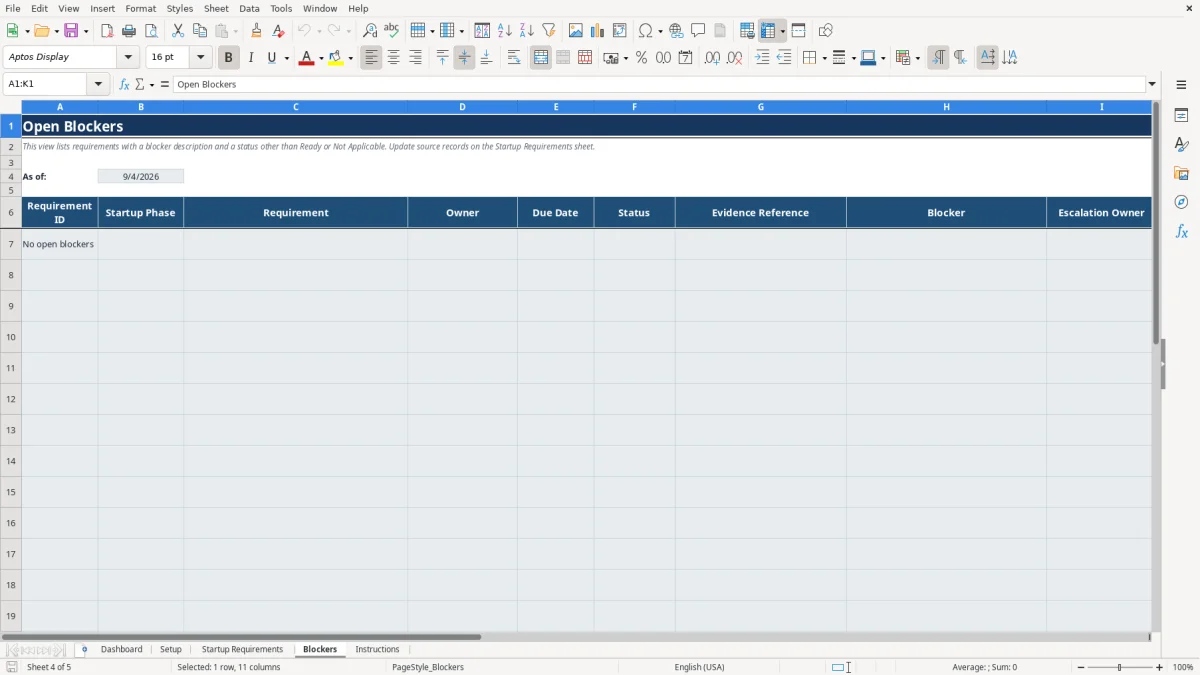
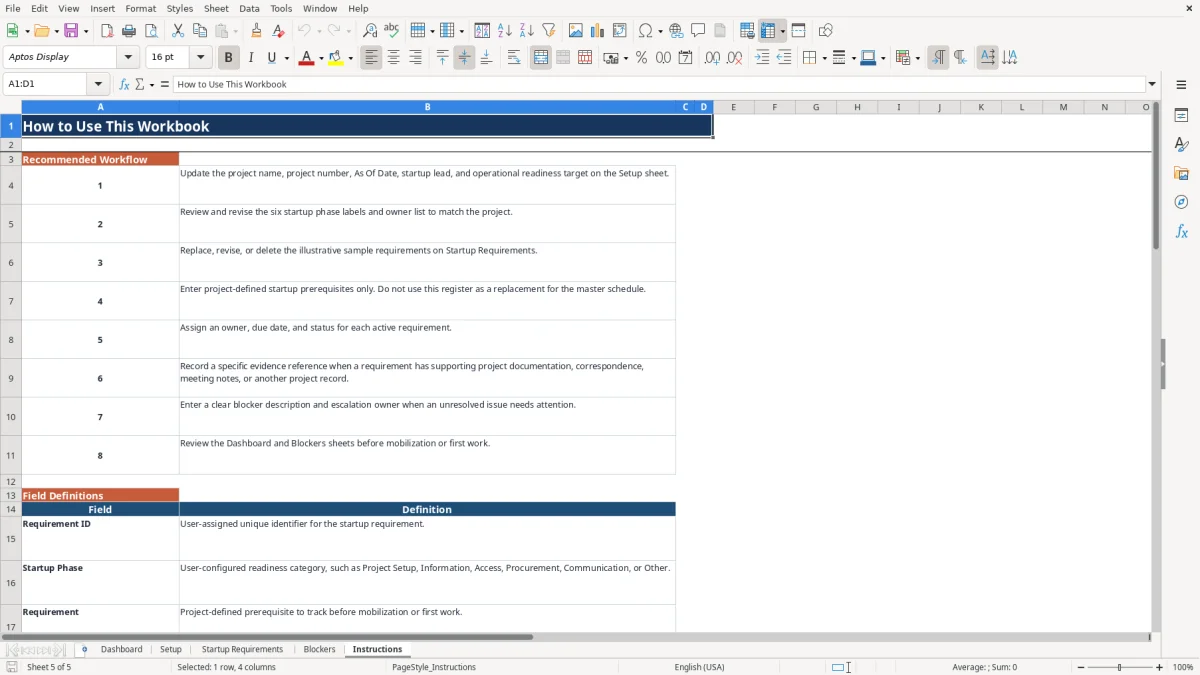
How to use this workbook
Set project information
On Setup, enter the project name, project number, As Of Date, operational readiness target, and startup lead. Use the displayed m/d/Y date format for the As Of Date. The Dashboard uses the project name and As Of Date from Setup. The selected As Of Date is also an input to the overdue and Days Past Due calculations.
Configure project lists
Review the Startup Phase List, Status List, and Owner List on Setup. The workbook starts with phase labels for Project Setup, Information, Access, Procurement, Communication, and Other. Update the project lists as needed before entering source records. The Startup Requirements sheet provides list selections for startup phase, owner, status, and escalation owner.
Maintain the source register
Use Startup Requirements as the source for project-defined prerequisites. Enter a requirement ID, startup phase, requirement, owner, due date, status, evidence reference, blocker, escalation owner, closed date, and notes. The supplied sample requirements are illustrative and should be replaced, revised, or deleted for the project. Days Past Due is calculated; it is not a user-entry field.
Review the calculated views
- Update requirement records and their statuses on Startup Requirements.
- Review Dashboard totals, rates, phase results, and owner results.
- Review Blockers for returned source records that meet the worksheet formula conditions.
- Use the information for internal project discussion and project-specific decisions.
Benefits
Keep project-defined startup requirements, owners, dates, and evidence references in one source register.
Review calculated total requirements, Ready count, open blocker count, and overdue count.
See calculated startup-phase and owner summaries on the Dashboard.
Use a separate formula-driven view for source records with qualifying blockers.
Features
Five worksheets: Dashboard, Setup, Startup Requirements, Blockers, and Instructions.
A Startup Requirements table spanning columns for IDs, ownership, dates, evidence, blockers, and notes.
Calculated Days Past Due values for qualifying requirement records.
One Dashboard chart based on startup-phase completion-rate results.
Construction project startup checklist register
This construction project startup checklist Workbook in Excel is a readiness register for prerequisites defined by the project team. The source worksheet includes fields for Requirement ID, Startup Phase, Requirement, Owner, Due Date, Status, Evidence Reference, Blocker, Escalation Owner, Closed Date, Days Past Due, and Notes. These fields help a team record what it is tracking and where supporting project information can be found.
An evidence reference is a locator for supporting project information. The Instructions worksheet identifies examples such as a file path, document title, log reference, email subject, or URL. The workbook does not determine whether a reference is sufficient for any particular project purpose. Users define the requirements and maintain the supporting record references.
Startup readiness dashboard calculations
The Dashboard displays calculated Total Requirements, Ready Count, Open Blocker Count, Overdue Count, Overall Completion Rate, Operational Readiness Target, and Remaining Applicable Requirements. It also presents startup-phase and owner result sections with applicable requirements, Ready, open blockers, overdue items, and completion rate.
Ready Count is based on nonblank requirement entries with the configured Ready status. Overall completion rate and the Dashboard completion rates exclude entries with the configured Not Applicable status from their applicable requirement counts. The operational readiness target is entered on Setup and displayed on the Dashboard. The target is for internal visibility; it is not a calculated approval, authorization, or release condition.
Open blockers and due-date visibility
The Blockers worksheet uses a formula to return Startup Requirements records when the Requirement field is not blank, the Blocker field contains text, and Status is neither the configured Ready status nor the configured Not Applicable status. The returned columns include the requirement, owner, date, status, evidence reference, blocker, escalation owner, closed date, and Days Past Due. Make changes on Startup Requirements because Blockers is a calculated view.
Days Past Due calculates from the Setup As Of Date and the Due Date when both are valid dates and the status is not Ready or Not Applicable. The value is the nonnegative difference between those dates. Dashboard Overdue Count uses the same status exclusions and counts due dates earlier than the As Of Date. Due dates are user-entered internal dates.
Frequently asked questions
What worksheets are included?
The workbook contains five worksheets: Dashboard, Setup, Startup Requirements, Blockers, and Instructions. Dashboard contains calculated readiness summaries. Setup contains project information and the phase, status, and owner lists. Startup Requirements is the source register, Blockers is a calculated blocker view, and Instructions describes the workbook fields and recommended workflow.
Which entries are user inputs?
Users maintain project information on Setup and enter or update the source-register fields on Startup Requirements. The source inputs include requirement ID, startup phase, requirement, owner, due date, status, evidence reference, blocker, escalation owner, closed date, and notes. The worksheet list selections support phase, owner, status, and escalation-owner entry.
What does the Blockers worksheet show?
Blockers shows source records meeting its formula conditions: a nonblank Requirement, a nonblank Blocker, and a Status other than Ready or Not Applicable. It does not create a separate blocker record. The formula returns a no-open-blockers message when no source record meets those conditions. Update the source register to change the results.
Does the workbook decide whether work can begin?
No. The workbook organizes user-defined startup readiness information and calculates register-based summaries. It does not authorize mobilization or first work, approve safety plans, issue permits, replace contract review, or make a project approval decision. The operational readiness target is a user-entered value for internal visibility only.
Can it replace the construction master schedule?
No. This workbook is limited to project-defined prerequisites and related evidence, ownership, dates, status, and blockers before mobilization or first work. The master schedule remains the project control for executable work tasks, dates, durations, and dependencies. The workbook does not duplicate those schedule functions.
Workbook file
Ready to put this workbook to work?
Download the verified XLSX, keep an untouched copy, and adapt a working copy to your project.
Download verified XLSXEditorial team
About the authors

Paige Sutton Vale
Workbook Systems Editor
Paige turns construction planning, cost-control, field, and closeout workflows into clear Excel workbook guides. She focuses on inputs, calculations, outputs, and practical limits.

Maren Ellsworth Keel
Workbook QA Reviewer
Maren reviews formula behavior, field labels, project-controls terminology, and workbook instructions so each resource stays within its documented scope.
Continue exploring