Verified Excel workbook
Free 2026 Construction Manpower Workbook in Excel
Free 2026 construction manpower Workbook in Excel for planning crew assignments, capacity gaps, weekly planned hours, and trade loading.
Plan future crew coverage by date, shift, trade, crew, area, and activity with this forward-looking workbook. Download the free Excel workbook to organize planned headcount, available headcount, and planned hours for upcoming assignments. It gives project teams a practical place to compare work allocations against user-entered planning capacity.
The workbook contains Dashboard, Setup, Crew Plan, and Instructions worksheets. Crew Plan captures allocation inputs, while calculated fields show assigned headcount, capacity gap, planned person-h, data checks, and capacity status. It is intended for planning future manpower assignments, not for recording actual time or making staffing determinations.
Final workbook preview
Four views generated from the verified XLSX.
How to use this workbook
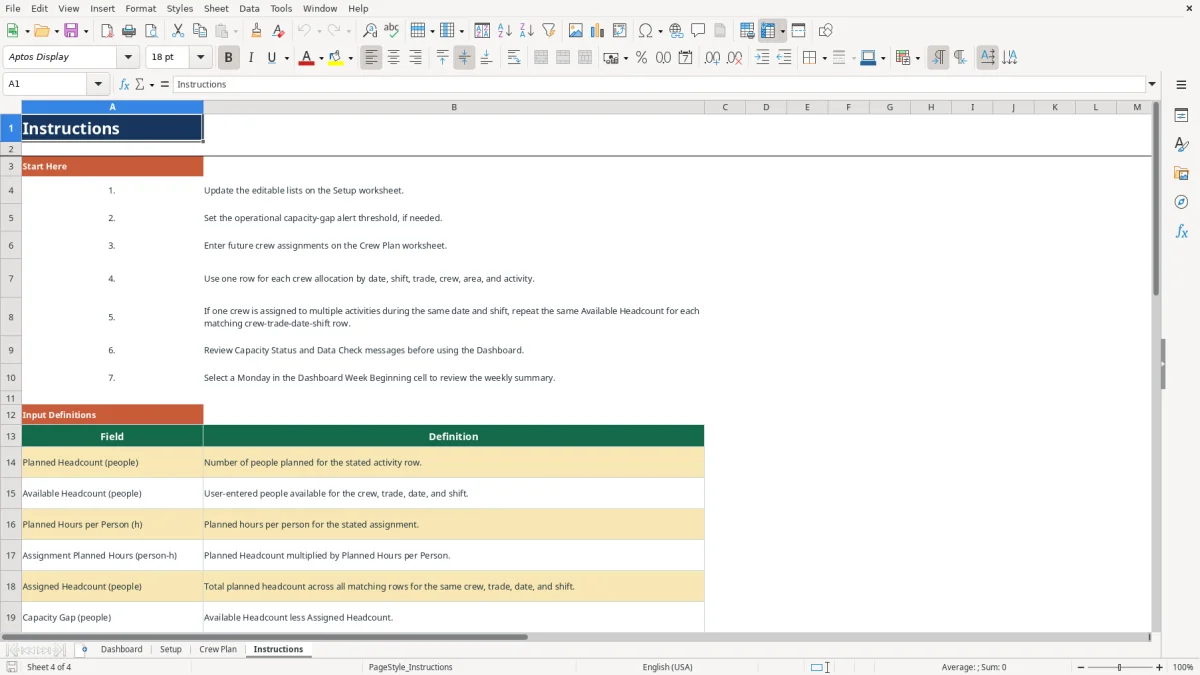
1. Update the Setup worksheet
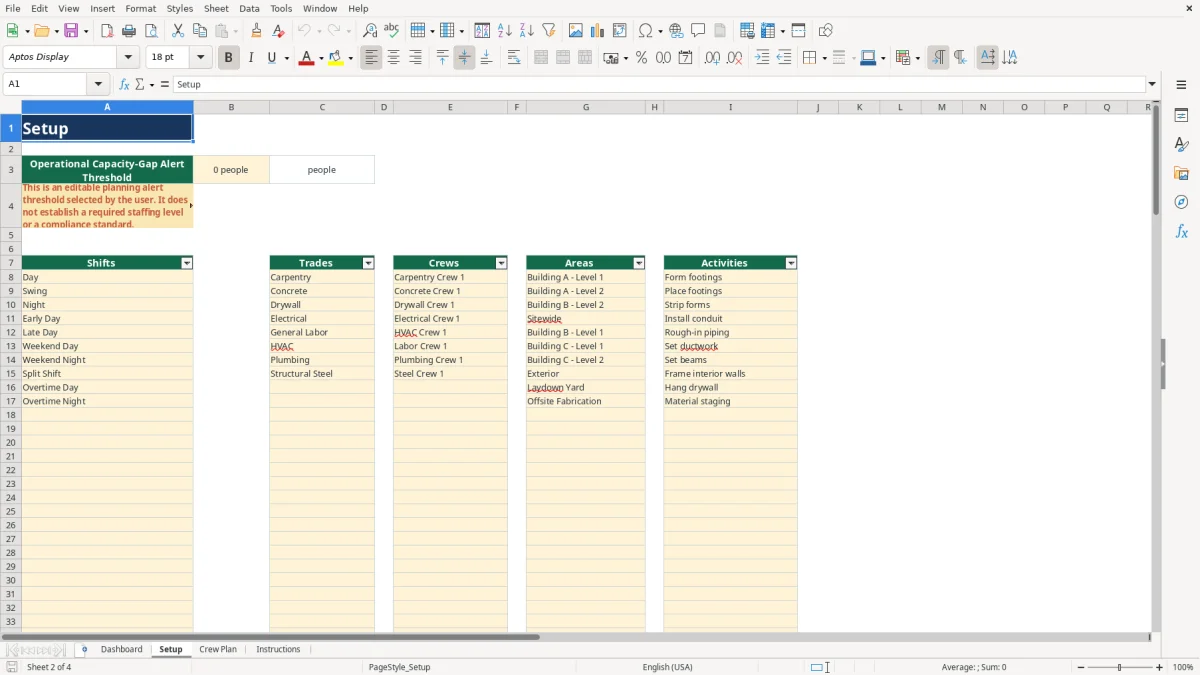
Start by reviewing the editable lists for shifts, trades, crews, areas, and activities. Update these lists to reflect the project naming convention before entering assignments. Setup also includes an operational capacity-gap alert threshold in people. This is a user-selected planning threshold, not a required staffing level or compliance standard.
2. Enter future crew allocations
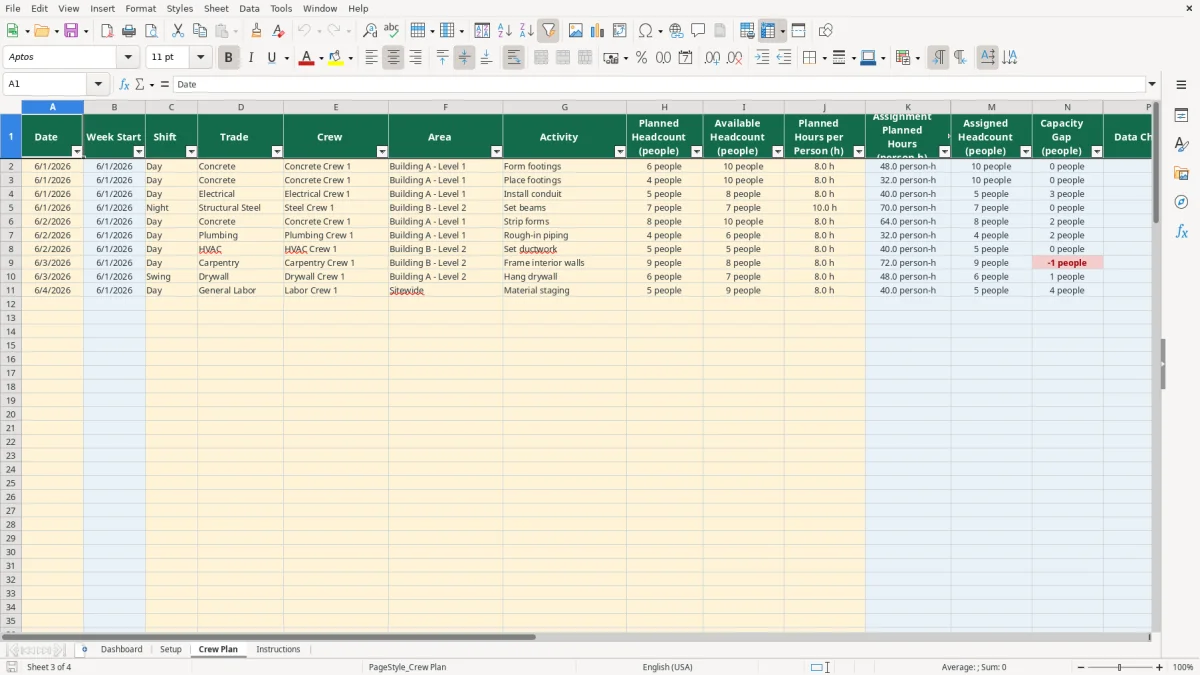
On Crew Plan, use one row for each planned allocation by date, shift, trade, crew, area, and activity. Enter Planned Headcount in people, Available Headcount in people, and Planned Hours per Person in h. Assignment Planned Hours is calculated as planned headcount multiplied by planned hours per person and is shown in person-h.
3. Check capacity results
Review Assigned Headcount, Capacity Gap, Data Check, and Capacity Status after entering rows. For the same date, shift, trade, and crew, repeat the same Available Headcount on each related activity row. The workbook counts that matching capacity once for its capacity summary. A Check availability message indicates inconsistent availability values within a matching group.
4. Review the weekly Dashboard
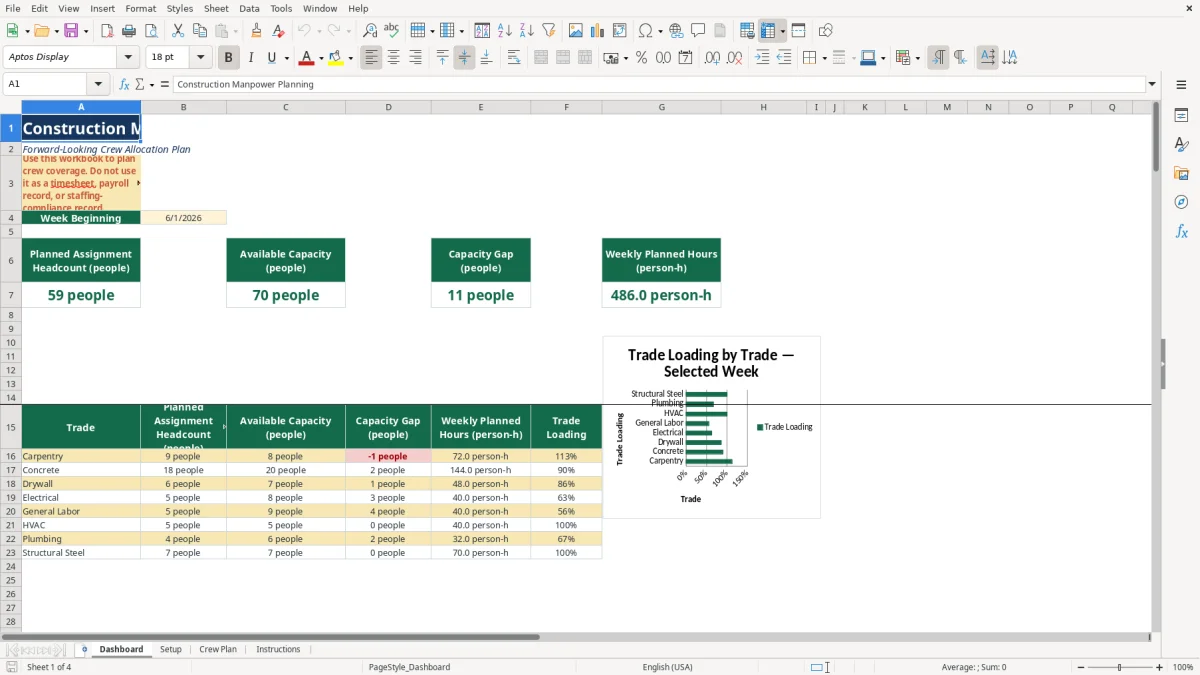
Enter a Monday date, such as 6/1/2026, in the Dashboard Week Beginning cell. The Dashboard summarizes planned assignment headcount, available capacity, capacity gap, and weekly planned hours. It also lists results by trade and displays a trade-loading chart for the listed trades.
Benefits
Keep each future crew allocation tied to a date, shift, trade, crew, area, and activity.
Compare planned assignments with the available people entered for a matching crew group.
Review weekly planned person-h and trade loading for a selected Monday-start week.
Flag inconsistent availability entries across related crew allocation rows.
Features
Four named worksheets: Dashboard, Setup, Crew Plan, and Instructions.
Editable lists for shifts, trades, crews, areas, and activities on Setup.
Calculated assignment planned hours, assigned headcount, capacity gap, checks, and status.
One Dashboard chart plots trade loading for listed trades.
Construction manpower planning in Excel
This workbook organizes a forward-looking crew allocation plan around the primary assignment details: date, shift, trade, crew, area, and activity. The Crew Plan worksheet separates user inputs from calculated fields. Users enter planned headcount in people, available headcount in people, and planned hours per person in h. The workbook then calculates assignment planned hours in person-h, helping a superintendent, project engineer, or planner review upcoming crew demand without using the file as an actual-hours record.
How crew capacity grouping works
Capacity is grouped by the same date, shift, trade, and crew. When one crew is assigned to multiple activities during that same grouping, planned headcount is added across those rows while available capacity is included once in the summary. The calculated Capacity Gap equals available headcount less assigned headcount. A negative result is an operational planning signal that planned assignments exceed the availability entered by the user. It does not establish whether staffing is sufficient for any rule, contract, or jobsite condition.
Weekly crew and trade review
The Dashboard is designed for a Monday-start weekly view. After a Monday is selected, it calculates weekly totals for planned assignment headcount, available capacity, capacity gap, and planned person-h. The trade section shows those same planning measures by trade and calculates Trade Loading as planned assignment headcount divided by available capacity. The chart uses the listed trade-loading values to support a quick weekly discussion of where crew demand is concentrated.
Planning controls and workbook limits
The Data Check field identifies matching crew groups with different Available Headcount entries, which helps users correct inconsistent planning assumptions. Capacity Status can show Review, Fully allocated, Open capacity, or a data-check message based on the calculated gap and the Setup threshold. These outputs depend on complete and consistent user inputs. The workbook does not record compensable time, calculate payroll, derive attendance, certify qualifications, or determine labor-law compliance.
Frequently asked questions
How is Assignment Planned Hours calculated?
Assignment Planned Hours is calculated from Planned Headcount in people multiplied by Planned Hours per Person in h for the same Crew Plan row. The result is displayed in person-h. It is a planned allocation measure and does not represent actual time worked or compensable time.
Can one crew be assigned to more than one activity?
Yes. Enter a separate row for each activity while keeping the same date, shift, trade, crew, and Available Headcount for related assignments. The workbook totals planned headcount across that matching group and includes the entered available capacity once in its capacity calculations.
What does the Data Check message mean?
Data Check can display Check availability when rows with the same date, shift, trade, and crew contain different Available Headcount values. Review those rows and decide which user-entered availability assumption should apply before relying on the capacity gap or weekly Dashboard totals.
What does Capacity Status tell me?
Capacity Status interprets the calculated capacity gap using the operational threshold entered on Setup. Depending on the inputs, it can show Review, Fully allocated, or Open capacity. Status is a planning output only and does not prove crew adequacy, qualification, or compliance.
Can this workbook be used for payroll or timesheets?
No. This workbook is limited to forward-looking manpower planning. It does not record actual attendance, actual hours, compensable time, payroll information, labor-law requirements, or qualification records. Use separate project and business processes for those functions.
Workbook file
Ready to put this workbook to work?
Download the verified XLSX, keep an untouched copy, and adapt a working copy to your project.
Download verified XLSXEditorial team
About the authors

Paige Sutton Vale
Workbook Systems Editor
Paige turns construction planning, cost-control, field, and closeout workflows into clear Excel workbook guides. She focuses on inputs, calculations, outputs, and practical limits.

Maren Ellsworth Keel
Workbook QA Reviewer
Maren reviews formula behavior, field labels, project-controls terminology, and workbook instructions so each resource stays within its documented scope.
Continue exploring