Verified Excel workbook
Free 2026 Construction Procurement Workbook in Excel
Free construction procurement schedule template Excel workbook for 2026 with package approval, order, delivery, and risk planning.
Keep package timing visible before materials and equipment are needed in the field. Download this free construction procurement schedule workbook in Excel to back-plan approval and ordering from a required-on-site date. The workbook is built for package-level planning: enter the package, vendor, milestone dates, approval duration, lead time, order date, ship date, and status. Dates use m/d/yyyy format, while durations and lead times are whole calendar days.
Calculated columns return the latest approval date, latest order date, forecast delivery, days at risk, and schedule risk. The Dashboard consolidates active-package and risk counts plus a vendor-focused summary. It is a planning aid, not a source of supplier commitments: user-entered lead times and dates drive the results. Review the Instructions sheet before using a snapshot for coordination.
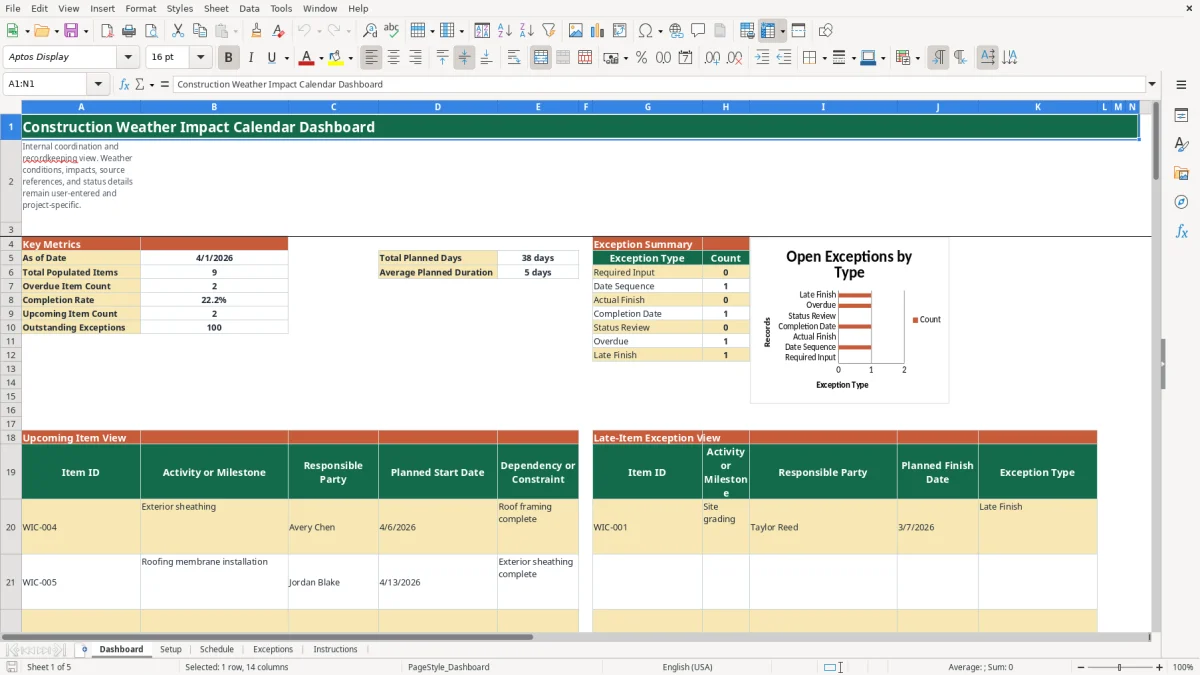
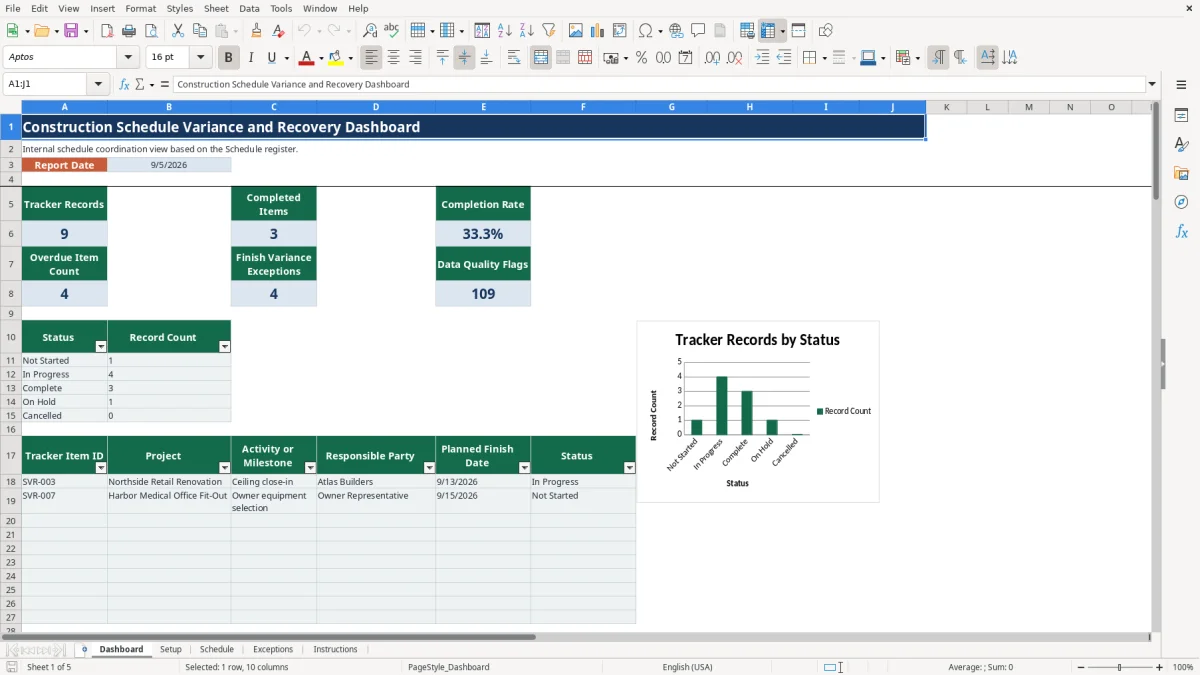
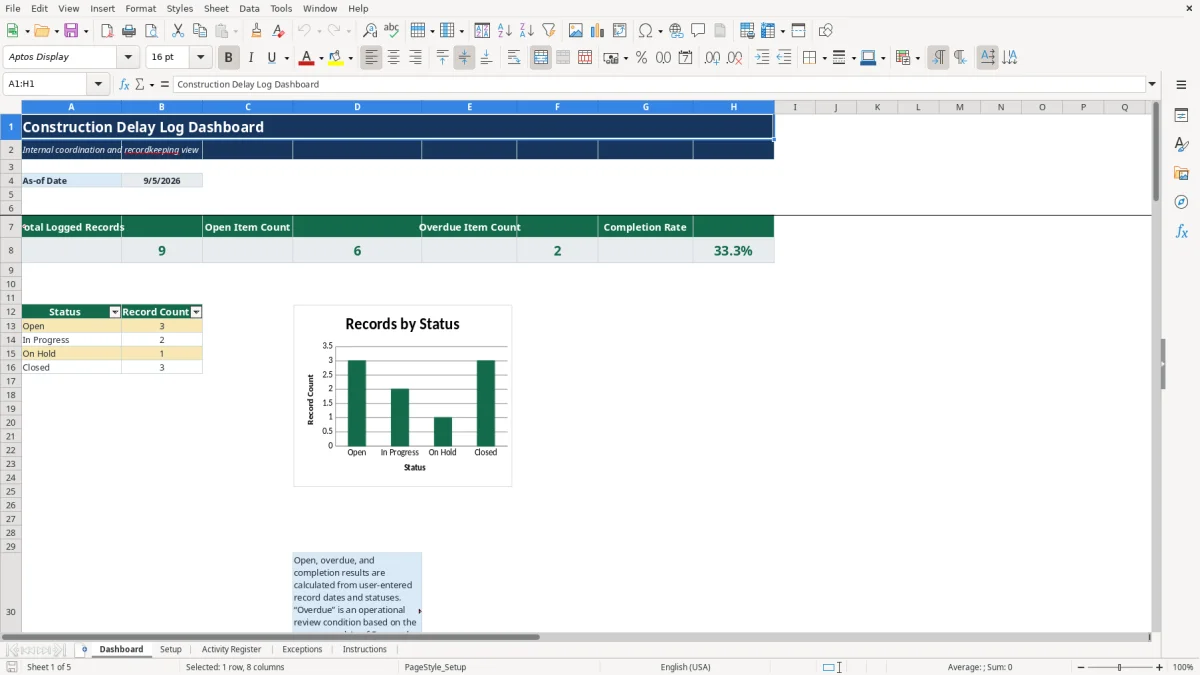
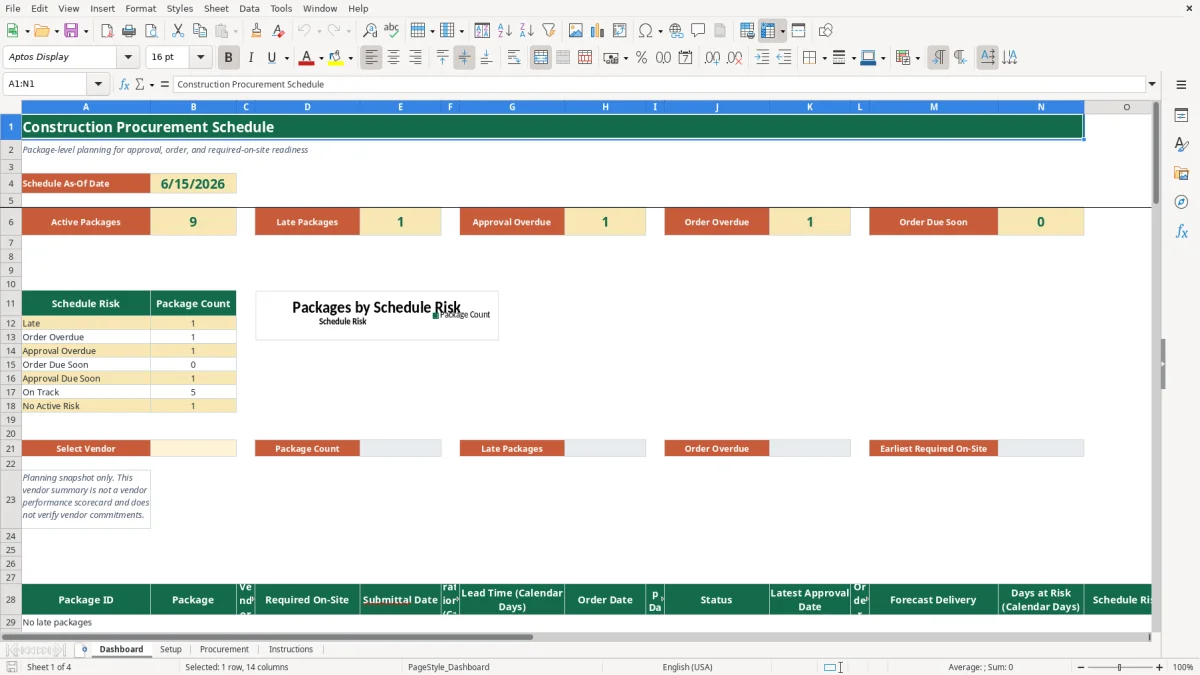
Final workbook preview
Four views generated from the verified XLSX.
How to use this workbook
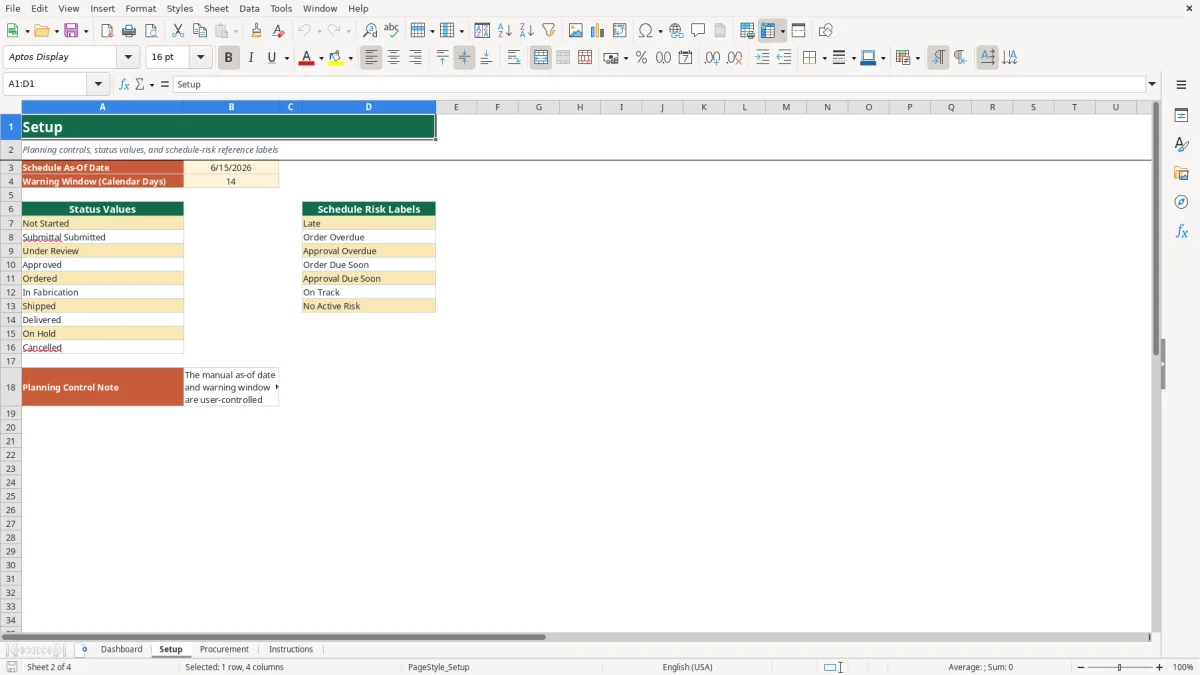
Set planning controls
On Setup, enter the manual Schedule As-Of Date in m/d/yyyy and set the Warning Window as a nonnegative whole number of calendar days. The selected as-of date is carried to Dashboard. Use planning controls consistently; they support visibility but do not create contractual or supplier-performance thresholds.
Enter one package per row
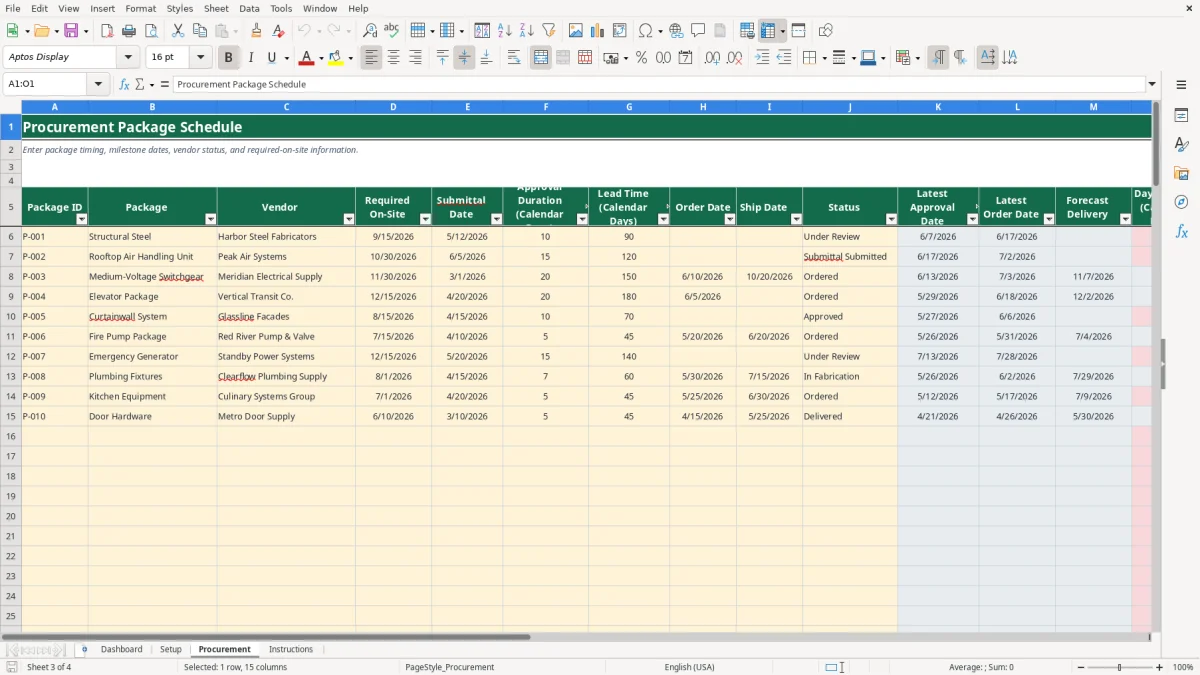
On Procurement, use one row per package. Rows 6 through 105 are prepared in the Procurement table, and P-001 through P-004 are populated sample entries rather than live commitments. Enter Package ID, Package, Vendor, Required On-Site, Submittal Date, Approval Duration, Lead Time, Order Date, Ship Date, and Status using the listed status values.
Review calculated timing
Do not type into Latest Approval Date, Latest Order Date, Forecast Delivery, Days at Risk, or Schedule Risk. These columns calculate from applicable row inputs and Setup controls. Leave calculated cells intact. Incomplete prerequisite inputs return blank calculated dates or risk values where the formulas cannot calculate.
Check the dashboard snapshot
Open Dashboard for active-package and risk totals, the risk-count chart, and the vendor summary. Choose a vendor in the Dashboard selector to see package count, late packages, order-overdue packages, and earliest Required On-Site. Recheck entered dates and statuses before a coordination meeting.
Benefits
Back-plans approval and order milestones from required-on-site dates.
Keeps package, vendor, milestone dates, and status together by row.
Summarizes active packages and schedule-risk counts on the Dashboard.
Provides a selected-vendor view for focused procurement coordination.
Features
100 prepared procurement entry rows from row 6 through row 105.
Date, whole-calendar-day, and status-entry validations on Procurement.
Calculated approval, order, delivery, days-at-risk, and risk fields.
Dashboard counts, vendor summary, and one schedule-risk count chart.
Construction procurement schedule template Excel planning
This construction procurement schedule template Excel workbook uses one row for each procurement package. The Procurement sheet holds Package ID, Package, Vendor, Required On-Site, Submittal Date, Approval Duration, Lead Time, Order Date, Ship Date, and Status. The populated P-001 Structural Steel sample shows a 09/15/2026 required-on-site date, 10 calendar days of approval duration, 90 calendar days of lead time, and an Under Review status. That sample illustrates workbook use only, not a benchmark for another package.
Back-plan approval and order timing
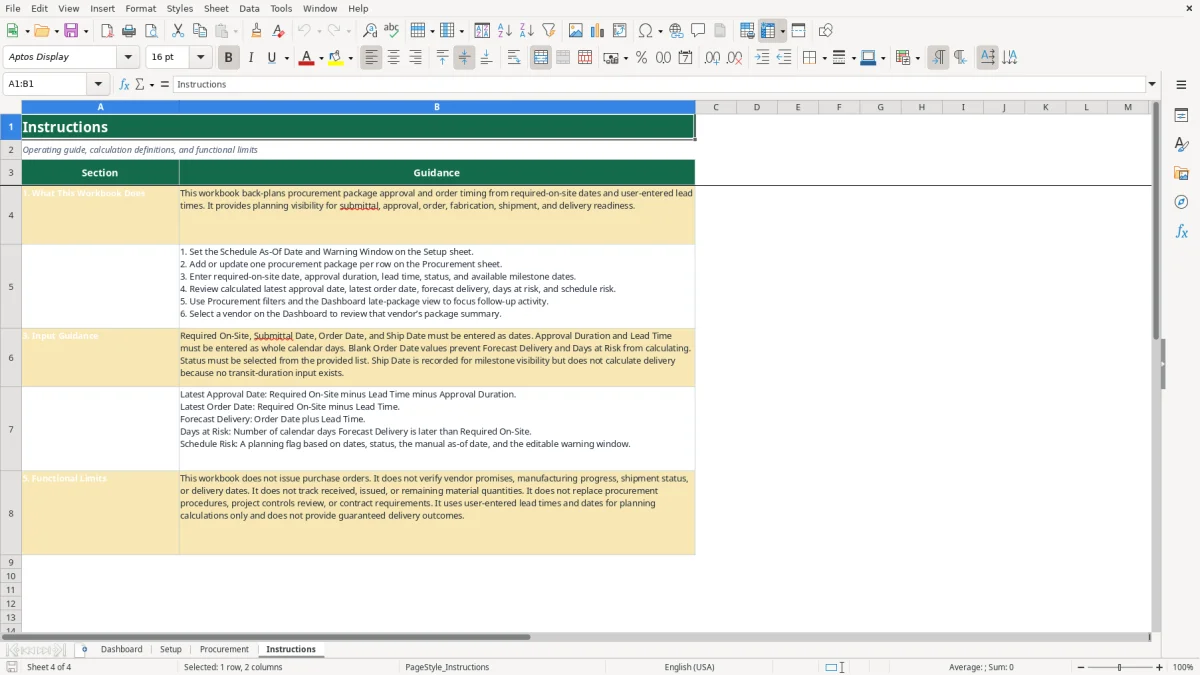
Latest Approval Date equals Required On-Site minus Lead Time minus Approval Duration. Latest Order Date equals Required On-Site minus Lead Time. When an Order Date is entered, Forecast Delivery equals Order Date plus Lead Time. Days at Risk is the positive difference between Forecast Delivery and Required On-Site, so an early forecast returns zero rather than a negative value. Calendar days drive the calculations; use lead-time inputs that match the planning basis for the package.
Package-level procurement risk visibility
The Dashboard provides a schedule snapshot by counting active packages and packages labeled Late, Approval Overdue, Order Overdue, and Order Due Soon. It also counts the available schedule-risk labels and includes a risk-count chart. Select a vendor for a focused summary of package count, late packages, order-overdue packages, and the earliest required-on-site date. This is coordination visibility, not a vendor performance scorecard or confirmation of vendor commitments.
Practical limits of the workbook
Update the manual Schedule As-Of Date, Warning Window, Procurement dates, and statuses as the project changes. Risk labels are planning prompts based on those user-controlled settings and row data. Blank prerequisites stay blank in the calculated outputs where needed. The workbook does not issue purchase orders, verify supplier promises, track manufacturing progress, confirm shipments or delivery dates, track on-hand quantities, or replace contract procurement procedures.
Frequently asked questions
What information do I enter for each package?
Enter the package identification and description, vendor, Required On-Site date, Submittal Date, Approval Duration in calendar days, Lead Time in calendar days, Order Date, Ship Date, and Status. Date-entry cells are set up for dates, while Approval Duration and Lead Time accept whole numbers.
How are the calculated dates and days at risk determined?
Latest Approval Date is calculated from Required On-Site minus Lead Time minus Approval Duration. Latest Order Date is Required On-Site minus Lead Time. Forecast Delivery is Order Date plus Lead Time. Days at Risk is the amount, if any, that forecast delivery falls after Required On-Site.
What does the Dashboard show?
The Dashboard shows the Schedule As-Of Date, active-package count, selected risk counts, a schedule-risk count chart, and a vendor summary. The vendor selector supports a focused view of that vendor's package count, late packages, order-overdue packages, and earliest Required On-Site date.
Does this workbook confirm vendor delivery commitments?
No. The workbook uses user-entered dates, durations, lead times, and statuses for planning calculations. It does not verify supplier promises, manufacturing progress, shipment status, or delivery dates. Schedule-risk labels are not guarantees of outcome or supplier-performance measures.
Does it manage inventory, purchase orders, or costs?
No. It does not issue purchase orders or track received, issued, or remaining quantities. The listed Procurement inputs and calculated outputs do not include a USD cost field. The prepared table provides 100 package-entry rows, from row 6 through row 105.
Workbook file
Ready to put this workbook to work?
Download the verified XLSX, keep an untouched copy, and adapt a working copy to your project.
Download verified XLSXEditorial team
About the authors

Paige Sutton Vale
Workbook Systems Editor
Paige turns construction planning, cost-control, field, and closeout workflows into clear Excel workbook guides. She focuses on inputs, calculations, outputs, and practical limits.

Maren Ellsworth Keel
Workbook QA Reviewer
Maren reviews formula behavior, field labels, project-controls terminology, and workbook instructions so each resource stays within its documented scope.
Continue exploring